Shazam to Spotify Playlist Guide for 2026
Connect Shazam to Spotify, understand My Shazam Tracks sync, fix missing songs, and move old Shazam history safely.
 Zhang Guo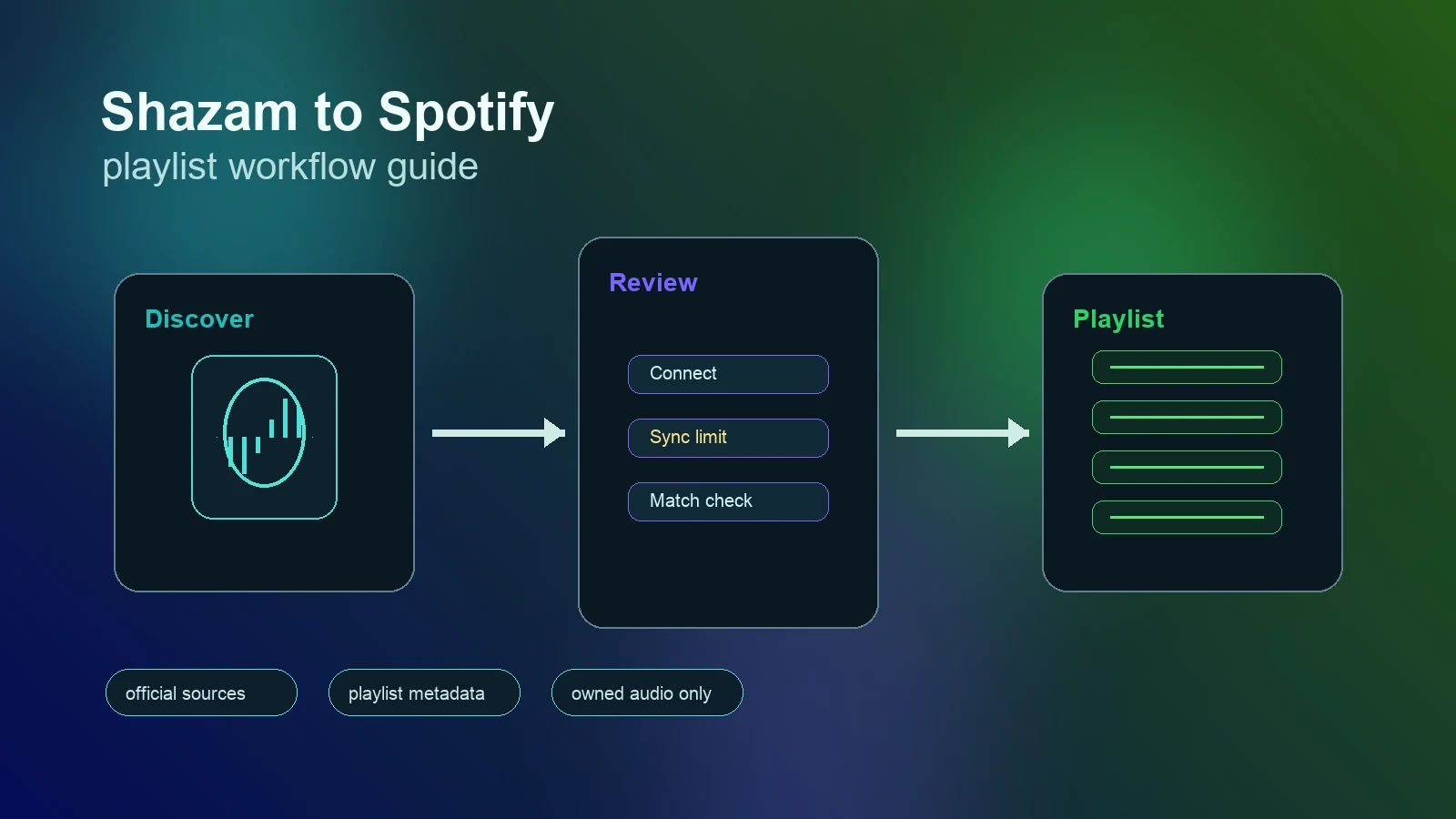
Turn a static score into editable MIDI
Contents
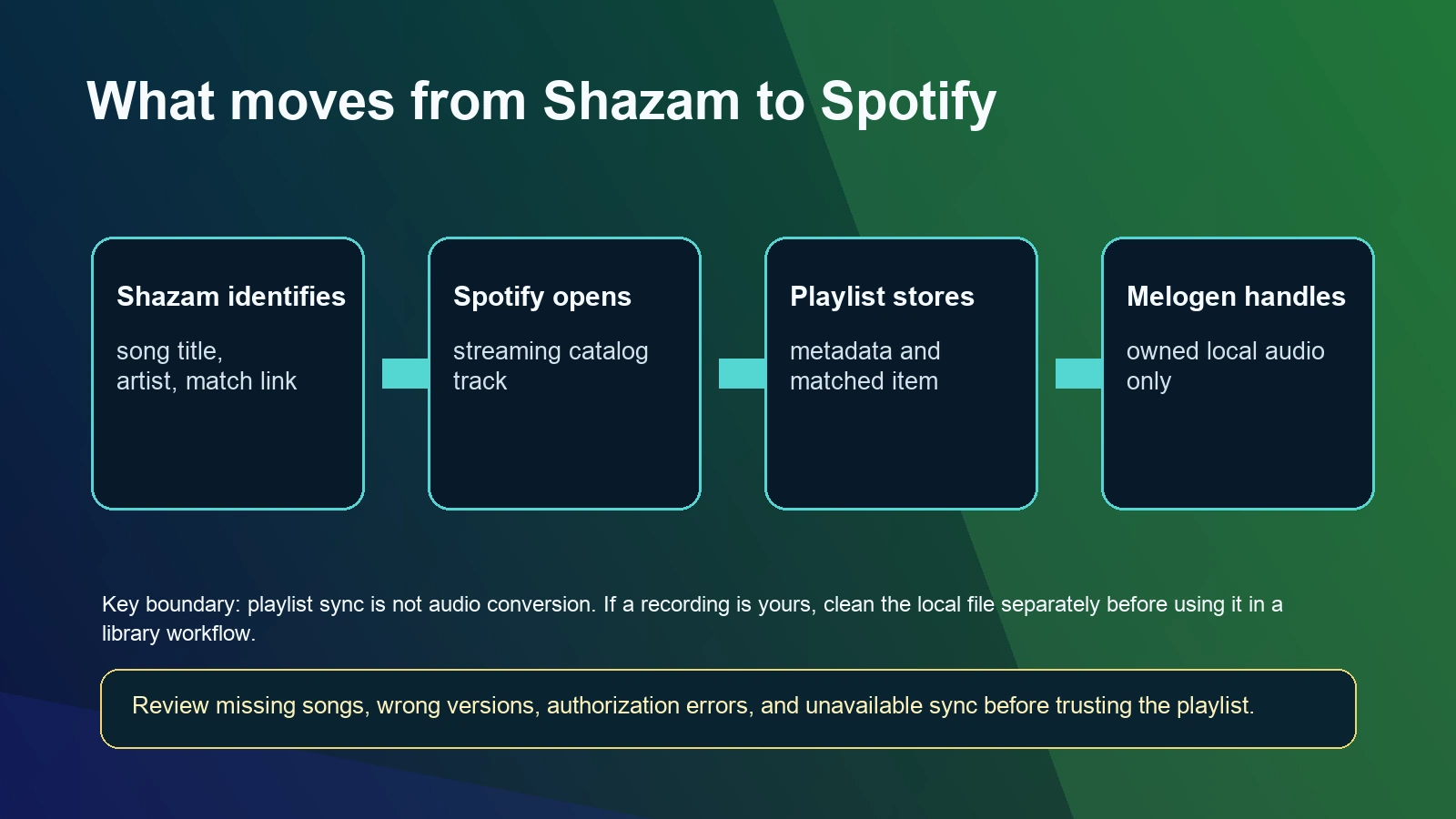
A Shazam to Spotify playlist works best when you start with the built-in connection inside Shazam. On iPhone or iPad, Shazam can connect to Spotify, open identified songs in Spotify, and create a "My Shazam Tracks" playlist for future discoveries when the connection is available in your region.
The important boundary is that Shazam sends song matches and playlist entries. It does not create audio files, download Spotify tracks, or guarantee that every old Shazam in your history will be matched perfectly. For older Shazam libraries, a CSV transfer tool such as Soundiiz can help, but you still need to review missing songs and wrong versions.
Quick answer
Use this order if your goal is a clean Shazam to Spotify playlist:
| Situation | Best route | What to check |
|---|---|---|
| New songs you identify from now on | Connect Shazam to Spotify in Shazam settings | Spotify availability, account authorization, and "My Shazam Tracks" creation |
| One song you just identified | Tap Open in Spotify from the Shazam song page | Pick the right recording before adding it to a playlist |
| Old Shazam history | Export or transfer the Shazam list with a playlist-transfer tool | Missing tracks, wrong versions, and CSV import limits |
| Sync stopped working | Disconnect, update both apps, reconnect, then test one new Shazam | Region support, permissions, renamed playlists, and deleted playlists |
| Local recordings or demos | Handle them outside Shazam and Spotify catalog matching | Use only audio you own or have permission to edit |
If you only need future discoveries, the official Shazam connection is the simplest route. If you need to move a large old history, use a transfer workflow and review it like any other playlist migration.
Connect Shazam to Spotify first
Apple's current Shazam support page explains the official path: open Shazam settings, connect next to Spotify, agree inside Spotify, then allow Shazam to add identified songs to a "My Shazam Tracks" playlist.
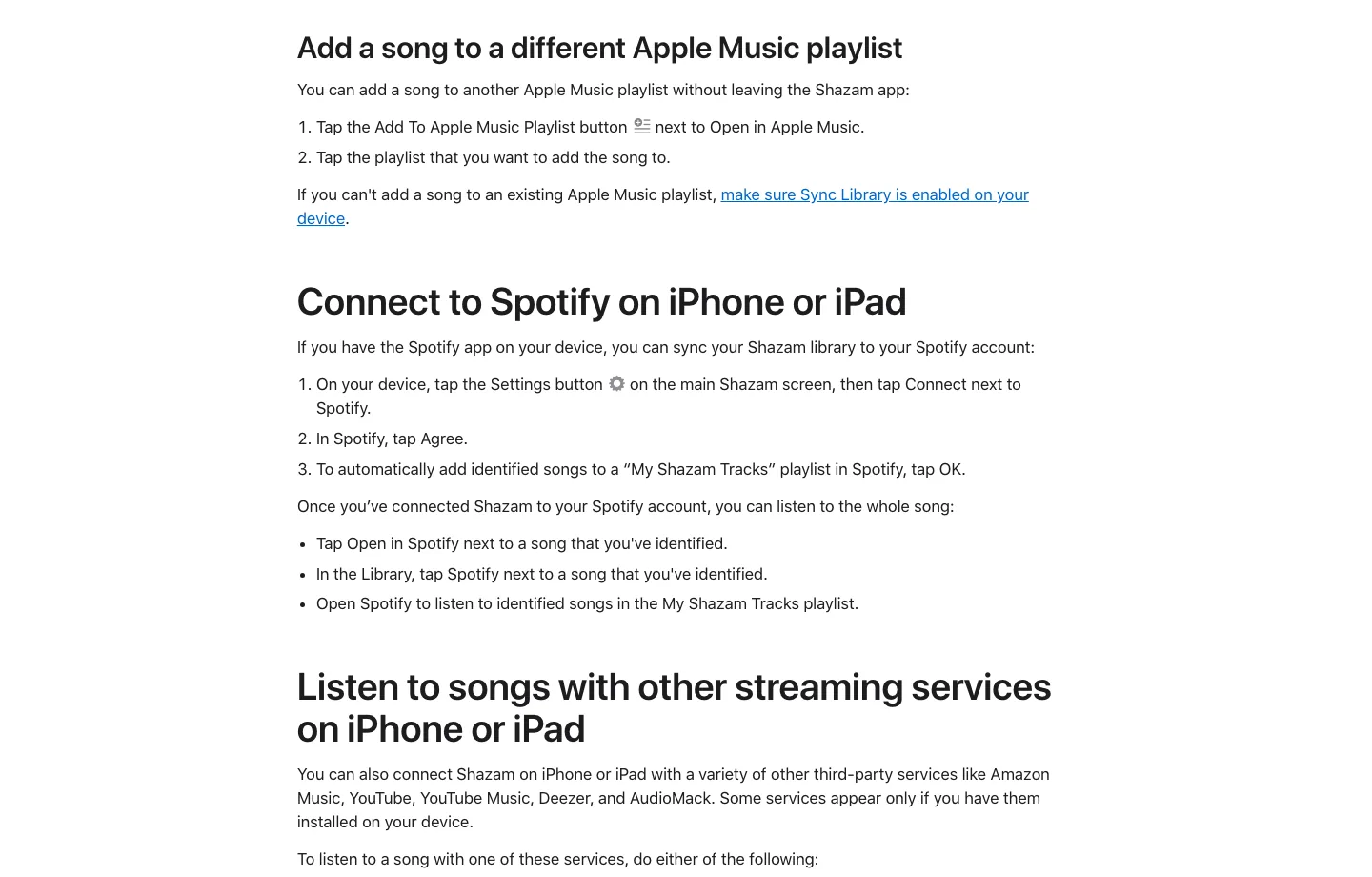
Use this path when you want future Shazams to appear in Spotify:
- Install and sign in to Spotify on the same iPhone or iPad.
- Open Shazam and go to the main Shazam screen.
- Tap the settings button.
- Find Spotify in the streaming-services area.
- Tap Connect, then approve the connection in Spotify.
- Accept the prompt to add identified songs to "My Shazam Tracks."
- Shazam one new song and confirm the Spotify playlist updates.
The connection option can depend on Spotify availability and app state. If Spotify does not appear, update both apps, confirm Spotify works in your country or region, and restart before assuming the feature is gone.
Understand what the playlist sync does
The "My Shazam Tracks" playlist is a matched-song playlist. Shazam identifies a song, Spotify searches its catalog, and Spotify stores the matched track in a playlist. That is useful, but it is not the same as owning the audio.
This distinction matters when a song does not land where you expected. A playlist sync can fail or drift for normal catalog reasons:
| Problem | Why it happens | Practical fix |
|---|---|---|
| No Spotify match | The song is unavailable, regional, or listed under different metadata | Search Spotify manually by title and artist |
| Wrong version | Spotify found a live, remastered, clean, cover, or karaoke version | Open the song page and add the version you actually want |
| Playlist missing | The first sync did not create it, or it was deleted | Reconnect Shazam, identify one new song, then check again |
| Old Shazams missing | The connection may only handle future or synced items cleanly | Use CSV export or manual transfer for old history |
| Duplicate tracks | The same song was identified more than once | De-duplicate inside Spotify after the sync |
If your broader goal is playlist organization, the guide to editing Spotify playlists and songs explains what Spotify can change inside a playlist and what needs to happen outside Spotify.
Fix Shazam tracks that do not sync
Spotify's own Shazam and Spotify FAQ describes the connection as an authorization between the two apps. It also notes common problems around region availability, reconnecting, deleted playlists, and renamed playlists.
Use this troubleshooting pass before switching tools:
- Update Shazam and Spotify.
- Confirm Spotify is installed and signed in on the same device.
- Disconnect Spotify inside Shazam settings.
- Restart both apps.
- Reconnect Spotify from Shazam.
- Identify one new song as a test.
- Look for "My Shazam Tracks" in Spotify.
- If the playlist exists, check whether the newest track appeared.
Do not test with your whole history first. Test one new Shazam, because it tells you whether the live connection is working right now. Once the connection works, then decide how to handle older songs.
If you deleted "My Shazam Tracks," move any songs you still care about to another Spotify playlist before relying on the recreated list. A recreated playlist may not rebuild every previous Shazam automatically.
Move old Shazam history with a transfer tool
If your real problem is "I have years of Shazams and want them in Spotify," the built-in connection may not be enough. Soundiiz has a public Shazam to Spotify transfer tutorial that uses Shazam's web library export and imports the CSV into Spotify.
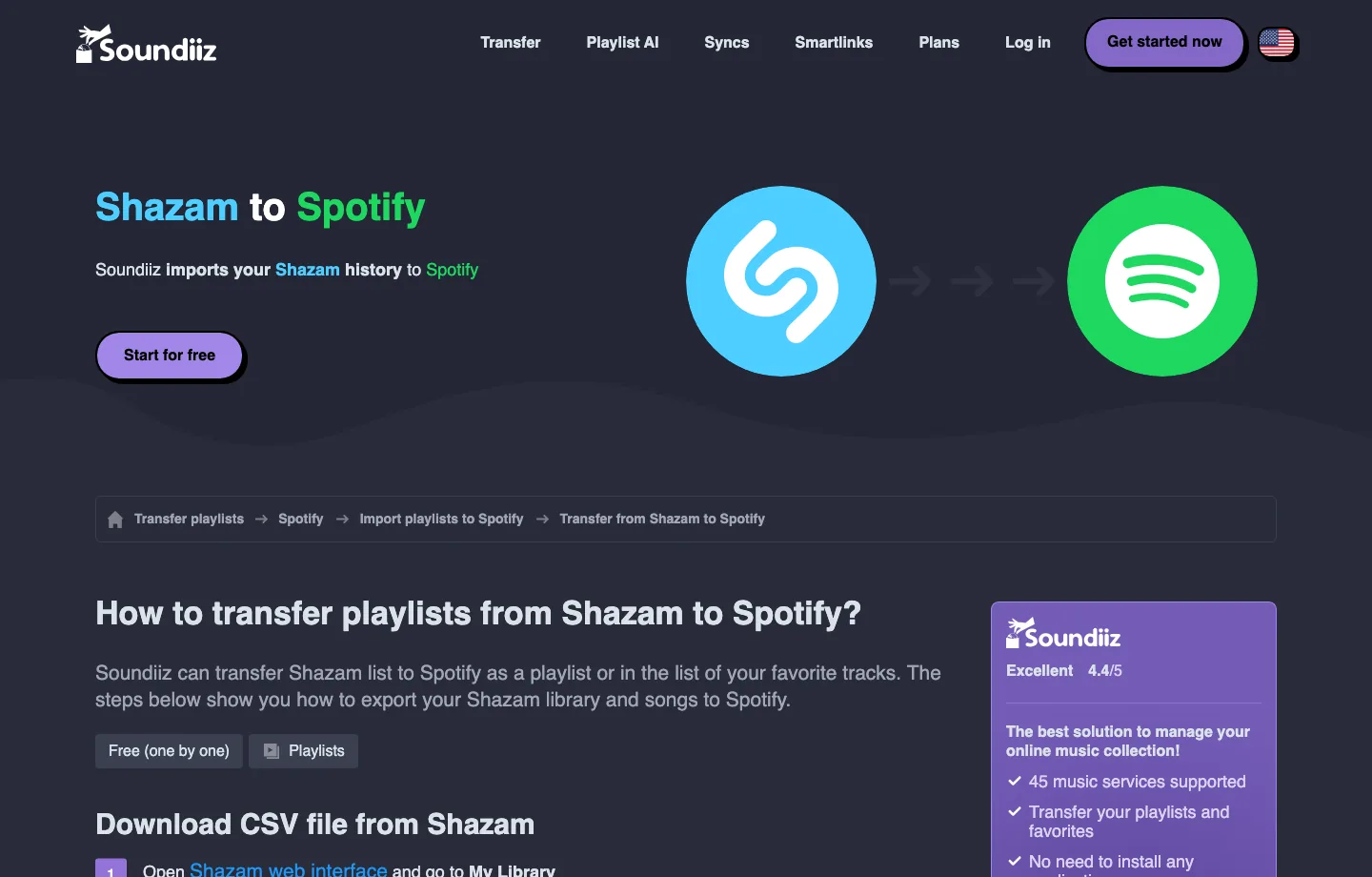
Use a transfer workflow when:
- you need an old Shazam history, not only future Shazams
- you want a browser-based import from a CSV file
- you need to inspect the transferred list before trusting it
- you are comfortable authorizing a third-party playlist-transfer service
The review step matters more than the transfer button. After import, compare a few songs against your Shazam history. Look for missing tracks, alternate versions, regional catalog differences, and duplicates. If the list is important for DJ prep, teaching, rehearsal references, or a long-term listening archive, keep the original export until you have reviewed the Spotify playlist.
If your next task is moving playlists between music services, the Spotify playlist to TIDAL transfer guide and Spotify to Apple Music guide cover the same metadata-transfer boundary in more detail.
Keep local audio separate from Spotify catalog songs
Shazam and Spotify are good at discovery and catalog matching. They are not the right place to edit a recording you own, trim a sample you recorded, or prepare a rehearsal clip. That work belongs in a local-audio lane.

Use Melogen Music Trimmer when the file is yours and the job is simple cleanup: remove silence, cut a clip, add a fade, or export a cleaner listening copy. Use Audio to MIDI when you recorded a melody or practice idea and want an editable MIDI starting point.
Melogen does not connect Shazam to Spotify, download Spotify catalog tracks, or turn streaming songs into local audio. It fits after discovery when you have a permitted local recording, demo, lesson clip, or MIDI export that needs cleanup before you use it in a library workflow. If you are adding local files to Spotify, read Add Local Files to Spotify before mixing local audio with catalog playlists.
Prepare your own clips after discovery
Use Melogen Music Trimmer for demos, rehearsal clips, and legal local audio before adding them to any personal library workflow.
Review the playlist before trusting it
Whether you use Shazam's built-in sync or a CSV transfer, finish with a playlist review. This is the step that keeps a useful discovery list from becoming a messy library problem.
Run this checklist:
- Count the tracks in the Shazam source and Spotify destination.
- Check the newest five songs.
- Check a few older songs if you imported history.
- Replace wrong live, clean, remastered, or cover versions.
- Remove duplicate tracks.
- Move important songs into a permanent Spotify playlist you control.
- Keep the export or source list until you are confident the transfer worked.
For casual discovery, a few mismatches may not matter. For set lists, teaching playlists, research, or reference listening, version accuracy matters. Review before deleting any source list.
FAQs
Can Shazam automatically add songs to Spotify?
Yes, when the Shazam to Spotify connection is available and authorized. Apple Support describes connecting Spotify from Shazam settings and allowing identified songs into "My Shazam Tracks."
Why does Spotify not appear in Shazam?
Spotify may not be installed, may not be signed in, may not be available in your country or region, or the apps may need updating. Restart both apps and reconnect before switching to a transfer workaround.
Can I move old Shazam songs into Spotify?
Often, but old history is better treated as a transfer job. Export or transfer the Shazam library, import it into Spotify with a playlist-transfer tool, then review missing songs and wrong versions.
Does Shazam to Spotify download the songs?
No. It links or matches catalog tracks inside Spotify. It does not download Spotify songs, remove protection, or create files you own.
Can Melogen help with a Shazam to Spotify playlist?
Not with the Spotify playlist sync itself. Melogen helps when you have audio you own, such as a demo, rehearsal recording, or MIDI export, and need to trim or prepare that local file.
The practical takeaway
Use Shazam's built-in Spotify connection for new discoveries, then confirm "My Shazam Tracks" updates with one test song. If you need older Shazam history, use a transfer workflow and review the playlist before trusting it.
Keep the boundaries clean: Shazam identifies, Spotify matches, transfer tools move metadata, and Melogen helps only with owned local audio around the playlist workflow. That is the safest way to build a useful Shazam to Spotify playlist without turning a music discovery task into a messy audio-conversion problem.
About the author
Zhang Guo
Composer - AI Product Manager
AI product manager and digital marketing consultant with a background in music. Creativity is the bridge between rhythm and logic, where musical intuition and mathematical precision can coexist in every meaningful product decision.
Follow on X