How to Make a Spotify Collaborative Playlist in 2026
Make a Spotify collaborative playlist, invite or remove collaborators, manage privacy, and fix common access problems on mobile or desktop.
 Zhang Guo
Turn a static score into editable MIDI
Contents
A Spotify collaborative playlist lets several people add, remove, and reorder tracks in one shared list. The owner starts with a playlist, chooses Invite collaborators, and sends the generated link to the people who should be able to edit it. Spotify's current support page says that invitation link is valid for seven days.
The useful distinction is access. A normal share link is for listening. A collaborator invitation gives editing power. If you only want friends to hear a playlist, do not give everyone collaborator access.
What a Spotify collaborative playlist can do
Spotify's official collaborative playlists support page says collaborators can add, remove, and reorder tracks. That makes the feature useful for party planning, road trips, rehearsal references, shared discovery, class listening, and group projects where several people need to curate one list.
It is not the same as following a profile, sending a normal playlist link, or starting a Jam.
| Spotify feature | Best for | Who can change the music? |
|---|---|---|
| Normal playlist share | Letting people listen to a finished list | Only people with edit access |
| Collaborative playlist | Building and maintaining a list over time | Invited collaborators |
| Jam | Choosing the live queue while people listen together | The host and allowed guests |
| Follow | Keeping a social connection to a profile | Nobody gains playlist edit access |
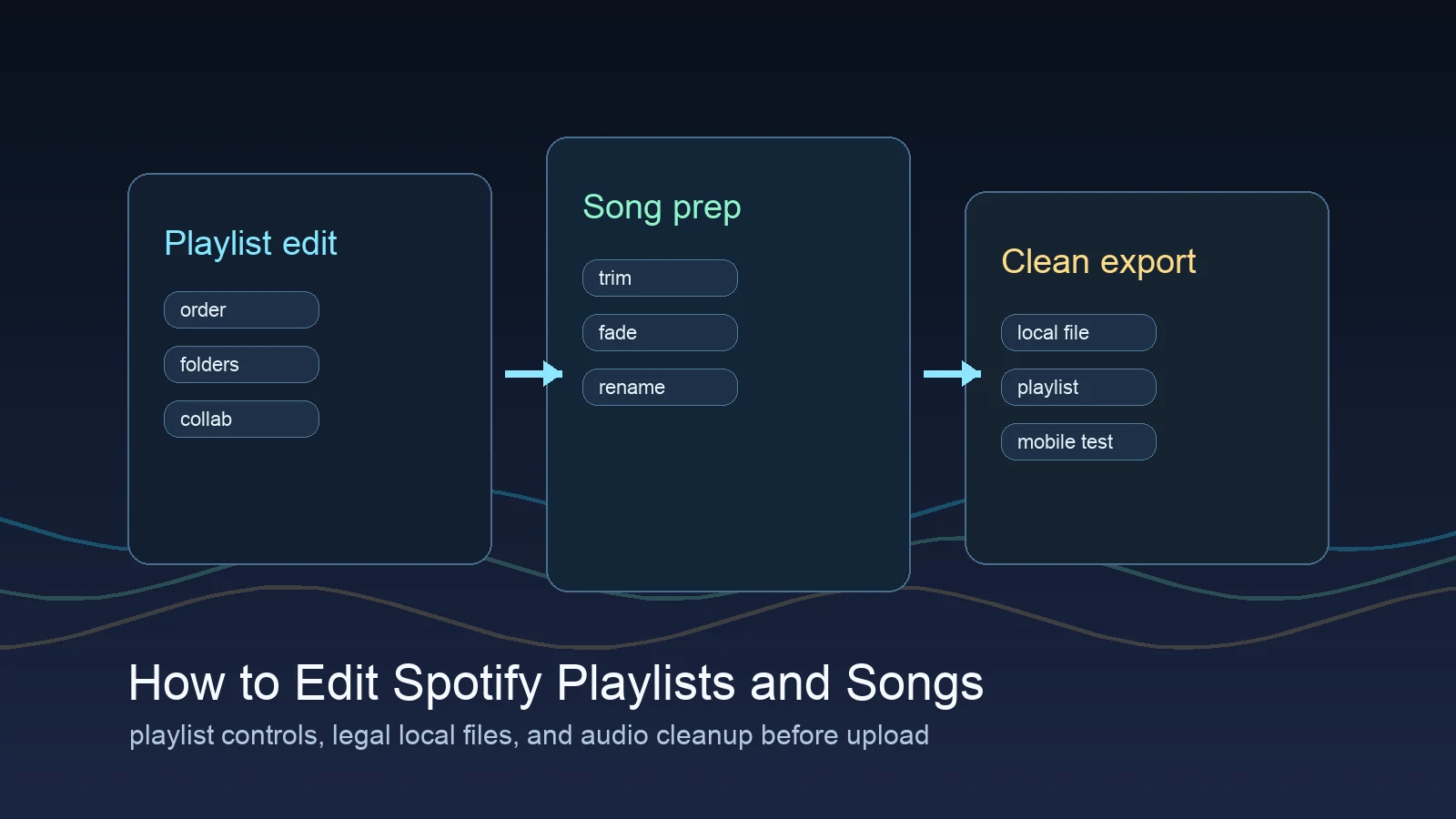
If the real task is finding people first, use the guide to adding friends on Spotify. If the task is broader playlist cleanup, read how to edit Spotify playlists and songs.
What you need before you start
Use a playlist you own or control. Decide whether the group should be able to edit the list or only view it, and choose one person to act as the owner. That owner should keep the original concept clear, review the collaborator list, and make a backup copy before a large group begins changing the order.
A simple setup checklist:
- Give the playlist a clear name and purpose.
- Add a short description with the mood, event, or project rules.
- Put in a few seed tracks so collaborators understand the direction.
- Decide whether explicit tracks, duplicate songs, or off-theme additions are allowed.
- Invite only the people who need edit access.
- Save a private backup if the order matters.
Step 1 Create or open the playlist
Start in the Spotify mobile or desktop app and open the playlist you want to share. A new playlist works best when the group needs a clean slate. An existing playlist works when you already have a strong base and want friends to improve it.
Before inviting anyone, remove obvious duplicates and place the first few tracks in a sensible order. The opening songs function like a brief: they show whether the list is for warm-up music, a late-night drive, a rehearsal, a party peak, or focused listening.
Step 2 Invite collaborators on mobile or desktop
On mobile, open the playlist, tap the three-dot menu at the top, and choose Invite collaborators. On desktop, open the playlist, click the three-dot menu, and choose the same command. Spotify then creates an invitation link you can send through a messaging or social app, or copy directly.
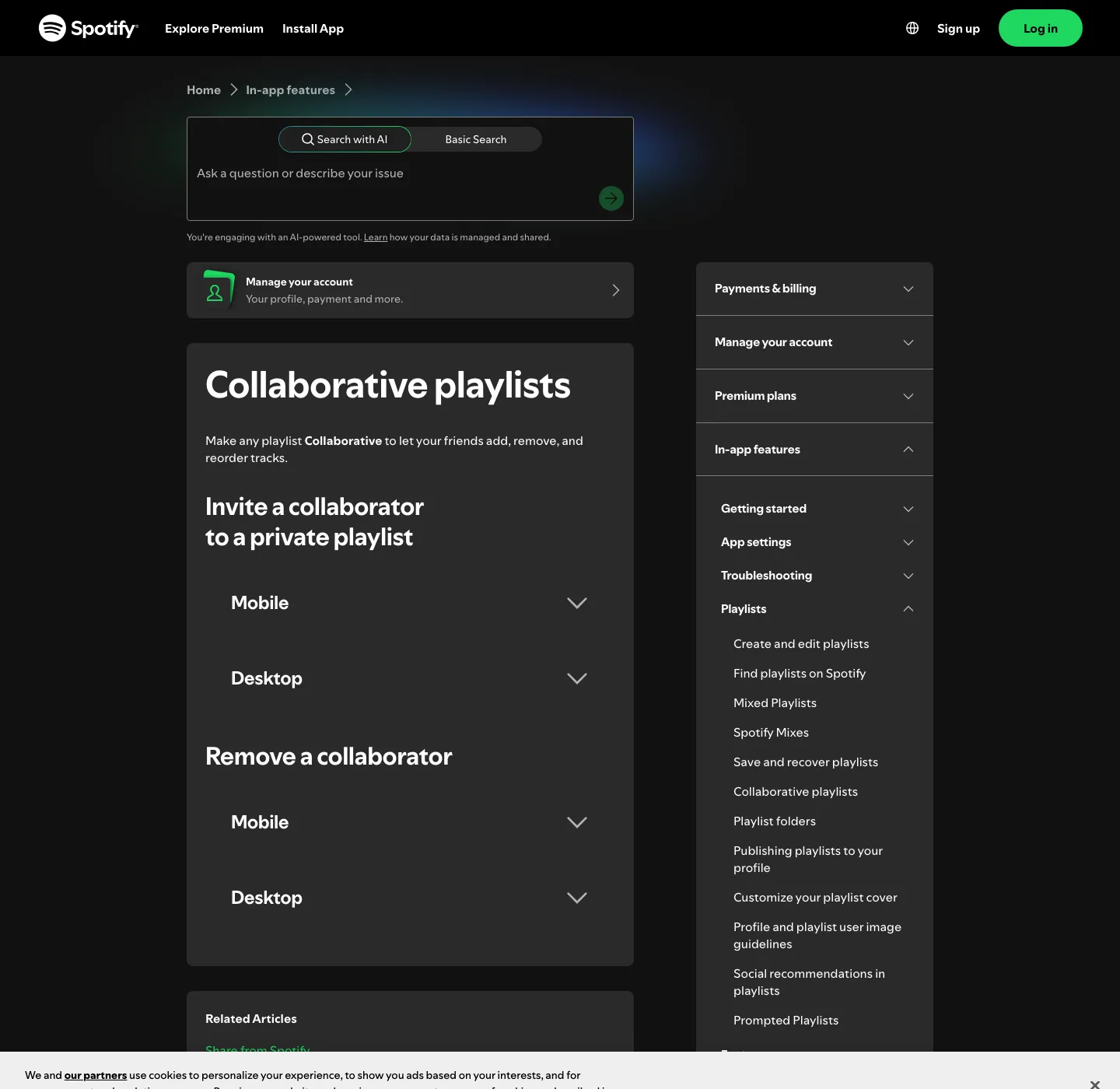
The invitation link is time-limited. Spotify currently says it remains valid for seven days, so generate a fresh link if someone tries to join later and the old invitation no longer works.
Send collaborator invitations privately when possible. Posting an edit link in a public channel makes it harder to control who joins, especially when the playlist is tied to a class, client project, event, or private group.
Step 3 Add, remove, and reorder tracks
Once a person accepts the collaborator invitation, the shared playlist becomes an editing space rather than a finished recommendation. Contributors can add songs, remove songs, and change the order, so the group needs more structure than a normal playlist share.
Use one of these organizing systems:
- Event arc: arrival, build, peak, cooldown.
- Round-robin: each person adds one track before anyone adds a second.
- Section ownership: one person handles warm-up, another handles the main set, and another handles the ending.
- Reference categories: group tracks by production style, arrangement idea, instrument, or lesson topic.
- Voting shortlist: add candidates first, then move the agreed choices into a clean final copy.
For a rehearsal or production reference list, add a note outside Spotify explaining why each track matters. A playlist can preserve order, but it is not a full project brief.
Step 4 Review or remove collaborators
When someone no longer needs edit access, remove them from the collaborator list instead of relying on the old invitation link to expire. Spotify's current mobile flow uses the profile pictures below the playlist name, then the menu beside the person's name. On desktop, open the collaborator list from the profile pictures and use the control beside the collaborator.
Review access after the event, deadline, lesson, or trip is over. This is especially important when the playlist has become a durable resource rather than a temporary group activity.
If the group keeps making conflicting edits, duplicate the playlist and use one copy as the working list and one as the approved version. That is usually easier than repeatedly restoring individual tracks.
Manage playlist privacy and sharing
Collaboration and visibility are related, but they are not identical. Spotify's playlist privacy and access guidance separates public or private visibility from the access you give selected people.
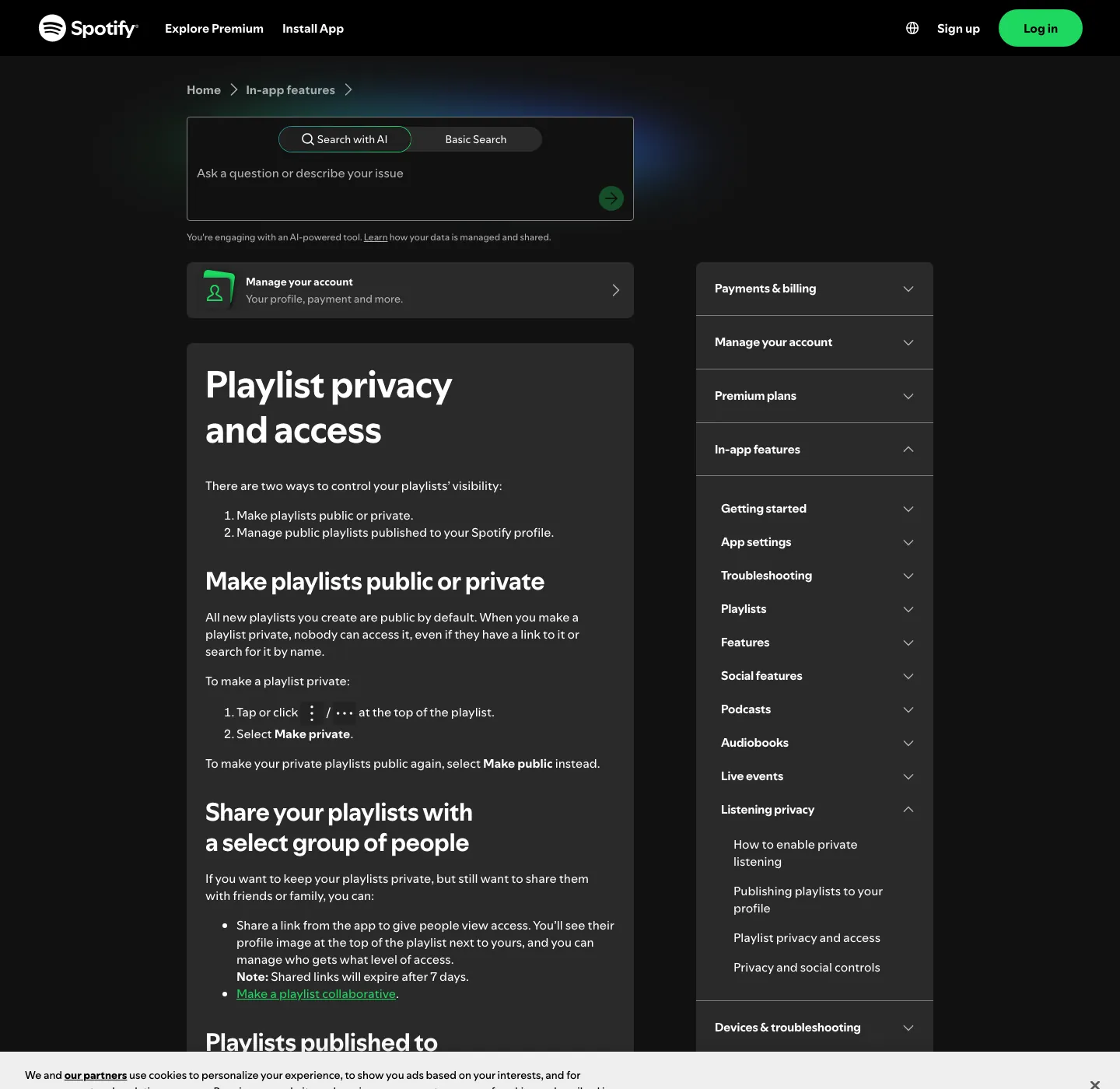
Use this decision table:
| Goal | Better choice |
|---|---|
| Anyone can find the playlist | Keep it public and decide separately who can edit |
| Selected people can listen | Share a normal view link |
| Selected people can edit | Send a collaborator invitation |
| Nobody else should access it | Make the playlist private and remove collaborators |
| The group should choose the live queue | Start a Jam instead |
Do not assume that making a playlist collaborative is a substitute for checking its visibility. Review both settings when the playlist contains personal names, private event details, classroom material, client references, or an unfinished release plan.
Set rules before the playlist gets messy
The best collaborative playlists have a small operating rule. It can be one sentence in the description or a pinned message in the group chat.
Useful rules include:
- Add no more than five tracks per person.
- Do not delete another person's track without discussing it.
- Avoid duplicates and alternate versions unless the version matters.
- Keep explicit tracks out of family, classroom, or public-event lists.
- Put uncertain choices at the bottom for later review.
- Use one owner to approve the final running order.
These rules are not about controlling taste. They prevent the playlist from becoming a pile of unrelated recommendations that nobody wants to edit.
Know when a Jam is the better tool
A collaborative playlist is best for asynchronous curation. People can contribute at different times, and the result remains as a reusable list.
A Spotify Jam is better when the group is listening together and wants to shape the live queue. Spotify currently requires Premium to host a Jam, while eligible guests can join and add songs under the host's controls. Use a Jam for the session; use a collaborative playlist for the library you want to keep.
The two features can work together. Build the durable shortlist in a collaborative playlist, then start a Jam when the group is ready to listen.
Prepare owned audio before a local-file workflow
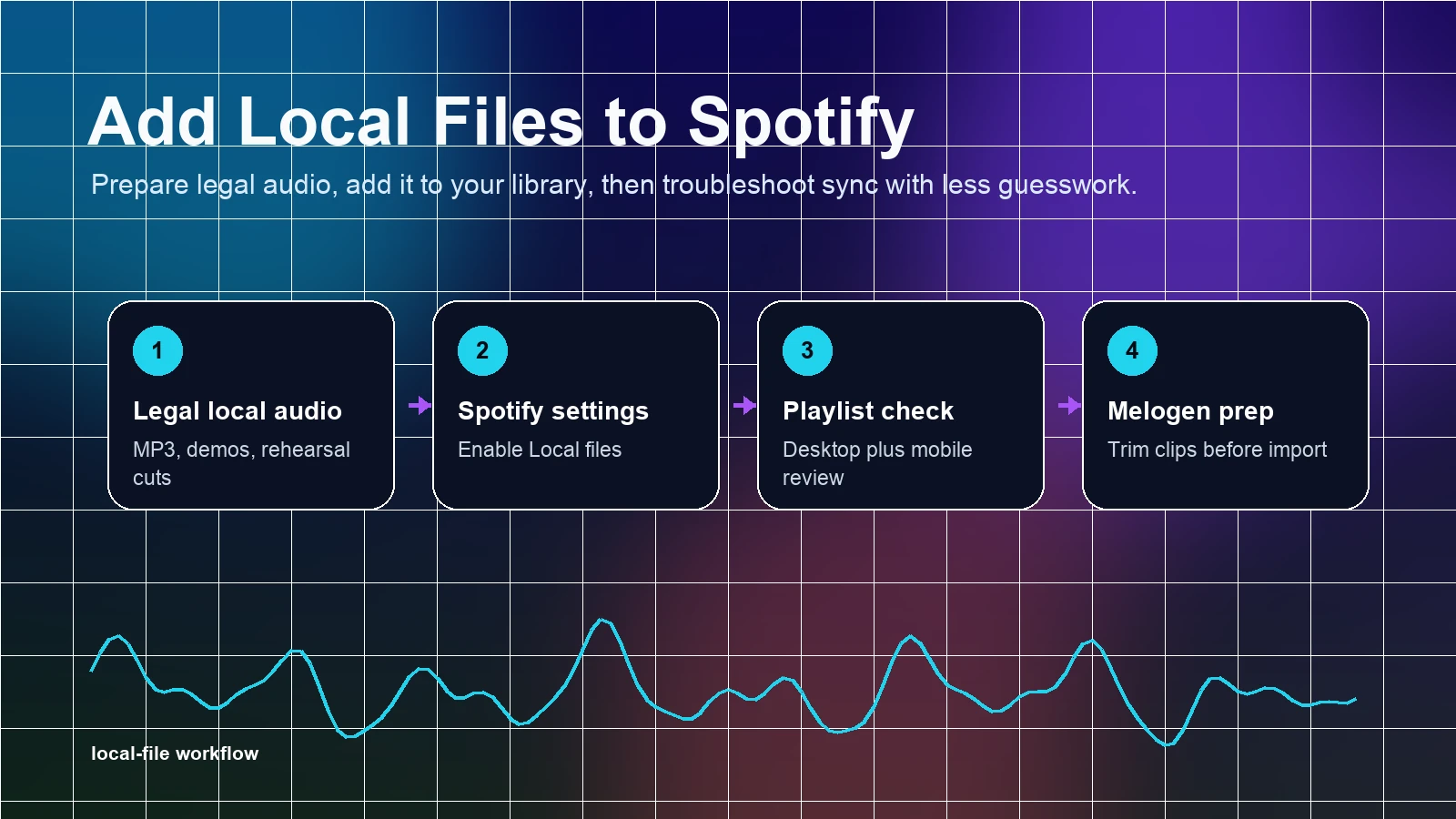
Spotify collaboration controls do not edit audio, and local files do not turn a private recording into a catalog track that every collaborator can stream. If you have your own demo, rehearsal recording, lesson clip, or licensed file, prepare the listening copy before adding it to your personal Local Files setup.
Use the Melogen Music Trimmer to remove a long count-in, cut an unused tail, or add a cleaner ending to audio you are allowed to edit. Then follow the Spotify local-files guide for the device-specific setup. Keep the rights and access boundary clear: collaborators can only use music that is actually available to them.
Clean a listening copy before local import
Trim silence or rough endings from audio you own, then add the finished file through Spotify's Local Files workflow.
Fix common collaborative playlist problems
| Problem | Likely cause | What to do |
|---|---|---|
| The invitation link no longer works | The seven-day invitation window expired | Generate a new collaborator link |
| A friend can listen but cannot edit | They received a normal share link | Send an Invite collaborators link |
| An unknown person can edit | The invitation was forwarded or posted publicly | Remove the collaborator and issue a new private invitation |
| Tracks keep disappearing | Several people are editing without rules | Restore from a backup copy and set an owner |
| The playlist is visible when it should not be | Visibility was not reviewed separately | Check playlist privacy and profile publishing settings |
| Friends want to control what plays now | The task is a live queue, not long-term curation | Use a Jam |
| A local file is unavailable to collaborators | Local Files are not shared catalog uploads | Use a track everyone can legally access |
If the menu labels look different, update Spotify and check the current official support page before following an old screenshot. App layouts change more often than the underlying access model.
FAQs
Do you need Spotify Premium for a collaborative playlist?
Spotify's current collaborative-playlist support page does not list Premium as a requirement for inviting or managing collaborators. Premium is required to host a Jam, which is a different feature.
How long does a Spotify collaborator invitation last?
Spotify currently says the invitation link is valid for seven days. Generate a new link if the recipient waits longer than that.
Can collaborators delete songs?
Yes. Spotify describes collaborative playlists as allowing friends to add, remove, and reorder tracks. Invite only people you trust with edit access.
Can I remove a collaborator without deleting the playlist?
Yes. Open the collaborator list from the profile pictures under the playlist name, select the person's access control, and remove them as a collaborator.
Is a collaborative playlist private?
Not automatically. Playlist visibility and collaborator access are separate decisions. Check the playlist's public or private setting as well as the collaborator list.
Can collaborators hear my local files?
Do not assume they can. Local Files are device-based listening files, not public Spotify catalog uploads. Use music that every collaborator can legally access if the group needs consistent playback.
The practical takeaway
Make a Spotify collaborative playlist by starting with a playlist you control, choosing Invite collaborators, and sending the time-limited invitation privately. Set one simple rule, review who has edit access, and keep visibility separate from collaboration.
Use a collaborative playlist when the group needs to build a reusable list over time. Use a normal share link for listening, a Jam for the live queue, and Melogen only for preparing owned audio before a separate Local Files workflow.
About the author
Zhang Guo
Composer - AI Product Manager
AI product manager and digital marketing consultant with a background in music. Creativity is the bridge between rhythm and logic, where musical intuition and mathematical precision can coexist in every meaningful product decision.
Follow on X