Share Spotify Playlist Links on Mobile and Desktop
Share a Spotify playlist by link, social app, embed, or Spotify Code, then choose view-only, collaborative, Jam, or cross-service access correctly.
 Zhang Guo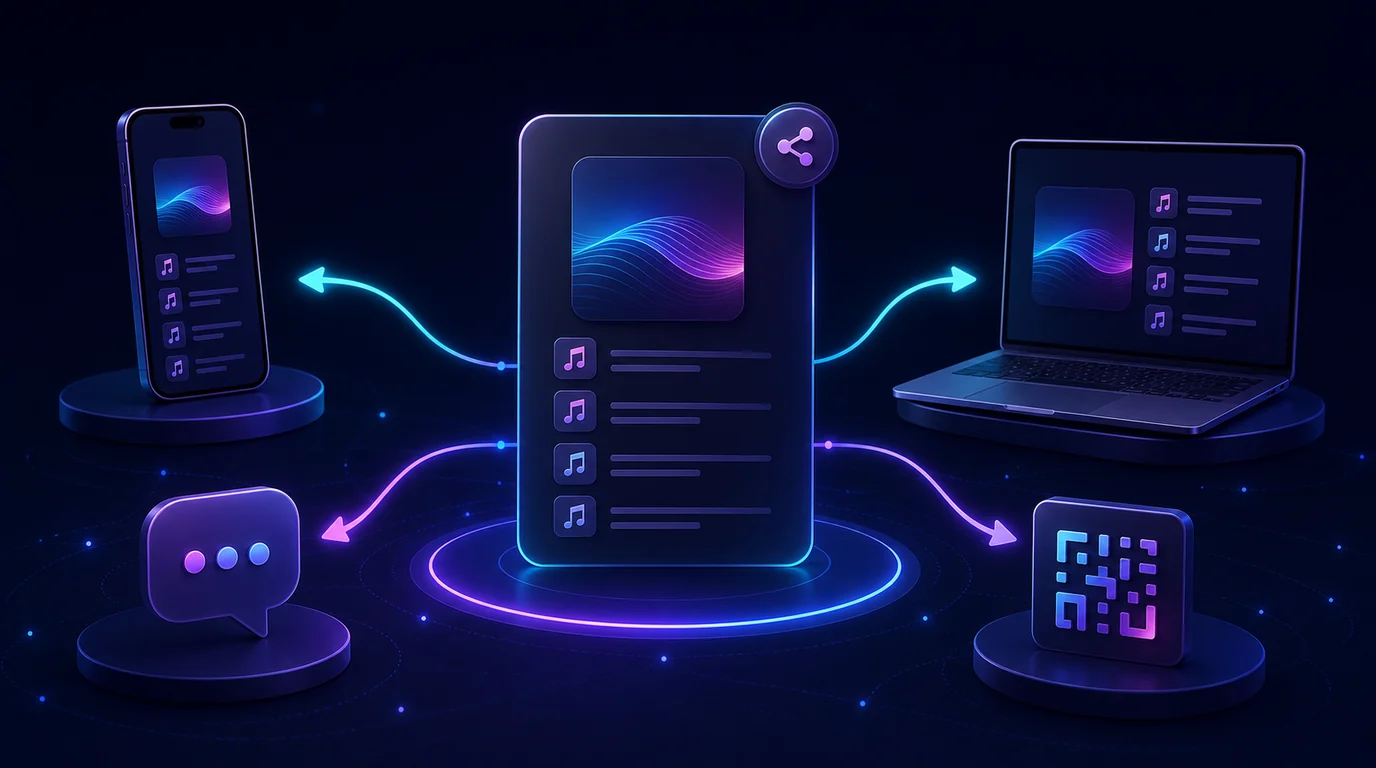
Turn a static score into editable MIDI
Contents
To share Spotify playlist access, open the playlist, choose the three-dot menu, select Share, and send a link through a messaging or social app. On desktop, the same menu also offers Copy Link and Copy embed code. That is the right route when the recipient only needs to listen.
The important choice comes before you send anything: a normal playlist link gives listening access, a collaborator invitation gives editing access, a Spotify Code is designed for scanning, and a Jam is for shaping a live queue together. They are related features, but they do not grant the same control.
Choose the right Spotify playlist sharing method
| What you want the recipient to do | Best method | What they receive | Main caution |
|---|---|---|---|
| Open and follow a playlist | Copy Link or a messaging/social share | A view-only playlist destination | Check whether the playlist is public or shared privately |
| Scan from a poster, phone screen, or printed card | Spotify Code | A scannable route into Spotify | The recipient needs Spotify camera access |
| Add, remove, or reorder tracks | Invite collaborators | Time-limited edit access | Anyone with edit access can change the tracklist |
| Help control music during a live session | Jam | Access to a shared listening queue | This is a session, not permanent playlist ownership |
| Place the playlist on a website | Copy embed code on desktop | An embedded Spotify player | Site privacy, consent, and layout rules still apply |
| Move the playlist to another streaming service | A playlist-transfer workflow | A matched playlist on the destination service | Missing or mismatched tracks need review |
This is why the target keyword deserves its own article. A guide to Spotify Codes and QR codes is useful once you know scanning is the right method. A general sharing guide has to make the earlier decision across links, codes, edit access, live listening, embeds, and transfers.
Share a Spotify playlist on iPhone or Android
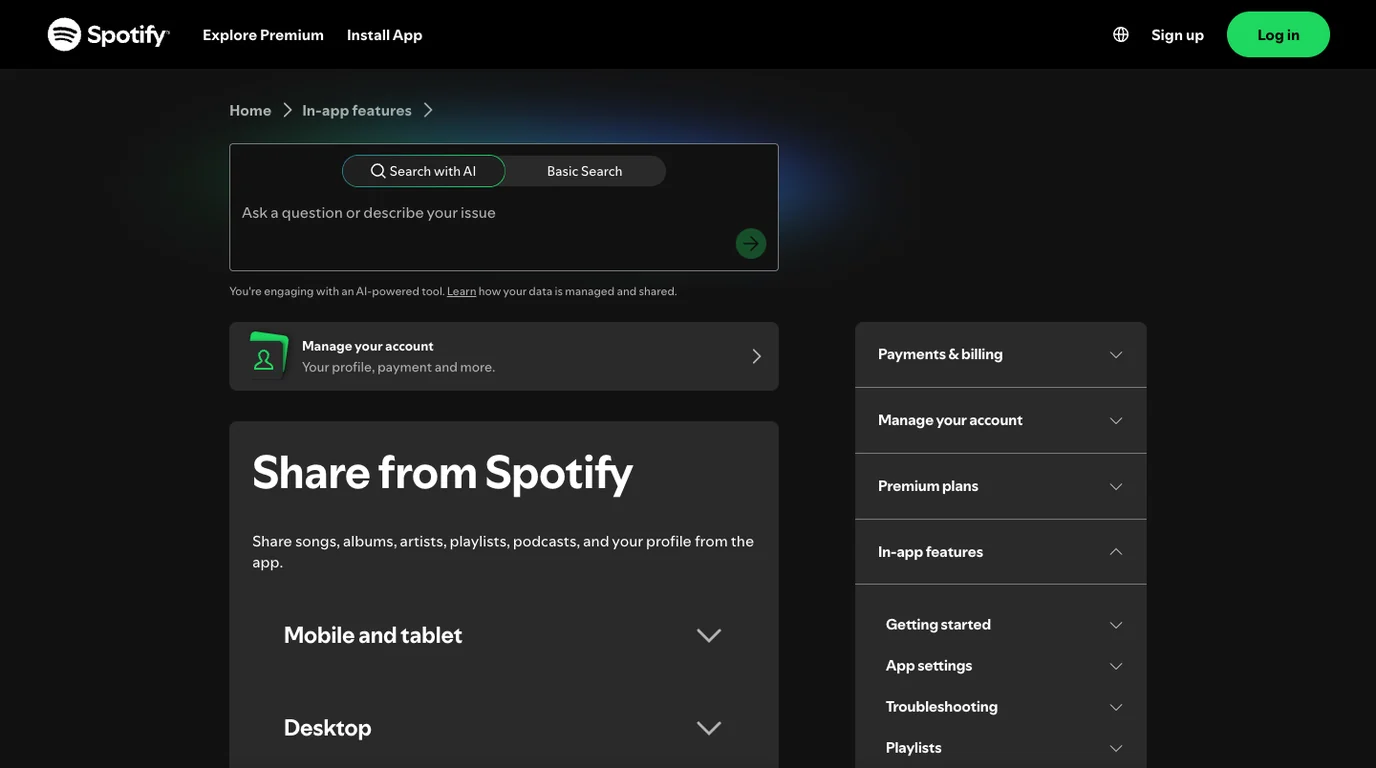
Spotify's current official sharing guide gives the same basic flow on mobile and tablet:
- Open Spotify and go to the playlist you want to send.
- Tap the three-dot menu at the top of the playlist.
- Choose Share.
- Pick a messaging or social app, copy the link, or show the Spotify Code.
- Send the destination to one test recipient before posting it to a large group.
The apps shown in the share sheet depend on the phone and the apps installed on it. If the expected app is missing, use Copy link and paste the URL manually.
Before sharing a playlist for a class, rehearsal, event, or client review, open the link in a private browser window or send it to a second account. The test catches the practical failures that the Share button cannot: the wrong playlist, stale cover art, a private destination, region-limited tracks, or a link that opens under the wrong account.
Share a Spotify playlist on desktop or web
Desktop gives you two useful outputs: a normal playlist link and an embed code.
- Open the playlist in the Spotify desktop app or web player.
- Right-click the playlist, or select the three-dot menu inside it.
- Choose Share.
- Select Copy Link for email, chat, a document, or a social post.
- Select Copy embed code only when you control the website where the player will appear.
A copied link is usually the simplest answer. It survives being forwarded, fits almost any channel, and makes the destination obvious. An embed is better when the playlist should remain playable inside an article, portfolio, event page, or class resource.
If you embed Spotify on a site, treat the generated code as third-party media. Confirm that it fits the page on mobile, does not cover nearby controls, and complies with the site's cookie and privacy setup.
Use a Spotify Code when scanning is easier
A Spotify Code is useful when the source is visual or physical: a poster, set list, classroom handout, merch card, another phone screen, or a social image.
On mobile, open the playlist menu and choose Show Spotify Code. The recipient can open Spotify Search, tap the camera icon, choose Scan, and point the camera at the code. Spotify also allows a screenshot of the code to be shared.
For a high-resolution asset, Spotify points users to its official Spotify Codes generator. Use the dedicated Spotify Codes guide for sizing, scanning, printing, and test rules rather than stretching a small screenshot into a poster.
Use a normal link instead when the recipient is already in a message, email, or webpage. Codes are a bridge from a visual surface into Spotify; they are not automatically better than links.
Keep view access separate from edit access
Sharing a playlist and making it collaborative are different actions.
Spotify's playlist privacy and access guide says a private playlist can be shared with a select group through a link, and its current private share links expire after seven days. Spotify also gives owners control over who receives view or edit access.
For editing, use Invite collaborators. Spotify's official collaborative-playlist guidance says collaborators can add, remove, and reorder tracks. That is useful for road trips, parties, rehearsal references, classrooms, and group projects, but it is too much access for a link that will be posted publicly.
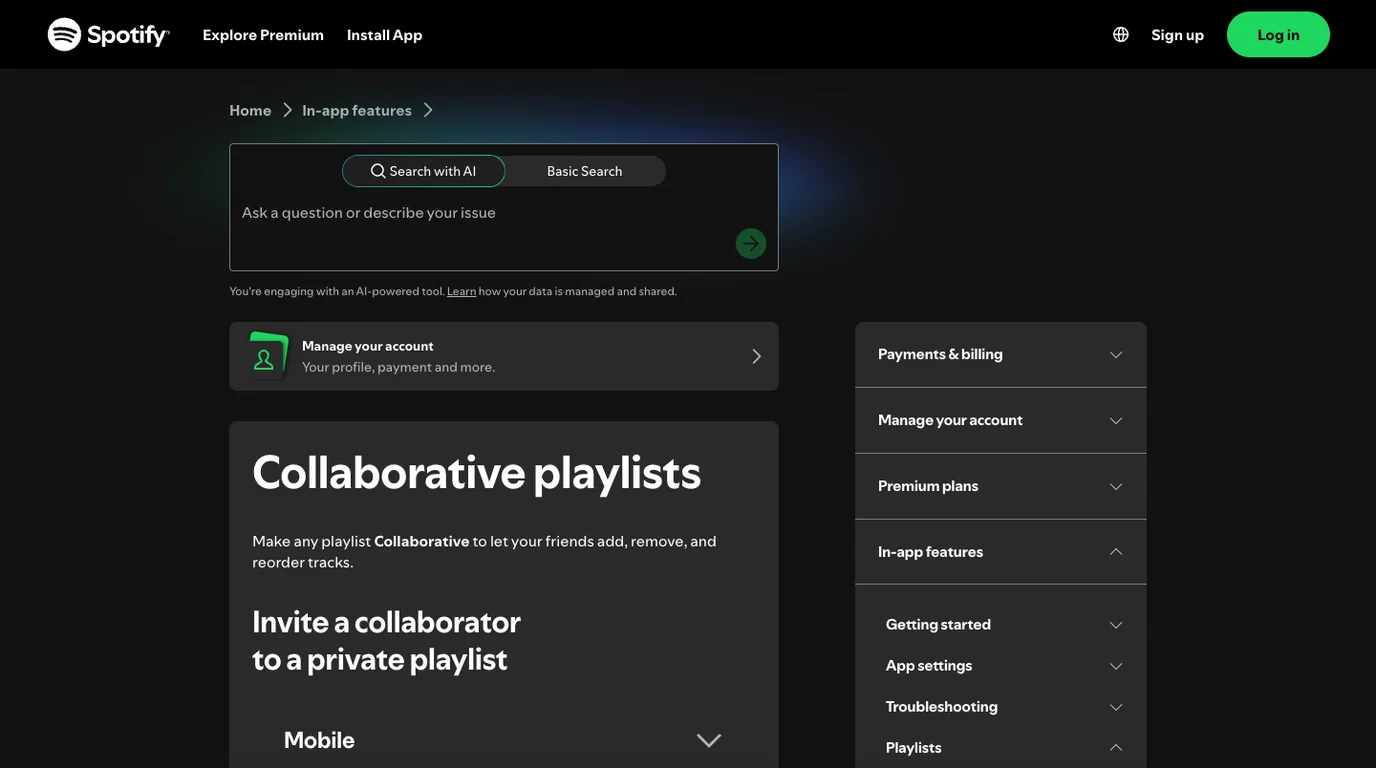
Use the deeper guide to making a Spotify collaborative playlist when the real task is managing invitations, removing collaborators, or fixing an expired invite. The useful boundary is:
- normal share link: listen or follow
- private share link: selected view access, currently time-limited
- collaborator invite: edit the reusable playlist
- Jam: participate in a live listening queue
Use a Jam or SharePlay for live listening
A playlist link is asynchronous. The recipient opens it and listens on their own schedule. A Jam is for a group listening at the same time and shaping the queue together.
Spotify's Jam support page should be the current reference for host eligibility, guest controls, speakers, and remote participation. Use a Jam for a party, shared drive, practice break, or listening session. Keep the playlist itself as the durable library you want after the session ends.
SharePlay is another live-listening path on supported Apple devices and FaceTime flows. It is not a replacement for a normal playlist link when the recipient only needs a reusable destination.
Share Liked Songs without exposing the wrong library
Liked Songs is a personal collection, not a normal playlist built for sharing. The safest route is to create a separate playlist:
- On desktop, open Liked Songs.
- Select the tracks you actually want to share.
- Add them to a new playlist.
- Give the playlist a clear name and description.
- Review the tracklist for personal, explicit, or region-limited items.
- Share the new playlist by link, Code, or collaborator invitation.
The separate playlist is a snapshot. New tracks added to Liked Songs will not automatically appear unless you add them. That is usually a feature, not a flaw: it prevents your private library from quietly changing a link you sent for a specific purpose.
Move a playlist to another music service
Sending a Spotify link does not recreate the playlist in Apple Music, TIDAL, YouTube Music, or another service. If the recipient needs the list inside a different catalog, use a playlist-transfer workflow and review the results.
Expect imperfect matches. A transfer can choose the wrong recording, miss a regional release, replace an explicit version with a clean version, or fail to find a local file. The guide to moving a Spotify playlist to TIDAL shows the matching and review process without pretending that a URL alone moves the music.
Do not turn a playlist into a folder of MP3 files just to share it. A Spotify playlist is a list of catalog references and access rules, not ownership of the underlying recordings.
Prepare owned audio before a Local Files workflow
Melogen does not manage Spotify playlists, create collaborator invitations, or convert Spotify catalog streams. It fits before sharing only when the source is an audio file you own or have permission to edit: a demo, rehearsal take, original recording, purchased DRM-free track, lesson clip, or DAW export.
Use Melogen Music Trimmer to remove silence, cut a shorter reference section, or add a clean fade before you add that permitted file to Spotify Local Files. Keep the master file outside the playlist workflow.

Prepare a clean clip before you share the playlist
Trim silence, rough starts, and long endings from audio you own or may edit, then add the listening copy through a separate Spotify Local Files workflow.
Fix common Spotify playlist sharing problems
| Symptom | Likely cause | Best next check |
|---|---|---|
| Recipient cannot open the playlist | Private access, expired private link, wrong account, or app handoff | Create a fresh link and test it in a private browser window |
| Recipient can listen but cannot add songs | A view-only link was sent | Use Invite collaborators instead |
| Recipient can change the playlist unexpectedly | An edit invitation was shared too widely | Remove collaborators and send a normal listening link |
| Spotify Code will not scan | Low contrast, poor focus, cropped code, or missing camera access | Show the code at full size and test with another phone |
| Playlist opens but some tracks are unavailable | Region, catalog, explicit filter, or local-file mismatch | Ask the recipient which tracks are grayed out |
| Link opens the wrong playlist | A stale URL was copied from another tab or message | Reopen the playlist and copy a fresh link |
| Private share stopped working | The current private link expired | Generate a new private share link |
| Cross-service transfer is incomplete | Catalog matching failed | Review missing and mismatched tracks manually |
Make one access change at a time. Replacing a link, changing privacy, inviting collaborators, and starting a Jam all at once makes it hard to identify which layer failed.
FAQ
Can I share a Spotify playlist with someone who does not have Premium?
You can send the playlist link. What the recipient can play and how playback behaves depends on Spotify availability, account type, device, and current service rules. The share itself does not grant Premium.
Can someone edit a Spotify playlist I share?
Not from a normal view-only link. They need collaborator access to add, remove, or reorder tracks. Share that permission only with people you trust.
Can I share a private Spotify playlist?
Spotify currently allows selected sharing from the app. Its official privacy guidance says private share links expire after seven days, so create a fresh link if the recipient waits too long.
How do I share a Spotify playlist on Instagram or WhatsApp?
Open the playlist, choose the three-dot menu, tap Share, and select the app if it appears. If it does not, copy the playlist link and paste it into the message or post manually.
Can I share my Spotify Liked Songs?
Create a separate playlist from the tracks you want to send, review it, and share that playlist. Liked Songs is a personal collection and does not behave like a normal public playlist.
Is a Spotify Code the same as a QR code?
No. A Spotify Code is Spotify's own scannable format and is read through Spotify's camera flow. Use a normal link or a standard QR code when recipients should open the destination outside that specific scan path.
Can I share a Spotify playlist as MP3 files?
A Spotify playlist link does not give you ownership or redistribution rights for the recordings. Share the catalog playlist through Spotify. Use file-sharing only for audio you own or have permission to distribute.
The practical takeaway
Share a Spotify playlist by starting with the access level. Use a normal link for listening, a Spotify Code for scanning, a collaborator invitation for editing, a Jam for the live queue, and a transfer workflow for another service.
Test the destination from a second account before sending it widely. Keep private links and edit invitations controlled, and never confuse playlist access with ownership of the music files.
About the author
Zhang Guo
Composer - AI Product Manager
AI product manager and digital marketing consultant with a background in music. Creativity is the bridge between rhythm and logic, where musical intuition and mathematical precision can coexist in every meaningful product decision.
Follow on X