Why Is Spotify So Slow and How to Fix It
Fix why Spotify is so slow by checking network, cache, device load, storage, app updates, and safe local-audio boundaries before reinstalling.
 Zhang Guo
Turn a static score into editable MIDI
Contents
If you are asking "why is Spotify so slow," do not start by reinstalling the app or looking for a downloader workaround. Slow Spotify usually comes from one layer in the playback chain: unstable internet, an overloaded device, stale cache, low storage, an outdated app, a browser-profile issue, or a Spotify-side outage. Fix the smallest layer first, then move outward.
The fast answer is this: restart Spotify, update the app, test a different network, clear Spotify cache, free device storage, close heavy background apps, and compare the same account on another device. Reinstall only after those checks fail, because reinstalling means downloaded music and podcasts need to be downloaded again.
Quick triage for slow Spotify
Use the symptom to choose the first fix. This keeps you from deleting downloads, clearing unrelated browser data, or reinstalling the app when the real issue is only Wi-Fi or cache.
| What feels slow | Most likely layer | First fix to try |
|---|---|---|
| Songs buffer, pause, or start late | Network or Spotify status | Switch Wi-Fi, try cellular or hotspot, and check Spotify Status |
| App opens slowly or buttons lag | Device memory, storage, or app cache | Close unused apps and clear Spotify cache |
| Only downloaded playlists lag | Storage, SD card, or download state | Free storage and check whether downloads need to be refreshed |
| Web player is slow but the app is fine | Browser cookies, extensions, or protected-content playback | Test a private window and another browser |
| Desktop app is slow but mobile is fine | Desktop cache, firewall, hardware, or OS state | Update Spotify, restart the computer, and check firewall rules |
| One account fails everywhere | Account, region, known issue, or Spotify service state | Check Spotify support/community before changing device settings |
If you can reproduce the problem on every device and network, it is less likely to be your phone or laptop. If only one device is slow, keep the repair local to that device.
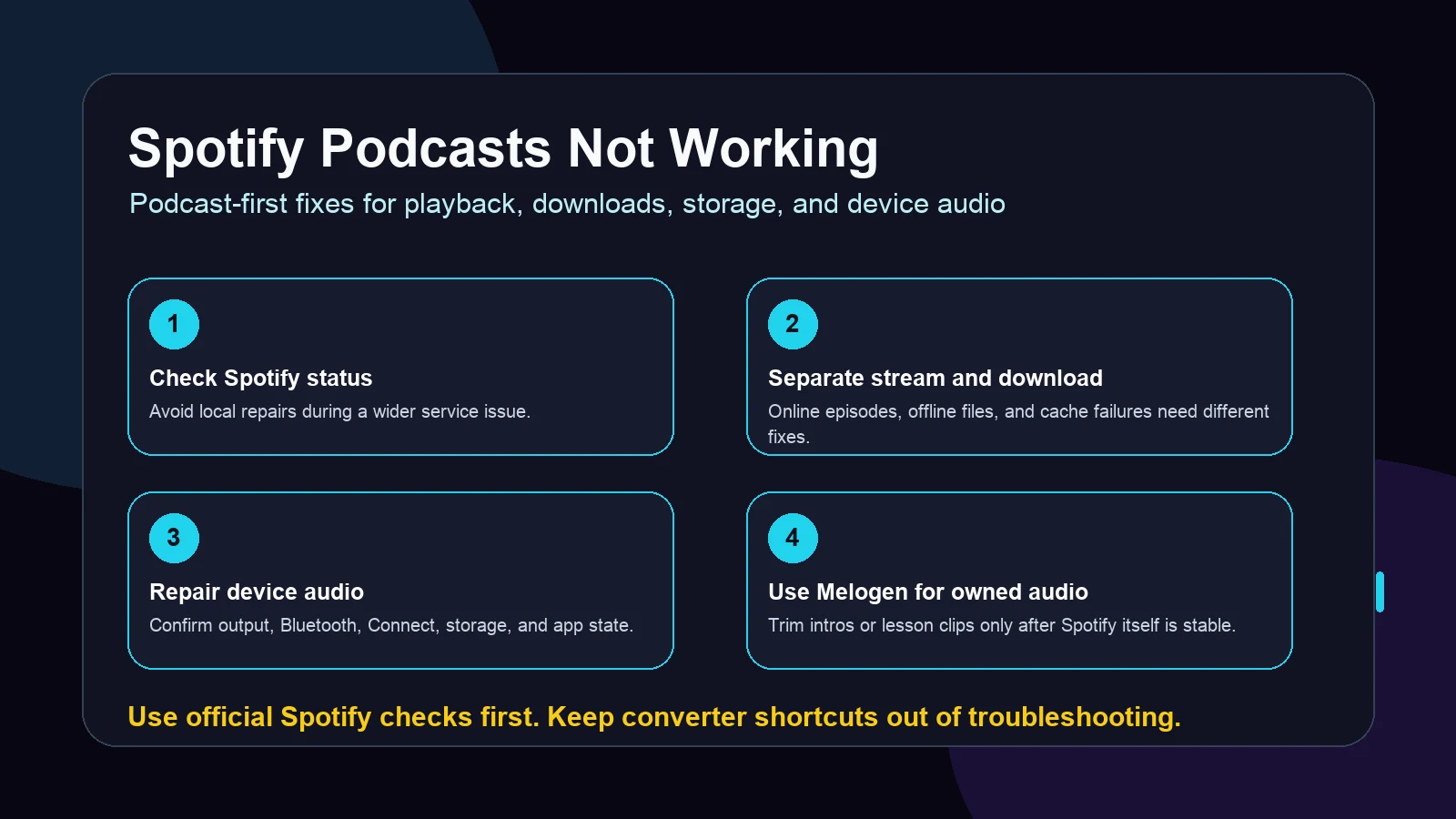
Start with Spotify official playback checks
Spotify's official Spotify not playing page gives the right first order for app playback problems: restart Spotify, update the app, reinstall only when needed, make sure the internet connection is stable, update the operating system, close unused apps, clear cache, and check whether the device or firewall is blocking Spotify.
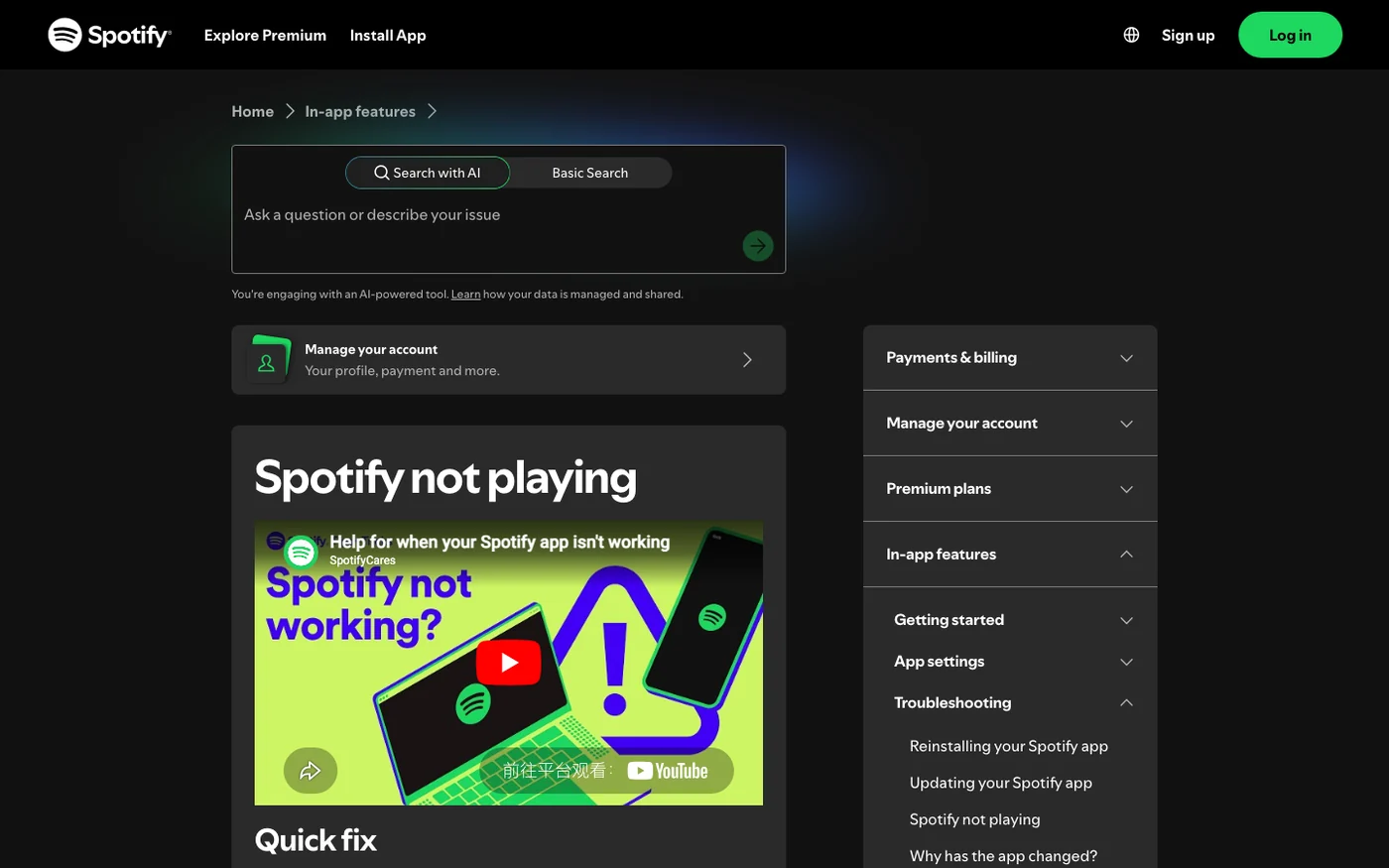
Use this order before deeper fixes:
- Restart Spotify once.
- Check whether another app or site is also slow.
- Switch from Wi-Fi to cellular or a hotspot for one test.
- Update Spotify from the official app store or desktop installer.
- Update the device operating system if it is far behind.
- Close games, video editors, browsers with many tabs, and other heavy apps.
- Try Spotify on another device with the same account.
The last step is useful because it separates account-level or Spotify-side problems from a device problem. If Spotify is slow only on your laptop, do not reset your phone. If it is slow only on one Wi-Fi network, do not reinstall every Spotify app you own.
Clear cache and free storage without over-resetting
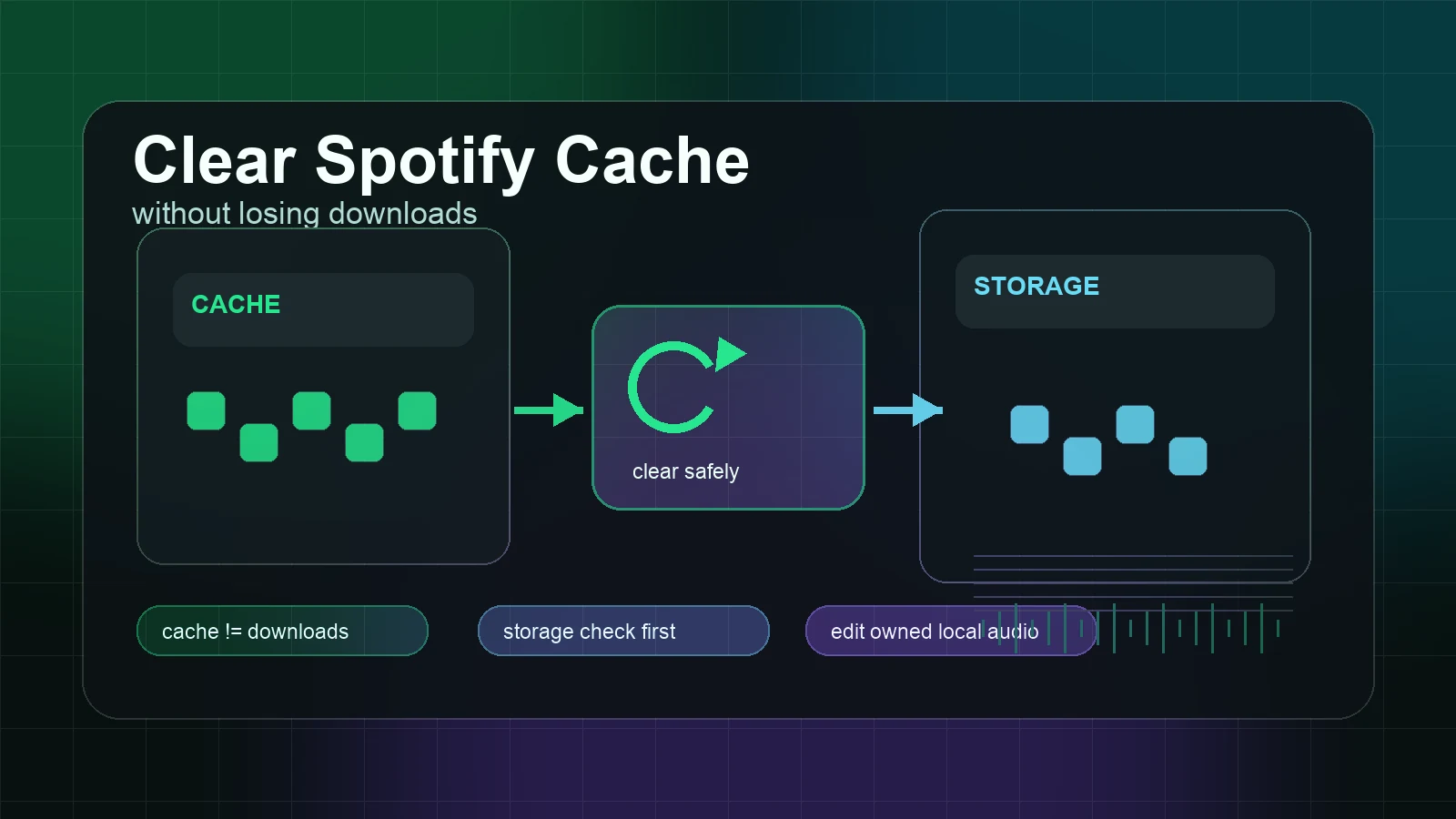
Spotify uses device storage for cache so songs and podcasts can start without lagging. Spotify's storage information page also recommends at least 1GB of free memory on your device. That makes cache and storage worth checking, but it does not mean you should delete everything blindly.
Use a narrow cleanup:
| Check | What to do | What to avoid |
|---|---|---|
| Spotify cache | Clear cache inside Spotify settings first | Do not delete random system folders before trying the in-app path |
| Device storage | Keep at least 1GB free, more if you download playlists | Do not fill the device to the edge and expect streaming to feel stable |
| Downloaded music | Remove downloads you no longer need | Do not delete all downloads if only streaming is slow |
| SD card on Android | Test internal storage if an SD card is causing lag | Do not assume every Android issue is the card |
| Browser storage | Clear Spotify site data if the web player is slow | Do not wipe every site before testing a private window |
If Spotify is slow after a large playlist download, a phone storage warning, or a long period without clearing cache, start here. If Spotify is slow only on one network, storage is probably not the first suspect.
Separate network lag from device lag
The word "slow" hides different failures. Buffering, delayed song starts, unresponsive buttons, and choppy audio do not come from the same cause.
Use this split:
| Symptom | Network-first test | Device-first test |
|---|---|---|
| Tracks stop and resume | Switch networks for one track | Close background apps after the network test |
| Album art loads slowly | Test another Wi-Fi or hotspot | Clear cache if every network is the same |
| Taps and menus lag | Network is less likely | Restart the device and free memory |
| Audio stutters on Bluetooth | Test phone speakers or wired output | Re-pair Bluetooth and check battery mode |
| Desktop app takes forever to open | Network is less likely | Update the app and restart the computer |
If the network is weak, lowering streaming quality can make playback more stable, but treat it as a diagnostic move. If a lower quality setting fixes buffering immediately, your connection is probably the bottleneck. If nothing changes, look at cache, storage, app version, device performance, or Spotify status.
Fix mobile, desktop, and web player differences
On mobile, slow Spotify often comes from battery-saving mode, weak network, low storage, cache, a stale app version, or Bluetooth handoff. Start with app update, cache, storage, and a clean network test. If downloaded playlists behave strangely, Spotify's Listen offline page is the safer reference because it explains download limits, storage checks, and why downloads can disappear after reinstalling, device-limit changes, or long offline periods.
On desktop, check the desktop-specific layer:
- Restart Spotify and the computer.
- Update Spotify.
- Check whether a firewall or managed network is blocking Spotify.
- Close memory-heavy apps.
- Test the web player once.
- Reinstall only if the app remains slow after app, OS, cache, and network checks.
On the web player, keep the fix browser-first. A slow web player can come from cookies, extensions, protected-content settings, or a profile that has accumulated bad site data. Use the Spotify Web Player not working guide if the browser is the only slow surface.
Reinstall only after the low-risk checks
Reinstalling Spotify can fix common technical issues and make sure the app is current, but it is not the first move. Spotify's reinstall support page notes that downloaded music and podcasts need to be downloaded again afterward.
Reinstall when:
- Spotify stays slow after update, restart, cache cleanup, and storage checks.
- The same account works normally on another device.
- The device has enough free storage.
- The problem is not limited to one weak network.
- You are ready to re-download any offline content.
Do not reinstall as a shortcut for every symptom. If the issue is Autoplay continuing after your music ends, use the turn off Spotify Autoplay guide. If the next few tracks are wrong, use the clear Spotify queue guide. If your own local file sounds rough, that is an audio-prep problem, not a Spotify reinstall problem.
Where Melogen fits after Spotify is stable
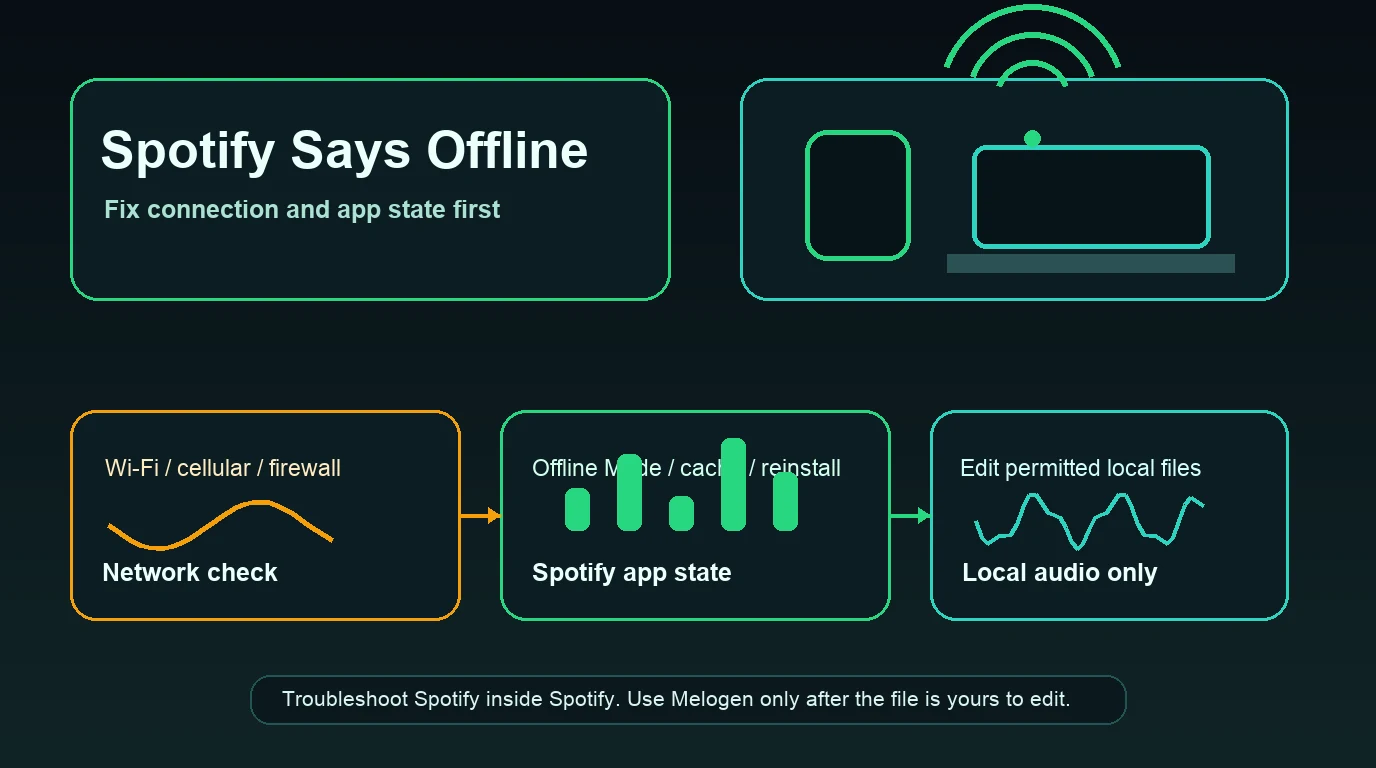
Melogen does not speed up Spotify's streaming servers, control Spotify cache, bypass Spotify protections, or convert Spotify catalog streams. It becomes useful after the source is already a local audio file you own, created, licensed, purchased DRM-free, or otherwise have permission to edit.

Use Melogen Music Trimmer when slow playback revealed a file-prep issue outside Spotify's catalog:
- A rehearsal recording starts with too much silence.
- A lesson clip needs a cleaner ending.
- A podcast cue or backing track needs a fade.
- A local file needs trimming before you add it to Spotify Local Files.
- A demo export needs a shorter listening copy.
The local Melogen route describes browser-based trimming, previewing, and exporting, with common audio formats such as MP3, WAV, M4A, OGG, FLAC, and AAC. That is a different job from fixing Spotify. Keep the boundary clear: repair Spotify inside Spotify, then edit only permitted local audio in Melogen.
Trim a local file before playback testing
Use Melogen Music Trimmer for audio you are allowed to edit when the next job is removing silence, tightening an ending, or preparing a cleaner local listening copy.
Troubleshooting checklist
Run the checklist in order:
| Step | Pass condition | If it fails |
|---|---|---|
| Check another network | Spotify plays normally on hotspot or another Wi-Fi | Fix router, VPN, firewall, or network restrictions |
| Restart and update Spotify | App responds normally after update | Continue to cache and storage |
| Clear Spotify cache | Menus and playback feel normal again | Check device storage and background apps |
| Free device storage | At least 1GB free memory is available | Remove downloads or unused apps |
| Test another device | Same account works elsewhere | Repair the slow device, not the account |
| Test web player vs app | Only one surface is slow | Use the surface-specific guide |
| Reinstall Spotify | Clean app works after reinstall | Re-download offline content carefully |
If you are still stuck after this order, check Spotify Status, Spotify Community ongoing issues, or the device manufacturer's support path. A persistent device-specific audio issue may sit below Spotify in Bluetooth, speaker, storage, operating-system, or firewall behavior.
FAQs
Why is Spotify so slow on Wi-Fi?
Weak Wi-Fi, a crowded router, VPN routing, firewall rules, or a managed school or office network can slow Spotify. Test the same account on cellular or a hotspot before changing app settings.
Does clearing Spotify cache delete my playlists?
No. Clearing cache removes temporary stored data, not your saved Spotify playlists. Downloaded offline content and cache behavior are separate, so check Spotify's storage and offline help before deleting downloads.
Why is Spotify slow on my phone but fine on desktop?
That points to the phone layer: storage, battery mode, cache, app version, Bluetooth, SD card, or mobile network. Keep the fix on the phone instead of resetting the Spotify account.
Should I reinstall Spotify to fix slow playback?
Only after low-risk checks fail. Restart, update, test another network, clear cache, and free storage first. Reinstalling can help, but Spotify notes that downloaded music and podcasts need to be downloaded again.
Can Melogen make Spotify streams faster?
No. Melogen does not change Spotify streaming, cache, downloads, or protected catalog audio. Use Melogen for local audio files you have the right to edit after Spotify itself is working.
The practical takeaway
Slow Spotify is easiest to fix when you isolate the layer. Network buffering needs a network test. App lag needs cache, storage, update, and device checks. Web player slowness needs browser troubleshooting. Reinstalling is a later step, not the first one. Once Spotify is stable, Melogen only belongs in the separate local-audio workflow where you trim, fade, or clean files you are allowed to edit.
About the author
Zhang Guo
Composer - AI Product Manager
AI product manager and digital marketing consultant with a background in music. Creativity is the bridge between rhythm and logic, where musical intuition and mathematical precision can coexist in every meaningful product decision.
Follow on X