Apple Music on iPod Classic Safe Sync Guide
Use Apple Music on iPod Classic safely by separating subscription tracks from owned files, then sync with Finder, Apple Devices, or iTunes.
 Zhang Guo
Turn a static score into editable MIDI
Contents
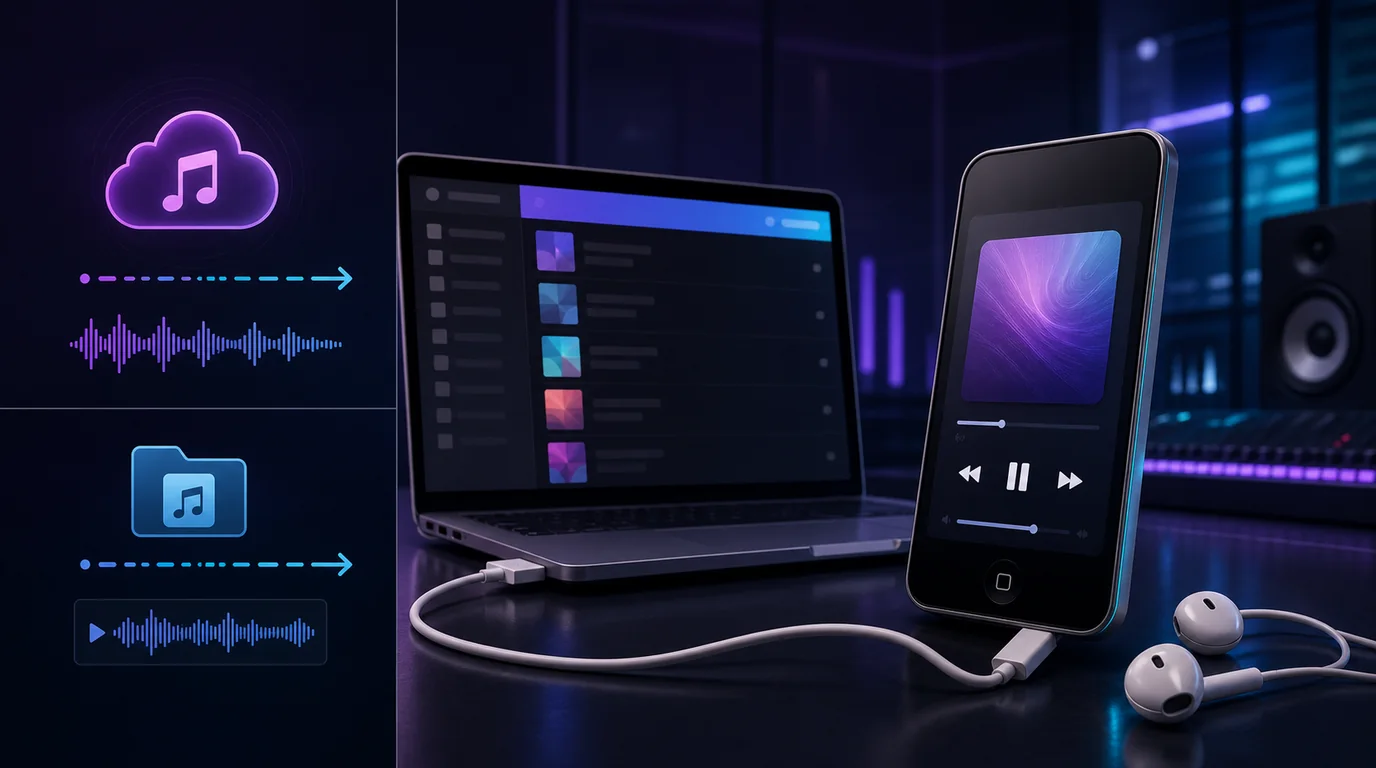
Apple Music on iPod Classic only works through a local music library. The iPod Classic cannot run the Apple Music app, stream the catalog, or receive Apple Music subscription downloads. It can play compatible audio that already exists as a file on your computer, including eligible purchases, CD imports, original recordings, and other music you own or are allowed to copy.
The safe workflow is simple: keep the master library on your computer, identify which tracks are real local files, sync a small test playlist, and eject the iPod before disconnecting it. Do not begin with a streaming converter or a full-library sync.
What Apple Music on iPod Classic actually means
An iPod Classic is a click-wheel device built around computer synchronization. Apple still describes the Classic as a device that has to sync with a Mac because there is no other way to add content. That makes it fundamentally different from an iPhone, iPad, or supported iPod touch running the Music app.
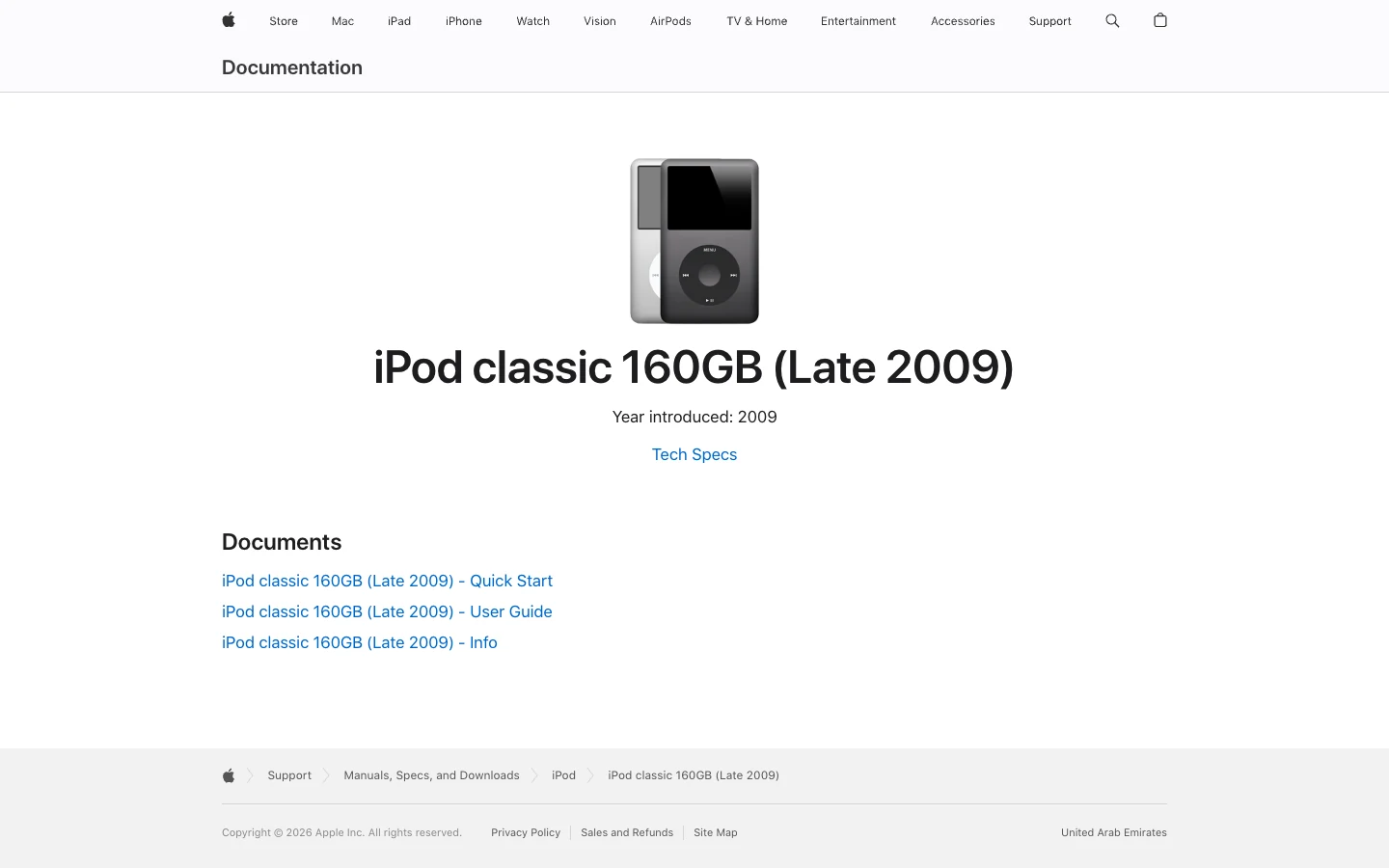
Apple's official iPod Classic documentation page identifies the 160GB Late 2009 model and links to its user guide. The guide is archival, so it is useful for device controls, file formats, and erase warnings—not for current Mac or Windows interface instructions.
Use this source check before syncing:
| Music source | iPod Classic path | What to watch |
|---|---|---|
| Apple Music subscription track | Keep it inside Apple Music on a supported device | It cannot be synced as a normal local song |
| Downloaded iTunes Store purchase | Add or download it to the computer library, then sync | Confirm it plays locally and the account is authorized |
| CD import or owned MP3/AAC | Add it to the computer library, then sync | Keep the original file outside the device |
| Original recording or DAW export | Prepare a compatible listening copy, then sync | Preserve the high-quality master separately |
| DRM-free purchase or permitted download | Verify rights and compatibility, then sync | Do not confuse a permitted local file with a subscription download |
If your device has a touchscreen and can still run the Music app, use the separate guide to Apple Music on iPod touch. If it is a screenless Shuffle, the iPod Shuffle sync guide covers that device's smaller-library workflow.
Prepare a local library before connecting the iPod
Do not use the iPod as the only copy of your music. Build and verify the computer library first.
- Find the original files on the Mac or Windows PC.
- Play several tracks from beginning to end on the computer.
- Confirm that purchases are downloaded and authorized.
- Put the first test tracks into a small playlist.
- Back up the library and any irreplaceable recordings.
- Only then connect the iPod Classic.
The most useful test playlist contains three or four files from different sources: one purchase, one CD import, one MP3, and one original recording. If one source fails while the others sync, you have a file or authorization problem—not a reason to erase the entire device.
Sync owned music from a Mac with Finder
On current macOS, Finder is the device-sync surface while the Music app holds the computer library. Apple's current Finder sync guide uses this general flow:
- Connect the iPod Classic with a reliable USB cable or adapter.
- Open Finder and select the iPod in the sidebar.
- Choose the Music tab.
- Select the entire library or, more safely, selected artists, albums, genres, and playlists.
- Click Apply and wait for synchronization to finish.
- Eject the iPod in Finder before unplugging it.
If Finder offers to erase and sync, stop. The iPod is associated with a different computer library, and accepting the prompt can replace the music already on the device. First confirm which computer contains the complete source library and whether anything on the iPod exists nowhere else.
Manual management can be useful for a legacy library because it lets you add selected items instead of mirroring broad categories automatically. The tradeoff is responsibility: you must manage additions and removals yourself, and the computer library still needs to remain the master copy.
Sync from Windows with Apple Devices or iTunes
Apple's current Windows instructions use the Apple Music app for the computer library and Apple Devices for syncing. If the iPod Classic appears in Apple Devices, select it in the sidebar, open Music, choose the items to sync, click Apply, and eject it before disconnecting.

The Apple Devices music-sync guide also states an important limit: Apple Music subscription songs cannot be synced through this method. Its interface image is generic rather than an iPod Classic test session, so treat device detection as the first gate.
Apple does not publish a clean model-by-model Apple Devices compatibility table for every iPod Classic configuration. If the Classic does not appear there, use the Apple-documented iTunes for Windows sync path on a compatible setup:
- Connect the iPod and click its device icon in iTunes.
- Choose Music under Settings.
- Select the sync checkbox and a small playlist first.
- Click Apply or Sync.
- Wait for completion and eject the iPod.
Do not alternate casually between Apple Devices, iTunes, and different computer libraries. Pick the path that recognizes the device and contains the verified source library.
Use formats the iPod Classic can play
The iPod Classic user guide lists AAC, HE-AAC, MP3, Apple Lossless, AIFF, WAV, and supported Audible formats. It also lists bitrate ranges for AAC and MP3. That does not mean every modern encoding profile, sample rate, or unusual file combination will work.
For a predictable listening copy, start with MP3 or AAC from a source you are allowed to reproduce. Keep the original WAV, AIFF, Apple Lossless file, CD import, or DAW project elsewhere.
| Layer | Example | Why it matters |
|---|---|---|
| Master | DAW project, WAV, AIFF, lossless import, or original purchase | Protect this from device and sync mistakes |
| Listening copy | MP3 or AAC made from an owned source | Easier to fit, replace, and troubleshoot |
| Device playlist | The selected albums or playlists on the iPod | Disposable and rebuildable from the library |
If a track will not sync, verify that it exists locally, plays on the computer, and is not merely an Apple Music subscription download. Then try one ordinary MP3 or AAC file before changing device settings.
Prepare owned audio with Melogen when it helps
Melogen does not unlock Apple Music subscription tracks or manage an Apple Account. It fits only when the source is a normal audio file you own or have permission to edit.
Use Melogen Music Trimmer to prepare a listening copy when you need to:
- remove silence from a rehearsal recording
- cut a long lesson or practice recording into a shorter section
- preview the selected section before export
- add a fade to an original recording or demo
- export a smaller copy while keeping the master untouched
This is preparation, not a streaming workaround. Keep the source file and project outside the sync library, export a replaceable copy, test it on the computer, and then add that copy to the device playlist.
Prepare a clean listening copy before syncing
Use Melogen Music Trimmer for recordings, demos, and other local audio you are allowed to edit. Keep the master, export a listening copy, then sync it to the iPod Classic.
Fix common iPod Classic sync problems
| Symptom | Likely cause | Safest next check |
|---|---|---|
| The iPod does not appear | Cable, adapter, USB port, driver, app, or device state | Try a known-good cable and port, then reopen Finder, Apple Devices, or iTunes |
| Apple Music songs will not sync | They are subscription items rather than local files | Test an owned MP3 or eligible purchase instead |
| Only some tracks fail | Missing file, authorization issue, incompatible encoding, or damaged source | Play the local file, confirm its path, then make one compatible copy if permitted |
| Erase and Sync appears | The iPod is tied to another library | Stop and verify the complete source library before accepting |
| The iPod is full | The selected library is too large | Sync fewer playlists or create smaller listening copies |
| The device says it is synchronizing | A write operation is still active | Wait and use Eject; do not unplug it |
Change one variable at a time. Start with the cable and a known-good local file, then check the library and format, and only then consider changing sync modes.
Restore is the last resort. Apple's iPod Classic manual says Restore erases songs, videos, files, contacts, photos, calendars, and settings. An update and a restore are not the same operation. Never restore until the computer library and any unique device files are backed up.
FAQs
Can iPod Classic stream Apple Music?
No. It does not run the Apple Music app or connect to the Apple Music catalog as a streaming device. Use Apple Music on a supported phone, tablet, computer, or other compatible device.
Can I sync Apple Music subscription downloads to iPod Classic?
No. Apple states that Apple Music subscription songs cannot be synced through the computer device-sync method. Subscription downloads remain managed inside Apple Music on supported devices.
Can I put iTunes purchases on an iPod Classic?
Eligible purchases can be downloaded to the computer library and synced when they are authorized, playable locally, and compatible with the device. Test one purchase before syncing a large collection.
Does Apple Devices for Windows always support iPod Classic?
Apple's current music-sync page covers iPod devices, but Apple does not provide a clear public compatibility matrix for every iPod Classic model and Windows configuration. Use Apple Devices if the Classic appears; otherwise use Apple's documented iTunes path on a compatible setup.
Which audio format is safest for iPod Classic?
MP3 and AAC are practical starting points for a listening copy. The official guide also lists Apple Lossless, AIFF, WAV, and several Audible formats, but unusual modern encoding settings may still fail. Keep the master and test one track.
Can Melogen convert Apple Music subscription songs?
No. Melogen works with audio files you own or have permission to edit. Use it to prepare recordings, demos, lesson clips, and other local files before syncing.
The practical takeaway
Treat the iPod Classic as a local-library player. Apple Music subscription tracks stay inside Apple Music on supported devices; owned or eligible local files move through Finder, Apple Devices, or iTunes. Back up the library, sync one small playlist, use compatible listening copies, and eject safely. If the audio is yours to edit, Melogen can help prepare the copy before it enters the sync library.
About the author
Zhang Guo
Composer - AI Product Manager
AI product manager and digital marketing consultant with a background in music. Creativity is the bridge between rhythm and logic, where musical intuition and mathematical precision can coexist in every meaningful product decision.
Follow on X