How to Extract MIDI From Audio in FL Studio Step by Step
Extract MIDI from audio in FL Studio with NewTone or Edison, then check pitch, rhythm and the destination channel against a four-note example.
 Zhang Guo

Turn a static score into editable MIDI
Contents
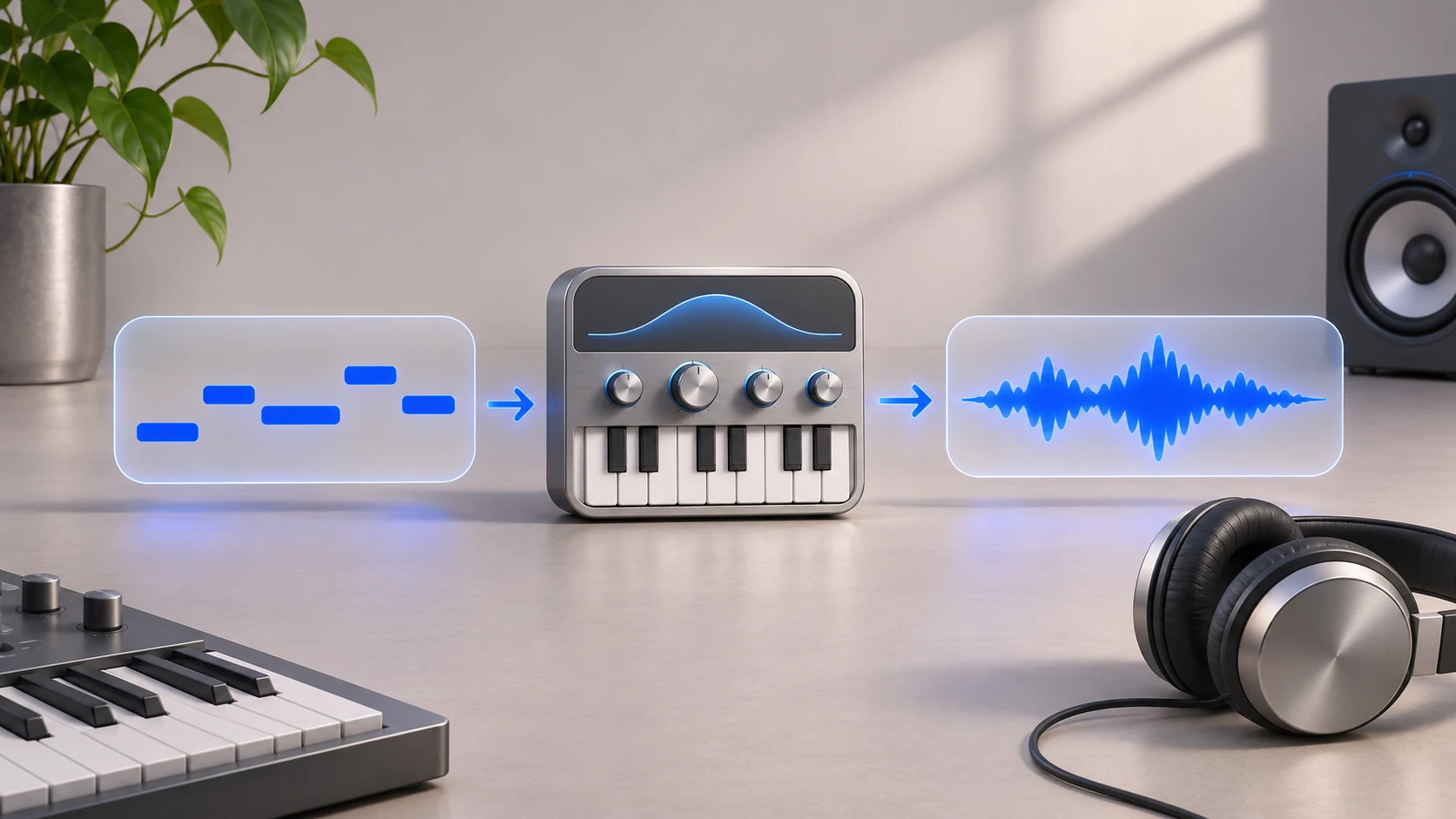
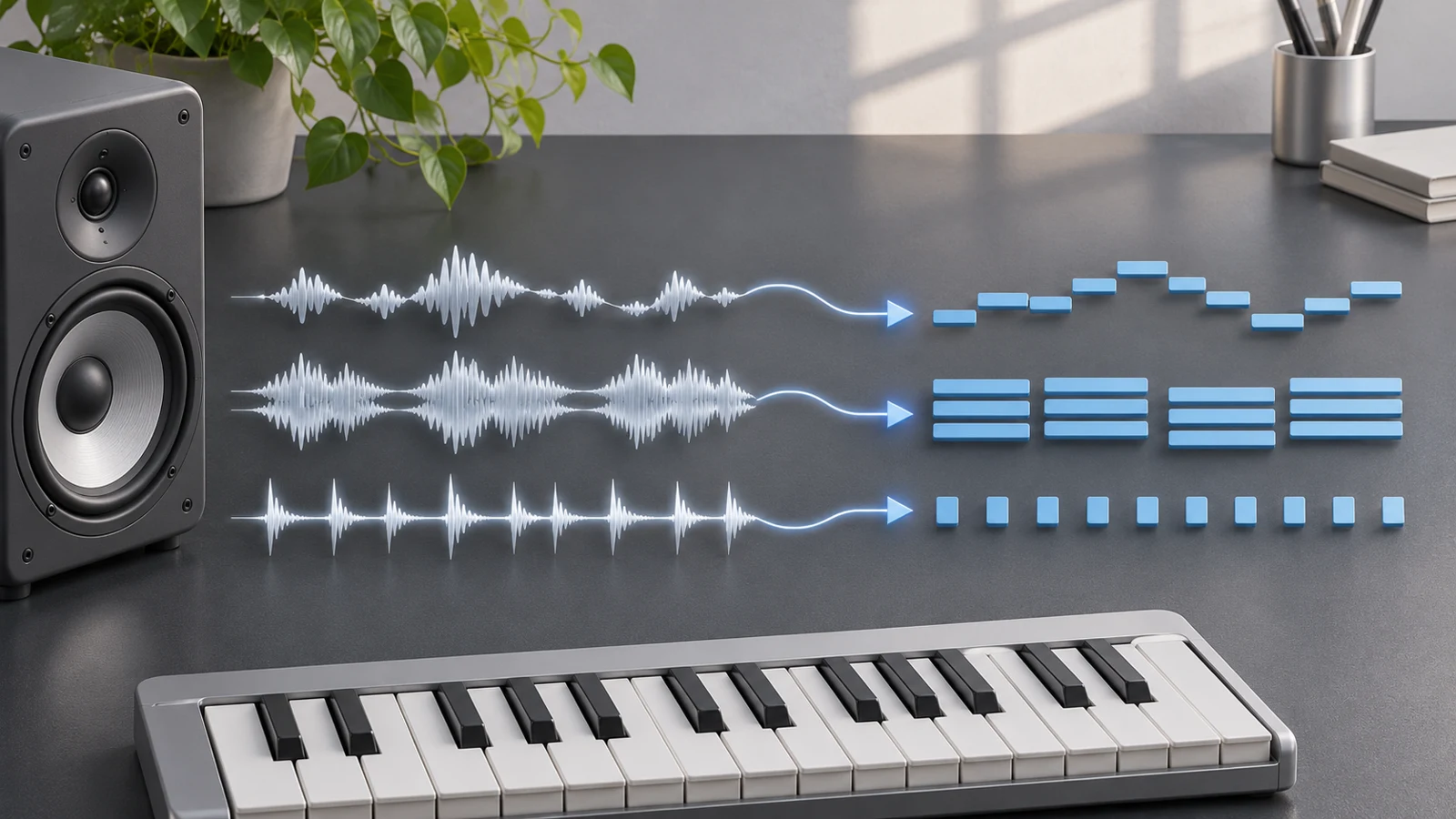
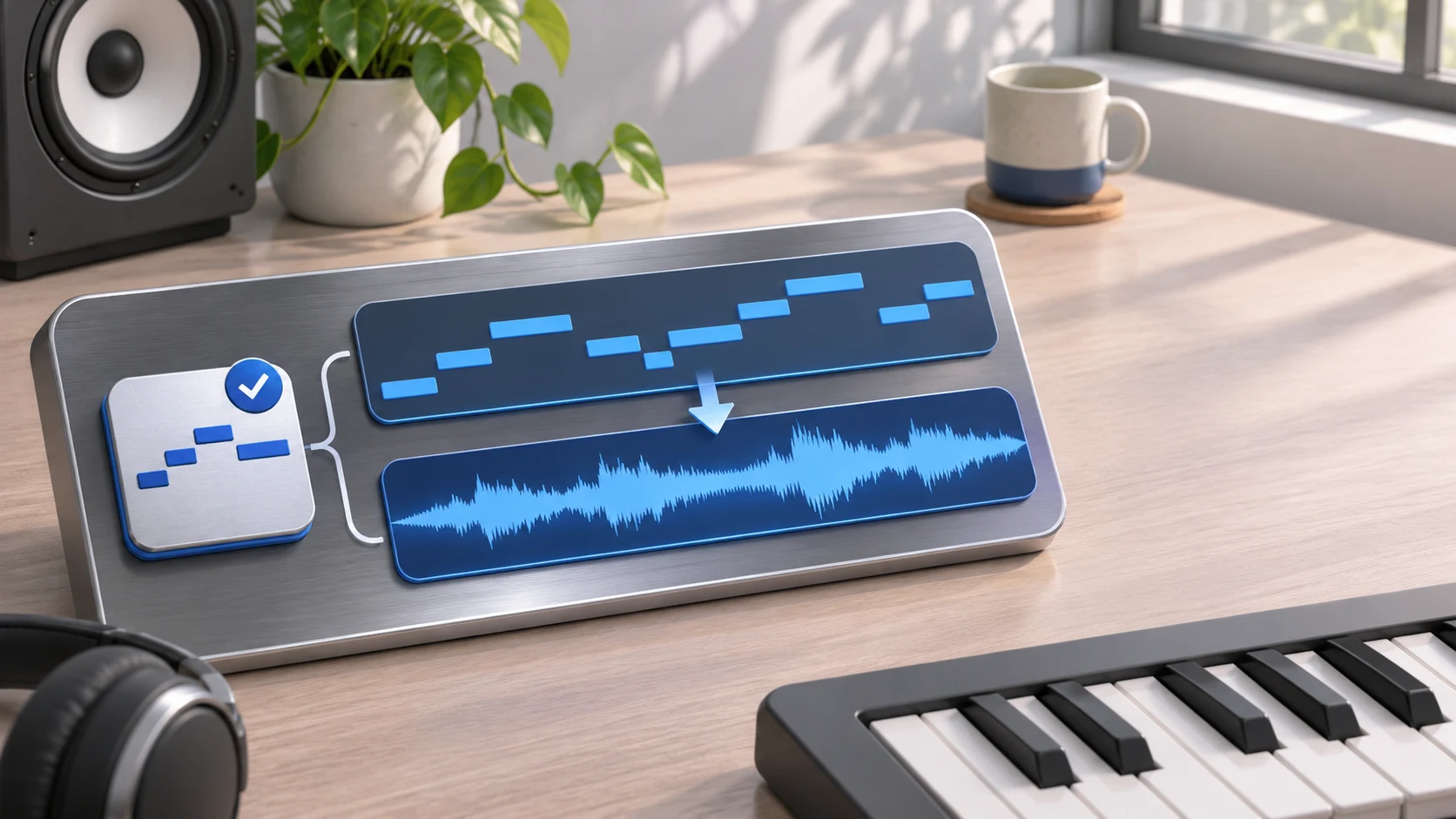
To extract MIDI from audio in FL Studio, open a clear melodic recording in NewTone, review its detected notes, then send them to the selected Channel's Piano roll. Edison also has a pitch-analysis command that creates a score. Both routes produce note data for an instrument to play; they do not preserve the recording's voice or guitar tone.
Start with one short phrase. A four-note line makes it much easier to spot a wrong destination Channel, an octave error or a misplaced downbeat than a whole mastered song.
Choose NewTone or Edison from the job
| What you need | Start with | Check before continuing |
|---|---|---|
| Inspect and correct a single pitched line before sending notes | NewTone | Your license includes NewTone and the source has one clear line |
| Make a quick pitch-based score from a sample | Edison analysis | The intended receiving Channel is selected |
Get an independent .mid before opening the project | A browser transcription workflow | Compare the downloaded notes with the source |
| Recover separate instruments from a dense mix | A cleaner isolated source first | Neither a waveform nor a long list of detected notes proves useful separation |
Image-Line documents native note extraction in both editors. A guide claiming that FL Studio has no audio-to-MIDI route misses those tools. Availability depends on your installed edition and plug-in license, so check the editor you can actually open rather than assuming every FL Studio license includes every editor.
Prepare a phrase with an answer you can check
Download the original two-second reference recording and the corresponding MIDI reference. These are teaching inputs made for this guide, not claimed conversion results. The sound plays C, D, E and G in sequence at 120 BPM.
| Event | MIDI pitch number | Start at 120 BPM | Intended note length |
|---|---|---|---|
| C | 60 | 0.00 seconds | 0.375 seconds |
| D | 62 | 0.50 seconds | 0.375 seconds |
| E | 64 | 1.00 seconds | 0.375 seconds |
| G | 67 | 1.50 seconds | 0.375 seconds |
The small gaps are deliberate. If a detector joins neighboring events or creates a tiny extra note at a release, you have something concrete to correct. Octave names differ between software displays; compare MIDI numbers or sounding pitch before moving a whole phrase by an octave.
For your own material, use a dry solo take, keep a little space around each phrase, and retain an untouched copy. Heavy reverb can turn one release into several apparent attacks.
Send detected notes from NewTone
Open the recording in NewTone and let the editor analyze it. Inspect the note divisions before changing the sound: one held pitch should not become a ladder of short events, and a deliberate repeated note should not disappear into the previous one.
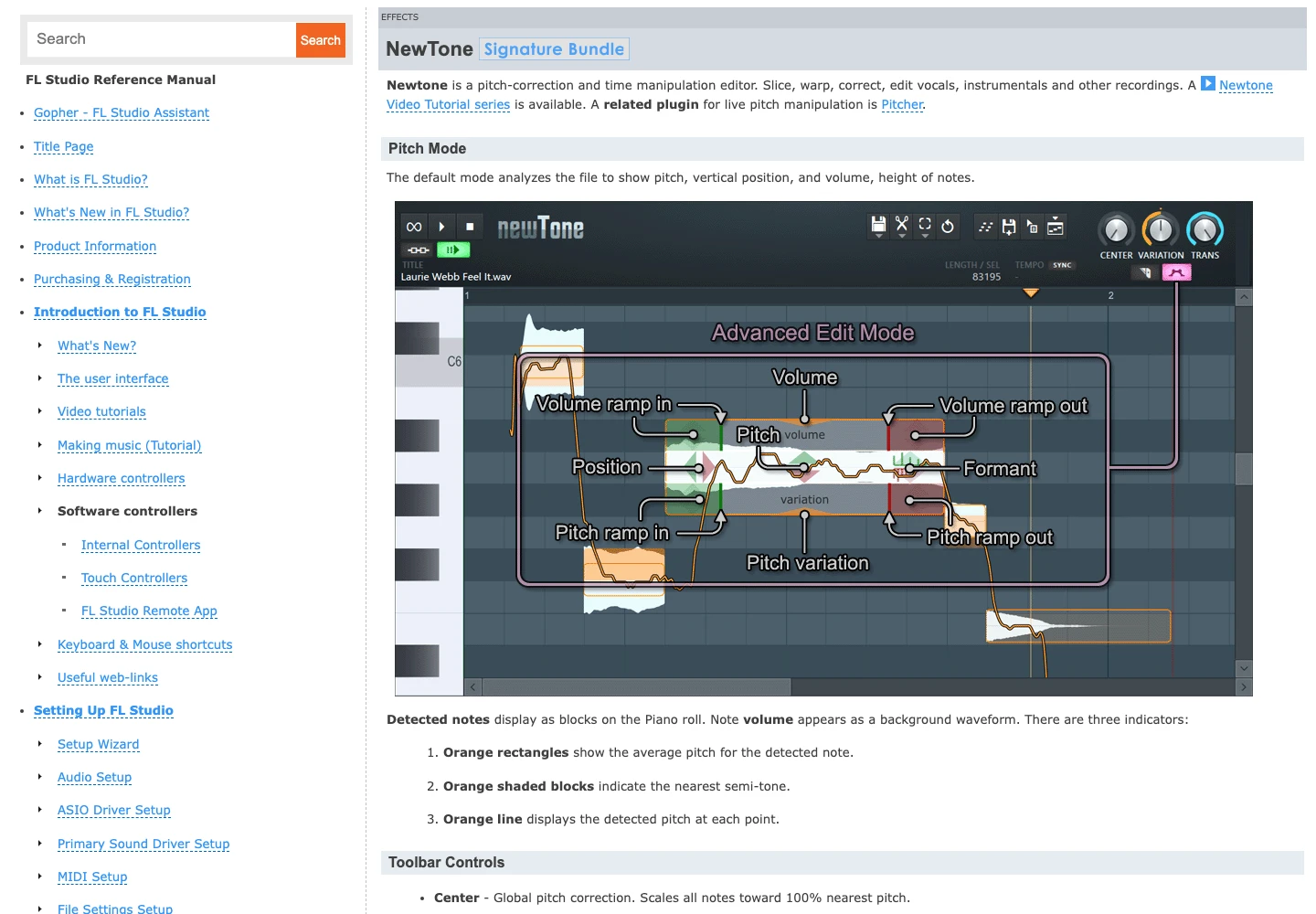
Use this order:
- Load the short recording in NewTone.
- Compare each detected event with the source. Correct obvious splits, joins and wrong pitches first.
- Select the Pattern and instrument Channel that should receive the part.
- Use Edit > Send to piano roll.
- Open that Channel's Piano roll, then audition it with a plain instrument sound.
The official NewTone manual also documents File > Save as MIDI when you need a portable file. Sending notes into a Channel and saving a .mid are different handoffs; choose the one your next step requires.
Use Edison's analysis route for a quick score
Edison can divide the sample into slices, detect their pitches and place the resulting notes in the currently selected Channel. This is useful for a quick draft, especially when you intend to do the musical editing directly in the Piano roll.
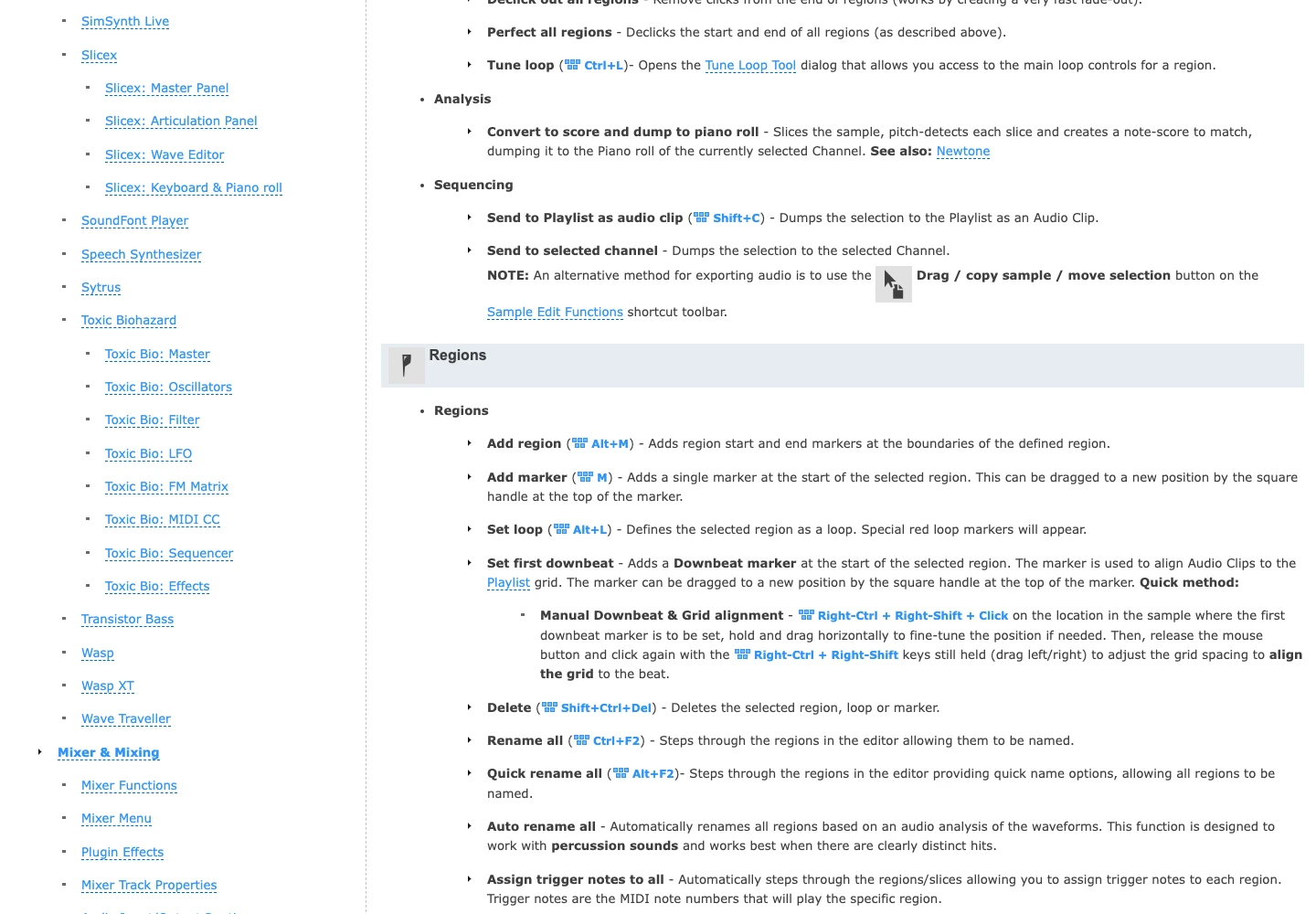
Load the sample in Edison, select the receiving instrument Channel, and run Tools > Analysis > Convert to score and dump to piano roll. Check the destination immediately. A successful command can still leave you looking at the wrong Pattern or listening to an unsuitable instrument.
The Edison menu reference describes pitch detection, not a promise to separate every note of a full arrangement. If a chord becomes one pitch or a noisy cluster, use a more isolated source instead of assuming more quantization will recover the missing harmony.
Check the result before arranging
For the supplied phrase, look for four principal events in the order 60, 62, 64, 67. Then compare timing. The first event should begin at the phrase start; the others should arrive a quarter note apart at 120 BPM.
| What sounds wrong | First check | Useful correction |
|---|---|---|
| Right contour, wrong register | Compare sounding pitch or MIDI number | Move the phrase only after confirming a real octave error |
| Everything starts late by the same amount | Leading silence or clip placement | Align the phrase start before editing individual notes |
| Timing drifts farther apart | Project tempo versus source tempo | Resolve tempo before detailed quantization |
| One long tone becomes many fragments | Detection boundaries and noisy release | Join or remove false events while comparing with the recording |
| No sound from visible notes | Receiving Channel and instrument | Load a playable instrument and check its routing |
Do not erase intentional phrasing to make every rectangle the same length. Fix missing notes and wrong pitches before polishing velocities or adding effects.
Bring in a browser-generated MIDI draft when useful
If you want a .mid before setting up the FL Studio session, Melogen Audio to MIDI provides an upload-and-download route. It accepts common audio formats and creates editable MIDI; the first output still needs listening and note cleanup.
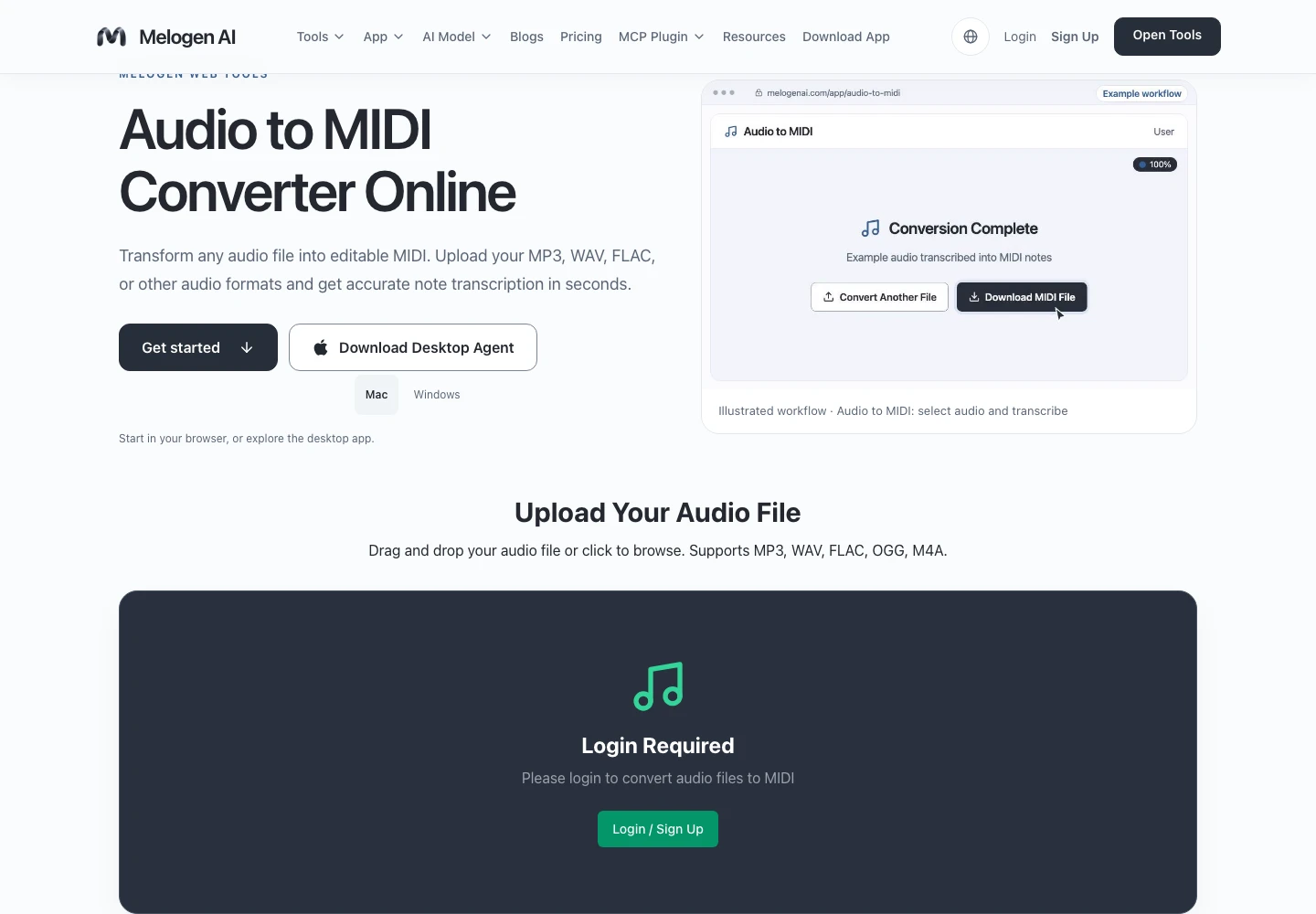
Keep the downloaded part separate from the reference recording, then import it into the intended instrument's Piano roll. The wider audio transcription workflow covers source selection; this page's job is choosing the FL editor, reaching the correct Channel and checking the resulting notes.
Make a MIDI draft for your FL Studio session
Upload a short recording to Melogen Audio to MIDI, download the note data, then compare it with the source in FL Studio.
When you share the result, keep the editable notes and a short audio reference together. The MIDI sharing checklist explains why the recipient's instrument can change the sound even when the notes are correct.
About the author
Zhang Guo
Composer - AI Product Manager
AI product manager and digital marketing consultant with a background in music. Creativity is the bridge between rhythm and logic, where musical intuition and mathematical precision can coexist in every meaningful product decision.
Follow on X