How to Change Spotify Profile Picture on Any Device
Change your Spotify profile picture on mobile, desktop, or web. Fix Facebook-linked photos, slow updates, artist images, and privacy mistakes.
 Zhang Guo
Turn a static score into editable MIDI
Contents
To change Spotify profile picture settings on a phone, open your profile, tap Edit, and choose Change photo. On desktop or the web player, open Profile, click the current picture, choose a new image, and save it. The same menu can also remove the current photo.
The main exception is a Facebook-linked account. Spotify may display the Facebook profile picture by default, and the remove option may not appear until you deal with that connection. Artist profiles use a separate Spotify for Artists workflow, so do not follow ordinary listener steps if you are changing an artist avatar or header.
Pick the correct Spotify profile path
Start by identifying which image you are actually changing. Spotify uses different controls for personal profiles, artist profiles, and playlist covers.
| Image you want to change | Correct surface | Main path |
|---|---|---|
| Personal profile picture on mobile | Spotify mobile app | Profile picture → View Profile → Edit → Change photo |
| Personal profile picture on desktop | Spotify desktop app | Profile → click the picture → choose or remove photo → Save |
| Personal profile picture on web | Spotify web player | Profile → click the picture → choose or remove photo → Save |
| Artist avatar or header | Spotify for Artists | View profile → Edit → update the relevant artist image |
| Playlist cover | The playlist editor | Open the playlist and edit its cover separately |
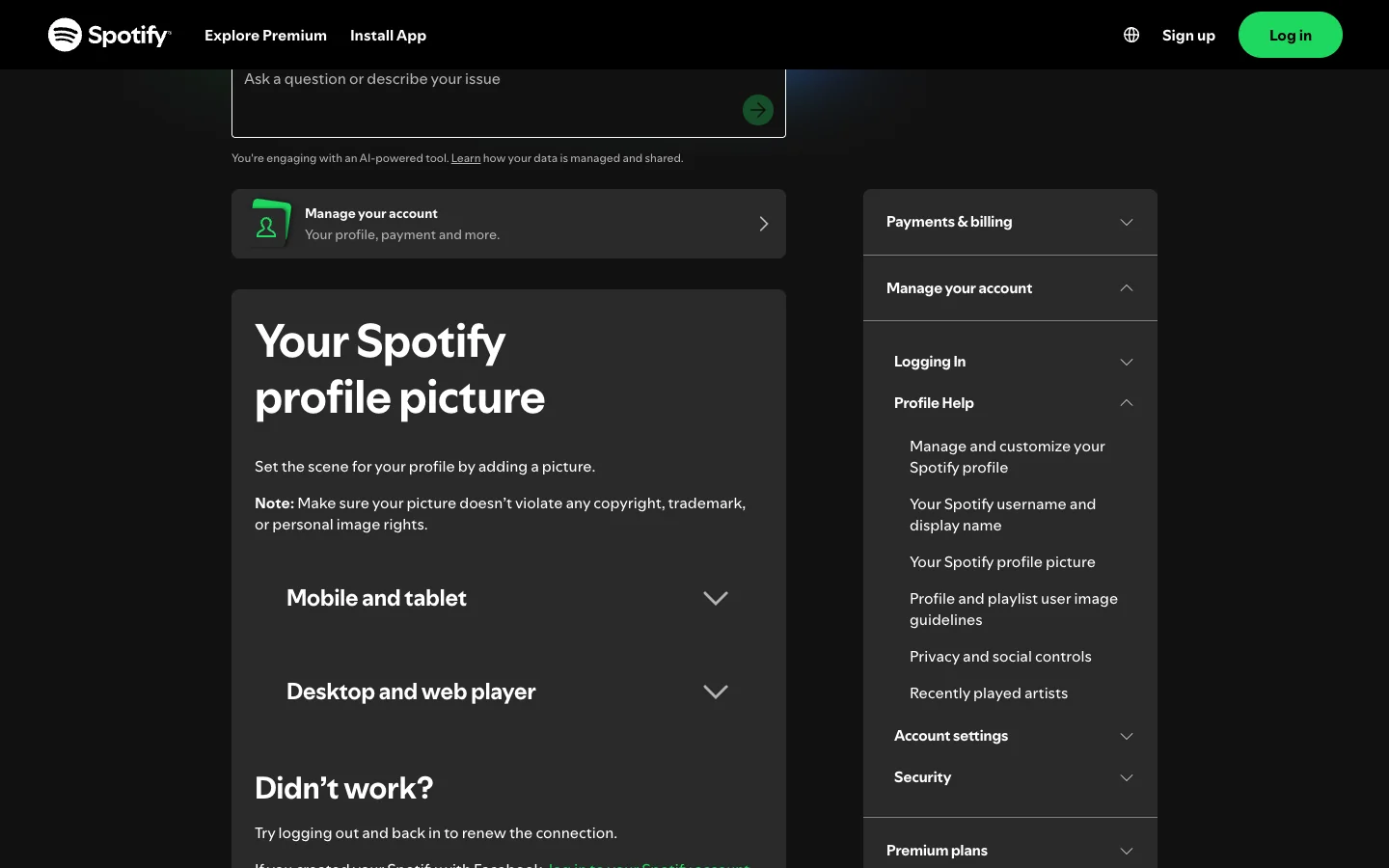
Spotify's official profile picture guide is the safest source for the current personal-account steps. Melogen is not Spotify support and cannot edit a Spotify profile, recover an account, or change an artist page.
Change your Spotify profile picture on mobile
Use the Spotify app on the account whose picture you want to update.
- Tap your profile picture at the top of the app.
- Tap View Profile.
- Tap Edit.
- Tap Change photo.
- Select the picture you want to use, or tap Remove current photo.
- Confirm the change and return to the profile to check it.
The same profile editor also exposes the display name. That does not change the account username or login method. It changes the name other people see on the profile and beside playlists.
If you manage more than one identity, pause before saving. A personal account, an artist team, and a playlist brand may use different images for good reasons. Confirm the profile name and public playlists before replacing the photo.
Change it on desktop or the web player
Spotify documents the same short route for the desktop app and web player:
- Click your profile picture at the top.
- Select Profile.
- Click the current picture.
- Choose a replacement image, or select Remove photo.
- Click Save.
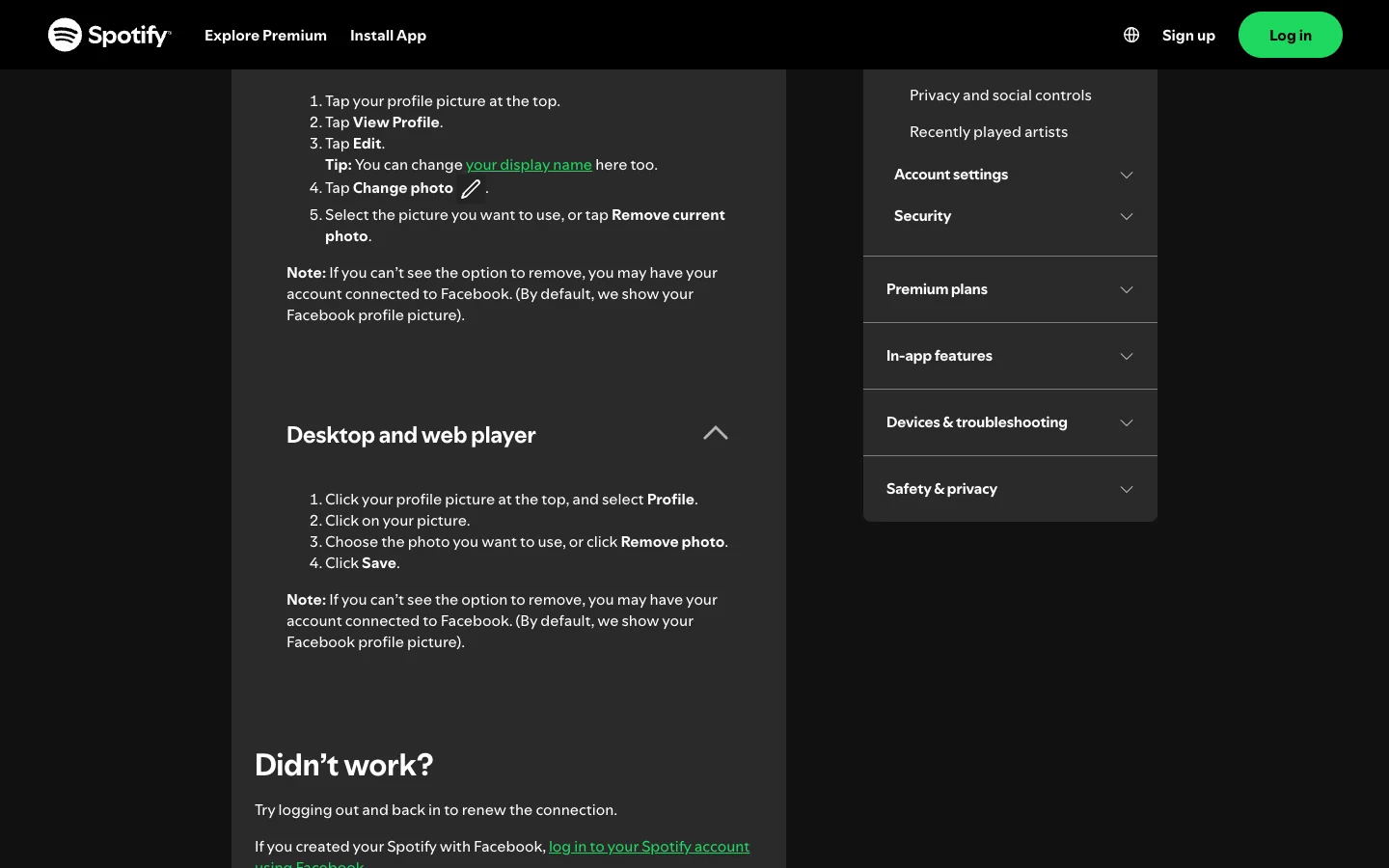
Use the web player when the desktop app is stale or the profile editor is hard to find. Use the desktop app when you want to confirm that the changed picture is visible in the surface you normally use. Logging into both with the same account is the important part.
If your goal is to make the profile easier to share after the picture is updated, the separate guide to add friends on Spotify covers profile links, Spotify Codes, search, Jam, and follower checks.
Use Spotify for Artists for an artist image
A listener profile picture is not an artist avatar. Spotify's artist image management guide says artist image controls are for team members with Admin or Editor access.
For an artist avatar on desktop:
- Sign in at Spotify for Artists.
- Open View profile.
- Select the edit control above the monthly-listener count.
- Choose Update under Avatar image.
In the Spotify for Artists mobile app, open the Profile tab and tap Edit Image. Spotify says the avatar cannot be updated through a mobile web browser. It also says the search image can take up to 72 hours to update, and restarting the app can help when caching delays the visible change.
Artist headers have another boundary. Spotify says they are updated on the web surface, not through a mobile web browser or the Spotify for Artists mobile app. Removing a header makes the avatar appear in its place, while an artist avatar cannot be removed completely.
That distinction matters because a personal-profile tutorial cannot solve an artist-team permission problem. Check the profile type and team access before troubleshooting the image file itself.
Fix a Spotify profile picture that will not update
Most failures fall into a few account or cache categories.
| Symptom | Likely cause | What to try |
|---|---|---|
| Remove photo is missing | The account may still be using a Facebook profile picture | Check the Facebook connection and the login method before retrying |
| The old picture remains on one device | The app or page may have cached the previous image | Sign out and back in, restart the app, and compare another device or the web player |
| A Facebook picture has not appeared | Facebook-linked changes may take time to propagate | Keep the correct Facebook login connected and allow up to a few days |
| An artist image is unchanged in search | Spotify for Artists search imagery has a longer cache window | Allow up to 72 hours and restart the app before escalating |
| The editor is available on desktop but not mobile web | Artist-image controls differ by surface | Use Spotify for Artists desktop or its mobile app as documented |
| You changed the wrong identity | Personal, artist, and playlist images have separate editors | Return to the intended profile and verify the name before saving |
Do not repeatedly upload different files while you are still unsure which account or profile type is active. That makes it harder to tell whether the problem is access, caching, Facebook linking, or the image itself.
If you are trying to remove the entire account rather than only its picture, use the separate Spotify account deletion guide. A profile edit is reversible; permanent account closure is a different decision with data-loss consequences.
Choose an image you are allowed to use
Spotify's profile and playlist image guidelines say uploaded images must not violate copyright, trademark, or personal image rights. A practical check is simple:
- Use a photo or graphic you created, licensed, or have permission to publish.
- Do not use another person's face without their consent.
- Do not use a logo or brand design in a way that implies an affiliation that does not exist.
- Keep the image recognizable at a small circular size.
- Avoid important details at the outer edges, where a circular crop can hide them.
- Review the public profile after saving instead of trusting only the upload preview.
This is also why an AI-generated fake artist portrait, fake label logo, or copied album cover is a poor shortcut. The profile image is public identity, not merely decoration.
Check what the profile reveals after the picture change
A new picture does not change who can see playlists, recently played artists, followers, or listening activity. Review those controls separately if the profile is becoming more public.
Use the Spotify private listening guide to separate these jobs:
- profile picture controls visual identity
- display name controls the public name
- playlist privacy controls whether a playlist is accessible
- profile publishing controls whether a public playlist appears on the profile
- Listening Activity and Private Session affect social listening visibility
- Recently played artists is another profile setting
After updating the picture, open the public profile from another account or a private browser window. Check the image crop, display name, public playlists, recently played artists, and follower-facing links together. That is a more useful quality check than confirming only that the upload button worked.
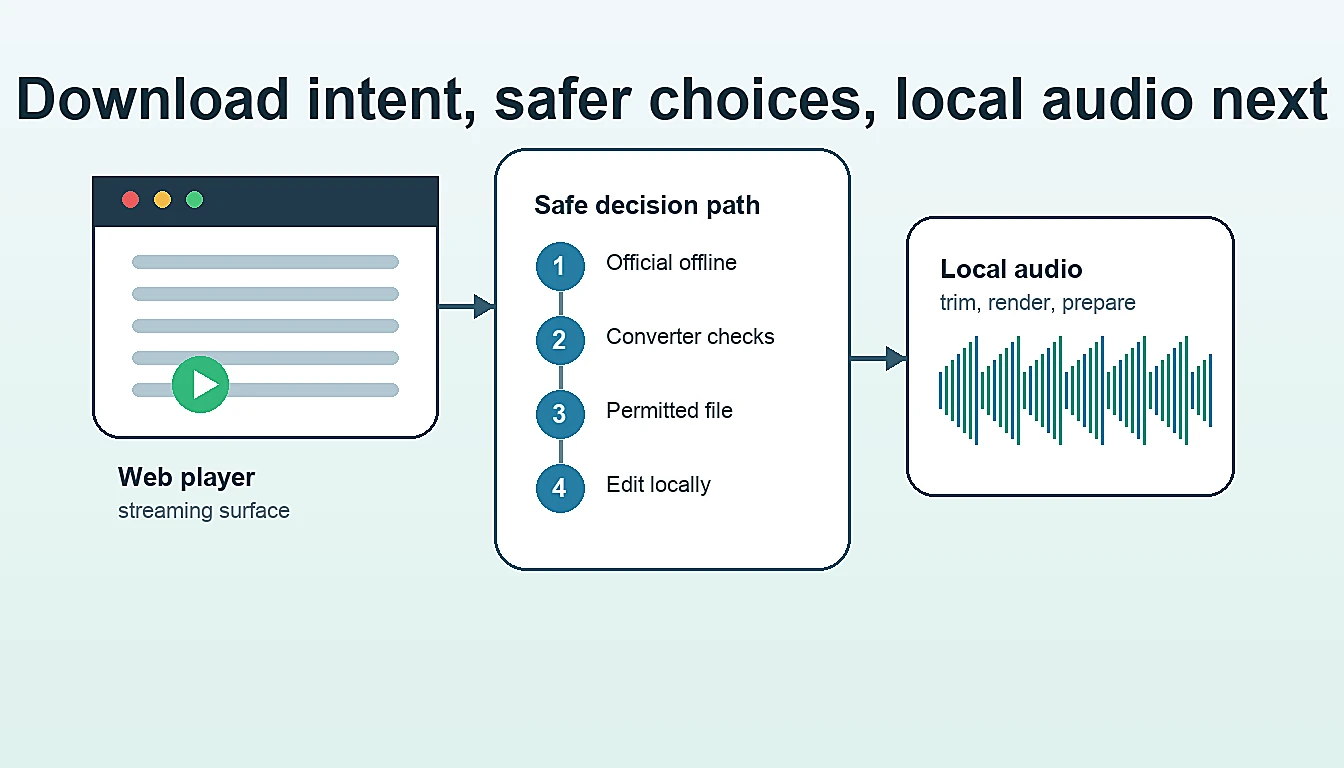
Keep profile editing separate from local audio work
Changing a Spotify profile picture is an account task. It does not download music, change audio ownership, export a playlist, or turn Spotify offline data into editable files.

Melogen becomes relevant only when the next task involves an ordinary local audio file you own or are authorized to edit. Use Melogen Music Trimmer to cut a recording, make a short preview, add fades, or export a permitted clip. It cannot modify a Spotify account or extract Spotify catalog audio.
Prepare a clean local music preview
After your profile is set, use Melogen only for recordings, exports, purchases, and other local audio files you are allowed to edit.
Spotify profile picture FAQs
Why can I not remove my Spotify profile picture?
Spotify says the missing remove option may mean the account is connected to Facebook and is showing the Facebook profile picture by default. Check that connection and use the same login method that created the account.
How long does a Spotify profile picture take to update?
For Facebook-linked pictures, Spotify says it can take up to a few days for the image to appear. For Spotify for Artists search imagery, Spotify says the update can take up to 72 hours. Ordinary personal-profile changes may appear sooner, but caching can make one device show the old picture temporarily.
Can I change a Spotify artist picture in the normal app?
Not with the personal-profile steps. Artist admins and editors use Spotify for Artists. The available controls also differ between desktop, mobile app, and mobile web.
Can I change my display name at the same time?
Yes. Spotify notes that the personal-profile editor also allows a display-name change. The display name is public-facing and is different from the username used to identify the account.
Does changing the picture make my playlists private?
No. The profile picture, public-profile publishing, playlist privacy, Listening Activity, and Private Session are separate controls. Review each one according to the visibility outcome you want.
Can Melogen change my Spotify profile?
No. Melogen does not control Spotify accounts, profiles, artist teams, playlists, or streaming downloads. It processes local music files only when you have the right to edit them.
The practical takeaway
Use Spotify's profile editor to change a personal picture on mobile, desktop, or web. Use Spotify for Artists for an artist avatar or header. If the old image remains, verify the exact account, check Facebook linking, sign out and back in, and allow the documented cache window before escalating.
Then review the public profile as a whole. Check the crop, display name, playlists, recently played artists, and privacy controls. Keep any Melogen workflow separate and limited to local audio files you own or are authorized to edit.
About the author
Zhang Guo
Composer - AI Product Manager
AI product manager and digital marketing consultant with a background in music. Creativity is the bridge between rhythm and logic, where musical intuition and mathematical precision can coexist in every meaningful product decision.
Follow on X