How to Change Tempo in MuseScore Studio Correctly
Change tempo in MuseScore Studio with score markings, distinguish playback speed from written tempo, and verify beat units and later changes.
 Zhang Guo
Turn a static score into editable MIDI
Contents
To change tempo in MuseScore Studio, select the note or rest where the change begins and add a tempo marking from the Tempo palette. Double-click an existing metronome marking to edit its number. Use the marking's playback properties if the displayed instruction and playback need separate values.
For a practice-only speed adjustment, use the playback controls instead. A slower playback setting and a new written tempo solve different jobs: one helps rehearsal, while the other tells performers how the music should go.
Decide whether the score or rehearsal speed should change
| Goal | Control to use | Verify |
|---|---|---|
| Set the piece's intended opening speed | Tempo marking at the beginning | The written beat unit and number |
| Begin a slower middle section | New tempo marking at that position | Playback from before the transition |
| Practise the whole score more slowly | Playback tempo control | Restore normal speed before evaluating the arrangement |
| Create a gradual slowdown | Tempo change line | Its start, end, and playback amount |
Save a copy before changing an established tempo map. If the piece contains several tempo changes, write down the intended section speeds first. Otherwise it is easy to fix the opening while leaving an old marking later in the score.
Add or edit a written tempo marking
Use the current tempo markings handbook as the command reference:
- Select a note or rest at the intended starting position.
- Open the Tempo palette and apply the appropriate marking.
- Double-click the inserted marking to edit its text or metronome number.
- Leave text editing and play across the change.
You can also use Add → Text → Tempo marking. A real tempo object matters: ordinary text that happens to say “96 BPM” is not a reliable substitute for a tempo marking.

Starting example rendered in MuseScore Studio 4.7.6. The initial marking sets a clear quarter-note reference.
Put a new tempo at the correct beat
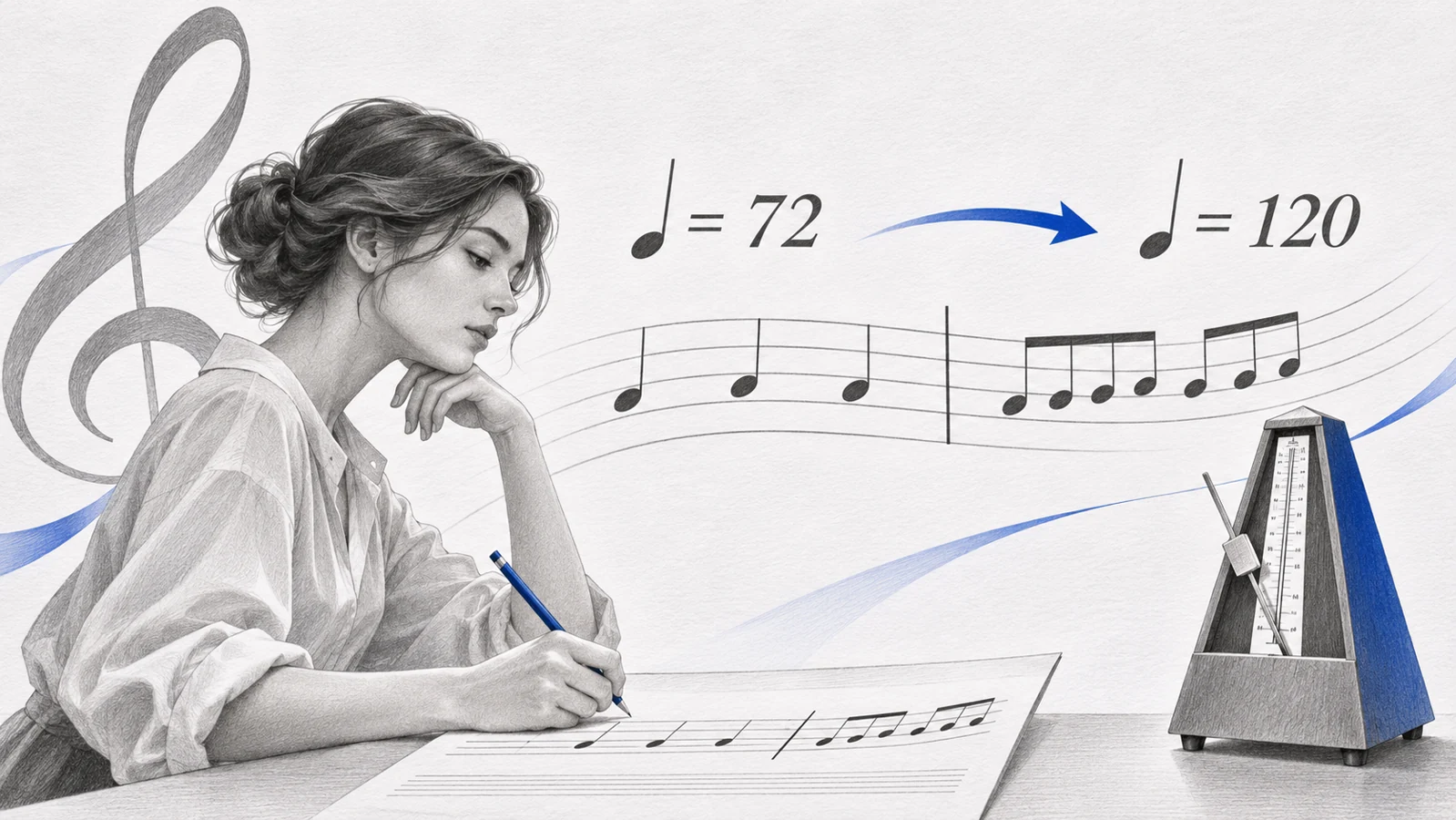
Suppose a two-bar piano example begins at quarter note = 72, then moves to quarter note = 96 at bar 2. Select the first note of bar 2 before adding the second marking. Play from bar 1 so you hear the transition rather than starting after it.

Illustrative score fixture with a second tempo marking. The change begins at its note anchor, not merely where the text looks centered on the page.
A section break does not by itself establish a new speed. When the music returns to an earlier tempo, add the intended instruction rather than assuming the layout will reset playback.
Download the starting score and the illustrative result to inspect the musical difference in your own notation editor.
Check the beat unit and playback override
Quarter note = 80 and half note = 80 are different speeds. In the second case, a half note lasts one metronome pulse, so two quarter notes fit into that pulse. A dotted-quarter marking in compound meter needs the same care.
If the visible marking looks right but sounds wrong, select it and inspect Properties → Tempo. Review Follow written tempo and any specific or overriding tempo value. Preserve MuseScore's music-symbol glyphs when editing the note unit; typing a lookalike character is not the same as inserting the supported symbol.
For gradual lines such as ritardando, inspect the line's playback controls and anchored range as well as its label. A line that ends too early can finish its slowdown before the phrase ends.
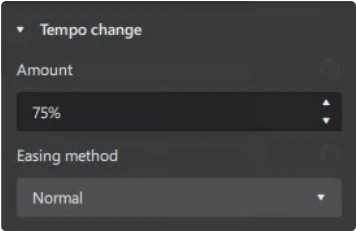
Official handbook screenshot of gradual tempo-change properties; these controls belong to tempo-change lines.
Use playback controls for temporary practice
The official playback controls guide describes the playback tempo controls. Use them when your objective is a slower rehearsal pass without rewriting every score marking.
After practice, restore the normal playback setting and listen again. A performance that felt reasonable at a reduced speed may expose rushed entrances or awkward transitions at the written tempo.
Use the rhythm notation guide if the problem is counting the beat rather than setting speed. Changing tempo does not repair an incorrectly entered rhythm.
Run a tempo check before sharing
- Start at the beginning and confirm the opening tempo.
- Play across every section transition rather than auditioning only isolated bars.
- Compare the beat unit with the intended musical pulse.
- Inspect any playback override when text and sound disagree.
- Check gradual lines through their complete range.
- Verify the exported file in its receiving application if tempo is part of the handoff.
For MIDI and audio output, use the official file export guide. An export check should include the actual transitions, not only the opening BPM.
If tempo repair follows a PDF import
Melogen PDF to MusicXML can create editable notation from a PDF score. After opening that file in MuseScore, compare its tempo markings and anchors with the original. Correct a missing or misplaced marking before relying on playback. The scan music into MuseScore guide covers the broader import proofing sequence.
Bring a PDF score into an editable tempo workflow
Convert with Melogen PDF to MusicXML, then check written tempo markings and playback in MuseScore Studio.
About the author
Zhang Guo
Composer - AI Product Manager
AI product manager and digital marketing consultant with a background in music. Creativity is the bridge between rhythm and logic, where musical intuition and mathematical precision can coexist in every meaningful product decision.
Follow on X