How to Change Time Signature in MuseScore Studio
Change a time signature in MuseScore Studio using the palette, then inspect rebarred notes, ties, later meter changes, and custom beat groups.
 Zhang Guo
Turn a static score into editable MIDI
Contents
To change a time signature in MuseScore Studio, select the measure where the new meter should begin, then click the required value in the Time signatures palette. You can also drag the signature onto that measure. MuseScore can rebar the following music, so save a copy and check the result immediately.
Changing the printed numbers through appearance settings is a different operation. Use a real time-signature change when the musical meter changes, then inspect notes and barlines together.
Choose where the new meter begins and ends
Time-signature changes begin at a measure boundary. Identify that boundary before applying the palette item. If a later section must return to the original meter, plan that return change too.
| Task | Appropriate approach | Expected check |
|---|---|---|
| Change the piece from the start | Apply the new signature to the opening | Following music is grouped in the intended meter |
| Begin a new section in another meter | Apply it at that section's first measure | The previous section remains correct |
| Return to the earlier meter | Add another signature at the return | The original meter resumes at the right point |
| Show an unusual meter | Create a custom time signature | Underlying value and beat grouping are correct |
Do not assume a highlighted two-bar range limits the duration of the new meter. A meter change needs its own later return instruction when that is what the music requires.
Apply the signature from the palette
The current time signatures handbook gives the basic method:
- Select a measure, note, rest, or existing time signature at the change point.
- Open the Time signatures palette.
- Click the desired signature, or drag it onto the measure.
- Inspect the following music before doing another edit.
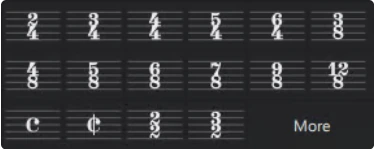
Official handbook screenshot of the palette. Choose a meter value here when the underlying rhythm should change.
Use a short passage first when exploring the behavior. Undo is easier to evaluate when you can compare a few recognizable notes rather than an entire rearranged score.
Check the rebarred musical result
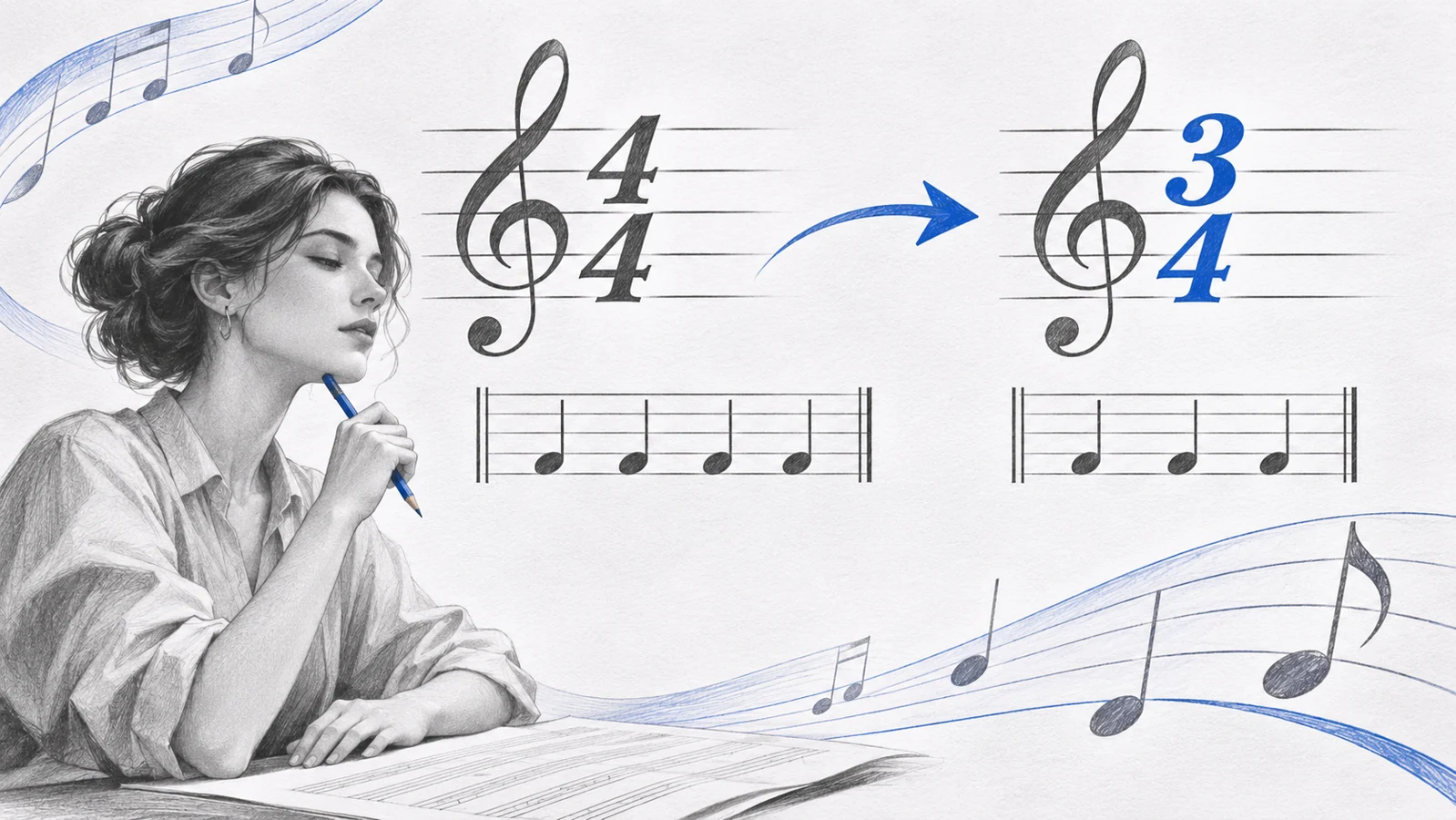
Changing from 4/4 to 3/4 changes the capacity of a normal bar from four quarter notes to three. For a continuous twelve-quarter-note line, the same duration can occupy three 4/4 bars or four 3/4 bars. The phrase has not necessarily become shorter just because the bar count changed.


Illustrative score fixtures rendered in MuseScore Studio 4.7.6. Compare the total note duration as well as the new barlines.
The handbook warns that rebar operations can lose some items. Inspect tied notes, voices, tuplets, lyrics, slurs, and markings around the new boundaries. Keep the saved original until you have checked the entire changed section.
If you only need a shorter opening upbeat, use a pickup's actual measure duration rather than changing the whole piece to a smaller meter. The official pickup guide explains that separate operation.
Download the starting score and the illustrative result to inspect the musical difference in your own notation editor.
Create a custom meter when the palette lacks it
Open More in the Time signatures palette, then choose Create time signature. Enter the underlying numerator and denominator in Value. Adjust Beam groups if the musical grouping requires it, add the signature to the palette, and apply it to the score.
For 7/8 grouped 2 + 2 + 3, count the seven eighth notes and check that the beams help the player see those groups. A displayed “7/8” alone does not establish a useful accent pattern for the performer.
The Text or appearance fields control how the signature is displayed. Keep the underlying rhythmic value correct even when the printed form is customized. The official beaming guide provides more detail on grouping.
Avoid local-meter surprises
A local time signature applies to one staff, but it does not create independently timed bar lengths. MuseScore's documented local-meter behavior keeps bars aligned with the global measure duration. It also has restrictions when music already follows on that staff.
For an ordinary full-score meter change, apply the palette item normally. Treat polymeter as a separate arranging task, not a quick workaround when the global result looks unexpected.
Verify before layout and export
- The new signature starts at the intended measure.
- A later return signature is present where needed.
- The continuous phrase has the intended total duration.
- Notes and rests fill each new bar correctly.
- Ties, tuplets, voices, and lyrics survived the rebar operation.
- Beams communicate the intended beat groups.
- Every staff aligns and playback crosses the change correctly.
Use the rhythm notation guide for counting note values. If the source is a PDF, Melogen PDF to MusicXML can supply an editable first pass; compare its meter and barlines against the PDF before making a new meter change. The scan music into MuseScore guide covers that earlier stage.
Prepare PDF notation for meter corrections
Use Melogen PDF to MusicXML, then inspect and edit the time signatures and measures in MuseScore Studio.
About the author
Zhang Guo
Composer - AI Product Manager
AI product manager and digital marketing consultant with a background in music. Creativity is the bridge between rhythm and logic, where musical intuition and mathematical precision can coexist in every meaningful product decision.
Follow on X