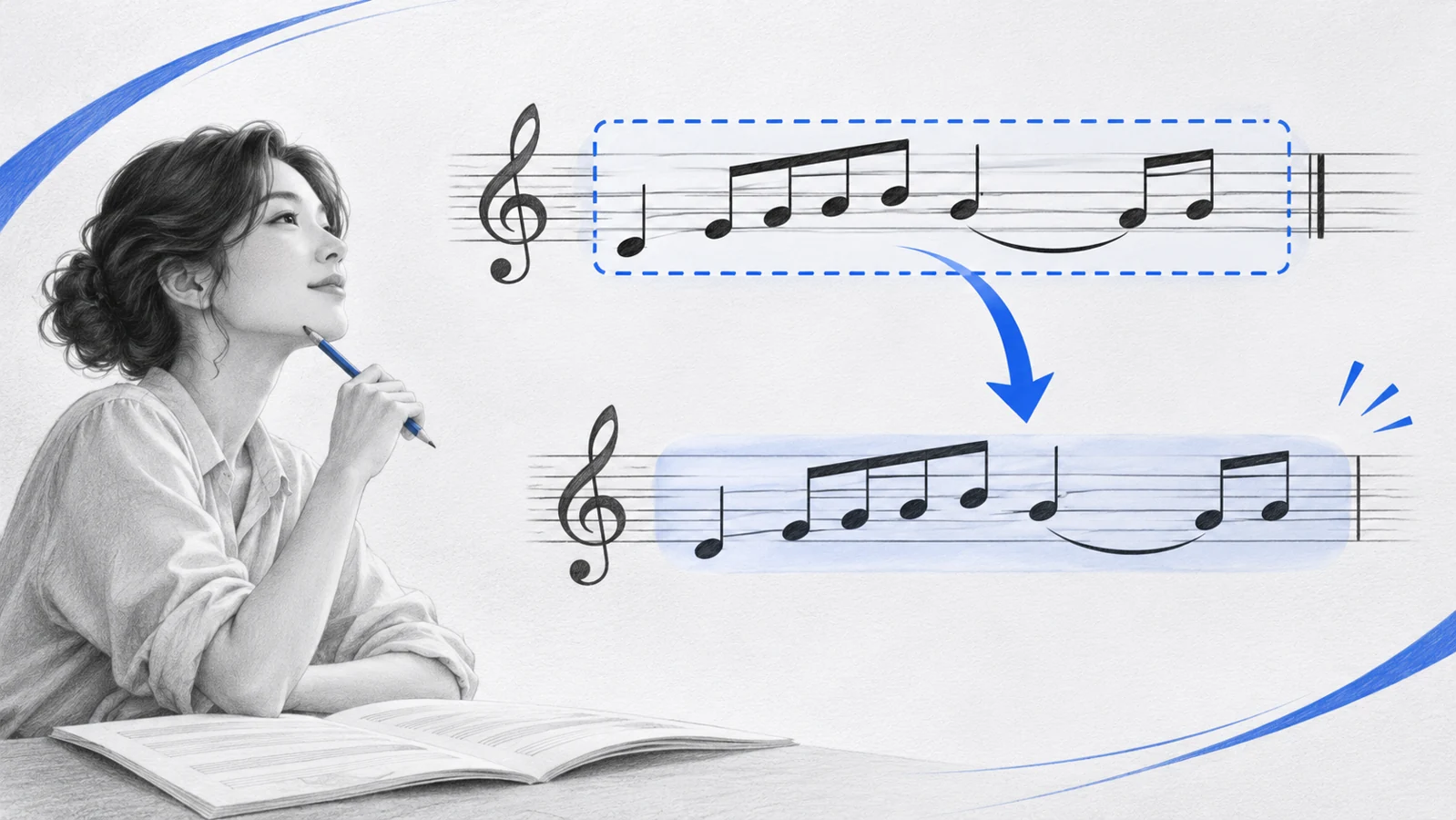
How to Export MIDI From MuseScore for a DAW
Export MIDI from MuseScore Studio, choose repeat settings, and check notes, tempo, instruments, and the final measure before a DAW handoff.
 Zhang Guo

Turn a static score into editable MIDI
Contents
Here is how to export MIDI from MuseScore Studio. Open your score, choose File → Export, select MIDI as the format, choose the score or parts you need, and save the .mid file. Open that file in the receiving DAW before you send it to a collaborator.
MIDI gives you editable notes and timing. It does not package the sounds you heard in MuseScore or preserve the printed page. Keep the native score as your working master and export a separate file for the next task.
Prepare the score before exporting
Save a named working copy, then listen from the opening through the last measure. Resolve missing notes, incorrect instrument assignments, and repeat problems before the export. A correct file extension cannot repair an unfinished arrangement.
For a simple test, use a short flute melody with a tempo of quarter note = 96 and a repeated ending. Decide whether your producer should receive the repeated performance or just one written pass. That choice affects the exported timeline.

Original example score rendered in MuseScore Studio 4.7.6. Use a short passage like this to check the handoff before exporting a full arrangement.
Download the original short score example and its MuseScore-exported MIDI file to compare notation with the MIDI handoff.
Export a MIDI file from the desktop app
The current MuseScore file export handbook documents this route:
- Open File → Export.
- Set the format to MIDI.
- Check the full score or the specific parts you intend to deliver.
- Choose the available combined-file option if you want selected parts together.
- Review the MIDI options, then click Export… and choose a filename and folder.
Use a name that distinguishes this file from your score, such as rehearsal-flute-96bpm.mid. Keep the .mscz master alongside it. If you cannot find the command on the score-sharing website, open the editable score in MuseScore Studio, the desktop notation program.
Choose repeat handling deliberately
Expand repeats unrolls repeated sections into the MIDI performance. With it disabled, the export ignores repeats and plays written sections once. This is especially important when someone will add vocals, automation, or new parts against your arrangement.
| Delivery goal | Repeat choice | Check in the destination |
|---|---|---|
| Full performance for production | Expand repeats | Repeated phrases appear in the expected order |
| One written pass for rearranging | Leave repeats unexpanded | No unexpected duplicate section |
| Separate player material | Select the intended part | The required line is present and isolated |
| Hardware or device workflow | Review Export RPNs if needed | The receiving device interprets pitch-related controls correctly |
Do not toggle Export RPNs to fix ordinary wrong notes. It concerns extended MIDI control messages. If a receiving device has specific requirements, follow that device's MIDI documentation.
Check the file in the receiving DAW
Import the .mid into an empty test project. Use its tempo information when that is your intended handoff, then assign a recognizable instrument to each imported track. Solo the melody first; a dense mockup can hide a missing note.
Run these checks before continuing production:
- The first note begins where you expect, including any pickup or initial silence.
- The tempo and any later tempo changes match the score.
- The final note and its intended duration are present.
- Repeats agree with the form you chose to export.
- Track names, instrument assignments, and registers make sense.
- Sustained notes are not mistaken for missing repeated attacks.
For the 96 BPM test passage, count along with the opening. If the melody is correct but the sound differs, try another instrument in the DAW. MIDI playback depends on the receiving sound source.
Choose another format when the destination needs it
| What the recipient needs | Better file | Why |
|---|---|---|
| Editable performance in a DAW | MIDI | Notes, timing, and performance events |
| Your rendered sound | WAV or another audio export | A listening reference retains the rendered audio |
| Editable notation in another score editor | MusicXML | Transfers notation structure |
| A page to read or print | Preserves the page presentation |
The MIDI vs MusicXML guide explains the format choice in more detail. For returning to notation work later, see MuseScore's MusicXML transfer guidance. For saving your working project, use the official opening and saving guide.
If your source is still a PDF score
If your music already opens correctly in MuseScore, export there. When the only source is a PDF, use Melogen's PDF-to-MusicXML workflow to create an editable first pass, open it in MuseScore, and proofread the music before exporting MIDI. Keep the original PDF nearby to check pitches, rhythms, and repeats.

The scan music into MuseScore guide covers that earlier recognition stage. It is a separate step from exporting an existing editable score.
Create editable notation before your MIDI export
Use Melogen PDF to MusicXML for a PDF score, then proofread and export from MuseScore Studio.
About the author
Zhang Guo
Composer - AI Product Manager
AI product manager and digital marketing consultant with a background in music. Creativity is the bridge between rhythm and logic, where musical intuition and mathematical precision can coexist in every meaningful product decision.
Follow on X