How to Import MIDI Into GarageBand and Check Each Part
Import MIDI into GarageBand on Mac, iPhone, or iPad. Check tempo, separate parts, instrument sounds, and song-section length with a two-part example.
 Zhang Guo
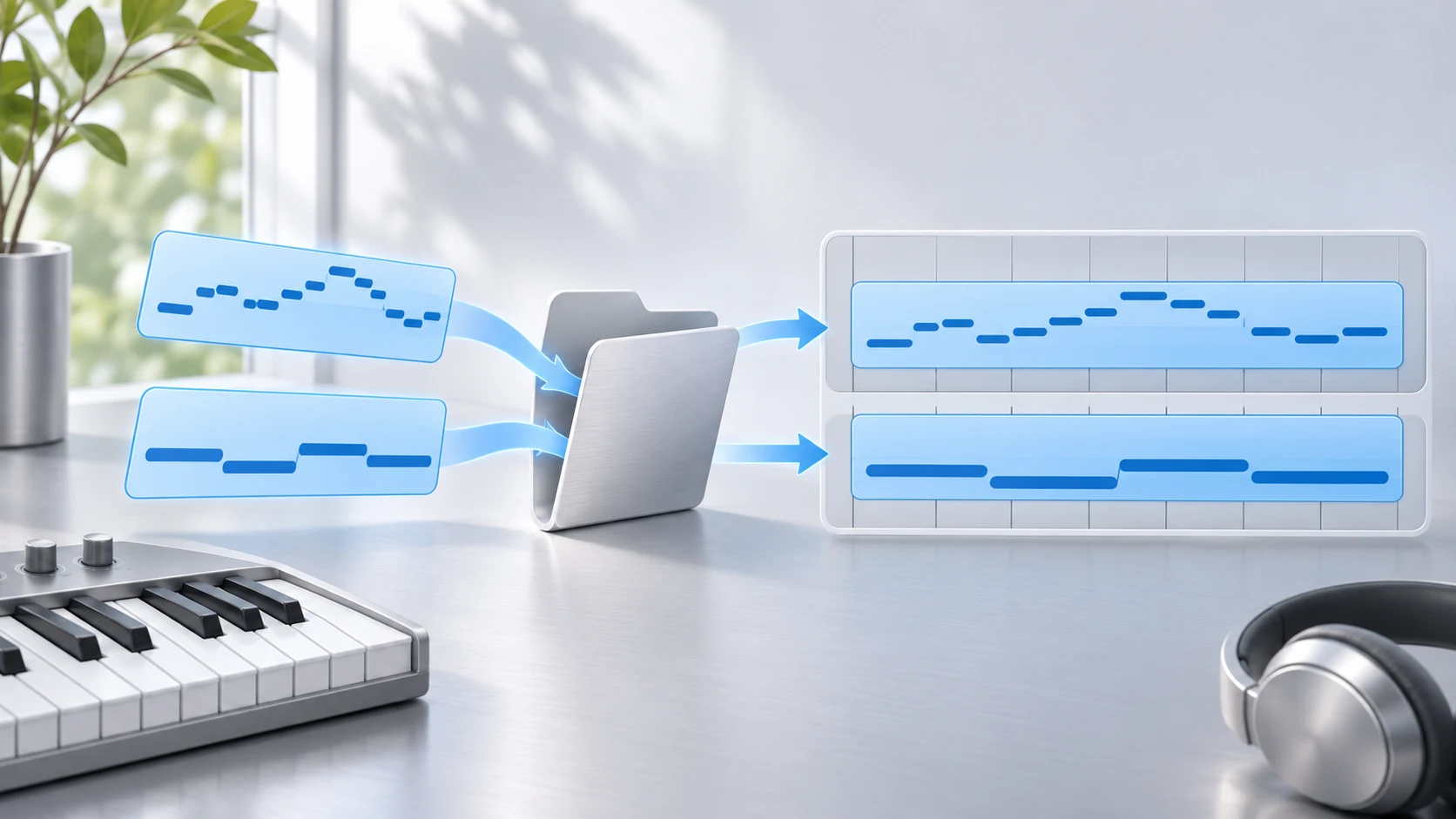
Turn a static score into editable MIDI
Contents
To import MIDI into GarageBand on Mac, drag the .mid file from Finder into a software-instrument track or the empty area below the tracks. On iPhone or iPad, use the Loop Browser's Files tab, then drag the file into Tracks view. After import, check the tempo, the musical parts, and the assigned sounds before editing notes.
This guide starts with a ready-made MIDI file. A WAV, MP3, or voice recording contains audio rather than editable MIDI notes and needs a different preparation step.
Check the file before importing it
A .mid file holds musical events, not a recording of the original instrument. You can change the sound after import, but the result may not match the patch used by the person who created the file.
Keep these three facts beside the file:
| Information | Example | Why it helps |
|---|---|---|
| Intended tempo | 96 BPM | Confirms phrase length against the bar grid |
| Musical parts | Melody and bass | Reveals a missing or combined part |
| Intended starting point | Bar 1, beat 1 | Prevents an accidental placement offset |
Download this original two-part 96 BPM MIDI example to practice. It contains two musical tracks, six melody notes and two bass notes, in a two-bar 4/4 grid. At 96 BPM the grid spans five seconds. MIDI octave labels differ between applications, so compare pitches by the phrase and MIDI numbers if a displayed octave name looks different.
Import the MIDI on a Mac
- Open a spare GarageBand project and note its current tempo and time signature.
- Place the playhead near the intended start and keep the bar ruler visible.
- Drag the
.midfrom Finder into the empty Tracks area below the existing tracks to make the imported parts easier to inspect. - Check where the imported regions begin and how many musical parts appear.
- Choose a sound in the Library for each part, then play the result.
Apple's Mac import guide supports dragging into either a software-instrument track or empty space. A multitrack file can appear on more than one software-instrument track. Keep an eye on the imported parts rather than assuming every MIDI file has only one melody.
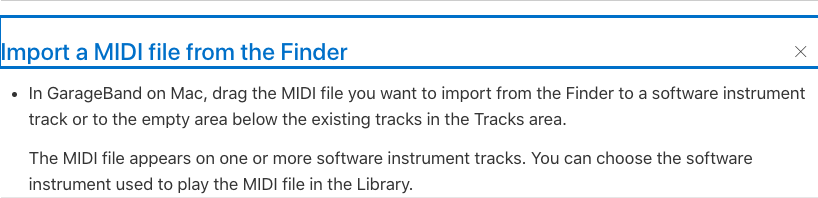
For the example, check that both the melody and bass are audible. If the sound is wrong but the notes are present, choose a different patch before moving notes. A bass line played with a bright piano is a sound assignment issue, not evidence that the file imported at the wrong pitch.
Import the MIDI on iPhone or iPad
Save the file where the Files app can reach it, then open GarageBand in Tracks view. Open the Loop Browser, choose Files, browse to the MIDI file, and drag it into the track area at the intended starting bar.
Set the song section's length to Automatic before bringing in a longer file. Apple's iPad import instructions explain that a fixed section can limit how much of the file is imported or shown. The corresponding iPhone guide describes the same section-length check.
A multitrack import creates Keyboard tracks on these mobile versions, with a total track limit of 32. Use Tracks view for this workflow; multitrack MIDI cannot be added to Live Loops cells. These are mobile-specific rules and should not be confused with the Mac's track interface.
Verify the tempo and two musical parts
Play the example at 96 BPM and count two bars of four beats. The first melody and bass notes begin together. The bass changes at the beginning of bar two, and the final melody note is short. These landmarks are more useful than judging the whole import from its first second.
Check the project tempo after import, especially when adding a file to an existing song. Decide whether the existing project's tempo or the incoming file's intended tempo should govern the performance. Do not correct an apparent tempo mismatch by stretching note positions before you have checked the tempo control.
Once the timing is right, open a region in the Piano Roll and inspect a few note lengths. Leave quantization and note cleanup until after confirming the part count, position, and tempo. That order keeps setup problems from becoming unnecessary musical edits.
Fix common import problems
| Problem | Check | Next action |
|---|---|---|
| Only the beginning appears on mobile | Song-section length | Use Automatic, then inspect the region again |
| A part plays with an unexpected instrument | Library patch | Choose a suitable sound for that track |
| Melody and bass are not both audible | Imported tracks, mute, solo, and levels | Listen to each part separately |
| Phrase starts late | Region placement | Align the region to the intended starting bar |
| File is an audio region | Actual file type | Use the .mid, not its WAV or MP3 preview |
Prepare MIDI from notation when the source is a score
If your starting point is printed notation, Melogen Sheet2MIDI provides a score-to-MIDI route before the GarageBand import. Review the conversion for wrong notes, rhythms, repeats, and voices, then bring the downloaded MIDI into GarageBand for instrument selection and arrangement.

The sheet-music-to-MIDI guide covers that source-preparation task. When sending the result to another musician, the MIDI sharing checklist helps you include enough context for them to reproduce the intended phrase.
Create a MIDI starting point from sheet music
Convert the score with Melogen, check the notes and rhythms, then import the MIDI into GarageBand to choose sounds and arrange the parts.
Save the imported arrangement with context
Keep the source MIDI, save the GarageBand project, and record the chosen tempo and sounds. Before deep editing, confirm that each part appears at the intended place and the phrase lasts the expected number of bars. That is the point at which the import is ready to become an arrangement.
About the author
Zhang Guo
Composer - AI Product Manager
AI product manager and digital marketing consultant with a background in music. Creativity is the bridge between rhythm and logic, where musical intuition and mathematical precision can coexist in every meaningful product decision.
Follow on X