How to Play Spotify on Multiple Devices in 2026
Play Spotify on multiple devices with Connect, Jam, Duo, Family, or offline downloads—without unsafe account or download workarounds.
 Zhang Guo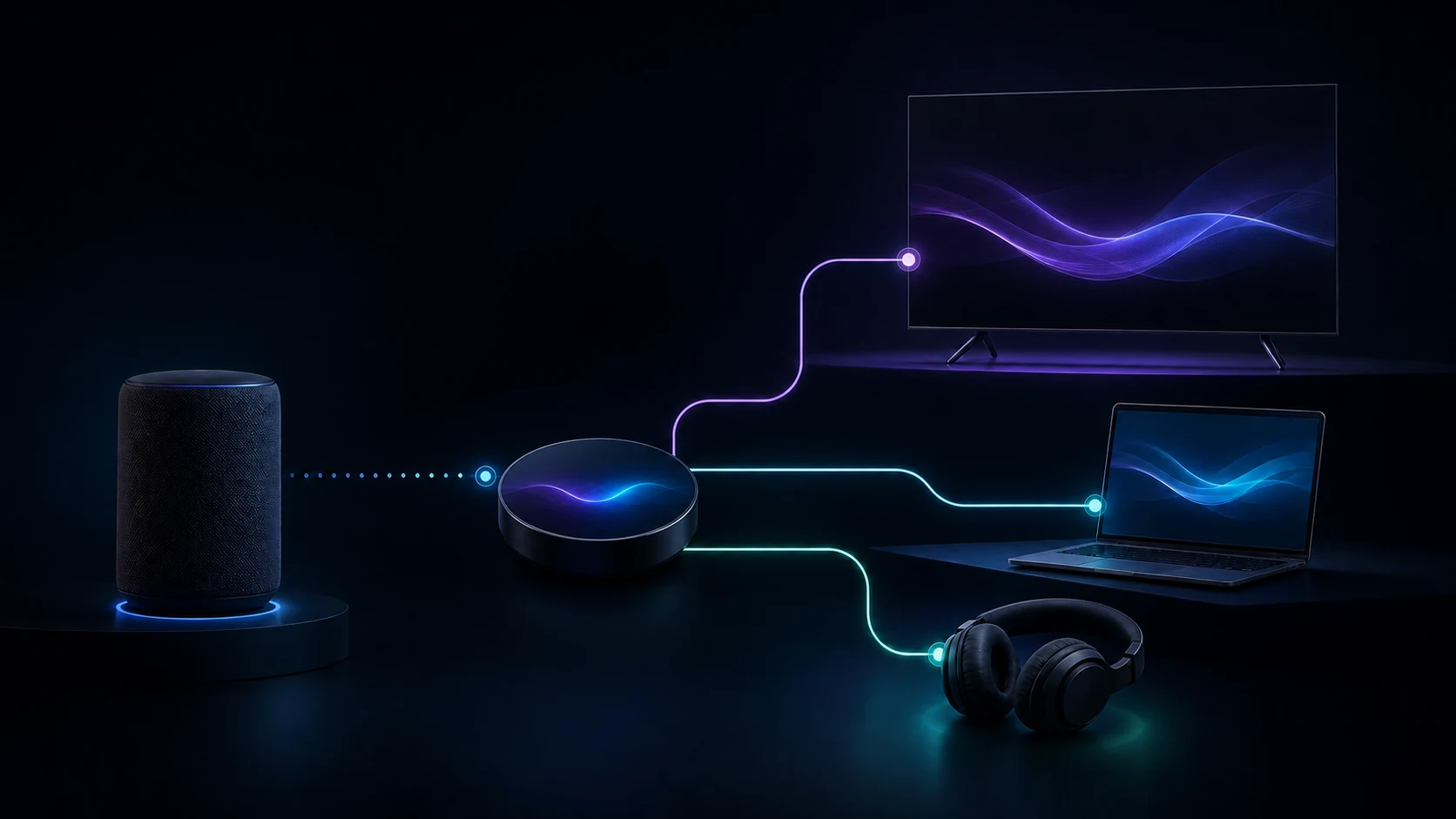
Turn a static score into editable MIDI
Contents
You can play Spotify on multiple devices, but the right method depends on what you mean by “play.” One Spotify account can play on only one device at a time. Spotify Connect lets one device control that single stream on another device; Jam lets people share a queue; Duo or Family gives eligible listeners separate accounts for independent playback; and offline downloads keep music available across supported devices without turning those downloads into editable files.
The fastest route is to choose the result you actually need before changing account settings or installing anything.
Choose the right way to use Spotify on multiple devices
Use this decision table before following a setup guide:
| What you want | Best Spotify feature or plan | What actually plays | Separate Premium accounts needed? |
|---|---|---|---|
| Control a speaker or TV from your phone | Spotify Connect | One stream on the selected output device | No |
| Let friends add songs to one shared queue | Spotify Jam | Usually one shared speaker, TV, or car output; remote listeners can also join where supported | Premium host; remote participants need Premium |
| Two people listen to different music at once | Premium Duo | Two independent streams | Yes, one account per person |
| Three to six household members listen independently | Premium Family | Up to six independent account sessions | Yes, one account per member |
| Keep music available on several personal devices | Offline downloads | Downloads stay inside Spotify on each authorized device | Premium for music downloads |
| Play the same room audio through several linked speakers | The speaker system's multi-room feature, often controlled through Connect | One synchronized output group | Usually one Spotify account for that stream |
These are different jobs. Connect is not a multi-login bypass, and a speaker group is not the same as two people listening to different albums. Once you name the job, the setup becomes much simpler.
Use Spotify Connect for one stream on another device
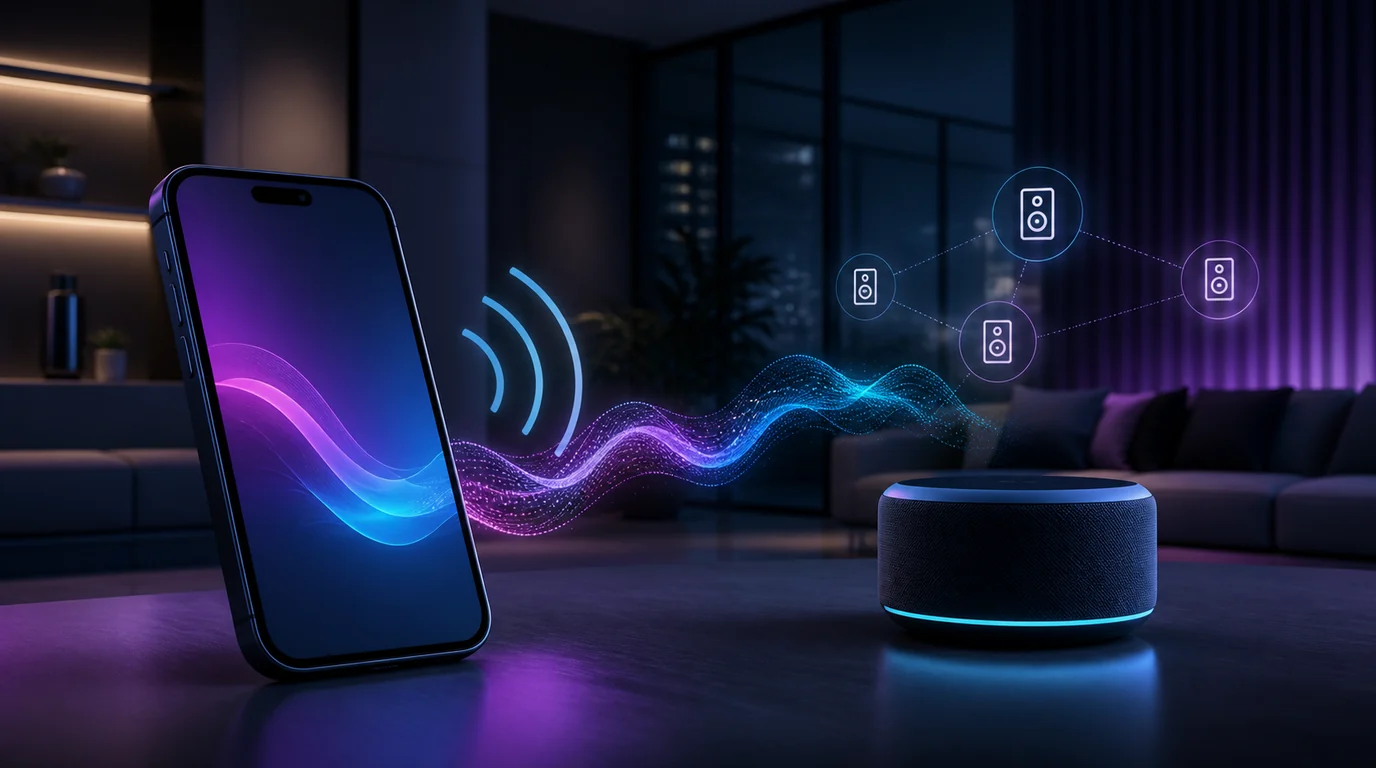
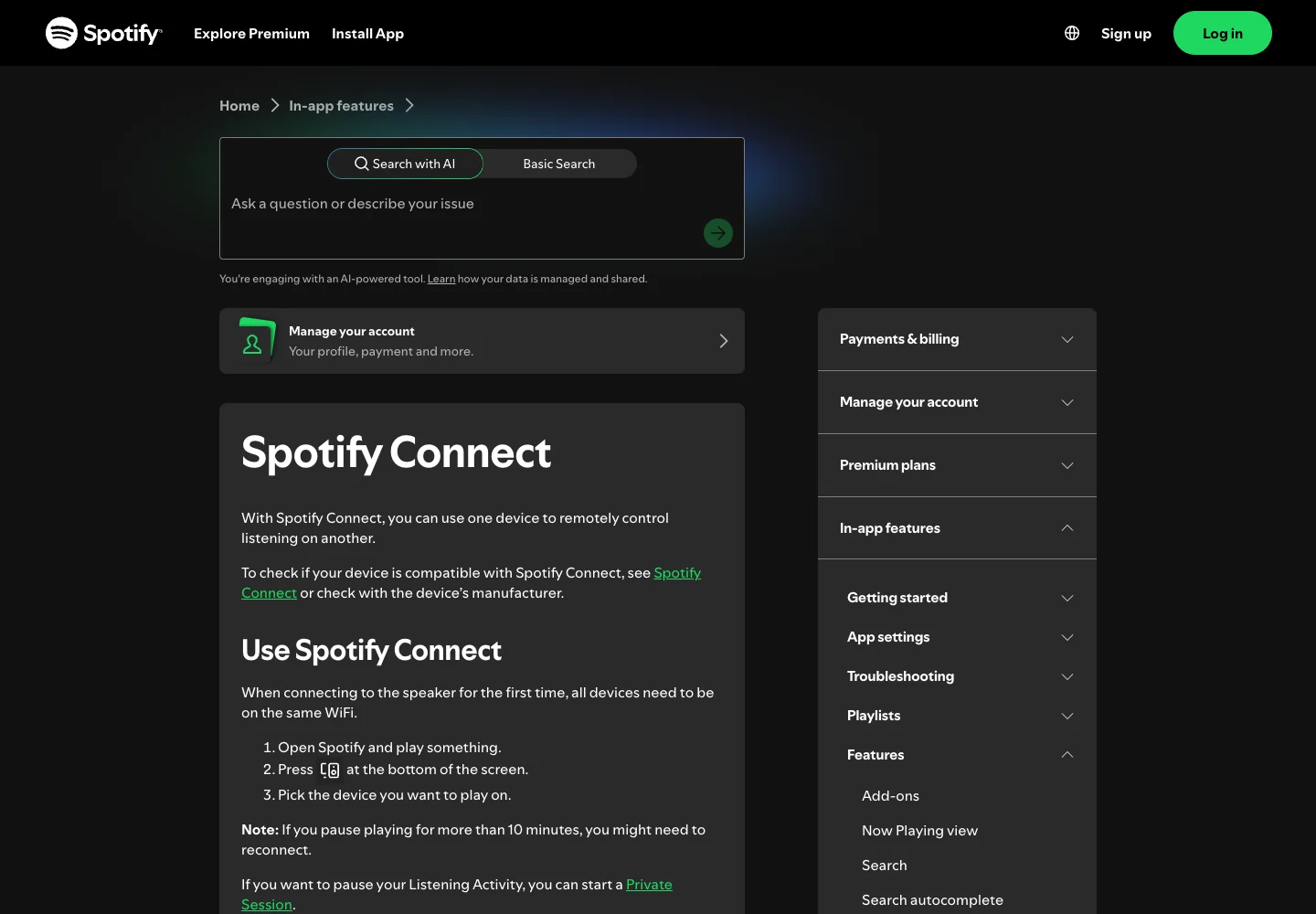
Spotify Connect turns your phone, tablet, desktop app, or web player into a remote for a compatible speaker, TV, console, or another logged-in device. The music plays on the selected output device. Your controller is not creating a second independent stream.
Spotify's current setup sequence is short:
- Open Spotify and play something.
- Open the device picker from the Now Playing screen.
- Choose the speaker, TV, computer, or other device you want to use.
- Keep both devices on the same Wi-Fi for the first speaker connection.
Connect is the right answer when you want to walk away from your laptop but keep controlling the living-room speaker, move playback from a phone to a TV, or use a mobile device as the remote for Sonos. For the last case, the dedicated Spotify on Sonos setup guide covers account linking, speaker discovery, and local-network troubleshooting.
If Connect keeps switching devices
An unexpected handoff is usually a session or network problem, not evidence that Spotify supports simultaneous playback on one account. Check these in order:
- Confirm the output name in Devices Available before pressing Play.
- Make sure the controller and target speaker are on the same Wi-Fi for first-time discovery.
- Restart Spotify, the target device, and then the router if the device is missing.
- Update the Spotify app and the speaker or TV firmware.
- Remove unfamiliar Connect devices and sign out of sessions you no longer use.
If old phones, browsers, TVs, or partner devices keep returning, use the safer account cleanup in How to Remove Devices From Spotify. Do not share your password with a “multi-device unlock” site.
Use Spotify Jam when people share the queue
A Spotify Jam is for collaborative listening. Friends can join, add tracks, and help manage the queue while the group listens together in person or virtually.
Spotify currently says Premium is required to start and host a Jam. Free users can join an in-person Jam hosted by a Premium user, while remote participants need Premium. The exact speaker, car, TV, and volume controls vary by device.
For an in-person Jam:
- Start playing music on the speaker or device everyone will hear.
- Open the device picker and choose Start a Jam.
- Invite people with the link, QR code, or supported nearby-device option.
- Decide whether guests may change playback or only add songs.
- End the Jam when the shared session is over.
Jam solves a social queue problem. It does not automatically give every participant an independent stream. If two people need different music at the same time, separate accounts are still the cleaner route.
Use Duo or Family for independent simultaneous listening
For two people who live together and want different music at the same time, Premium Duo is designed around two separate accounts. For an eligible household of up to six people, Premium Family gives each member a separate account under one plan manager.
The separation matters: each person signs in with their own account, keeps their own library and recommendations, and starts their own stream. Sharing one username and password across several devices does not reproduce that model reliably and weakens account security.
| Situation | Better starting point | Why |
|---|---|---|
| One person moving playback between devices | Connect | One account and one stream are enough |
| Two people at the same address | Duo | Each person gets an independent account |
| Three to six eligible household members | Family | Separate accounts under one manager |
| Friends in different households sharing one queue | Jam | Built for collaborative listening rather than plan sharing |
Spotify's current Duo support page says the two members need to live together and use separate accounts. Its Family support page likewise describes separate accounts for members who live together. Read the full Spotify Family Plan guide before changing an existing household plan, especially if invites, address checks, or member roles are involved.
Use offline downloads across your own devices
Offline downloads help when the goal is access without a connection, not live playback on several devices at the same moment. Spotify's listen offline support page currently says you can download up to 10,000 tracks on each of up to five devices and must go online at least once every 30 days to keep the downloads.
That limit describes authorized offline access inside Spotify. It does not make one account play five independent streams, and it does not turn Spotify downloads into ordinary MP3, WAV, or editable audio files.
Use this clean setup:
- Download only the playlists or albums you expect to use offline.
- Keep enough storage free for Spotify's cache and updates.
- Bring every active download device online at least monthly.
- Remove downloads from an old device before replacing it when possible.
- If a sixth device causes downloads to disappear, rebuild the set around the five devices you actually use.
Avoid converter sites that ask for your Spotify password or promise to bypass account limits. They do not solve the multi-device playback model and can create account, privacy, and rights problems.
Use multi-room speakers for synchronized playback
If you want the same music in the kitchen, living room, and bedroom, the speaker platform—not Spotify alone—usually creates the synchronized group. Build the group in the Sonos, Google Home, Alexa, AirPlay, Chromecast, or other compatible ecosystem, then select that group through Spotify Connect when supported.
This is still one stream routed to a grouped output. It is ideal for whole-home listening, but it will not let one room play jazz while another plays a podcast from the same Spotify account.
When a group drifts, disappears, or plays on only one speaker, check the speaker platform first: same network, compatible firmware, group membership, and account linking. Then reopen Spotify's device picker.
Fix common multi-device playback problems
| Symptom | Likely cause | Best first fix |
|---|---|---|
| Starting playback on device B stops device A | Both devices use the same account | Use Connect for a handoff, or separate accounts for independent streams |
| Speaker does not appear in Devices Available | Network discovery or permissions | Put devices on the same Wi-Fi and allow local-network access |
| Music plays on an unfamiliar device | Old session, shared network, or connected partner app | Remove the device, unlink the partner app, and sign out everywhere if needed |
| Jam invite works but remote listening does not | Participant eligibility or session state | Confirm Premium for remote participation and reopen the invitation |
| Downloads vanish on one phone | More than five download devices or stale authorization | Reconnect online and reduce the active download-device set |
| Family or Duo member interrupts another listener | Both people are using one login | Move each listener to their own eligible plan account |
If the problem remains after the device-specific checks, isolate it by testing the same account on the web player and on another network. That tells you whether the issue follows the account, the device, or the network before you reinstall anything.
Where Melogen fits after Spotify playback is stable
Melogen does not create extra Spotify streams, manage Duo or Family membership, unlock Spotify downloads, or convert protected catalog audio. It fits after the Spotify task is finished and you are working with a local file you created, recorded, bought in an editable format, or otherwise have permission to process.
For example, use Melogen Music Trimmer to cut a rehearsal recording into a short practice excerpt, remove a long lead-in, or add a clean fade before moving that owned file between your devices. Keep Spotify for licensed streaming access; use Melogen for audio files you are allowed to edit.
Prepare a practice clip for your devices
Trim a rehearsal recording, voice memo, demo, or other audio file you are allowed to edit. This does not alter Spotify streams or downloads.
FAQs
Can I play Spotify on two devices at the same time with one account?
Not as two independent streams. Spotify's support page says one account can play on one device at a time. Use Connect to control one output from another device, or use separate eligible accounts through Duo or Family when two people need different playback.
Does Spotify Connect play on both devices?
Connect normally uses one device as the controller and another as the audio output. It is a handoff and remote-control feature, not two separate streams.
Can Spotify Jam play on multiple devices?
Jam lets people join a shared listening session and queue. In-person sessions commonly play through one speaker, TV, or car output; remote listeners can join where supported. Spotify currently requires Premium to host and for remote participation.
How many devices can download Spotify music?
Spotify's current offline support page says up to 10,000 tracks can be downloaded on each of up to five devices. Those downloads remain inside Spotify and do not create five independent live streams.
Can Spotify Family members listen at the same time?
Yes, because eligible Family members use separate Spotify accounts. Each member should sign in with their own account rather than sharing the plan manager's login.
Can Melogen make Spotify play on more devices?
No. Melogen does not change Spotify accounts, streams, device limits, or protected downloads. It can trim and prepare local audio files you are legally allowed to edit.
The practical takeaway
To play Spotify on multiple devices, match the feature to the job: Connect for one remotely controlled stream, Jam for a shared queue, Duo or Family for independent listeners, offline downloads for personal access without a connection, and a speaker platform for synchronized multi-room playback.
The critical boundary is simple: one Spotify account still plays on one device at a time. Use official account and device features for Spotify, then use Melogen only when the work moves to local audio you own or have permission to edit.
About the author
Zhang Guo
Composer - AI Product Manager
AI product manager and digital marketing consultant with a background in music. Creativity is the bridge between rhythm and logic, where musical intuition and mathematical precision can coexist in every meaningful product decision.
Follow on X