How to Play Spotify on Google Home and Google Nest
Link Spotify to Google Home or Nest, set it as default, use voice commands, manage household accounts, and fix missing-device or playback problems.
 Zhang Guo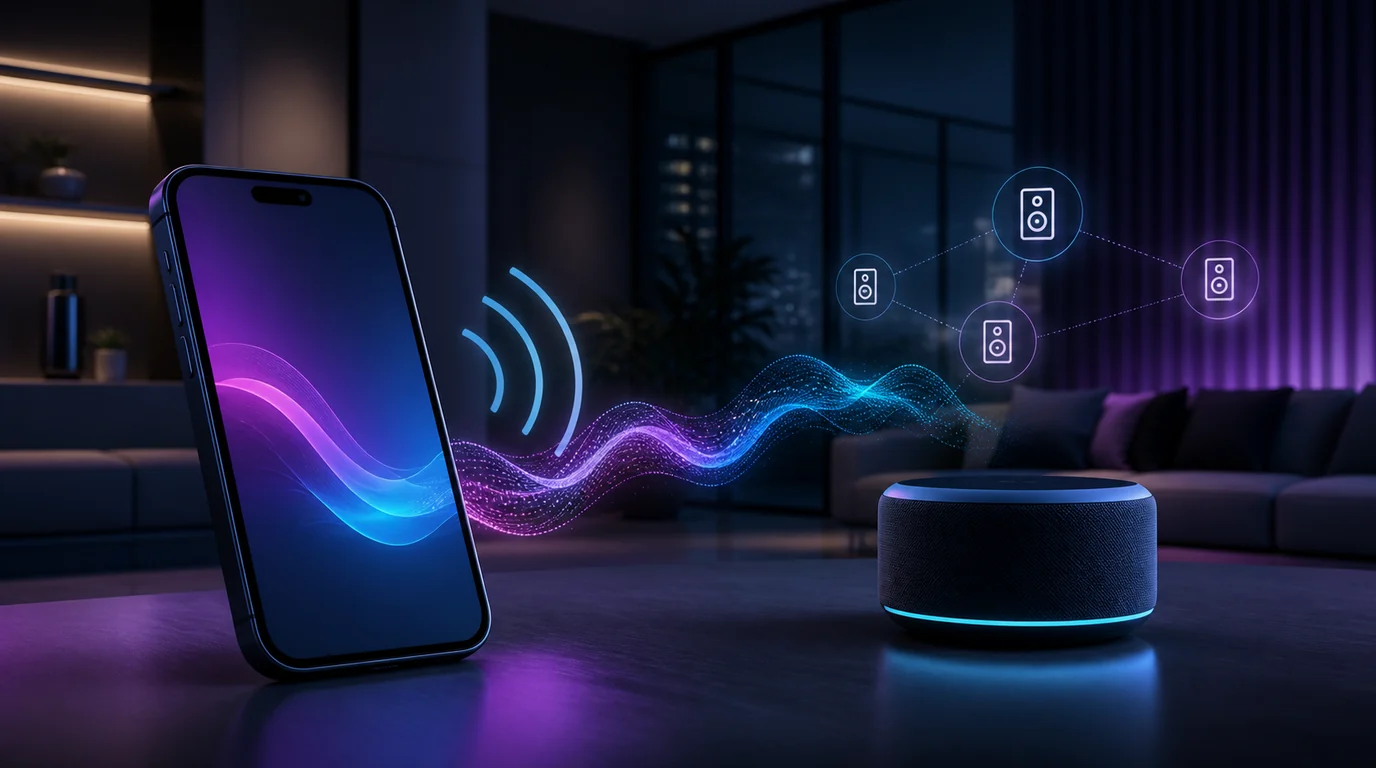
Turn a static score into editable MIDI
Contents
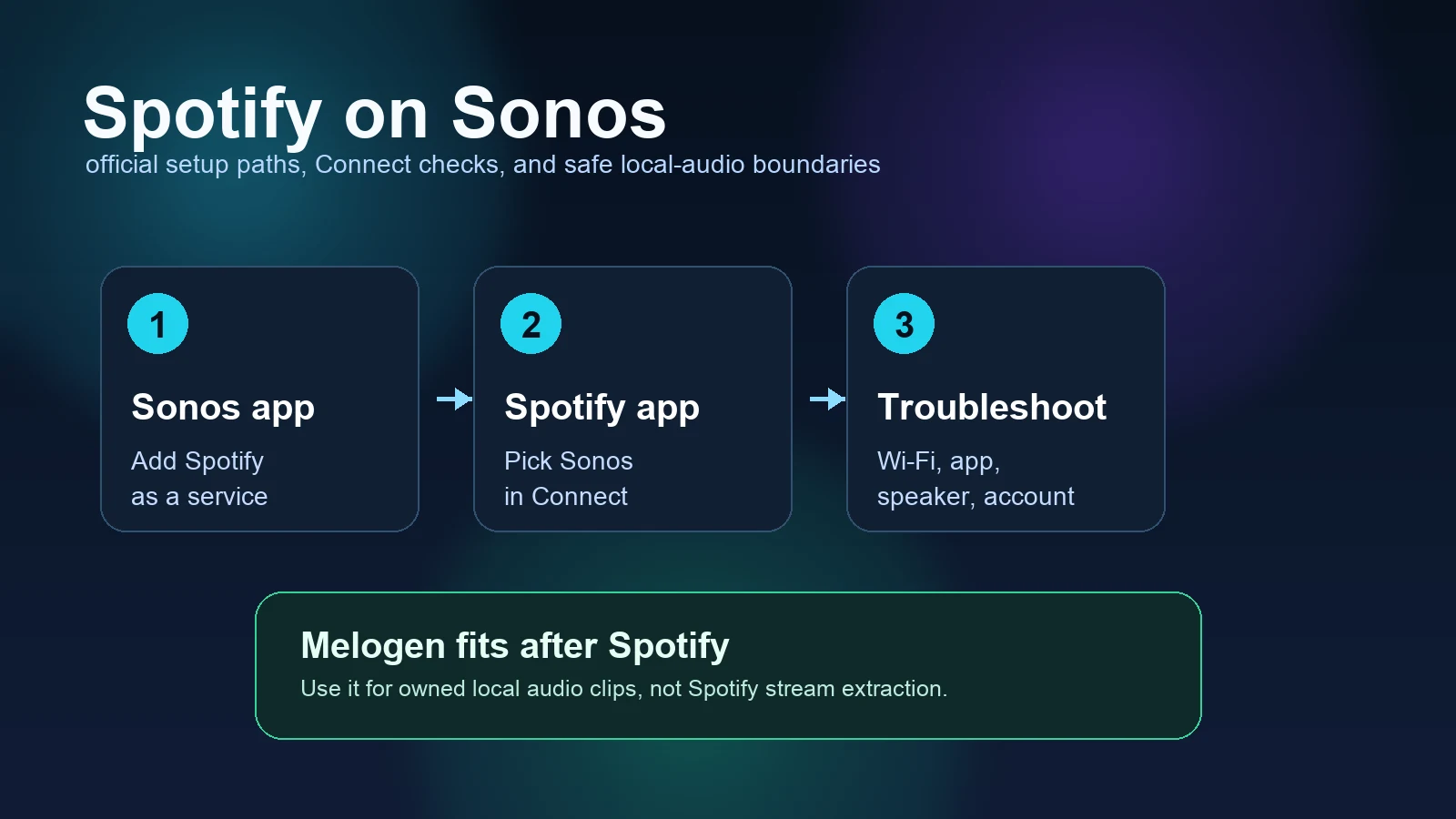
Spotify on Google Home and Google Nest works through an account link in the Google Home app. Connect the phone and speaker to the same Wi-Fi, open Google Home > Home settings > Music, link Spotify, and choose it as the default service if you do not want to say “on Spotify” with every request.
That is the supported route. You do not need to download or convert Spotify catalog tracks to make a Google speaker play them. If linking or playback fails, the useful checks are the active Google account, Wi-Fi, app permissions, Spotify plan behavior, Voice Match, and the selected speaker.
Spotify on Google Home at a glance
| What you want to do | Best route | First check |
|---|---|---|
| Link Spotify | Google Home app music settings | Correct Google account and same Wi-Fi |
| Stop saying “on Spotify” | Set Spotify as the default service | Spotify is linked to the active home |
| Play a specific song | Voice command or Spotify device picker | Premium may be required for exact on-demand requests |
| Give each person personal playback | Voice Match plus separate Google and Spotify accounts | Each voice is recognized correctly |
| Play on several rooms | Google speaker group | Every speaker is online in the same home |
| Fix a missing speaker | Permissions, Wi-Fi, and account checks | Local Network or Nearby Devices access |
| Play your own audio | Bluetooth, Cast, or a supported local-file route | You own or have permission to use the file |
Spotify's official Google devices guide covers account linking, default-service selection, and multiple Spotify accounts. Google separately documents the current Google Home app path and the limits that apply to music services on shared speakers.
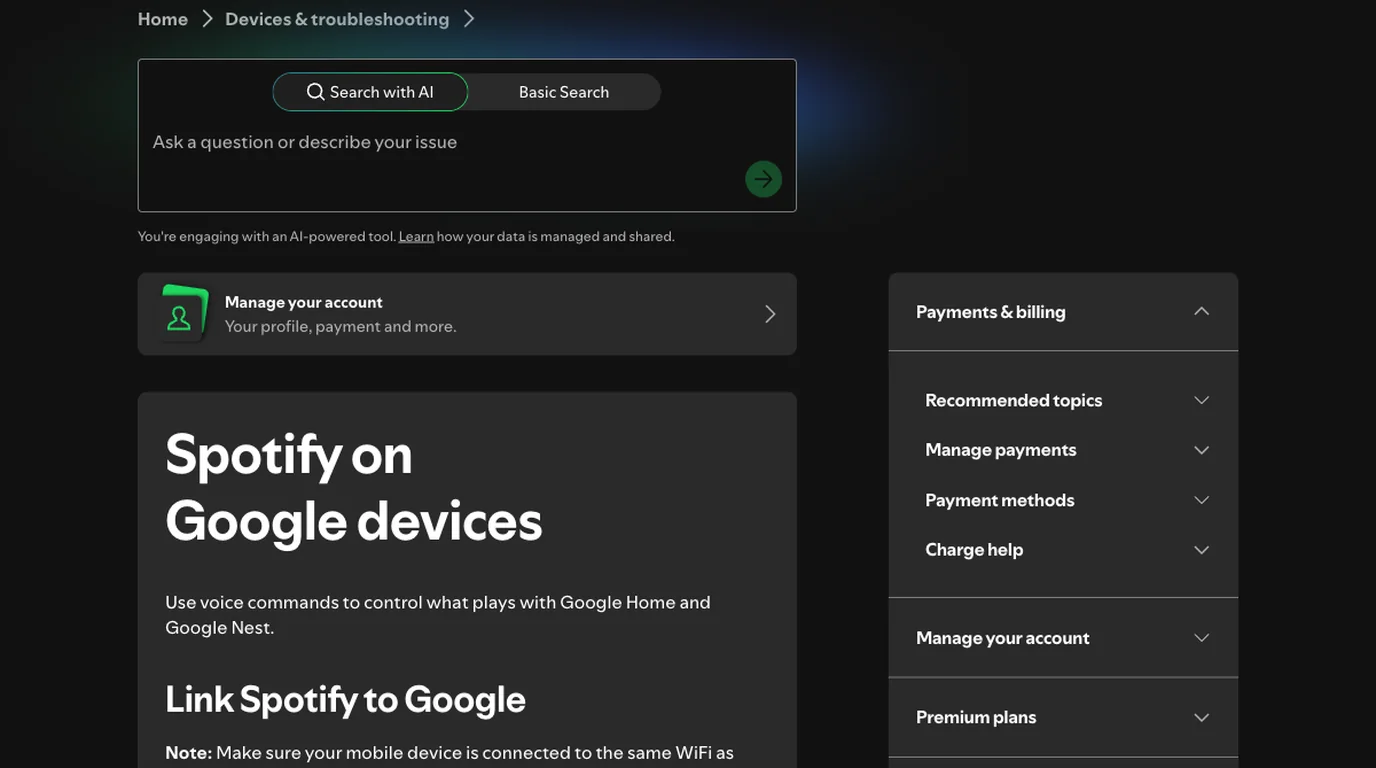
Link Spotify to Google Home or Google Nest
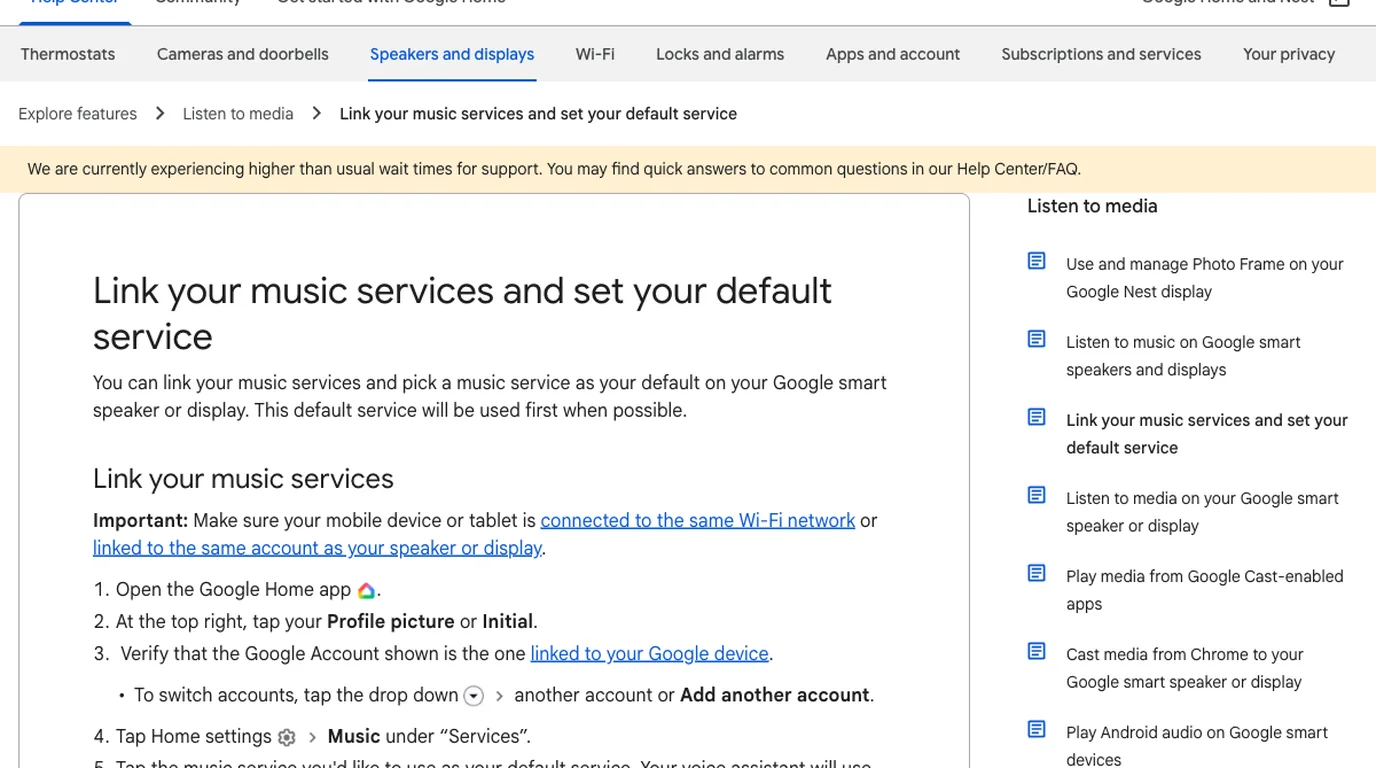
Use the Google Home app on the phone or tablet that manages the speaker:
- Connect the phone or tablet to the same Wi-Fi as the Google speaker or display.
- Open the Google Home app.
- Tap your profile picture or initial and confirm the Google account is the one linked to the correct home and speaker.
- Open Home settings.
- Choose Music under Services.
- Find Spotify under the available music services and tap the link option.
- Sign in to the Spotify account you want that Google account to use.
- Accept the account-linking prompt, then return to the Google Home app.
- Say, “Hey Google, play Discover Weekly on Spotify” for the first test.
The labels can move slightly between Google Home app versions, but the logic remains the same: select the correct Google home, open its music-service settings, and link the intended Spotify account.
If Spotify is not listed, update both apps and confirm Spotify is installed and signed in on the same phone. Region, account, or managed-device restrictions can also change which services appear.
Google's official music-service setup page says the mobile device should be on the same Wi-Fi or linked to the same account as the speaker or display. It also notes that a Google smart speaker or display supports one linked account per streaming service for each Google account context.
Set Spotify as the default music service
Setting Spotify as the default lets you say “Hey Google, play my workout playlist” instead of adding “on Spotify.”
- Open the Google Home app.
- Tap your profile picture or initial.
- Confirm the correct Google account and home.
- Open Home settings > Music.
- Select Spotify as the default music service.
The default only decides which service Google tries first. It does not remove Spotify plan restrictions, change content availability, or guarantee that an ambiguous playlist name resolves to the version you expected.
For the first voice test, be specific:
- “Hey Google, play Discover Weekly on Spotify.”
- “Hey Google, play my Liked Songs on Spotify.”
- “Hey Google, play the album Kind of Blue by Miles Davis on Spotify.”
- “Hey Google, shuffle my running playlist on the kitchen speaker.”
Once those work, shorter requests are easier to diagnose. If “play music” produces the wrong service or a generic station, revisit the default-service setting rather than unlinking every device.
Understand Spotify Free Premium and voice commands
Google's speaker and display music guide distinguishes provider and subscription behavior. With Spotify Free, a request for an artist, album, or song may start a station inspired by that request. Spotify Premium can provide more exact on-demand playback, subject to regional and catalog availability.
That distinction explains a common “wrong song” report. The account can be linked correctly while the plan still changes how the request is fulfilled.
Useful commands include:
| Task | Example command |
|---|---|
| Start a playlist | “Hey Google, play Discover Weekly on Spotify” |
| Choose a room | “Play jazz on the living room speaker” |
| Use a speaker group | “Play music on downstairs speakers” |
| Control playback | “Pause,” “resume,” “next,” or “previous” |
| Adjust volume | “Set the volume to 35 percent” |
| Shuffle | “Shuffle my workout playlist” |
| Repeat | “Play this song again” |
Google is also rolling out Gemini for Home voice experiences. Basic music commands remain the safest baseline because advanced natural-language behavior can vary by device, account, and rollout status.
Use Spotify Connect Cast or Bluetooth instead
Voice is not the only route. Open Spotify on a phone, tablet, or computer, start playback, open the device picker, and choose the Google speaker when it appears. This lets Spotify act as the controller while the selected speaker handles playback.
Keep these routes separate:
| Route | What it does | Best use |
|---|---|---|
| Google account link | Lets Google Assistant request Spotify content | Voice-first listening |
| Spotify device picker | Selects a compatible playback destination | Direct control from Spotify |
| Google Cast | Sends a supported app session to a Cast-enabled device | Speakers, displays, and TVs |
| Bluetooth | Sends phone or computer audio to a paired speaker | Local audio or a simple fallback |
| Speaker group | Sends supported playback to multiple Google speakers | Synchronized rooms |
If the real destination is a TV or Cast receiver, the Spotify on Chromecast guide covers Cast discovery and Local Network permission in more detail. If the problem involves separate streams or several listeners, use the Spotify multiple-devices guide to separate account limits from speaker routing.
Add household members with Voice Match
Without Voice Match, a shared speaker may use the account associated with the person who set up the device. That can mix recommendations, history, and playlist choices.
For personalized playback:
- Add each household member to the Google home.
- Have each person set up Voice Match with their own Google account.
- In each person's Google Home app context, link that person's Spotify account.
- Test a personal playlist with that person's voice.
- Confirm the result in Spotify's recently played history before assuming personalization is correct.
One person should not link the same Spotify account everywhere and expect independent personal sessions. Google account recognition and Spotify account playback are two different layers.
If a guest asks for music without a recognized voice, the speaker may fall back to the default account or provide less personalized results. That is expected account behavior, not necessarily a broken Spotify link.
Fix Spotify not working on Google Home
Work through the symptom instead of resetting the whole home at once.
| Symptom | Likely layer | What to do |
|---|---|---|
| Spotify is missing from Music settings | App, region, or account | Update Google Home and Spotify, sign in to Spotify, and verify the active Google account and region |
| Link button returns to the same screen | Stale authorization | Close both apps, sign out and back in, then unlink and relink Spotify once |
| Google says Spotify is not linked | Wrong Google account or home | Switch to the account that manages the speaker and check Home settings > Music |
| Speaker does not appear in Spotify | Network discovery or permission | Put both devices on the same Wi-Fi; allow Local Network on iPhone/iPad or Nearby Devices on Android |
| Voice request uses another service | Default-service setting | Set Spotify as default or say “on Spotify” explicitly |
| Requested song becomes a station | Spotify plan behavior | Test a playlist or upgrade only if exact on-demand playback matters to you |
| One person's playlists appear for everyone | Voice Match or shared account | Give each person a Google profile, Voice Match, and a separate Spotify account |
| Music stops after network changes | Wi-Fi or stale device session | Reconnect the speaker, phone, and router; then reselect the speaker in Spotify |
| One speaker works but a group fails | Speaker-group membership | Check every group member is online, in the same home, and using current firmware |
Check permissions on the controller
On iPhone or iPad, open Settings > Apps > Spotify and enable Local Network when Spotify cannot find nearby speakers. On Android, open Spotify's app permissions and allow Nearby devices when that permission is available. These permissions affect discovery; they do not change the Spotify account link inside Google Home.
Unlink only after simpler checks
Before unlinking, confirm the selected Google account, home, Wi-Fi, speaker power, and app updates. If those are correct, unlink Spotify from Home settings > Music, restart the Google Home app, and link it again. Repeatedly unlinking while the phone is on the wrong Google account only recreates the same failure.
Test one layer at a time
Try a voice request, then the Spotify device picker, then another Cast-enabled app. The pattern matters:
- Voice fails but the device picker works: account link, default service, or Voice Match.
- Spotify cannot see the speaker but another Cast app can: Spotify app or permission.
- No app can see the speaker: Wi-Fi, Google Home setup, or device availability.
- One speaker works but a group does not: group membership or one offline device.
Keep streaming playback and local audio separate
The competitor page that revealed this topic mixes valid Google Home setup with a Spotify-to-file converter route. That does not fix account linking, voice recognition, or network discovery.
Use this boundary:
- Play Spotify catalog content through Spotify's authorized account and device routes.
- Treat subscription offline downloads as app-managed access, not ordinary MP3 files.
- Use Bluetooth for local audio you already own or are allowed to use.
- Do not use Melogen to extract Spotify catalog tracks or bypass streaming controls.
- If you already have a permitted local file, prepare it before playback as a separate workflow.
The Spotify local-files guide explains how owned or permitted files fit into Spotify without confusing them with catalog downloads.
Where Melogen fits after the speaker works
Melogen does not link Spotify accounts or repair Google Home. It fits only when the source is already an owned or permitted local audio file and the job is editing that file before you play it through Bluetooth, Cast, or another supported route.
For example, you can trim silence from a rehearsal recording, cut a focused practice passage from your own demo, or add a clean fade to a licensed local file.
Prepare a local clip for home playback
Use Melogen Music Trimmer only after the source is already your own or permitted audio. Cut silence, keep the useful section, and add a clean fade before playback.
FAQs
Can Spotify Free play on Google Home?
Yes, where Spotify is supported, but Free account requests can behave differently from Premium. A request for a specific song or album may produce a related station rather than exact on-demand playback.
Do I need to say on Spotify every time?
No. Set Spotify as the default music service in the Google Home app. If a request still goes to another service, say “on Spotify” once to isolate whether the problem is the default setting or the content request.
Can several people use their own Spotify accounts?
Yes. Each person needs their own Google account in the home, Voice Match, and a linked Spotify account. A single shared Spotify account does not create independent personalized sessions.
Why can Spotify not find my Google speaker?
Put the phone and speaker on the same Wi-Fi, confirm the speaker is online in Google Home, allow Local Network on iPhone or iPad or Nearby Devices on Android, then restart Spotify and the speaker. Test another Cast-enabled app to separate a Spotify issue from a speaker or network issue.
Can Melogen convert Spotify songs for Google Home?
No. Melogen does not extract Spotify catalog music or bypass streaming controls. Use Spotify, Google Assistant, Spotify Connect, or Google Cast for catalog playback. Use Melogen only for local audio you own, created, licensed, or otherwise have permission to edit.
The practical takeaway
To play Spotify on Google Home or Google Nest, link Spotify in the Google Home app, set it as the default music service, and test one clear voice command on one speaker. Add Voice Match only after basic playback works. When something fails, separate account linking, plan behavior, voice recognition, device discovery, and speaker groups instead of resetting everything at once.
Keep streaming playback inside Spotify's supported routes. Local audio is a separate workflow, and Melogen belongs only after that audio is already yours or permitted to use.
About the author
Zhang Guo
Composer - AI Product Manager
AI product manager and digital marketing consultant with a background in music. Creativity is the bridge between rhythm and logic, where musical intuition and mathematical precision can coexist in every meaningful product decision.
Follow on X