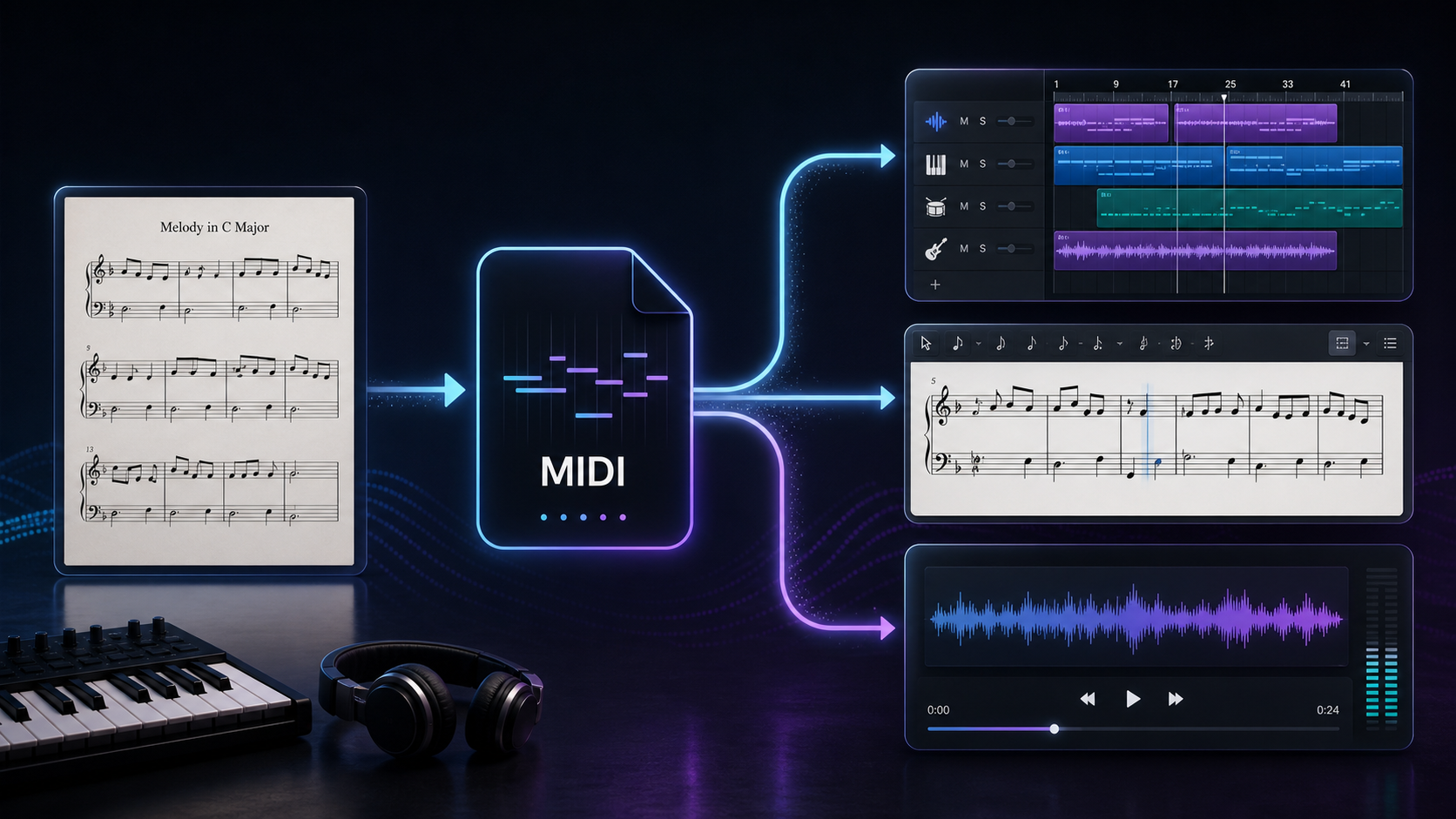
How to Scan Drum Sheet Music Without Losing the Kit Map
Learn how to scan drum sheet music, preserve percussion mapping, compare MIDI and MusicXML, and verify the exported kit before editing or playback in 2026.
 Zhang Guo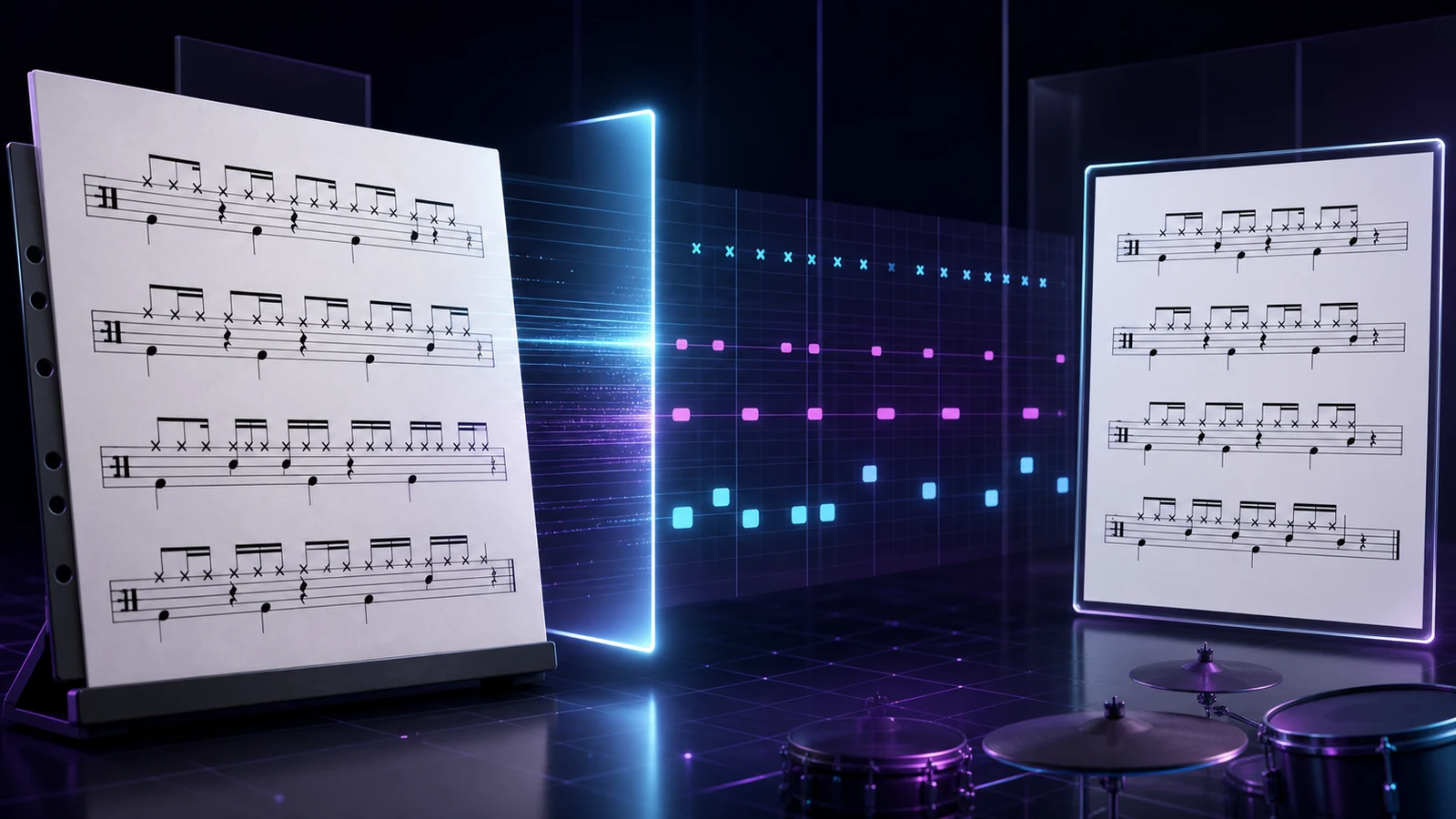
Turn a static score into editable MIDI
Contents
To scan drum sheet music reliably, start with a straight, high-contrast score, run one representative passage, and check the kit mapping before processing the whole piece. A converter can recognize the rhythm correctly and still send the snare, kick, hi-hat, or cymbal to the wrong playback sound.
The safest workflow is therefore not simply scan, export, done. It is scan, recognize, map, verify, then export. Use MusicXML when readable notation and instrument assignments matter most. Use MIDI when the next step is playback, a DAW, or groove editing. In either case, audit a difficult bar before you trust the full file.
Why drum sheet music is harder to scan
Pitched notation uses vertical position to identify pitch. Unpitched percussion often uses that same vertical space to identify a kit piece instead. A note may mean snare because it sits on one staff line, while an x-shaped notehead on another line may mean closed hi-hat or cymbal.
That creates several recognition jobs at once:
- identify the percussion clef and staff-line count
- separate pitched percussion from unpitched kit notation
- preserve normal, x, diamond, slash, and other notehead shapes
- keep stems, voices, beams, flams, rolls, accents, and ghost notes readable
- map each visual position to the intended drum or cymbal
- retain the relationship when the result becomes MIDI or MusicXML
The MusicXML percussion tutorial explains the underlying distinction clearly. Unpitched notes need a display position, an instrument identity, and optional MIDI playback information. MusicXML can also represent different staff-line counts and notehead shapes. In other words, a drum note is more than a dot at a height.
If the symbols themselves are unfamiliar, review snare drum music notation before scanning. Recognition is easier to audit when you already know what the source is trying to say.
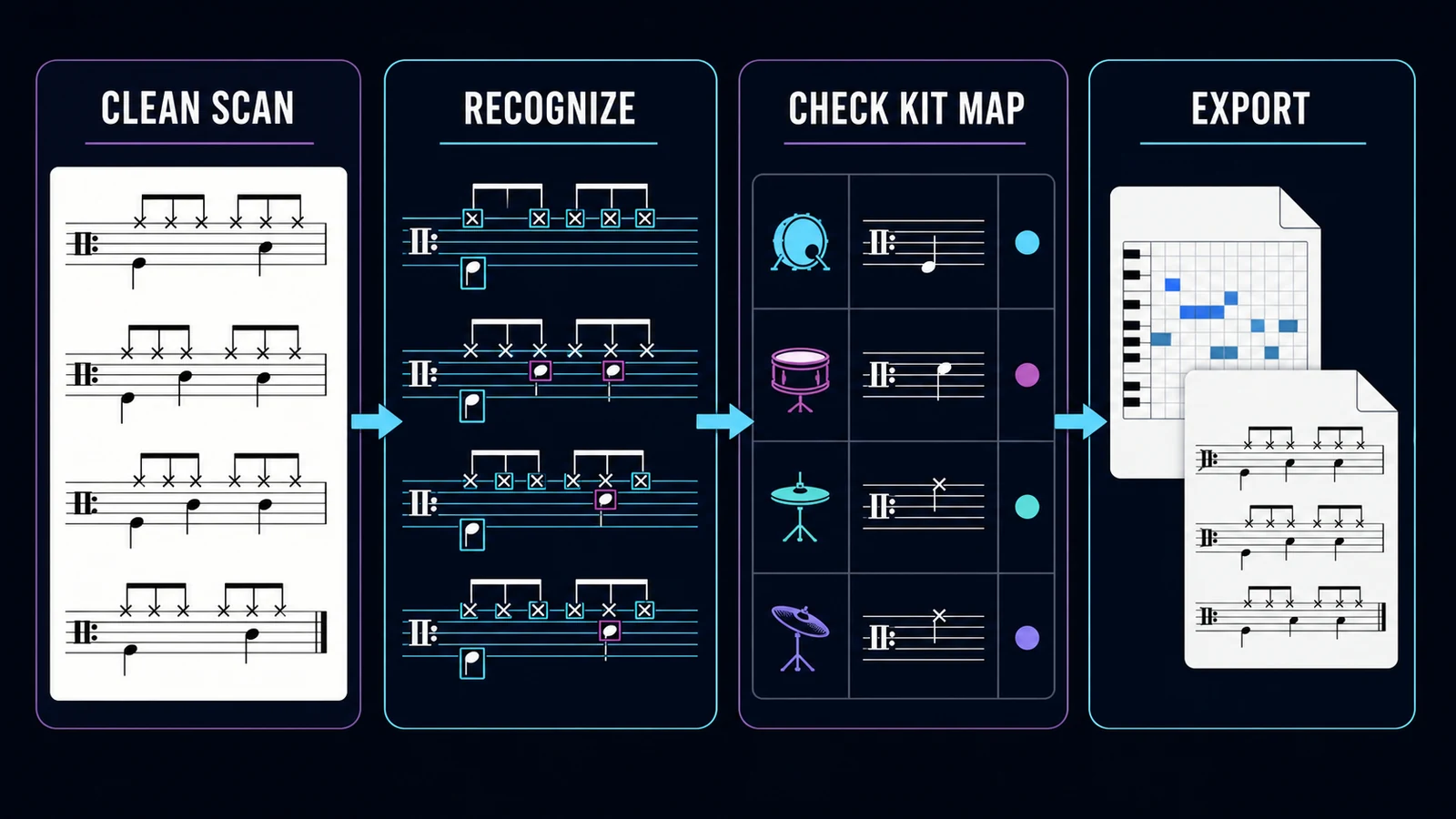
Step 1 prepare the cleanest source you have
Source quality matters before the recognition model sees a single note. A clean digital PDF is usually easier than a phone photo, but a sharp photo can still work if it is square to the page and evenly lit.
Use this source checklist:
- Capture the complete staff, including the percussion clef, instrument legend, measure numbers, and first bar line.
- Keep the page flat. Curved bindings can bend staff lines and change the apparent position of notes.
- Avoid shadows across beams, stems, and ledger lines.
- Crop out the desk or music stand without cutting off rehearsal marks or instrument labels.
- Use enough resolution to distinguish x noteheads from normal noteheads.
- Keep the kit key or legend in the same file when the score uses a custom mapping.
- Split crowded two-page spreads into separate straight pages.
Do not spend twenty minutes repairing every speck before the first conversion. Fix the problems that can change musical structure: skew, blur, missing margins, broken staff lines, and low contrast. Then test the file.
Step 2 choose MIDI or MusicXML before you convert
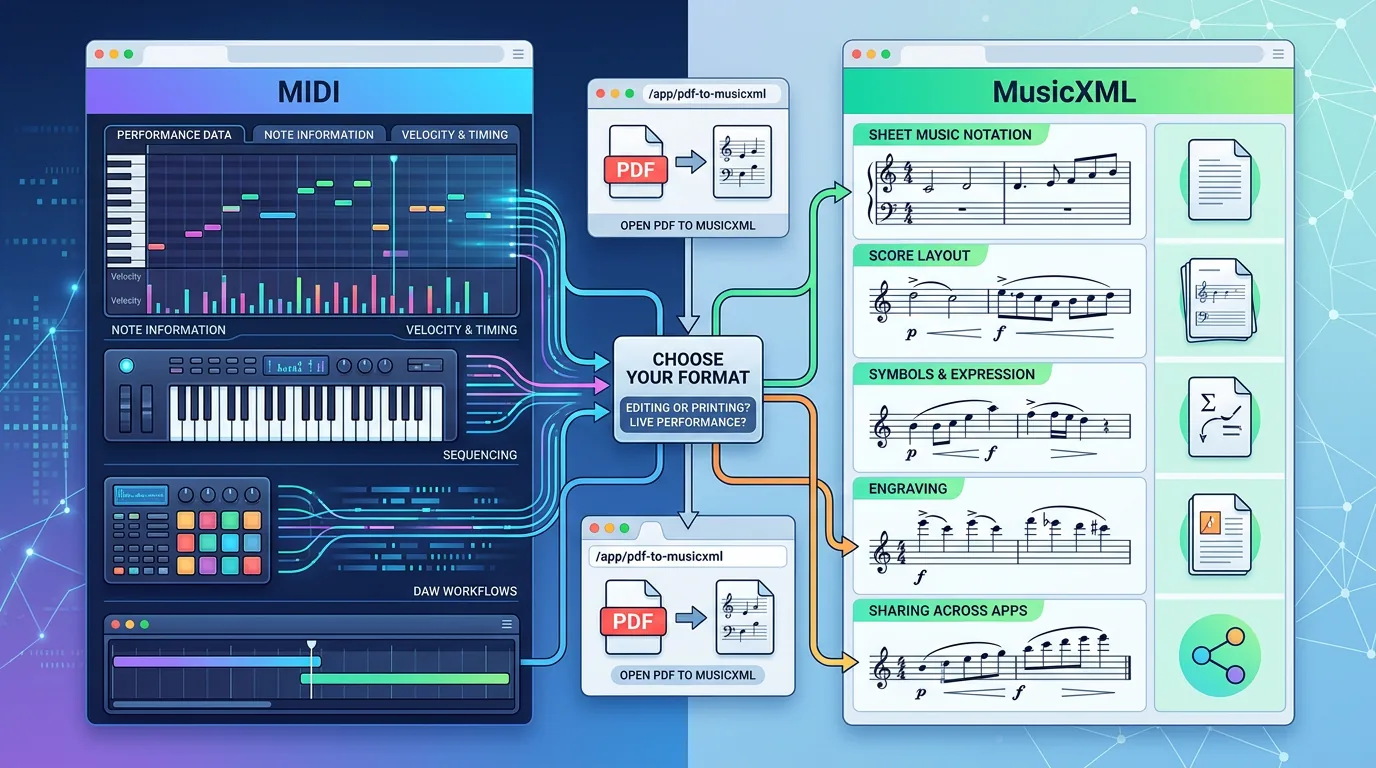
The output format changes what you need to inspect. MIDI is excellent for event timing and playback, but it does not preserve a printed drum part in the same way as a notation exchange format. MusicXML is better suited to staff layout, noteheads, instrument identities, and later editing in notation software.
| Your next job | Better first output | What to verify |
|---|---|---|
| Edit the groove in a DAW | MIDI | tempo, downbeat, kit notes, velocity, note length |
| Repair readable drum notation | MusicXML | percussion clef, staff lines, voices, beams, noteheads |
| Change kit sounds for playback | MIDI | kick, snare, tom, hi-hat, ride, crash assignments |
| Continue arranging in notation software | MusicXML | instrument names, unpitched notes, repeats, articulations |
| Share a fixed reference | PDF after cleanup | page layout, labels, rehearsal marks, copyright permission |
If you are unsure, compare MIDI and MusicXML before converting. For a drum score, MusicXML often gives the notation editor more structure to work with, while MIDI is usually faster for hearing whether the groove and kit map make sense.
Step 3 run a one-bar proof scan
Choose a bar that is musically representative, not merely easy. A useful proof contains the ordinary groove plus one detail that could fail, such as an open hi-hat, crash, tom move, ghost note, flam, or voice split.
After conversion, compare the source and result in this order:
- Meter and bar length. Confirm that the bar has the right number of beats and that rests have not collapsed the timing.
- Kick and snare. These are the anchors. If they are swapped or shifted, stop and fix the mapping before checking ornaments.
- Hi-hat and ride. Listen for closed versus open articulations and make sure cymbal events did not become pitched notes.
- Toms and auxiliary percussion. Check every staff position against the score legend rather than assuming a universal layout.
- Noteheads and voices. In notation output, confirm that x noteheads, normal noteheads, stems, and layered voices remain distinct.
- Tempo and downbeat. A correct-looking groove can still sound wrong if the first beat or tempo is offset.
If the proof bar fails, try a cleaner source once. If the same mapping error remains, the problem is probably not page quality. Use a percussion-specific recognition workflow, edit the mapping manually, or enter the part in a notation editor.
Step 4 check the kit map instead of trusting playback
Playback is a useful warning system, but it is not a complete audit. A wrong drum sound may come from recognition, export mapping, the destination application's drum map, or the selected virtual instrument.
Use a four-column mapping sheet while you check:
| Source symbol | Intended instrument | Exported event | Result |
|---|---|---|---|
| Low normal notehead | Kick drum | MIDI note or MusicXML instrument ID | pass / remap |
| Middle normal notehead | Snare drum | MIDI note or MusicXML instrument ID | pass / remap |
| Upper x notehead | Closed hi-hat | MIDI note or MusicXML instrument ID | pass / remap |
| Upper open or alternate notehead | Open hi-hat or cymbal | MIDI note or MusicXML instrument ID | pass / remap |
The exact positions vary by score and notation convention. That is why the printed legend wins over memory. The PlayScore percussion and drums FAQ is a useful competitor example: it explicitly describes five-line percussion-clef recognition, staff-position instrument assignments, MIDI-related playback behavior, and MusicXML export. A short support page can rank because readers need this mapping answer, not another generic explanation of scanning.
For MusicXML, inspect whether unpitched instruments remain distinct and whether notehead shapes survive. For MIDI, solo the exported percussion track and trigger each kit piece in isolation. If the destination DAW uses a custom drum map, compare it with the export before blaming the scanner.
Step 5 audit the whole score in the right order
Once the proof passes, process the complete score and review structure before detail. This order prevents wasted cleanup:
- page order and missing measures
- time signatures, repeats, first and second endings, and rehearsal marks
- tempo and downbeat alignment
- kick, snare, and primary cymbal mapping
- toms and auxiliary percussion
- voices, beams, rests, tuplets, flams, rolls, and accents
- velocity and playback sound choices
Repeated sections are useful controls. If two choruses use the same groove but produce different mappings, compare their source quality and recognition results. Copying a verified measure can be faster and safer than repairing the same recognition error note by note.
Also keep the source task clear. Scanning visible drum notation is different from transcribing drums from audio. If your starting point is a recording rather than a page, use an AI drum transcription comparison instead of forcing the recording into an OMR workflow.
Where Melogen fits and where it does not
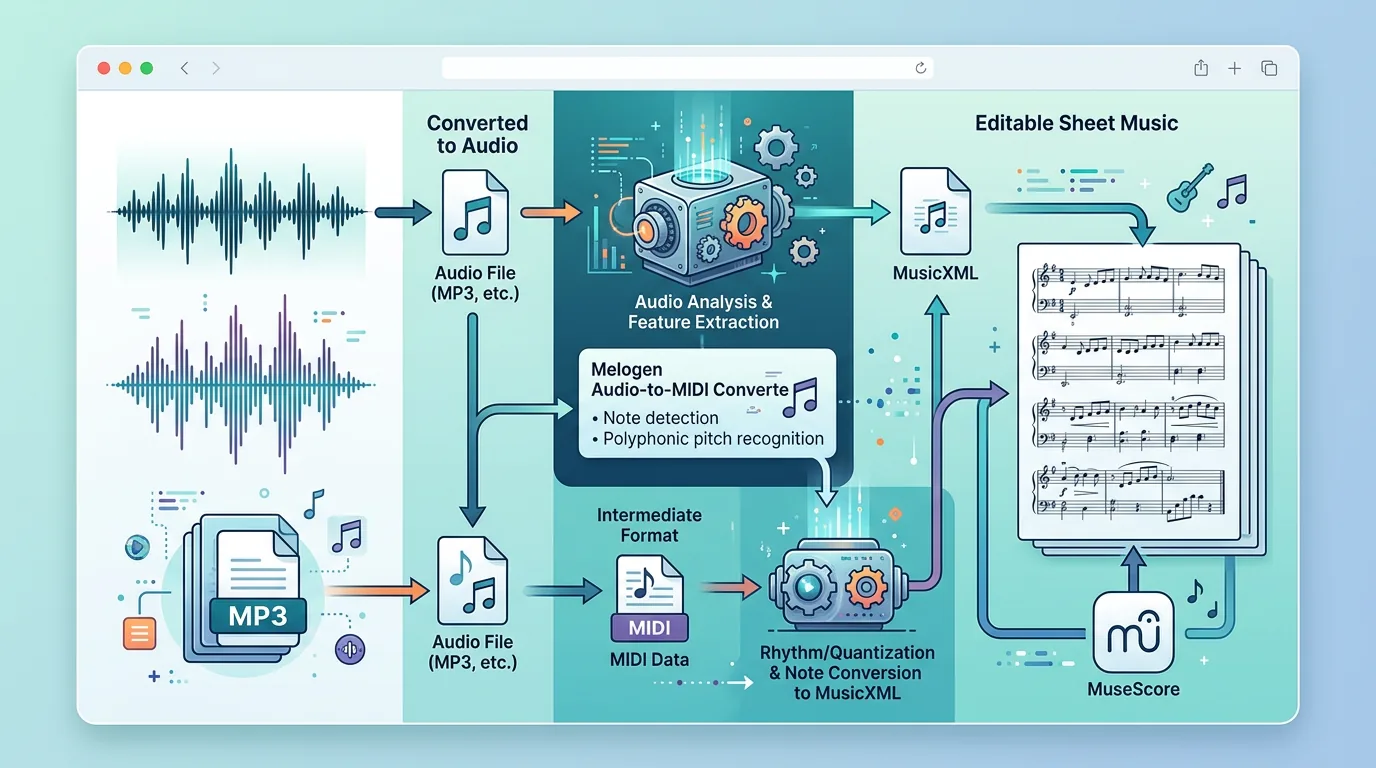
Melogen Sheet2MIDI publicly supports JPG, PNG, and PDF score inputs with MIDI and MusicXML output. Its current product copy describes recognition for standard notation, but it does not publish a percussion-specific recognition or drum-kit mapping guarantee. Do not assume support from the upload button alone.
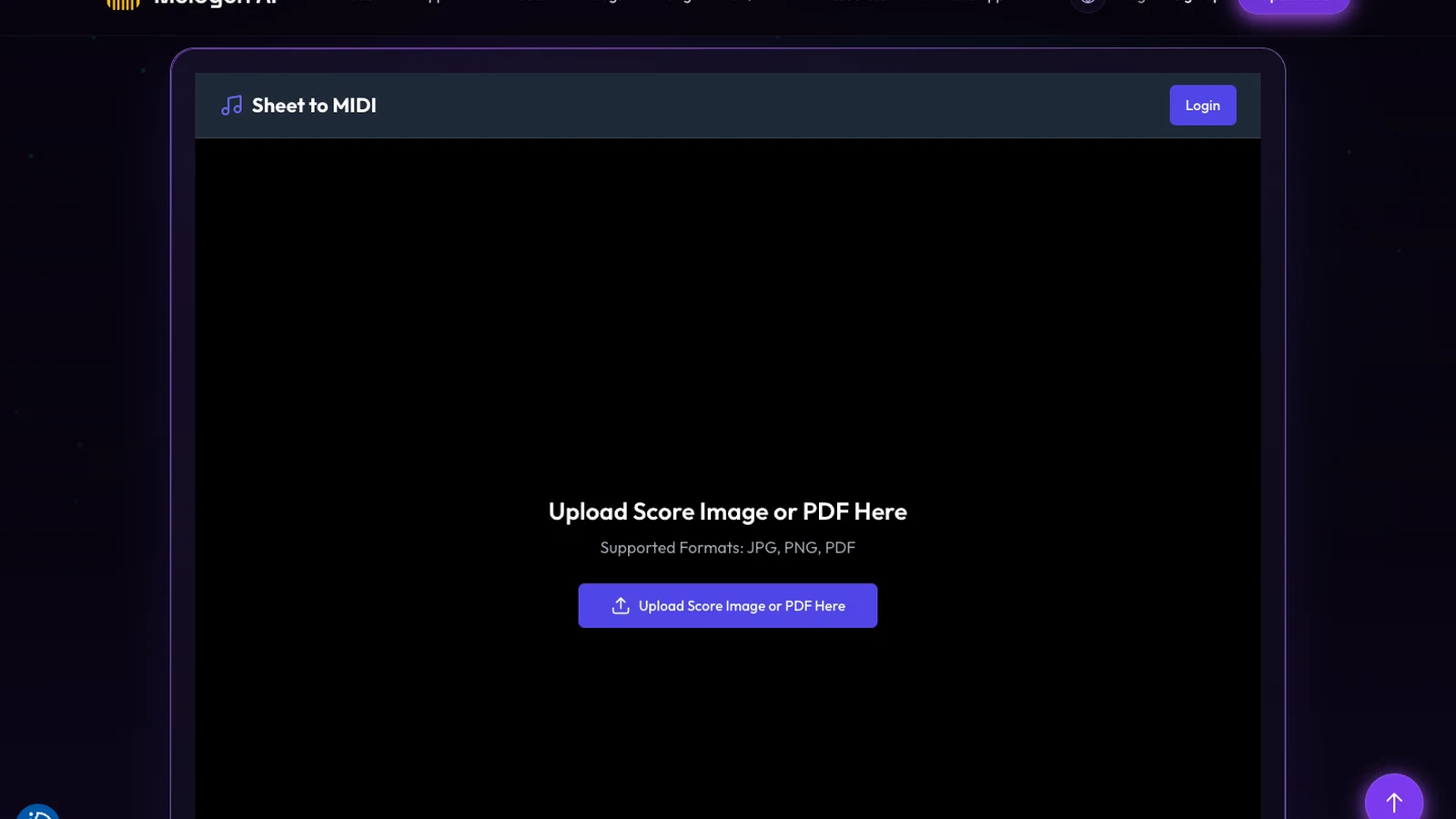
A careful Melogen test looks like this:
- Use a short score you own or have permission to process.
- Include the percussion clef, kit legend, and a representative bar.
- Upload the JPG, PNG, or PDF to Sheet2MIDI.
- Inspect the MIDI or MusicXML result for timing and instrument mapping.
- Continue with the whole score only if the proof is musically usable.
If the output treats unpitched percussion like piano notes, merges kit pieces, or loses critical notehead shapes, switch tools or enter the part manually. The useful promise here is a fast proof, not guaranteed drum notation support.
Test a permitted drum score before processing the full part
Use Melogen Sheet2MIDI for a short JPG, PNG, or PDF proof. Continue only after timing and kit mapping survive the export.
Common scanning failures and what to do
| Failure | Likely cause | Best next check |
|---|---|---|
| Cymbals become normal pitched notes | percussion clef or unpitched mapping was missed | verify clef, staff type, and destination drum map |
| Open and closed hi-hat sound identical | notehead or articulation did not survive | compare noteheads and remap the affected events |
| Kick and snare are swapped | source legend differs from assumed map | follow the printed legend and destination kit map |
| Bar timing drifts | missing rest, tuplets, or wrong meter | repair meter and rests before moving individual hits |
| Toms collapse onto one sound | staff positions or instrument IDs were merged | inspect MusicXML instruments or MIDI note assignments |
| Ghost notes play too loudly | velocity or notation nuance was flattened | lower velocity after structural mapping is correct |
| One page works and another fails | skew, blur, crop, or different engraving | re-scan the failed page and compare staff-line clarity |
The key distinction is structural versus cosmetic failure. Wrong kit assignments, missing beats, and merged voices are structural. Font choice, spacing, and playback timbre are later cleanup jobs. Fix structure first.
Frequently asked questions
Can a sheet music scanner read drum notation?
Some scanners can, but support varies. Look for explicit percussion-clef, unpitched-instrument, notehead, and kit-mapping support. Test one difficult bar before converting a complete score.
Should I export drum notation as MIDI or MusicXML?
Use MIDI for DAW editing, groove playback, velocity work, and sound replacement. Use MusicXML when you need readable notation, instrument identities, noteheads, voices, and continued editing in notation software.
Why does the scanned rhythm look right but sound wrong?
The rhythmic events may be correct while the destination drum map is different. Check which exported event triggers kick, snare, hi-hat, ride, crash, and tom sounds before changing the notation.
Is percussion staff placement universal?
No. Common conventions exist, but scores and software can use different layouts. Treat the score's instrument legend and the destination application's drum map as the authoritative pair.
Can Melogen guarantee drum or percussion mapping?
Melogen's current public Sheet2MIDI page does not make a percussion-specific guarantee. Use a short proof score, inspect the exported map, and continue only if the result fits your workflow.
The practical takeaway
To scan drum sheet music, preserve the information that makes percussion readable: clef, staff position, notehead, voice, instrument identity, and timing. Start with a clean source, choose MIDI or MusicXML based on the next editor, and test one representative bar before processing the whole score.
The scan is successful only when the kit still means the same thing after export. A correct-looking page with the wrong snare, kick, or cymbal map is not finished. Verify structure first, then clean the musical details.
About the author
Zhang Guo
Composer - AI Product Manager
AI product manager and digital marketing consultant with a background in music. Creativity is the bridge between rhythm and logic, where musical intuition and mathematical precision can coexist in every meaningful product decision.
Follow on X