Common Spotify Problems and How to Fix Them in 2026
Fix common Spotify problems with a symptom-first checklist for playback, offline downloads, devices, search, local files, and account issues.
 Zhang Guo
Turn a static score into editable MIDI
Contents
Most Spotify problems become easier to fix once you answer one question: does the failure follow your account, your device, your network, or one specific track? Do that test before clearing data or reinstalling the app.
Start with another device or the web player. If Spotify fails everywhere, check for a service or account problem. If it works elsewhere, keep the repair local to the device that is failing. This guide gives you the shortest useful path for playback, offline downloads, search, local files, speakers, and sign-in issues without sending you straight to the most disruptive reset.
Diagnose the Spotify problem before you reset anything
Use the symptom, not the error wording, to choose your first test. Messages such as “Something went wrong,” “Page not available,” or “You’re offline” can have several causes.
| What you see | Best first test | Most likely layer | Avoid for now |
|---|---|---|---|
| Spotify fails on every device | Check Spotify Status and the Ongoing Issues board | Service or account | Reinstalling every device |
| The web player works but the app does not | Restart and update the app | App state or cache | Changing the account password |
| One device fails while another works | Try a second network on the failing device | Device, network, firewall, or storage | Removing all downloads |
| Only downloaded music fails | Go online, check storage, device count, and Offline Mode | Offline license or download state | Using a third-party downloader |
| Only one track or album is unavailable | Check region availability, hidden status, and the release page | Catalog or content availability | Resetting the whole library |
| Only local files fail | Check file permission, source folder, format, and device sync | Local-file path or permission | Treating it as a Spotify catalog issue |
| A speaker plays the wrong account or stops responding | Reopen Devices Available and remove stale access | Spotify Connect or partner device | Reinstalling the phone app first |
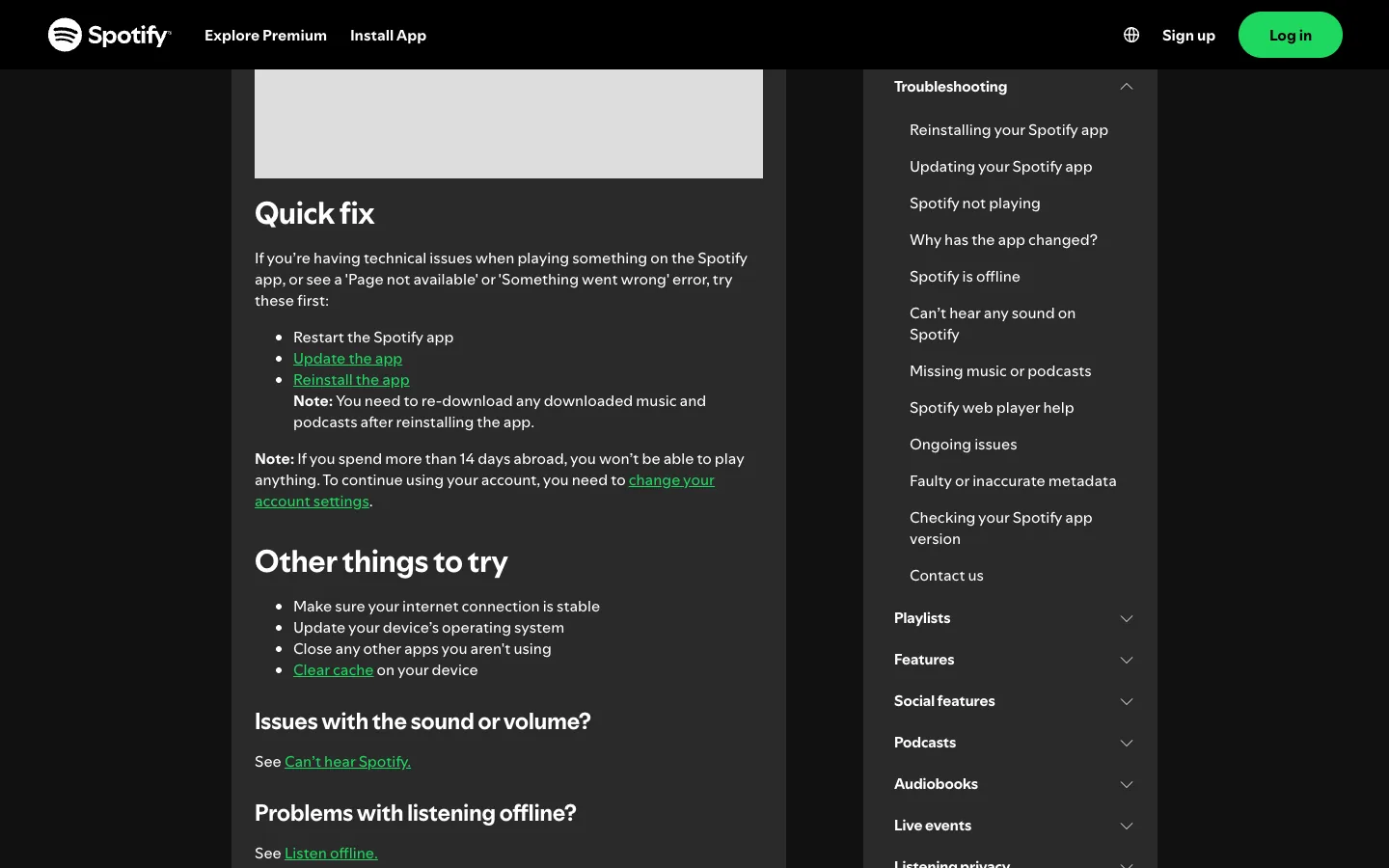
Spotify's official Spotify not playing support page recommends a similar low-risk order: restart, update, test the connection, clear cache, and only then reinstall. It also suggests checking another device or the web player to isolate a device-specific failure.
Fix common playback and sound problems
Spotify will not play any track
- Pause for ten seconds, then restart Spotify.
- Confirm another app or website can use the same connection.
- Try the same account in the web player or on another device.
- Update Spotify and the device operating system.
- Close apps that may be holding the audio output or consuming memory.
- Check available storage. Spotify's playback guide asks for at least 250 MB free on the device.
If the web player works, the account and catalog are probably fine. Focus on the installed app, audio output, firewall, battery restrictions, or storage. For browser-only failure, use the more specific Spotify Web Player not working checklist instead of applying desktop-app fixes blindly.
Spotify plays but there is no sound
Check the obvious layers in order:
- Device volume and mute state
- Spotify's volume control on desktop
- The selected system output, especially after connecting headphones or an audio interface
- Bluetooth routing and whether another device took the connection
- Per-app volume mixer settings on Windows
- Exclusive audio mode or an interface sample-rate change in a DAW
The last point matters for musicians. Opening a DAW or audio editor can move the interface to a different sample rate or exclusive mode. Close that application, reselect the output, and reopen Spotify before changing account settings.
Spotify keeps pausing, stuttering, or stopping after one song
First switch from Wi-Fi to cellular data, or from cellular data to a stable Wi-Fi network. If the behavior follows the network, restart the router and test without a VPN or restrictive firewall. If it follows the account across devices, use Sign out everywhere from the Spotify account page and remove access for partner devices separately.
If playback always stops after one track, inspect the queue, Repeat setting, Autoplay setting, and any active Connect device. A stale queue or another device controlling the session can look like a broken player.
Fix app, network, and sign-in problems
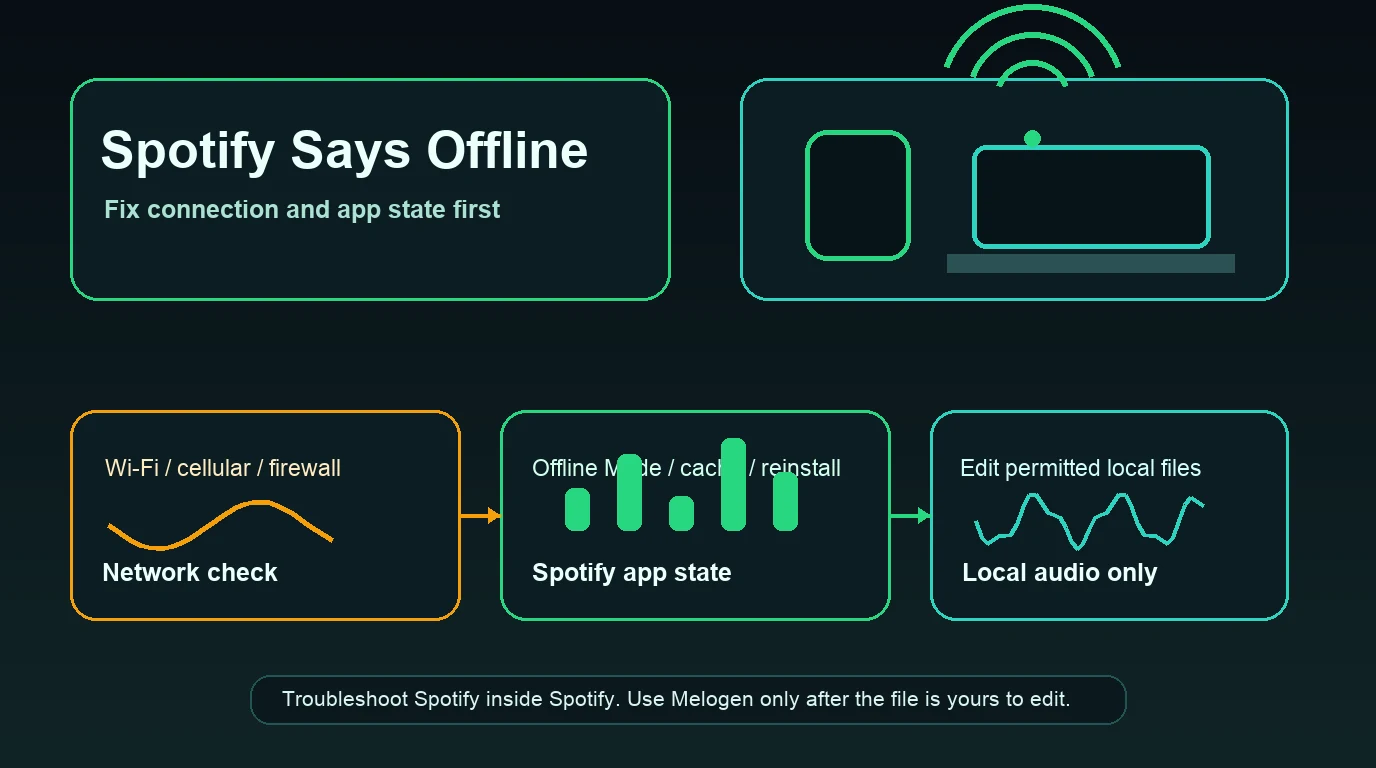
Spotify says it is offline while the internet works
Make sure Offline Mode is not enabled. Then test a normal webpage, a different network, and the Spotify web player. School, office, hotel, and public networks sometimes restrict streaming even though basic browsing works.
On desktop, also check the firewall exception. On mobile, confirm Spotify can use cellular data and that Data Saver or a battery-saving tool is not suspending it. The full Spotify says offline guide covers the network, firewall, VPN, and Offline Mode branches in more detail.
Spotify search returns nothing or never finishes
Search failures are often narrower than playback failures. Test a known artist in the web player, switch networks, and check whether the artist page opens from Your Library. If playback works but every search fails, do not clear the whole library; use the dedicated Spotify search not working fixes.
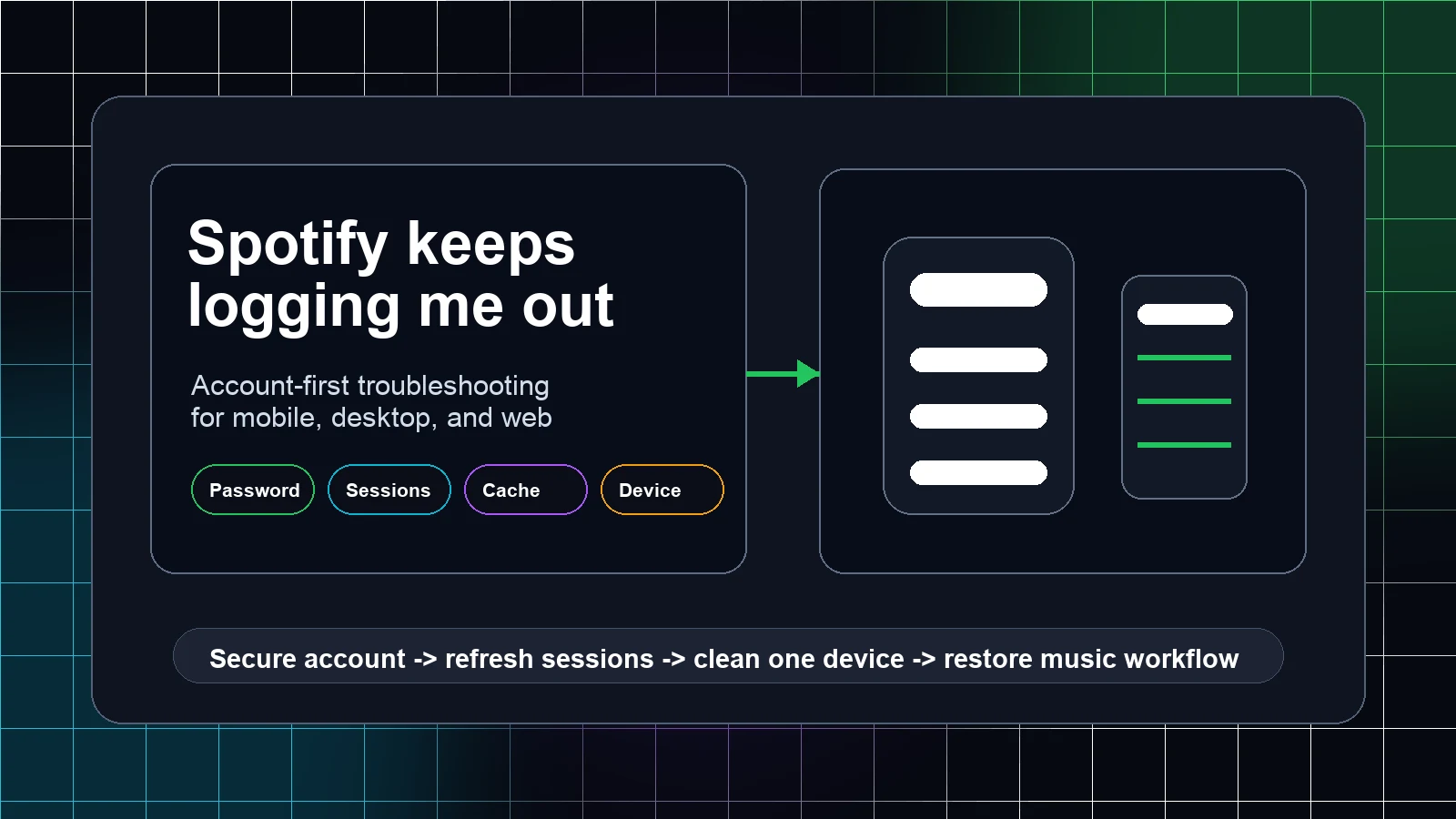
You cannot log in or the wrong account appears
Spotify accounts can use email, username, phone, Apple, Google, or Facebook sign-in paths. A familiar email address does not always mean you selected the original method.
Try these checks:
- Search your inbox for older Spotify receipts or account emails.
- Try the original sign-in provider rather than creating a second account.
- Reset the password only for the account that owns the playlists or Premium plan.
- If you suspect unauthorized access, change the password, sign out everywhere, and remove unknown apps or partner devices.
Do not delete the account as a troubleshooting step. Cancellation, sign-out, password reset, and permanent account closure solve different problems.
Fix offline downloads and storage problems
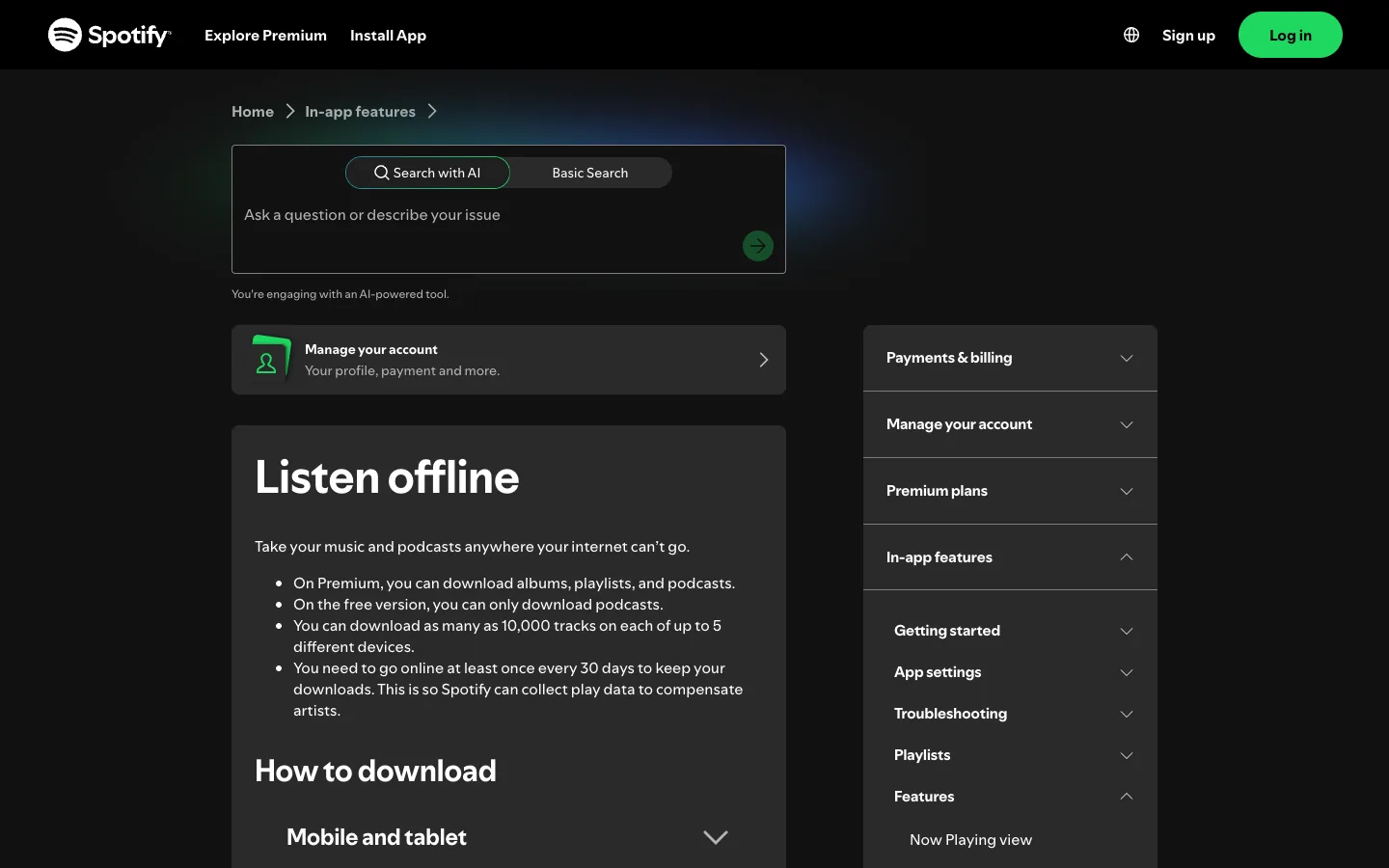
Spotify's current Listen offline documentation says Premium can download albums, playlists, and podcasts, while Free can download podcasts. It lists up to 10,000 tracks on each of five devices, requires the account to go online at least once every 30 days, and recommends at least 1 GB of free storage when downloads fail.
If a download is stuck or disappeared, check in this order:
- Go online and let Spotify refresh the account state.
- Confirm the app is updated.
- Check that the device is one of the five active download devices.
- Free at least 1 GB of storage.
- Disable cache-cleaning or battery-saving apps temporarily.
- Inspect the SD card on Android if downloads live there.
- Restart Spotify before reinstalling it.
Reinstalling removes the local app state, so downloaded music and podcasts must be downloaded again. That is why reinstall belongs near the end, not the beginning.
Fix library, queue, and local-file problems
Songs are grayed out or missing
A grayed-out track may be unavailable in your market, removed from the catalog, hidden, blocked by an explicit-content setting, or inaccessible because Offline Mode is on. Open the album or artist page and test the same track on another device before rebuilding a playlist.
If many saved items appear to be missing, confirm you are in the correct account and remove active library filters. A second account created through a different sign-in method is a common reason a familiar library appears empty.
Spotify keeps playing the wrong songs
Inspect the queue before changing Autoplay. Clear unexpected queued tracks, check whether Smart Shuffle or recommendations are active, and look for another Connect device that may be controlling playback. If only one playlist behaves strangely, test a new short playlist to separate playlist state from account-wide playback.
Local files do not appear or play
Spotify's Local files documentation covers files legally stored on the device. Check that Local Files is enabled, the source folder still exists, Spotify has storage permission, and the app and device are current. If a file was moved, renamed, or deleted, Spotify cannot repair the original path.
This is also the boundary where Melogen can help. Spotify problems involving its catalog, account, streaming, downloads, or Connect devices must be fixed inside Spotify. If the problem is an audio file you already own, Melogen's browser music trimmer can trim a damaged lead-in, isolate a practice excerpt, and add a fade before you re-import the edited file. It cannot repair a Spotify account or convert protected streaming downloads.
Prepare a clean local-audio excerpt
Use Melogen Music Trimmer for audio files you already own when the task is trimming, previewing, or adding fades—not for repairing Spotify streaming or account problems.
Fix device and Spotify Connect problems
When playback works on the phone but not on a speaker, TV, console, or car, treat the partner device as its own layer.
- Put both devices on the expected network.
- Open Devices Available and select the destination again.
- Restart the destination device, not only the controller phone.
- Update the speaker, TV, console, or car app if it has separate firmware.
- Remove and relink Spotify in the partner's app.
- If the device still appears after sign-out, remove access from the Spotify apps page.
Remember that Sign out everywhere does not automatically sign out partner devices such as speakers, game consoles, and TVs. Spotify directs users to remove access for those separately.
Know when to clear cache or reinstall Spotify
Clear cache when the app loads but artwork, search results, or playback state is stale. Reinstall when the installed app remains broken after restart, update, network testing, and a device comparison.
Before reinstalling, record what you will need to restore:
- Downloaded playlists and podcasts
- Local-file source folders
- Audio quality and data-saving settings
- Explicit-content and social settings
- The correct account sign-in method
- Partner-device connections
A reinstall is useful because it replaces damaged app files. It is not useful for a service outage, a removed track, the wrong account, an expired payment method, or a speaker firmware problem.
Frequently asked questions
Why is Spotify not working even though my internet is fine?
The problem may be limited to Spotify, your account, a firewall, the installed app, or one device. Test the web player and another device. If both fail, check Spotify Status and account access. If only one fails, troubleshoot that device or app.
Will clearing Spotify cache delete my playlists?
No. Playlists and saved library items are tied to the account. Cache is local temporary data. However, clearing storage or reinstalling can remove local downloads and require them to be downloaded again.
Why did my Spotify downloads disappear?
Common causes include being offline for more than 30 days, reinstalling the app, exceeding five download devices, an outdated app, insufficient storage, or an SD-card problem.
Can Melogen fix a Spotify playback or account problem?
No. Spotify streaming, account, subscription, catalog, and Connect problems belong in Spotify's official support flow. Melogen can edit an audio file you already own after it exists outside Spotify.
The practical takeaway
The fastest Spotify fix is usually a classification step, not a reset. Test another device and another network, decide whether the problem belongs to the service, account, app, device, download state, or one piece of content, then apply the smallest repair that matches that layer.
Restart and update before reinstalling. Check account and device limits before deleting downloads. Keep Spotify streaming problems separate from local-file editing. That order protects your time—and your offline library.
About the author
Zhang Guo
Composer - AI Product Manager
AI product manager and digital marketing consultant with a background in music. Creativity is the bridge between rhythm and logic, where musical intuition and mathematical precision can coexist in every meaningful product decision.
Follow on X