How to Turn Off Explicit Content on Apple Music
Turn off explicit content on Apple Music with current steps for iPhone, iPad, Mac, Windows, web, Android, and family-managed devices.
 Zhang Guo
Turn a static score into editable MIDI
Contents
To turn off explicit content on Apple Music, change the content restriction on the device or managed family account that controls playback. On a current iPhone or iPad, start in Settings > Screen Time > Content & Privacy Restrictions > App Store, Media, Web & Games, then set music to clean. Explicit tracks already in the library should become dimmed and stop playing.
The setting is not in the same place on every device. It can also be controlled by a parent or family organizer, so changing one phone does not always change a child's phone, a Mac user account, or a Windows PC.
Quick paths for every device
Use the row that matches where the music is actually playing.
| Device or account | Current place to check | What to change |
|---|---|---|
| iPhone or iPad | Settings > Screen Time > Content & Privacy Restrictions > App Store, Media, Web & Games | Set music, podcasts, news, and fitness to Clean |
| Child's iPhone or iPad | Screen Time for the child's account or device | Apply the clean-content restriction and protect it with a Screen Time passcode |
| Mac | System Settings > Screen Time > Content & Privacy | Turn off explicit music under Store Restrictions |
| Windows | Apple Music > Sidebar Actions > Settings > Restrictions | Deselect Allow Explicit Music, then lock the setting if needed |
| Apple Music on the web | Account Settings > Parental Controls | Set the permitted music rating and save the restriction |
| Android | Apple Music > menu > Settings > Content Restrictions | Enable restrictions, then turn off Allow Explicit Content |
Turn off explicit Apple Music on iPhone or iPad
Apple's current iPhone and iPad guides put music restrictions inside Screen Time rather than the old Settings > General > Restrictions path found in many older tutorials.
- Open Settings.
- Tap Screen Time.
- Tap Content & Privacy Restrictions and turn the feature on if it is off.
- Open App Store, Media, Web & Games.
- Open the music, podcasts, news, and fitness rating control.
- Choose Clean.
Apple's current iPhone music guide says the same restriction can block explicit content and notes that explicit tracks already in the library become dimmed and will not play.
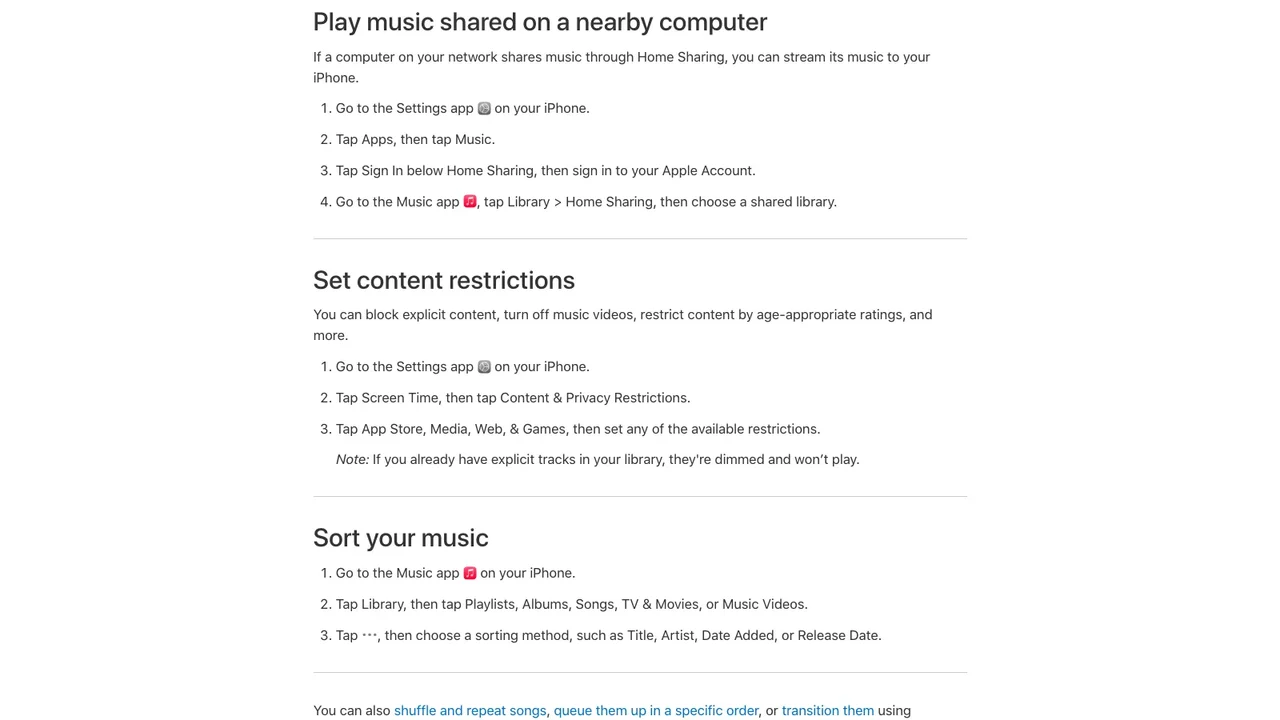
If you are managing a child, make the change in that child's Screen Time settings rather than only on your own device. Apple's parental controls guide explains that Family Sharing can manage a child's content restrictions remotely. Use a Screen Time passcode the child does not know if the restriction needs to stay locked.
This is also where the distinction between a family subscription and parental controls matters. An Apple Music family plan shares subscription access; it does not automatically make every family member use the same content rule. The Melogen guide to Apple Music Family Sharing explains the separate-account model in more detail.
Set explicit restrictions on Mac, Windows, or the web
Desktop controls differ because Mac restrictions are tied to Screen Time, while the Apple Music app on Windows has its own Restrictions panel.
On Mac
- Open System Settings.
- Select Screen Time.
- Choose the relevant family member if you manage a child through Family Sharing.
- Open Content & Privacy.
- Open Store Restrictions.
- Turn off Allow Explicit Music, Podcasts and News.
Apple's Mac restriction guide also separates music profiles, shared libraries, explicit music, music videos, and SharePlay. Do not switch off unrelated features unless they are part of your household rule.
On Windows
- Open the Apple Music app.
- Select the sidebar actions button at the top of the sidebar.
- Choose Settings, then Restrictions.
- Expand Content Restrictions.
- Deselect Allow Explicit Music.
- Use the lock control if you need to prevent changes.
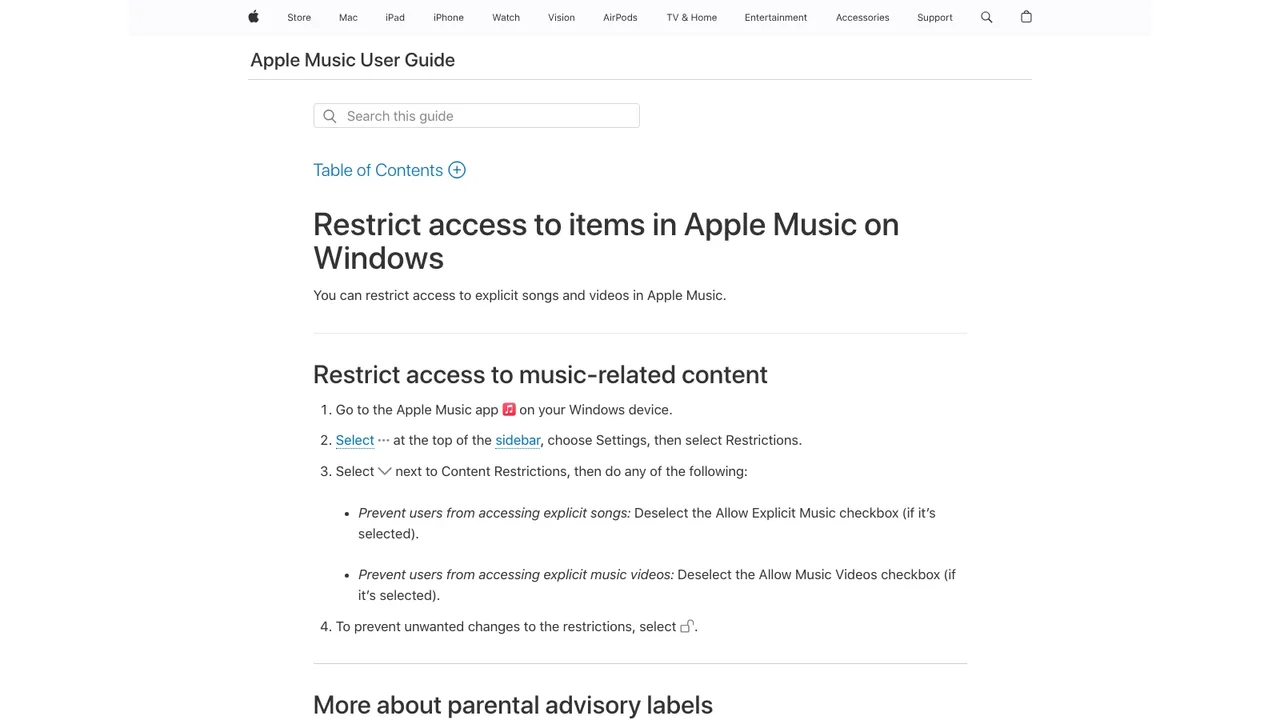
Apple's Windows Apple Music guide treats explicit songs and music videos as separate controls. If you want both blocked, check both settings.
On music.apple.com
Open your account settings, find Parental Controls, turn the controls on, and choose the allowed rating for music. Apple's web parental-controls guide notes that the restriction is protected with a passcode. Keep that passcode separate from a child's regular sign-in credentials.
Change the setting in Apple Music on Android
On Android, the control is inside the Apple Music app rather than Android's system-wide Screen Time menu.
- Open Apple Music.
- Open the app menu and choose Settings.
- Tap Content Restrictions.
- Enable content restrictions if prompted.
- Set a restriction passcode.
- Turn off Allow Explicit Content for music.
Menu wording can move between Android app versions. If Content Restrictions is missing, update Apple Music from Google Play, confirm that you are signed into the intended Apple Account, then check Settings again. Avoid installing unofficial copies of the app just to expose a missing menu.
Know what the explicit filter does and does not do
The filter uses the content rating attached to an Apple Music catalog item. It is not a live lyric scanner, and it does not edit a song into a clean version.
| The setting can do | The setting cannot do |
|---|---|
| Dim and block catalog tracks labeled explicit | Remove individual words from an audio file |
| Restrict explicit music videos separately on supported devices | Guarantee that every song a parent dislikes has an explicit label |
| Apply a protected rule to a child account or device | Replace every blocked track with its clean edition automatically |
| Help explain why a track is visible but will not play | Change the underlying recording in a downloaded or imported local file |
Look for the E or explicit badge before assuming the app is broken. Some albums have separate explicit and clean editions, and playlists can contain either version. If a clean edition exists, search for the album or song again and add the clean recording to the playlist.
The boundary matters for owned audio too. Apple Music content restrictions do not rewrite an imported rehearsal, purchased download, voice memo, or family recording. Edit or replace that file at the source if you have the rights to do so; do not expect the catalog filter to modify it.
Fix explicit songs that are still playing or wrongly blocked
Use this order before deleting downloads or rebuilding a library.
- Confirm the label. Check whether the exact album version carries the explicit badge.
- Confirm the playback account. Make sure the active Apple Account is the one whose restriction you changed.
- Check the family member. A child's device may use a managed Screen Time rule that differs from the organizer's device.
- Restart the app. Close Apple Music completely, reopen it, and test one labeled track.
- Update the device and app. Old menu paths and stale app state cause many false troubleshooting loops.
- Test another device carefully. If the rule works on one device but not another, compare account and restriction settings rather than toggling Sync Library.
- Check for a clean edition. The clean and explicit releases can look nearly identical in search results.
If explicit songs are greyed out and you want to allow them again, reverse the relevant device setting from Clean to Explicit or re-enable Allow Explicit Music. Apple's current greyed-out music guidance specifically lists clean restrictions as a reason explicit tracks can appear grey.
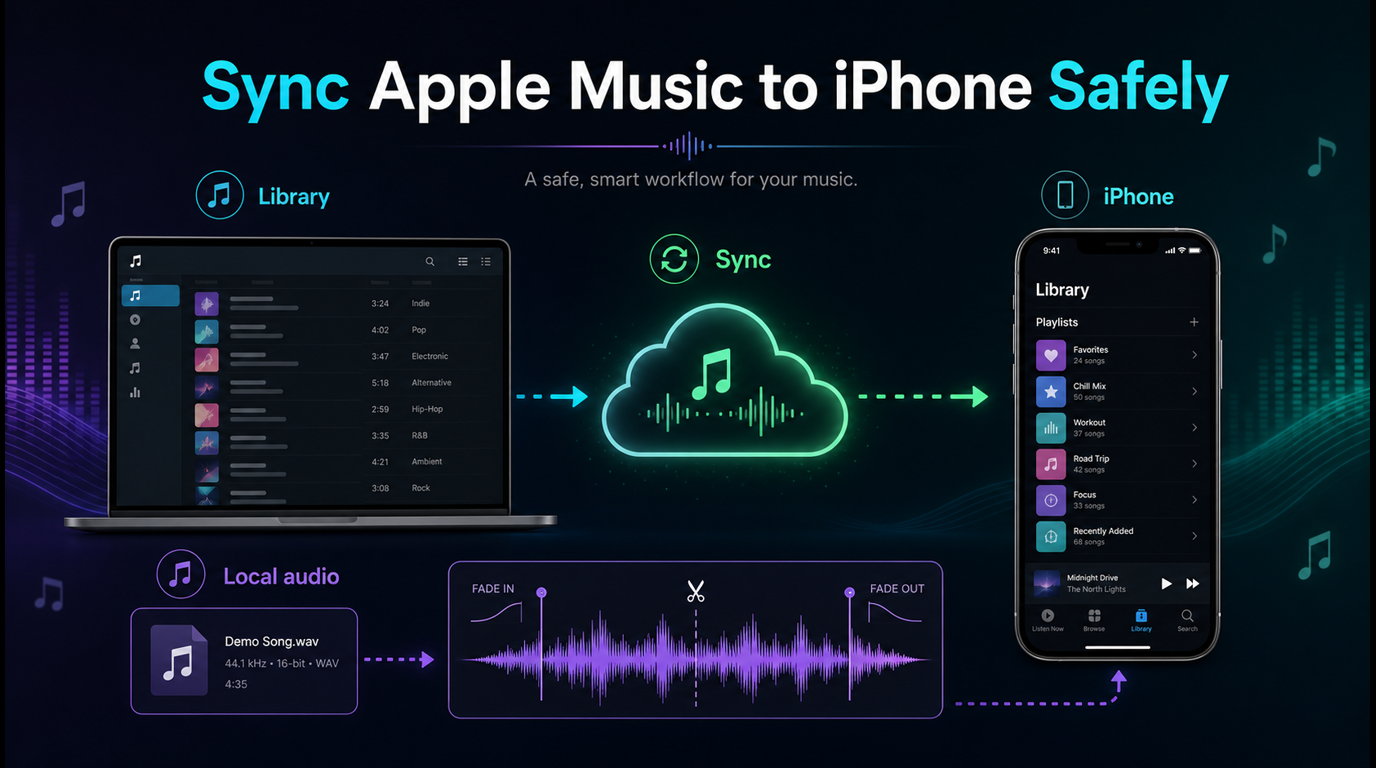
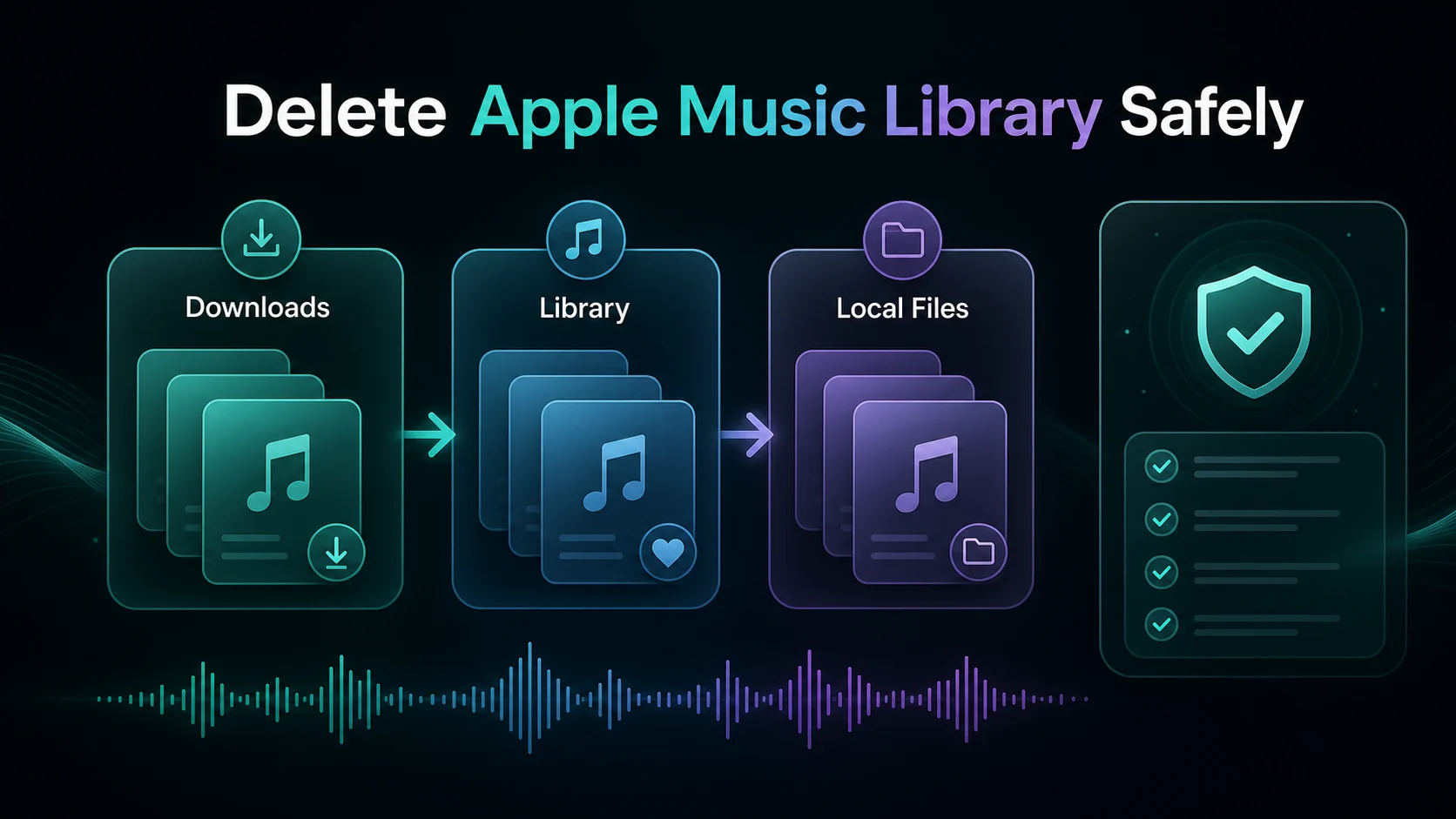
Do not turn Sync Library off as a first fix. That setting manages library synchronization, not the explicit rating. If you already have a separate library problem, use the Melogen checklist for how to sync Apple Music to iPhone safely before making a destructive change.
FAQs
Does turning off explicit content remove songs from my library?
It should block playback rather than permanently delete the catalog item. Apple says existing explicit tracks can appear dimmed and will not play while the clean restriction is active.
Can I block explicit music for only one child?
Yes. Use Screen Time for that child's account or device. Family Sharing lets a parent or guardian manage a child's content restrictions without applying the same rule to every adult family member.
Why is an explicit song still playing after I selected Clean?
Check the actual playback device, Apple Account, family member, and album version. Then restart and update Apple Music. The restriction may be active on one device or account but not the one currently playing audio.
Does Apple Music always play a clean version instead?
No. A blocked explicit track can become unavailable or dimmed. Search for a separately released clean edition if you want a playable replacement.
Can this setting clean an imported MP3 or recording?
No. It is a catalog access control, not an audio editor. An owned file must be edited or replaced at the source, and only when you have the right to modify it.
The practical takeaway
Turn off explicit content where playback is controlled: Screen Time on iPhone, iPad, and Mac; Restrictions in Apple Music on Windows; Parental Controls on the web; or Content Restrictions inside the Android app. For a child, manage the child's account or device and lock the rule with a passcode.
If the result looks inconsistent, verify the content label, account, device, and family member before changing the library. The setting blocks labeled catalog items. It does not censor audio, rewrite owned files, or guarantee a clean replacement for every song.
About the author
Zhang Guo
Composer - AI Product Manager
AI product manager and digital marketing consultant with a background in music. Creativity is the bridge between rhythm and logic, where musical intuition and mathematical precision can coexist in every meaningful product decision.
Follow on X