How to Transpose in MuseScore Studio With Key Checks
Transpose in MuseScore Studio with Tools → Transpose, set direction and interval, and check key signatures, chord symbols, register, and concert pitch.
 Zhang Guo
Turn a static score into editable MIDI
Contents
To transpose in MuseScore Studio, select the passage you want to move, open Tools → Transpose…, choose a target key or interval and direction, review the key-signature and chord-symbol options, and confirm. Check both the written result and playback before saving the new version.
This guide covers the desktop editor's controls. If you still need to decide the destination key or calculate the musical interval, start with the broader how to transpose music guide, then return to apply that decision in MuseScore.
Select exactly the music you want to transpose
Save a copy with the destination key in its filename. For a passage, select a continuous range and confirm the highlighted staves and boundaries. For the whole score, select all before opening the dialog so the intended scope is visible.
The official selection guide explains how range selections work. A melody-only selection leaves the accompaniment unchanged, so include all musical layers when the whole arrangement needs a new key.
Write down a test note and chord before proceeding. For a C-major passage moving up a major second, C becomes D and a G chord becomes A. These simple references give you something concrete to inspect afterward.

Original example rendered in MuseScore Studio 4.7.6. Keep a known note and chord as references for the move.
Set the transposition in the dialog
Open Tools → Transpose…. For a conventional key change, use the chromatic controls:
- Choose To key or By interval.
- Set the required direction, rather than relying on the nearest register when register matters.
- Choose the destination key or named interval.
- Review Transpose key signatures.
- Review Transpose chord symbols and fretboard diagrams.
- Confirm, then inspect the result.
The official transposition handbook documents these controls. If you want a complete key change, include the key signatures and chord symbols deliberately. If you want only a local melodic alteration, choose those options according to that narrower purpose.
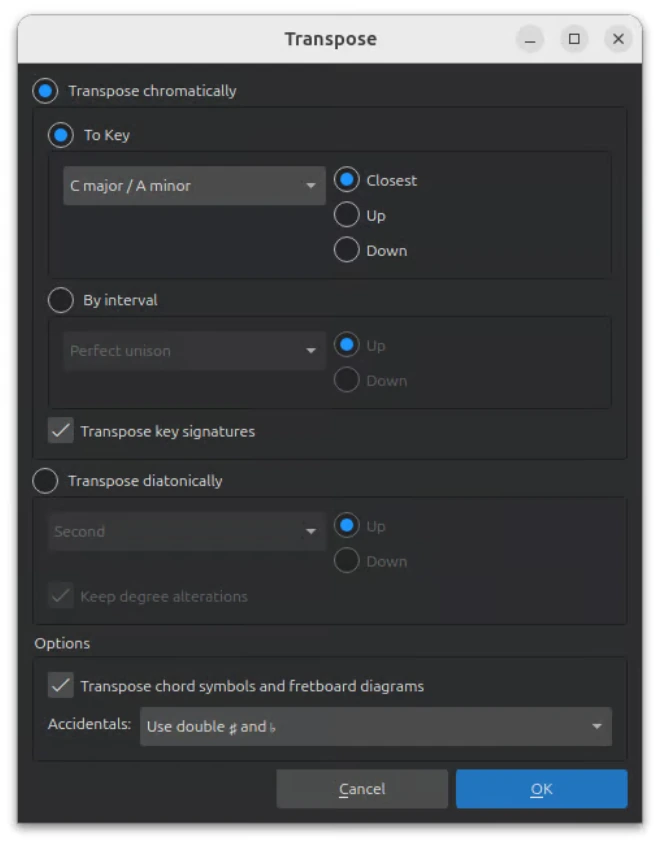
Official handbook screenshot of the Transpose dialog. Review direction and related notation options before confirming.
Use a short example to verify the move
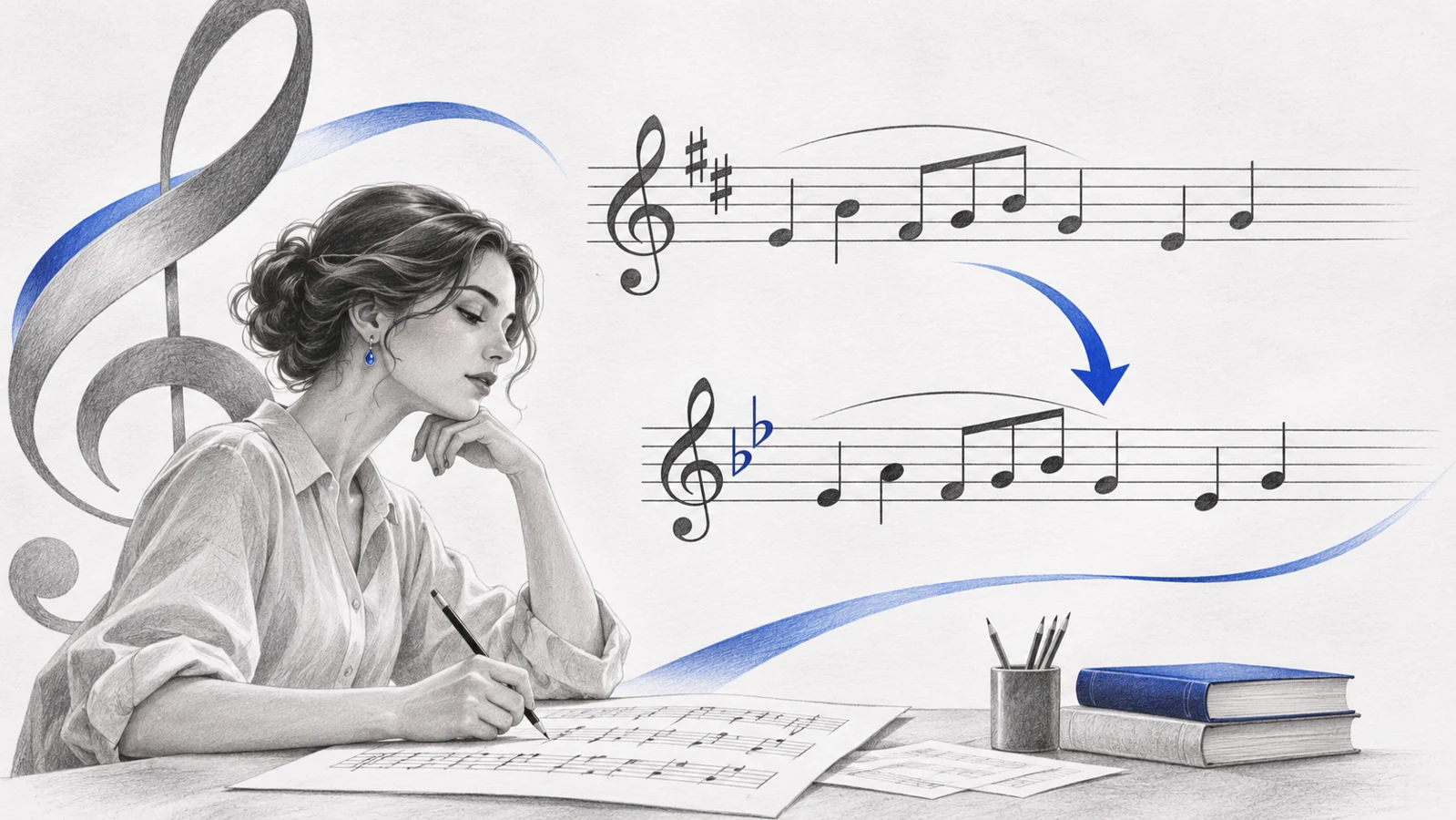
For C major to D major, choose Up and a major second, with key signatures and chord symbols included. Expect two sharps in the destination key signature and chord roots shifted by the same interval.

Illustrative before-and-after score fixtures rendered in MuseScore Studio 4.7.6. The notation and chord symbols represent the same upward key change.
Inspect the phrase's first and last notes, then any chromatic note in the middle. Listen with the accompaniment. A melody can sound plausible by itself while clashing with an untransposed bass or chord layer.
Download the starting score and the illustrative result to inspect the musical difference in your own notation editor.
Choose the right kind of movement
| Intended change | Useful control | What it means |
|---|---|---|
| Move a song to a new key | Chromatic transposition by key or interval | Retains the interval pattern at a new pitch level |
| Move notes within the current scale | Diatonic transposition | Can change interval qualities |
| Raise or lower register only | Octave shortcut | Keeps pitch classes while changing range |
| Inspect written versus sounding pitch | Concert pitch view | Changes the display reference for transposing instruments |
For selected notes, Up and Down move chromatically by semitones. Ctrl + Up/Down on Windows or Cmd + Up/Down on Mac moves by octaves. Diatonic movement uses Alt + Shift + Up/Down, with Option on Mac.
Use the dialog for a planned whole-score change because it makes the interval, direction, and related-object options easier to review together.
Keep concert pitch separate from changing the song key
Concert-pitch view helps you compare what instruments sound. It is not a command to move the arrangement into a new sounding key. A B-flat clarinet part can show different written notes while sounding the same musical line.
The transposing instruments guide explains that distinction. If the instrument's configured transposition seems wrong, inspect Staff/Part properties before moving notes to compensate.
For a singer's requested key change, the audience should hear a new pitch level. For a player-part display change, the sounding music may remain the same. State which result you want before editing.
Proofread the new version
- The intended staves and measures moved.
- The target key and direction are correct.
- Chord roots and bass notes agree with the melody.
- Chromatic notes have readable spelling.
- The highest and lowest notes suit the performers.
- Written and concert-pitch views make sense for the assigned instruments.
- The exported version matches the score you checked.
If the register is awkward, reconsider the direction or octave rather than changing isolated pitches at random. A mechanically correct interval can still produce an impractical part.
Bring a PDF into the editor first
When the source is a PDF score, Melogen PDF to MusicXML can create the editable notation. Open it in MuseScore and proofread the original key, accidentals, and octaves before transposing. Otherwise the same interval move carries recognition mistakes into the new version.
Prepare a PDF score for transposition
Create MusicXML with Melogen, then proofread the source and apply the key change in MuseScore Studio.
About the author
Zhang Guo
Composer - AI Product Manager
AI product manager and digital marketing consultant with a background in music. Creativity is the bridge between rhythm and logic, where musical intuition and mathematical precision can coexist in every meaningful product decision.
Follow on X