Apple Music Not Working on iPhone Fix Guide
Fix Apple Music not working on iPhone with checks for outages, account access, cellular data, Sync Library, downloads, storage, and audio output.
 Zhang Guo
Turn a static score into editable MIDI
Contents
Apple Music not working on iPhone can mean the service is down, your account lost access, the connection failed, or only one song is affected. Start by identifying that layer. Do not delete the app, sign out, or turn off Sync Library until you know which one failed. Those broad resets can remove downloads or make a library problem harder to diagnose.
The fastest order is simple: check Apple's service status, test another network, confirm the Apple Account and subscription, inspect Sync Library only if library content is missing, then isolate downloads, storage, audio output, and restrictions.
Use this quick Apple Music iPhone diagnosis
| What you see | Most likely layer | First check |
|---|---|---|
| Home, Search, and Radio will not load | Apple service or internet connection | Apple System Status, then Wi-Fi versus cellular |
| The app opens but every catalog song fails | Account, subscription, region, or network | Apple Account, subscription status, and another network |
| Library is empty or playlists are missing | Wrong account or Sync Library | Account identity before changing Sync Library |
| Only downloaded songs fail offline | Incomplete or damaged download, storage, or subscription state | Go online, verify the subscription, then redownload one item |
| Music appears to play but you hear nothing | Output route, volume, Bluetooth, AirPlay, or audio accessory | Control Center output destination and a second audio app |
| One song is unavailable or grayed out | Catalog, region, explicit-content, or local-file issue | Test another song before changing the whole library |
| Apple Music works on Wi-Fi but not cellular | Cellular access, data mode, VPN, or carrier path | Music cellular permission and VPN test |
Change one thing at a time. If Apple Music starts working after a single check, stop there instead of continuing through every reset on the internet.
Check whether Apple Music is down first
Open Apple's System Status page and look for Apple Music, Apple Music Subscriptions, Apple Account, and related services. A current incident can make the app fail to load, play, sign in, or update the library even when your iPhone is fine.
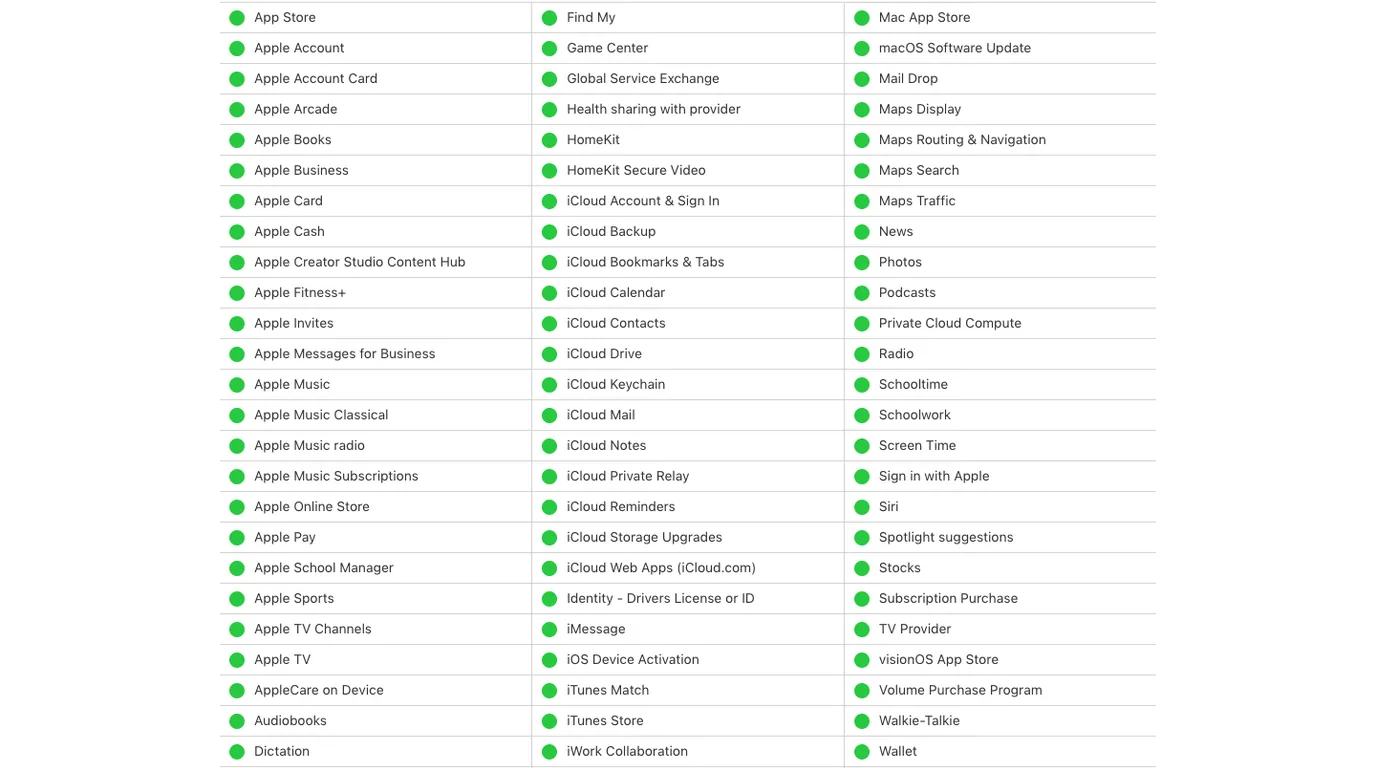
If Apple reports an incident, keep the iPhone online and wait for recovery. Repeatedly signing out, deleting downloads, or toggling Sync Library will not repair a server-side failure.
If the status page is green, compare these three tests:
- Open an ordinary webpage in Safari.
- Play a video or podcast in a different app.
- Try Apple Music once on Wi-Fi and once on cellular data.
Apple's connection troubleshooting recommends checking service status, software updates, date and time, and another network when Apple services will not connect. If every app fails on one network, fix that connection before changing Music settings.
Confirm the Apple Account and subscription
Apple Music catalog access follows the Apple Account and its active subscription. In the Music app, open the account profile and confirm that the account is the one that owns or shares the subscription. Then check the subscription in account settings.
Use this split:
- If Listen Now or Home loads but subscription music will not play, confirm the subscription is active and the same account is signed in.
- If Family Sharing stopped working, confirm that the family subscription still includes the member and that purchase sharing is not being confused with Apple Music access.
- If only purchases or imported files are missing, do not assume the Apple Music subscription is the cause. Check the account used for purchases and the source computer library.
- If a sign-in prompt keeps returning, finish account verification before rebuilding downloads.
Avoid signing out as a first move. Signing out can remove downloaded subscription music from the device and adds another variable. If you do need to change accounts, write down which account is active and back up any local source files on the computer first.
Fix Wi-Fi cellular and VPN problems
When Apple Music works on Wi-Fi but not cellular, the iPhone is usually blocking or disrupting the data path rather than failing to play audio.
Check the current Music settings path on your iPhone. Depending on the iOS version, Music settings may appear under Settings > Apps > Music or directly under Settings > Music. Confirm cellular data is allowed for Music, then test one catalog track that is not already downloaded.
Next, try this order:
- Turn Airplane Mode on for about ten seconds, then off.
- Disable a VPN, DNS filter, or security profile briefly and test again.
- Switch between Wi-Fi and cellular to identify whether only one network fails.
- Confirm Date & Time is set automatically.
- Restart the iPhone only after the smaller network checks.
- Install a current stable iOS update if the device is behind and the update is available for it.
Do not reset all network settings unless ordinary network troubleshooting fails. That reset removes saved Wi-Fi networks and other connection state, so it should be a later step, not the opening move.
Repair Sync Library without losing context
Use Sync Library troubleshooting when playlists, added albums, or computer library items are missing. It is not the first fix for an app that will not connect or for a phone with no sound.
Apple's current Sync Library guide says the iPhone must use the same Apple Account as the Apple Music subscription. It also warns that Apple Music is not a backup service.
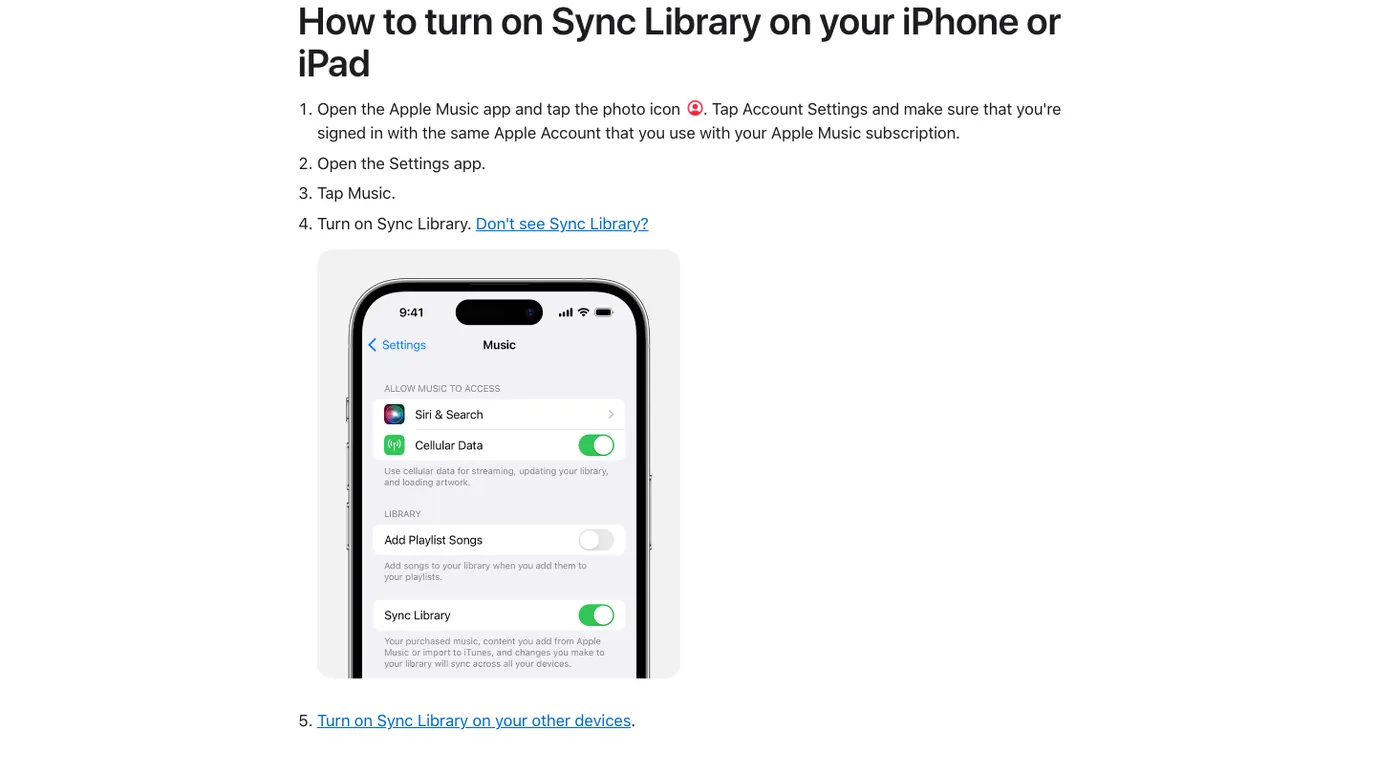
Before toggling anything:
- Confirm the same Apple Account on the iPhone and the source Mac or Windows PC.
- Confirm the Apple Music or iTunes Match subscription is active.
- Check whether Sync Library is already on.
- Look at the source computer and verify that the original local files still exist.
- Back up the source library before making a broad change.
If the library is still updating, leave the devices powered and connected. If only a few songs are missing, use Apple's missing-song checks instead of switching Sync Library off for the entire device.
For the full transfer boundary between Sync Library, Finder, Apple Devices, and eligible local files, use the Sync Apple Music to iPhone guide. That is a different task from fixing a catalog song that will not play.
Fix downloads storage and one-song failures
Downloaded music adds another failure layer. A song may appear on the iPhone but still have an incomplete download, stale authorization, or a file problem.
Test in this order:
- Go online and play the same song from its catalog page.
- Play a different downloaded song in Airplane Mode.
- Check available iPhone storage.
- Remove the download for one affected item, not the whole library.
- Download that one item again and test offline.
Removing a download is different from deleting a song from the library. Choose the download-only action when you are repairing the device copy and want the item to stay in your library.
If one song is grayed out or unavailable, the cause may be a catalog change, region availability, an explicit-content restriction, or a missing local original. Test other tracks before assuming the app itself is broken. If the symptom is repeated skipping rather than a complete app failure, the Apple Music skipping songs guide gives that narrower playback path.
Check audio output and iPhone restrictions
If the progress bar moves but you hear no sound, Apple Music may be playing to the wrong output. Open Control Center and inspect the audio destination. Disconnect Bluetooth headphones, speakers, CarPlay, or AirPlay temporarily, then test through the iPhone speaker at a safe volume.
Also check:
- the physical volume and silent-state assumptions with another audio app
- whether a Bluetooth device reconnected in another room
- whether an audio interface, DAC, or adapter is still selected
- Screen Time content restrictions for explicit songs
- Focus, automation, or Shortcuts behavior that changes playback or volume
- whether only Lossless, Dolby Atmos, or downloaded versions fail while a standard stream works
The useful distinction is playback engine versus output route. If Podcasts or a browser video is also silent, troubleshoot the iPhone audio route or accessory. If other audio works, return to the Apple Music account, network, and song-specific checks.
Keep local files separate from subscription streams
A local recording, purchased DRM-free file, or DAW export can fail for reasons that have nothing to do with the Apple Music catalog. Locate the original file on the computer and play it outside Apple Music. If the original fails, repair or replace that source before syncing it again.
Melogen does not repair Apple Music accounts, restore a subscription stream, or unlock catalog downloads. It can help only after you have an ordinary audio file you own or have permission to edit. For example, you can use Melogen Music Trimmer to cut a damaged intro from your own rehearsal recording, make a smaller test clip, add a fade, and export a fresh local copy before adding it back to the library.
Test a clean local copy before you sync again
Use Melogen Music Trimmer for recordings, purchases, and other files you are allowed to edit. Keep the master, export a short test copy, then add that copy to your library.
FAQs
Why is Apple Music not loading on my iPhone?
Check Apple System Status and your internet connection first. If other apps work and Apple reports no incident, confirm the Apple Account and subscription, then test Wi-Fi versus cellular data. Do not toggle Sync Library unless the problem is specifically missing library content.
Why does Apple Music work on Wi-Fi but not cellular data?
Music may not have cellular permission, a VPN or DNS filter may be interrupting the service, or the carrier path may be failing. Allow cellular access for Music, disable the VPN briefly, and test one non-downloaded catalog song.
Why is my Apple Music library missing on iPhone?
The usual causes are a different Apple Account, Sync Library being off or still updating, an inactive subscription, or missing original local files. Confirm the account and back up computer files before changing Sync Library.
Should I delete and reinstall Apple Music?
Not first. Reinstalling can remove device downloads without fixing an outage, account, or network problem. Use the symptom table, test another network, and verify the account before reinstalling the app.
Can Melogen fix Apple Music not playing?
Melogen cannot fix Apple Music service, account, subscription, or protected catalog playback. It can trim or re-export an ordinary local audio file that you own or have permission to edit after you isolate the issue to that file.
The practical takeaway
When Apple Music is not working on iPhone, diagnose from the outside in. Check service status, connection, account, and subscription before touching the library. Use Sync Library steps only for missing library content, repair one download at a time, and verify the audio output when playback appears silent. Keep owned local files backed up and separate from subscription streams. That order fixes the likely cause while protecting the library you already have.
About the author
Zhang Guo
Composer - AI Product Manager
AI product manager and digital marketing consultant with a background in music. Creativity is the bridge between rhythm and logic, where musical intuition and mathematical precision can coexist in every meaningful product decision.
Follow on X