Create Spotify Radio Stations and Use Them Well
Create Spotify radio stations from an artist, album, or song, save the station, refine discovery, and turn useful finds into a better music reference list.
 Zhang Guo
Turn a static score into editable MIDI
Contents
To create Spotify radio stations, start with one artist, album, or song that has the right energy but leaves you wanting more. Open that source, use the three-dot menu, and choose Go to Radio. Spotify then creates a collection based on that starting point and refreshes it over time.
The useful distinction is that a Radio is for discovery, not for building a finished set. Save the useful station, let it surface candidates, then move the tracks you genuinely want to keep into a playlist or a separate music-reference note. That keeps a changing recommendation feed from becoming your only record of an idea.
What Spotify Radio does and does not do
Spotify's official Spotify Radio support guide describes Radio as a collection built from an artist, album, or song that updates to stay fresh. That makes it a good choice when you want more material in the neighborhood of a reference without manually searching for every next track.
It is not a fixed playlist, a personal Mix, or a live Jam. Those tools solve different jobs:
| Feature | Best for | What changes over time | What you control |
|---|---|---|---|
| Spotify Radio | Finding more music from one starting point | The recommendation sequence can refresh | The source, what you save, and what you hide |
| Your playlist | Keeping a deliberate list | Only when you edit it | Track order, title, collaborators, and sharing |
| Spotify Mixes | Returning to recurring personalized listening | Spotify updates the selection | Mainly what you listen to and save |
| Spotify DJ or Jam | A guided or shared listening session | The session and queue change live | Session participation and the current queue |
If you need a durable list that other people can edit, make a Spotify collaborative playlist instead. If the goal is simply to give people a finished listening link, use the separate guide to sharing a Spotify playlist.
Create a Spotify Radio from an artist album or song
Spotify's current official path is short:
- Open the artist, album, or song that best represents the sound you want more of.
- Open the three-dot menu. On iPhone and iPad, it appears as horizontal dots; on Android, it appears as vertical dots.
- Choose Go to Radio.
- Listen to the first part of the station before deciding whether the source is actually useful. A single strong track can make a poor seed if its arrangement is unusually different from the rest of the artist's work.
Use the smallest source that matches the job. Start with a song when you are chasing a particular groove, tempo feel, vocal texture, or arrangement move. Start with an album when you want a broader era or production palette. Start with an artist when you want the widest stylistic neighborhood.
For musicians, this is a useful research habit: write down why the seed works before you press Go to Radio. Try notes such as "dry drums and close vocal," "two-bar bass pickup," or "slow-build chorus harmony." You will get more value from the recommendations when you know which musical signal you are testing.
Save the station before you lose a useful thread
When a station keeps producing useful discoveries, save it. Spotify's support page says you can save an Artist Radio, Album Radio, or Song Radio to Your Library under Playlists. That lets you return to the discovery path without trying to reconstruct the original search later.
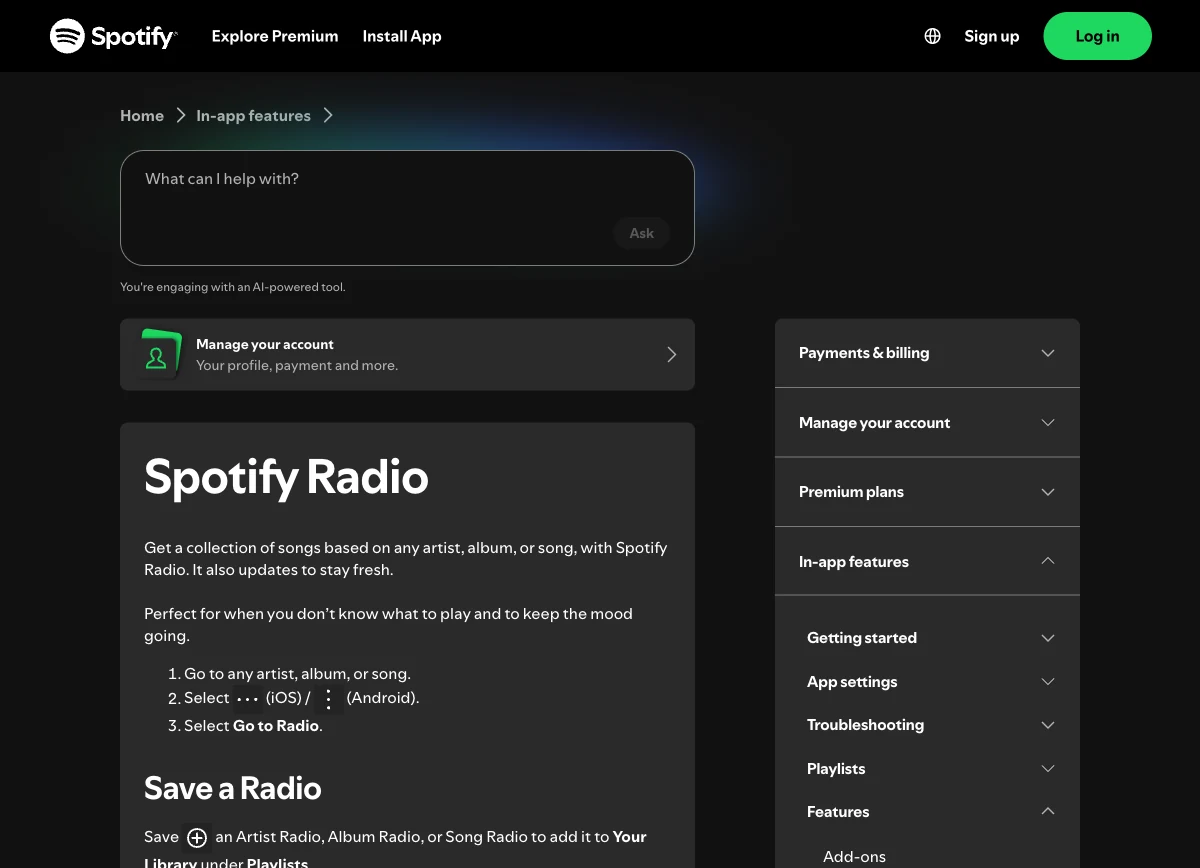
Saving a Radio does not make it a permanent, hand-curated archive. Treat it as a reusable starting point. If a particular sequence matters, make a separate playlist and add the tracks you want to revisit. This matters for rehearsal references, arrangement research, class listening lists, or a production brief where the order and selection need to remain stable.
Premium is relevant only to the official offline-download option for a saved Radio. It does not turn streamed songs into files you own, and this guide does not recommend converter, ripper, DRM-removal, or extraction workarounds.
Tune recommendations without treating Radio like a playlist editor
The first few recommendations tell you whether the seed is doing its job. If they are too broad, change the seed rather than repeatedly forcing the station to behave like a finished playlist.
Use this practical review loop:
- Listen for the first five to ten tracks.
- Save the tracks that truly match your intended reference.
- Hide a track when it is the wrong fit for that playlist or station context.
- Start a new Radio from a better song, album, or artist if the results remain off-target.
- Move your saved finds into a playlist once the collection has a clear purpose.
Spotify's hide and unhide songs guidance explains that a hidden song is grayed out and skipped in that playlist; on mobile, Spotify also offers a 30-day option to stop suggesting a track anywhere. Hiding a song is not the same as deleting it from a playlist you own, and neither action makes a permanent statement about the artist or genre.
If unexpected songs keep appearing, first check the listening controls that are meant to change queues and recommendations. The guide to Spotify playing songs not on your playlist separates Smart Shuffle, Autoplay, Queue, Jam, device, and app-state causes so you can avoid fixing the wrong thing.
Turn discoveries into useful music references
Radio is strongest at the discovery stage. The work afterward is what makes it useful to a composer, producer, student, or arranger.
Create a small reference playlist for one purpose: drum-room character, a chord-movement idea, an album-era palette, a vocal-production treatment, or a rehearsal mood. For each saved track, add a note outside Spotify about the element worth studying. A title alone will not remind you whether you saved it for the intro, harmony, transition, tempo, or instrumentation.
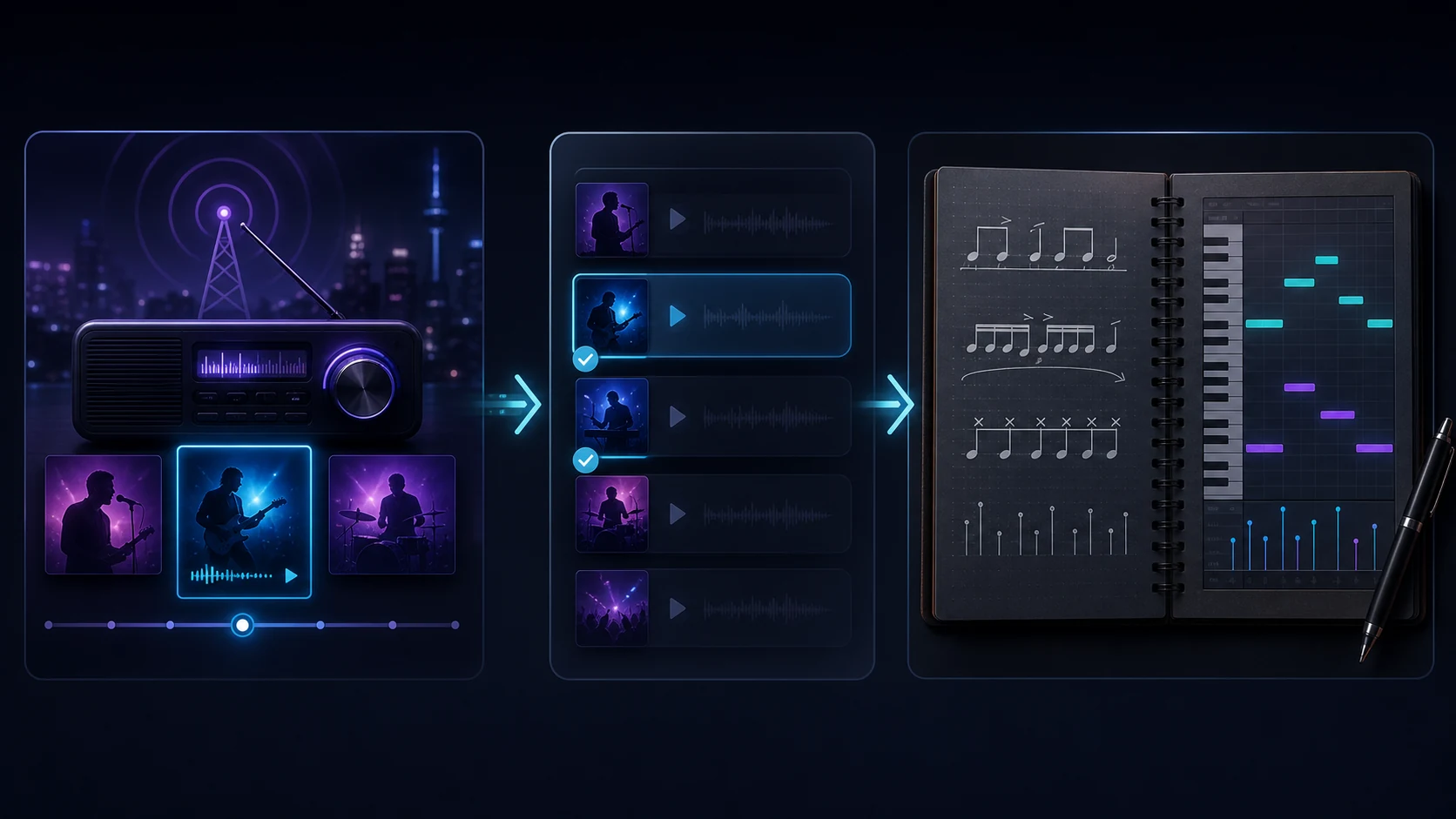
Keep the rights boundary clear. Streaming recommendations are excellent for listening and analysis, but they are not a license to copy, extract, or redistribute the audio. When you have an audio file you own or are permitted to edit, you can use Melogen's Music Trimmer to cut a short working clip, add a fade, and export it for your own project workflow. Use that only with material you have the rights to edit.
Prepare a legal reference clip for your own project
After you have an audio file you own or are allowed to edit, trim a focused excerpt in the browser before taking notes, rehearsing, or planning an arrangement.
Fix common Spotify Radio problems
Go to Radio is missing
Open the exact artist, album, or song page first, then look in its three-dot menu. The availability and menu wording can vary by device and app version. If it still does not appear, update the app, restart it, and try a different seed type. An artist page and a single track do not always expose the same menu options.
The station does not match the sound you wanted
Use a narrower seed. A broad artist can produce a broad station. If you wanted a particular song's drum feel or harmony, start from that track rather than from the artist's full catalog. Save the good results into a playlist, then start a new Radio from one of those better matches.
You cannot find a saved Radio
Look in Your Library under Playlists, as Spotify's official support page specifies. If you are signed in on more than one device, confirm that you are using the same account and that the library has finished syncing. A saved Radio is still a Spotify listening feature, so it may not behave like a manually created static playlist.
You want a fixed order for a set or class
Make a normal playlist. Radio is designed to update; a finished teaching sequence, rehearsal plan, or event run sheet needs a list you control. For a group-built version, use a collaborative playlist and decide who can edit it before sharing the invitation.
FAQs
Can I make a Spotify Radio from a playlist?
Spotify's current Radio support page documents artist, album, and song Radio. If you want a discovery path from a playlist, start a Radio from one representative song or artist, then save the best discoveries into your own playlist.
Can I download a Spotify Radio?
Spotify says Premium users can download a saved Radio for offline listening. That download remains within Spotify's authorized offline feature; it is not an exported audio file.
Does hiding a track remove it everywhere?
No. Spotify says hidden tracks are skipped in the relevant playlist, and they can still play in other playlists where they are not hidden. On mobile, a separate 30-day suggestion control can temporarily reduce that track's recommendations more broadly.
Is Spotify Radio good for finding arrangement references?
Yes, when you begin with a deliberate seed and keep a separate note about what you are studying. Save only the useful discoveries, then turn the stable shortlist into a playlist rather than relying on a changing station.
The practical takeaway
To create a Spotify Radio station, begin with an artist, album, or song and choose Go to Radio. Save the station if it is a good discovery route, but use a normal playlist for anything that needs a fixed order, collaboration, or a durable research record. That simple separation keeps discovery fast and makes the musical ideas you find easier to use later.
About the author
Zhang Guo
Composer - AI Product Manager
AI product manager and digital marketing consultant with a background in music. Creativity is the bridge between rhythm and logic, where musical intuition and mathematical precision can coexist in every meaningful product decision.
Follow on X