Spotify Playing Songs Not on Your Playlist Fixes
Fix Spotify playing songs not on your playlist by checking Smart Shuffle, Autoplay, Queue, Jam, devices, and app state in the right order.
 Zhang Guo
Turn a static score into editable MIDI
Contents
Spotify playing songs not on your playlist usually points to one of four playback layers: Smart Shuffle is inserting recommendations, Autoplay is continuing after your selection ends, the Play Queue already contains other tracks, or another person or device is controlling the session. Check the timing first. That tells you which switch to change.
Do not start by reinstalling the app. Play one playlist, watch when the first unexpected song appears, and follow the matching row below. Most cases take less than two minutes to isolate.
Quick fixes by symptom
| What you see | Most likely cause | First action |
|---|---|---|
| A recommended track appears between saved playlist songs | Smart Shuffle | Turn off Smart Shuffle or remove it from available play modes |
| Similar music begins only after the playlist finishes | Autoplay | Turn off Autoplay in Playback settings |
| A song you did not choose is already listed under Next in Queue | Play Queue | Remove that queued track or clear the queue |
| Tracks appear after listening with friends or on a speaker | Jam | End the Jam or remove participants who can add songs |
| Playback changes when another phone, TV, console, or speaker is active | Spotify Connect | Switch to the intended device and secure the account if the controller is unknown |
| The behavior occurs only in one app installation | Cache or app state | Restart, update, then clear cache before reinstalling |
The key distinction is where the track came from. Shuffle changes order. Smart Shuffle adds recommendations. Autoplay continues after your chosen music ends. The queue controls what plays next. Jam and Connect let other people or devices affect the same session.
Check whether Smart Shuffle added the song
Spotify's current official Shuffle play guide says Smart Shuffle mixes personalized recommendations into a listening session. Recommended tracks carry an Enhance-style badge in Now Playing, which gives you a concrete way to distinguish a recommendation from a song saved in the playlist.
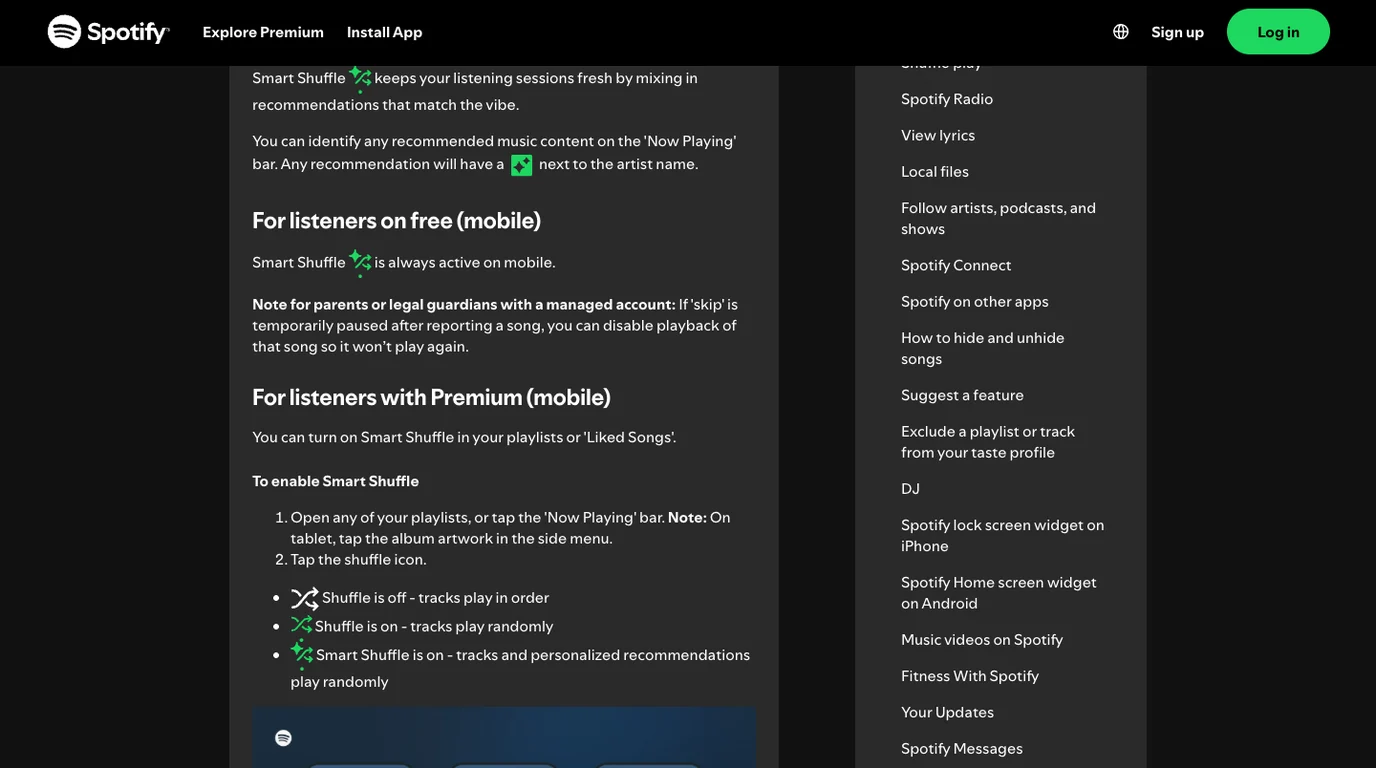
For Premium on mobile, open Settings and privacy, choose Playback, and switch off Include Smart Shuffle in play modes if you do not want to cycle into it accidentally. You can also tap the shuffle control until the plain Shuffle or Shuffle Off state appears.
The Free mobile behavior is different. Spotify's current US support page says Smart Shuffle is always active for Free listeners on mobile. That means an inserted recommendation is not necessarily an app fault. Check the badge in Now Playing and compare the same playlist in another supported playback surface before resetting the account.
Turn off Autoplay when the playlist has ended
Autoplay solves a different problem. Spotify's official Autoplay guide says it plays similar songs after an album, playlist, or selection of songs reaches the end.
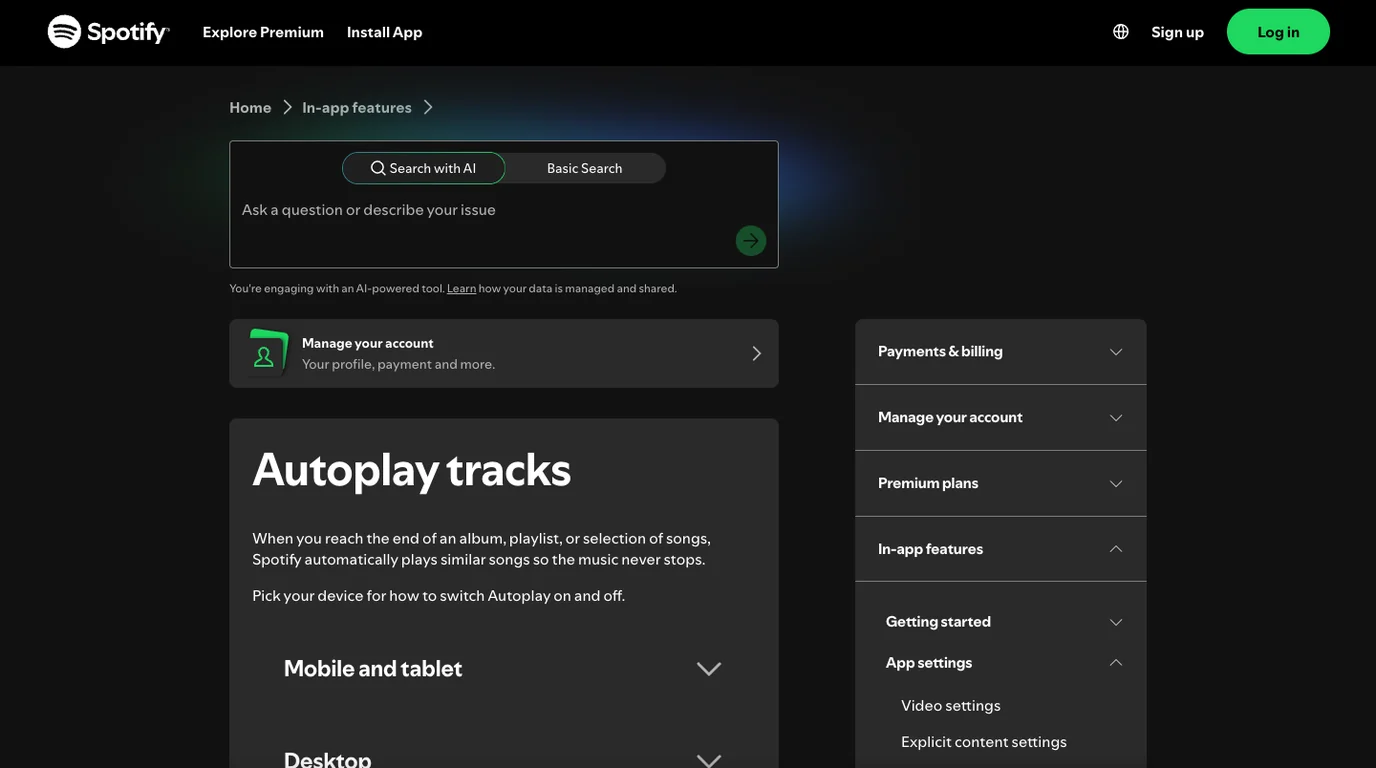
On mobile, open Settings and privacy, find Playback, and switch Autoplay off. On desktop, open Settings, scroll to Autoplay, and switch it off there. Then test with a short playlist that you can let finish.
If the unexpected song appears only after the final saved track, this is the right control. The dedicated guide to turn off Spotify Autoplay covers mobile, desktop, Bluetooth, cars, and connected speakers without mixing those cases together.
Clear the Play Queue if the song is already lined up
Spotify describes the Play Queue as the place to see and arrange what plays next. A manually queued song can play before the playlist resumes, so it can look as if Spotify changed the saved playlist even when the playlist itself is untouched.
Use this sequence:
- Open Now Playing.
- Open Queue or Queue & Jam, depending on the device.
- Look for manually added tracks before the current playlist sequence.
- Remove the unexpected track or clear the temporary queue.
- Restart the playlist from its own page and watch what enters Next in Queue.
Clearing the queue does not delete songs from a saved playlist. If you need device-specific controls, use the focused clear Spotify queue guide.
End Jam or switch the active Connect device
Spotify Jam is designed for shared control. The official Jam guide says participants can add tracks and rearrange the queue, while the host can control whether others may change what is playing. Spotify can also invite nearby listeners when a session is connected to supported speakers.
Open Queue & Jam and check for guests. Remove participants you do not recognize, disable shared playback control, or end the Jam before testing again.
Then inspect the active device. With Spotify Connect, one device can control playback on another. Switch playback back to your phone or computer, pause for a few seconds, and restart the playlist. If an unknown device returns, change the Spotify password, sign out other sessions, and review connected apps rather than repeatedly clearing the same queue.
Separate Free-plan behavior from a broken app
Plan differences matter because the same icon does not always offer the same degree of control. Spotify's current support page says Smart Shuffle is always active for Free listeners on mobile, while Premium mobile listeners can remove Smart Shuffle from the available play modes.
Before treating recommendations as a bug:
- Confirm whether the account is Free or Premium.
- Look for the recommendation badge in Now Playing.
- Test the same playlist on desktop or web.
- Compare the order with plain Shuffle and Shuffle Off where those modes are available.
- Check whether the unexpected track appears inside the playlist or after it ends.
This avoids a common dead end: clearing cache cannot change a plan-level playback behavior.
Fix account or app state only after playback controls
If Smart Shuffle, Autoplay, Queue, Jam, and the active device are all ruled out, test whether the problem follows the account or one installation.
- Play the same playlist in the web player or on a second device.
- If the problem follows the account, review active devices, sessions, and connected apps.
- If it stays on one device, fully close Spotify and reopen it.
- Update Spotify from the official app store or download page.
- Clear Spotify's cache from its storage settings.
- Reinstall only if the one-device problem survives those lower-risk steps.
For a wider symptom-first diagnostic covering playback, network, offline, search, and account layers, use the common Spotify problems guide.
What not to do
Do not use a downloader, modified client, or stream-extraction workaround to control playlist order. Those tools do not fix Smart Shuffle, Autoplay, Queue, Jam, or Connect. They also introduce account, rights, and security risks that are unrelated to the playback setting you are trying to repair.
Do not delete a playlist before checking the queue. Do not clear every download before testing another device. Do not reinstall on every device when the behavior follows only one speaker or account session.
Keep Spotify playback fixes separate from file editing
Spotify controls its catalog playback. If you own a local audio file and only need a shorter clip or a cleaner fade, edit that permitted file separately with Melogen.
Frequently asked questions
Why does Spotify add songs even when Autoplay is off?
Autoplay affects what happens after your selected music ends. A track inserted inside a playlist can come from Smart Shuffle, while a track already listed next can come from the Queue or a Jam. Check the song's timing and recommendation badge before changing another setting.
Why do random songs appear only on Spotify Free?
Spotify's current US support page says Smart Shuffle is always active for Free listeners on mobile. Compare the playlist on another supported surface and look for the recommendation badge in Now Playing.
Does clearing the queue change my playlist?
No. The queue is a temporary list of what plays next. Removing queued tracks does not remove saved tracks from the playlist.
Can another person add songs without editing my playlist?
Yes. Jam participants can add tracks to the shared queue, and another active Connect device can control playback. Inspect Queue & Jam and the current playback device.
Should I reinstall Spotify first?
No. First identify Smart Shuffle, Autoplay, Queue, Jam, or Connect. Reinstall only when the issue is isolated to one app installation and survives restart, update, and cache cleanup.
The practical takeaway
When Spotify plays songs outside your playlist, use timing as the diagnostic signal. Inside the playlist points to Smart Shuffle. After the final track points to Autoplay. Next in line points to the Queue. Changes during shared or speaker playback point to Jam or Connect.
Fix the layer that actually inserted the song, test once, and stop. That is faster and safer than resetting the whole app for a playback control that was working as designed.
About the author
Zhang Guo
Composer - AI Product Manager
AI product manager and digital marketing consultant with a background in music. Creativity is the bridge between rhythm and logic, where musical intuition and mathematical precision can coexist in every meaningful product decision.
Follow on X