PlayScore Play My Part Guide for Focused Rehearsal
Use PlayScore Play My Part to isolate staves, split two voices on one staff, set count-ins, fix common issues, and build a cleaner rehearsal workflow.
 Zhang Guo
Turn a static score into editable MIDI
Contents
PlayScore Play My Part is a rehearsal feature for making one staff or voice easier to hear without losing the rest of the score. If each part has its own staff, you can lower the other staves or give your line a more distinct instrument. If two voices share one staff, the important extra step is enabling Split staves before changing their levels independently.
This guide follows the current public PlayScore instructions, then adds the practical checks that matter when the wrong line is sounding, two voices refuse to separate, or the scan itself needs work. Melogen is not PlayScore support and cannot change settings inside the PlayScore app.
What PlayScore Play My Part actually controls
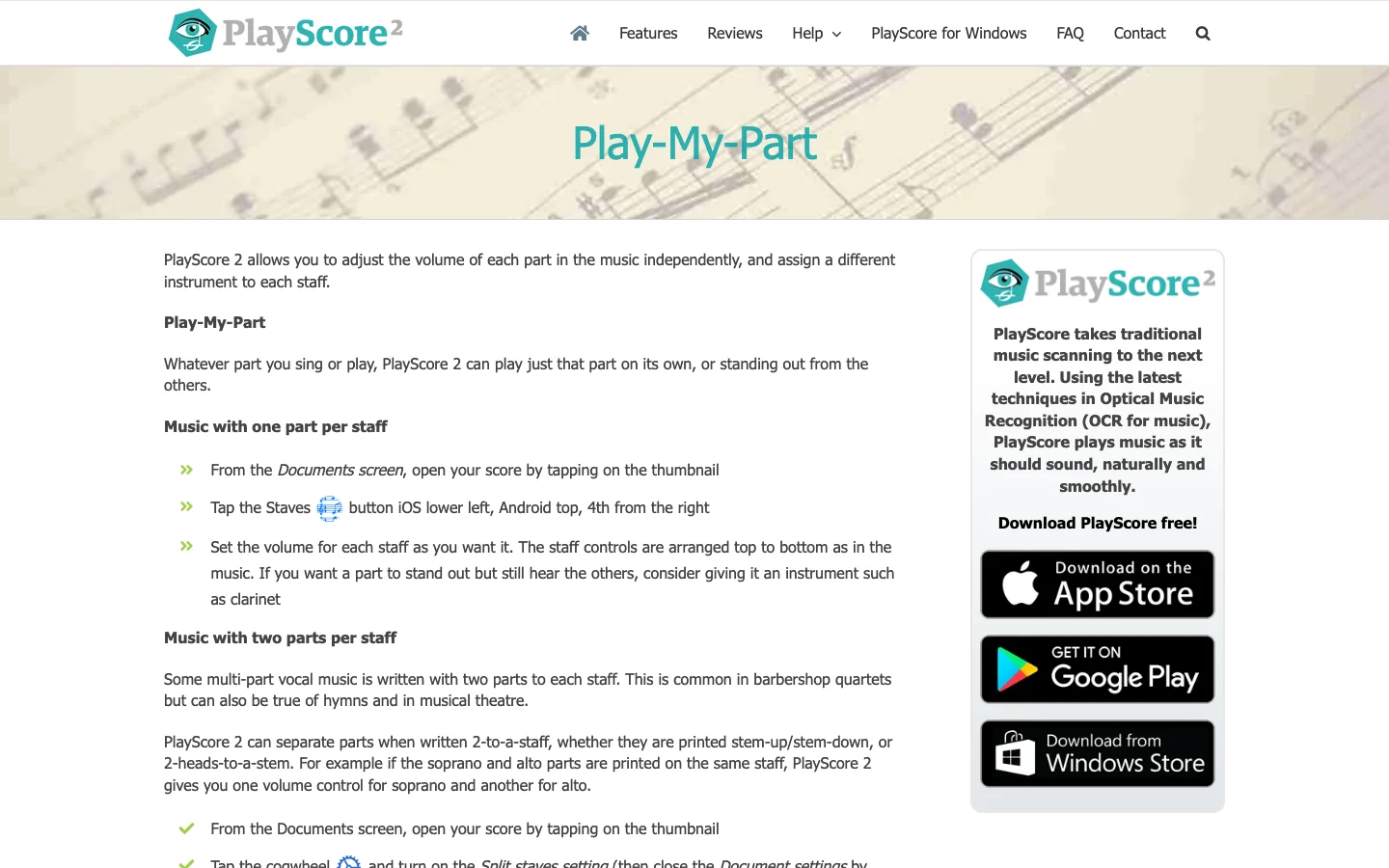
The official PlayScore Play-My-Part page describes three related controls: independent staff volume, a different playback instrument for each staff, and a split-staff mode for two voices printed on the same staff. It also documents a count-in option for performers who need time before the first entrance.
These controls solve different rehearsal problems:
| Rehearsal problem | PlayScore control to start with | What to listen for |
|---|---|---|
| Your line disappears in the texture | Raise your staff or lower the others | Clear pitch and rhythm without removing harmonic context |
| Two staves sound too similar | Assign your part a contrasting instrument | A timbre that is easy to follow but not tiring |
| Soprano and alto share one staff | Enable Split staves | Separate stem-up and stem-down voices correctly |
| You miss the first entrance | Add count-in measures | Enough preparation time without changing the written tempo |
| The wrong notes stay in your part | Recheck the scan and staff mapping | Recognition errors rather than a volume problem |
The useful distinction is that volume changes help you hear a recognized part; they do not repair a bad scan. If the app has assigned notes to the wrong voice, changing the balance only makes the error louder.
Set up music with one part per staff
Use this path when soprano, alto, tenor, bass, instruments, or rehearsal parts each have a separate staff.
- Open the score from the Documents screen.
- Open the Staves controls. The current official page places the button at the lower left on iOS and near the top on Android.
- Find the controls in score order from top staff to bottom staff.
- Lower the staves you do not need to study.
- Keep at least one reference part audible if harmony or entrances depend on it.
- If your line still blends into the accompaniment, assign it a clearly different instrument.
- Play a short passage and confirm that the highlighted sound follows the correct printed staff.
Do not mute everything else for the entire rehearsal. A solo line is excellent for fixing notes, but choir and ensemble parts make sense through tuning, balance, and cues. Once the line is stable, bring the surrounding texture back in.
A practical three-level balance is often more useful than a hard solo:
- Target part: clearly foregrounded
- Anchor part or accompaniment: audible at a moderate level
- Remaining parts: quiet but present
That balance lets you hear your line while preserving the chord and pulse.
Separate two voices written on one staff
Choral music often places two voices on one staff: soprano and alto together, tenor and bass together, or divisi lines sharing notation space. In that layout, a normal staff-volume control may treat both voices as one unit.
PlayScore's current instructions say to open Document settings with the cogwheel and enable Split staves. Return to the score, open the Staves controls, and set the two parts separately.
Use this verification pass before trusting the split:
- Choose four to eight bars where the two voices move differently.
- Foreground the upper voice and check whether stem-up notes dominate.
- Foreground the lower voice and check whether stem-down notes dominate.
- Listen at a unison, crossing, or divisi point where the notation becomes dense.
- Compare playback with the printed score.
Two-heads-to-a-stem writing, crossed voices, cue notes, cramped printing, and low-resolution scans can make separation harder. If the split works in simple bars but fails in a dense system, the issue may be recognition or notation ambiguity rather than the feature being disabled.
Fix the most common Play My Part problems
Start with the symptom instead of changing several controls at once.
| Symptom | Likely cause | Best next check |
|---|---|---|
| Both voices change together | Split staves is off | Enable it in Document settings, then reopen Staves |
| The wrong line is loud | Staff order or voice mapping is different from expected | Match each control to the score from top to bottom |
| Your line contains notes from another part | The source was misread | Re-scan a clean, straight, high-resolution section |
| The target line is still hard to follow | Similar instruments or too much background level | Choose a contrasting instrument and lower non-anchor parts |
| Playback starts before you are ready | No count-in is set | Add one or more count-in measures |
| A shared staff separates in some bars only | Dense or ambiguous notation | Test a simpler passage and inspect stem direction |
| The line is correct alone but unstable with the choir | Rehearsal context is missing | Restore an anchor voice, then the full texture |
If your source is a phone photo, check for skew, curved pages, shadows, clipped systems, and low contrast. These problems affect recognition before part balance becomes relevant. A clean scan will usually save more time than repeated playback adjustments.
Choose the right alternative when you need editable parts
PlayScore Play My Part is the direct route when your goal is to hear or emphasize a part inside PlayScore. A different workflow is better when you need to edit notes, repair voice assignment, send the score to a director, or build custom rehearsal tracks.
Melogen Sheet2MIDI accepts visible sheet music in PDF, PNG, and JPG formats and produces editable MIDI, with MusicXML available in the score workflow. The output can then move into a DAW or notation editor where you can inspect tracks, correct notes, change instruments, mute or solo parts, and create a reusable rehearsal file.

| Your real goal | Better starting point | Why |
|---|---|---|
| Hear one recognized part immediately | PlayScore Play My Part | The staff and split-voice controls stay inside the playback app |
| Correct notes or voice assignment | Editable MIDI or MusicXML workflow | You need access to the musical data, not only playback balance |
| Build separate rehearsal exports | Sheet2MIDI plus a DAW or notation editor | Editable output supports custom tracks and arrangements |
| Prepare a clean conductor or section file | MusicXML in notation software | Staff labels, layout, and notation details matter |
| Fix a poor source scan | Re-scan before either workflow | Better recognition begins with a clearer page |
This is not a claim that Melogen reproduces PlayScore's in-app Play My Part controls. It is an alternative route for musicians who need an editable handoff from the printed score. For a full conversion walkthrough, see how to convert sheet music to MIDI.
Turn part isolation into a useful rehearsal loop
Part isolation is a checkpoint, not the final rehearsal state. Use a short loop that moves from clarity back to ensemble listening:
- Map the line. Confirm the correct staff, clef, divisi label, and first entrance.
- Hear the whole texture. Identify the voice or accompaniment that gives your cue.
- Foreground your part. Fix pitch, rhythm, text, and rests at a slower tempo.
- Add one anchor. Bring back the bass, soprano, accompaniment, or closest contrapuntal line.
- Restore the ensemble. Check tuning, balance, consonants, and whether your entrance still feels secure.
- Export only when needed. Create an editable rehearsal track if the same passage will be reused or shared.
If you need a singer-focused routine, the SATB choir part practice loop goes deeper into entrances, text underlay, and blending. Directors preparing repeatable files can also use the choir rehearsal score workflow.
Move a clear score into editable MIDI
Use Melogen Sheet2MIDI when you need to correct notes, shape tracks, or build rehearsal files beyond in-app playback controls.
PlayScore Play My Part FAQs
Can PlayScore play one choir part louder than the others?
Yes. The current public instructions say each staff can have its own volume, and a target part can stand out while other staves remain audible.
What should I do when soprano and alto share one staff?
Enable Split staves in Document settings before adjusting part levels. Then verify the split in bars where the two voices move independently.
Does changing the instrument fix wrong notes?
No. A contrasting instrument makes a line easier to follow, but wrong or misplaced notes point to recognition, source quality, or voice-mapping problems.
Can Melogen control PlayScore Play My Part?
No. Melogen cannot change PlayScore settings. It can convert visible sheet music into editable MIDI or MusicXML for a separate DAW or notation workflow.
Should I practise with every other part muted?
Only briefly. Solo playback helps you learn the line, but ensemble practice requires cues, harmony, tuning, and balance. Restore at least one anchor part, then the full texture.
The practical takeaway
Use PlayScore Play My Part for fast in-app balance and part emphasis. If the score has one part per staff, adjust the Staves controls directly. If two voices share a staff, enable Split staves first. Add a count-in when the entrance needs preparation time, and treat wrong notes as a scan or mapping problem rather than a volume problem.
When the job expands from listening to editing, move the score into MIDI or MusicXML and build the rehearsal file you actually need. The strongest workflow is not permanent isolation. It is a controlled path from one clear line back into the full musical texture.
About the author
Zhang Guo
Composer - AI Product Manager
AI product manager and digital marketing consultant with a background in music. Creativity is the bridge between rhythm and logic, where musical intuition and mathematical precision can coexist in every meaningful product decision.
Follow on X