Spotify on Chromebook Setup and Playback Fixes
Use Spotify on a Chromebook through the Web Player or Android app, then fix school-device limits, login, network, cache, and playback issues.
 Zhang Guo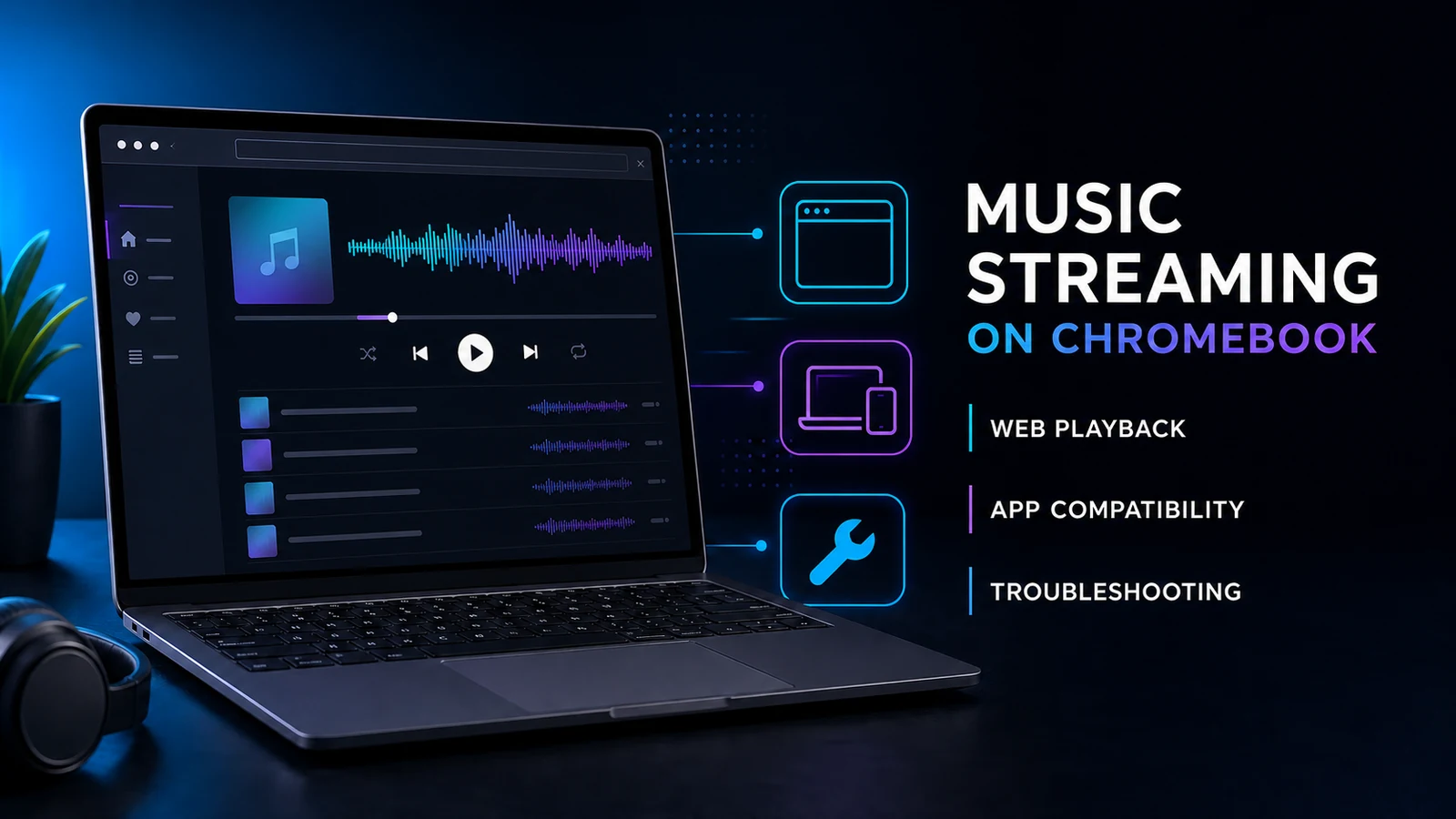
Turn a static score into editable MIDI
Contents
Spotify on Chromebook is simplest through the Spotify Web Player. Open Spotify in a current browser, sign in, and start playback without installing a desktop program. If your Chromebook supports Android apps and gives you access to Google Play, the Spotify Android app is the second route.
The important distinction is device support. A personal Chromebook may offer both routes. A school or work Chromebook may block the Play Store, Spotify, protected-media playback, or parts of the network. Fix that layer before you reset your account or look for a downloader.
Choose the right Spotify path for your Chromebook
Use the route that matches the Chromebook you actually have.
| Your situation | Best first path | What to expect |
|---|---|---|
| Personal Chromebook with a current browser | Spotify Web Player | Fastest setup and no app installation |
| Chromebook with Google Play enabled | Spotify Android app | App-style controls and features supported by that build |
| School or work Chromebook | Web Player if permitted | Admin policy may block the site, Play Store, extensions, or media playback |
| Spotify opens but will not play | Browser-first troubleshooting | Check private mode, cookies, extensions, protected content, network, and audio output |
| You want offline listening | Spotify's authorized app controls | Availability depends on your plan, device, app, and Spotify's current rules |
| You have your own local audio file | Separate local-audio workflow | Edit only audio you own or have permission to change |
This is a branded support article, not Spotify support. Melogen cannot sign in to Spotify, change Chromebook admin policy, enable Premium downloads, or recover a Spotify account.
Use Spotify Web Player first
Spotify's official other-platform download page lists Chromebook under “Spotify for other platforms” and sends that link to the Web Player. That makes the browser route the clean default for this query.
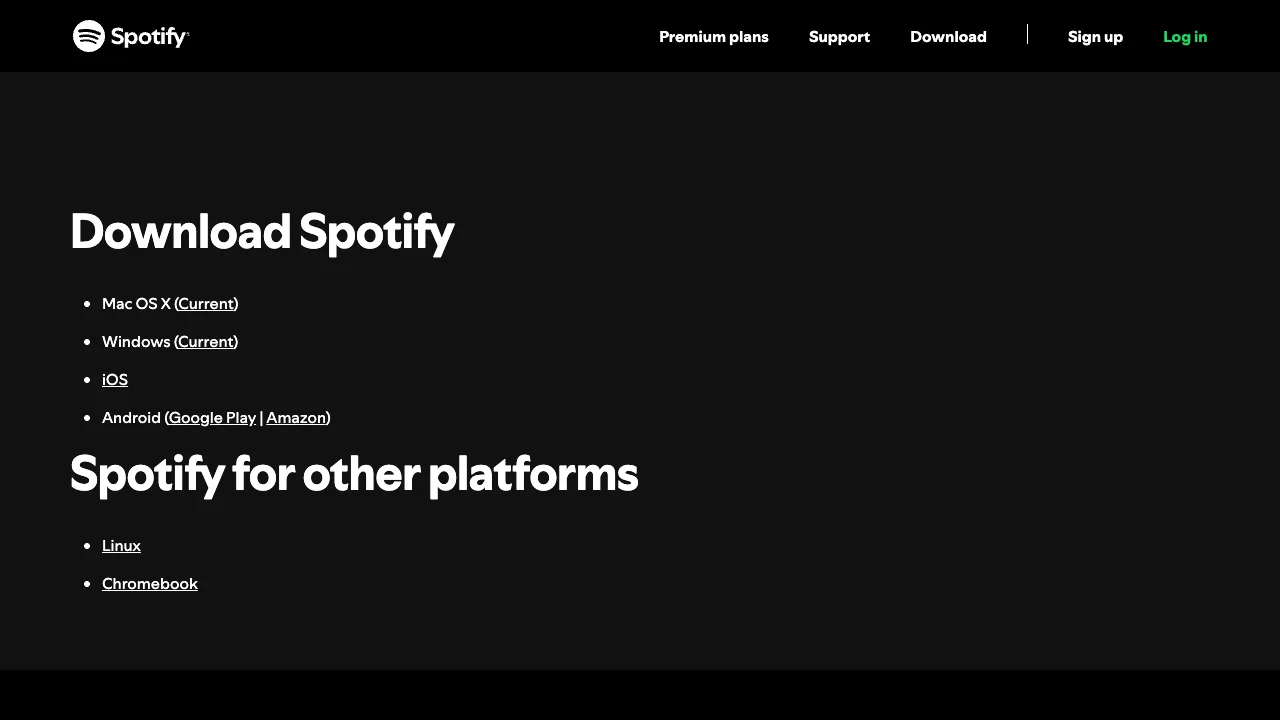
Set it up in this order:
- Update ChromeOS and restart the Chromebook if an update was installed.
- Open the Spotify Web Player in a normal browser tab.
- Sign in with the Spotify account you intend to use.
- Play one track before changing browser settings.
- Check the tab, system volume, Bluetooth output, and headphone connection if the progress bar moves but you hear nothing.
- Pin or bookmark the Web Player only after playback works.
The Web Player is also the best diagnostic baseline. If Spotify works in a private window but not your normal window, the Chromebook is compatible and the problem is probably inside the browser profile. If it fails on every browser profile but works on another network, the local network or admin policy is the stronger suspect.
Install the Android app only when Google Play is available
Google's official Chromebook Android app guide says Android apps can be installed from the Google Play Store on supported Chromebooks. It also says the Play Store is available only on some Chromebooks and may be unavailable on work or school devices.
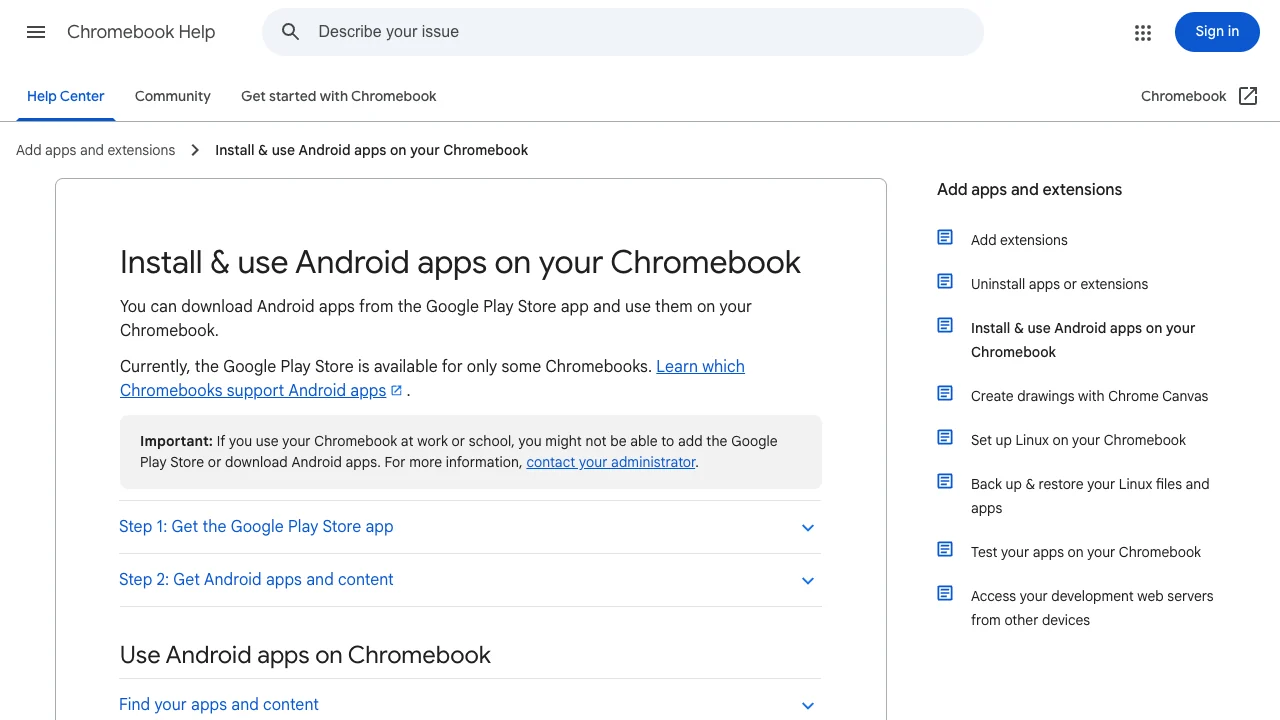
Check the device before assuming the app is missing:
- Open Chromebook Settings.
- Look for Google Play Store or Android app settings.
- If Google Play is available, open it and search for Spotify.
- Confirm the listing is the official Spotify app before installing.
- Open the app, sign in, and test one track.
- If the Play Store option is absent on a managed Chromebook, ask the administrator instead of trying to bypass the policy.
Not every Chromebook exposes the same Android app support. An older model, a managed account, or an administrator policy can remove the option even when a tutorial shows it on another device. In that case, use the Web Player if it is permitted.
Understand offline listening on Chromebook
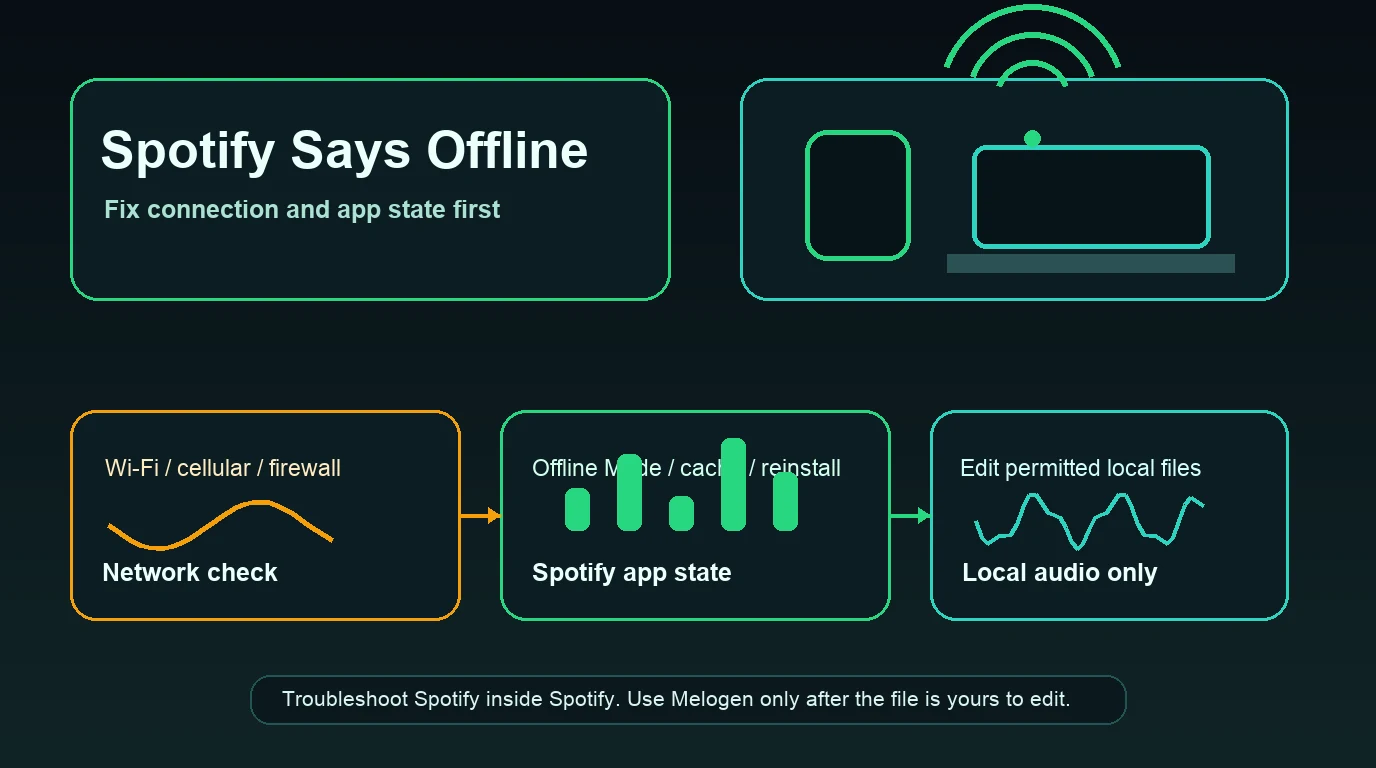
Do not treat “Spotify on Chromebook” and “rip Spotify songs to files” as the same job. The competitor page that surfaced this opportunity combines supported playback steps with without-Premium conversion claims. That is where this guide takes a stricter line.
Use this boundary:
| What you want | Correct route |
|---|---|
| Stream Spotify on a Chromebook | Web Player or official Spotify app |
| Listen offline when Spotify offers the control | Use Spotify's authorized in-app download feature under the plan and device rules shown in your account |
| Keep a permanent MP3 copied from the Spotify catalog | Not a Melogen workflow; do not bypass Spotify's access controls |
| Edit a rehearsal recording or audio export you own | Use a local audio editor such as Melogen Music Trimmer |
The Web Player is a streaming surface, so do not expect every native-app feature to appear there. If offline controls are essential, check the official app on your specific Chromebook and the current options shown by Spotify. Avoid third-party browser extensions, bots, or “download” sites that ask for Spotify credentials or promise permanent catalog files.
If your real question is about safe offline boundaries, the Spotify offline without Premium guide separates official listening options from risky workarounds.
Fix Spotify not playing on a Chromebook
Use the symptom to choose the smallest repair.
| Symptom | Likely layer | First action |
|---|---|---|
| Spotify page will not load | Network, admin policy, browser version, or blocked scripts | Test a private window and a permitted second network |
| Login loops or returns to the sign-in screen | Cookies, site data, extension, or account session | Allow Spotify cookies and clear Spotify site data only |
| Page loads but tracks do not start | Protected content, extension, browser media state, or network | Update the browser, disable extensions for Spotify, and check protected-content playback |
| Track plays but there is no sound | Output device, muted tab, Bluetooth, or system volume | Select the correct output and test another browser tab |
| Android app is unavailable | Chromebook compatibility or admin policy | Check Google Play support and use the Web Player if allowed |
| Spotify works in private mode | Normal browser profile | Repair cookies, cache, and extensions in that profile |
Spotify's Web Player help page recommends an up-to-date browser and a private window as early checks. For a deeper browser-only sequence, use the Spotify Web Player troubleshooting guide. If a private window fixes the problem, the Spotify cache guide shows how to clear only the affected site data instead of wiping every browser profile.
Try fixes in this order:
- Reload the Spotify tab once.
- Test a private window.
- Update ChromeOS and the browser.
- Allow cookies and protected-content playback for Spotify.
- Disable ad blockers, script blockers, VPN extensions, and media helpers for Spotify only.
- Clear Spotify site data rather than all browser history.
- Test another permitted Wi-Fi network or a personal hotspot.
- Restart the Chromebook.
Stop when the symptom changes. If the Web Player now loads but audio is silent, move to output checks rather than repeating cache cleanup.
Handle school and work Chromebooks correctly
Managed Chromebooks are a separate case. Google explicitly warns that work or school users may be unable to add Google Play or download Android apps. Administrators can also block sites, extensions, sign-in flows, or media services.
Signs that policy is involved include:
- Google Play settings are missing or marked as managed.
- Spotify works on a personal device but not the school Chromebook.
- Spotify works on a personal hotspot but not the organization network.
- Browser settings cannot be changed.
- The page displays an organization block message.
Do not install a proxy extension, sideload an unknown app, or use a downloader to work around a school policy. Ask the administrator whether Spotify or media streaming is permitted. If it is not, use an approved device and network.
Where Melogen fits after Spotify works
Melogen does not repair Spotify, unlock offline catalog files, or change Chromebook compatibility. It fits only when the source is already a local audio file you own, recorded, created, purchased DRM-free, or have permission to edit.
Use Melogen Music Trimmer for a separate job such as:
- Removing silence from a rehearsal recording.
- Making a short practice loop from your own performance.
- Adding a cleaner fade to a demo export.
- Cutting a lesson cue from permitted local audio.
- Preparing a smaller file before moving it between your own devices.
Trim a local clip after Spotify playback works
Use Melogen Music Trimmer for audio files you are allowed to edit when the real job is cutting silence, keeping a practice section, or adding a clean fade.
FAQs
Can you use Spotify on a Chromebook?
Yes. Spotify's official other-platform page links Chromebook users to the Spotify Web Player. Some Chromebooks can also run the Spotify Android app when Google Play is supported and enabled.
Is there a Spotify desktop app for Chromebook?
Spotify's official Chromebook link points to the Web Player rather than a ChromeOS desktop installer. If your Chromebook supports Android apps, you may also be able to install Spotify from Google Play.
Why will Spotify not play on my school Chromebook?
The school may block Spotify, Google Play, protected content, extensions, or streaming traffic. Test only permitted settings and networks. If the Chromebook is managed, ask the administrator instead of bypassing the restriction.
Can I download Spotify songs on a Chromebook?
Use only the download or offline controls Spotify provides inside an authorized app under your current plan and device support. The Web Player does not provide every native-app feature. Do not use Melogen to extract Spotify catalog audio.
Why does Spotify work in an incognito window?
That usually points to cookies, cached site data, or an extension in the normal browser profile. Clear Spotify site data and re-enable extensions one at a time.
Can Melogen fix Spotify on Chromebook?
No. Melogen cannot change Spotify or Chromebook settings. It can trim permitted local audio after the Spotify playback problem is already solved.
The practical takeaway
Use Spotify on a Chromebook through the Web Player first. Install the Android app only when Google Play is supported and allowed. If playback fails, isolate browser profile, protected content, audio output, network, and admin policy in that order. Keep offline listening inside Spotify's authorized controls, and use Melogen only for local audio you have the right to edit.
About the author
Zhang Guo
Composer - AI Product Manager
AI product manager and digital marketing consultant with a background in music. Creativity is the bridge between rhythm and logic, where musical intuition and mathematical precision can coexist in every meaningful product decision.
Follow on X