Spotify on Chromecast Setup Guide and Casting Fixes
Play Spotify on Chromecast from mobile, desktop, or Chrome, then fix missing Cast devices with current Wi-Fi, permission, and restart checks.
 Zhang Guo
Turn a static score into editable MIDI
Contents
Spotify on Chromecast works through the device picker in Spotify or through Google Cast in Chrome. Put the phone, tablet, or computer and the Chromecast, Google TV Streamer, or Google Cast display on the same Wi-Fi for first setup. Start a track, open the device picker, and choose the display or speaker.
If the Cast device is missing, do not start with a downloader or audio converter. Check the network, local-network permission, app and device updates, and the active playback route first. Chromecast is a playback destination, not a way to turn Spotify catalog music into local files.
Spotify on Chromecast at a glance
| What you want to do | Best path | First thing to check |
|---|---|---|
| Cast from iPhone, iPad, or Android | Spotify app device picker | Same Wi-Fi and local-network permission |
| Cast from the Spotify desktop app | Spotify Connect device picker | Cast device is online and visible on the network |
| Cast from a browser | Spotify Web Player in Chrome | Chrome and the Cast device use the current network |
| Fix a device that disappeared | Restart and network checklist | App, controller, Cast device, and Wi-Fi in that order |
| Play an owned local file | Supported local-file workflow | The file is yours or you have permission to use it |
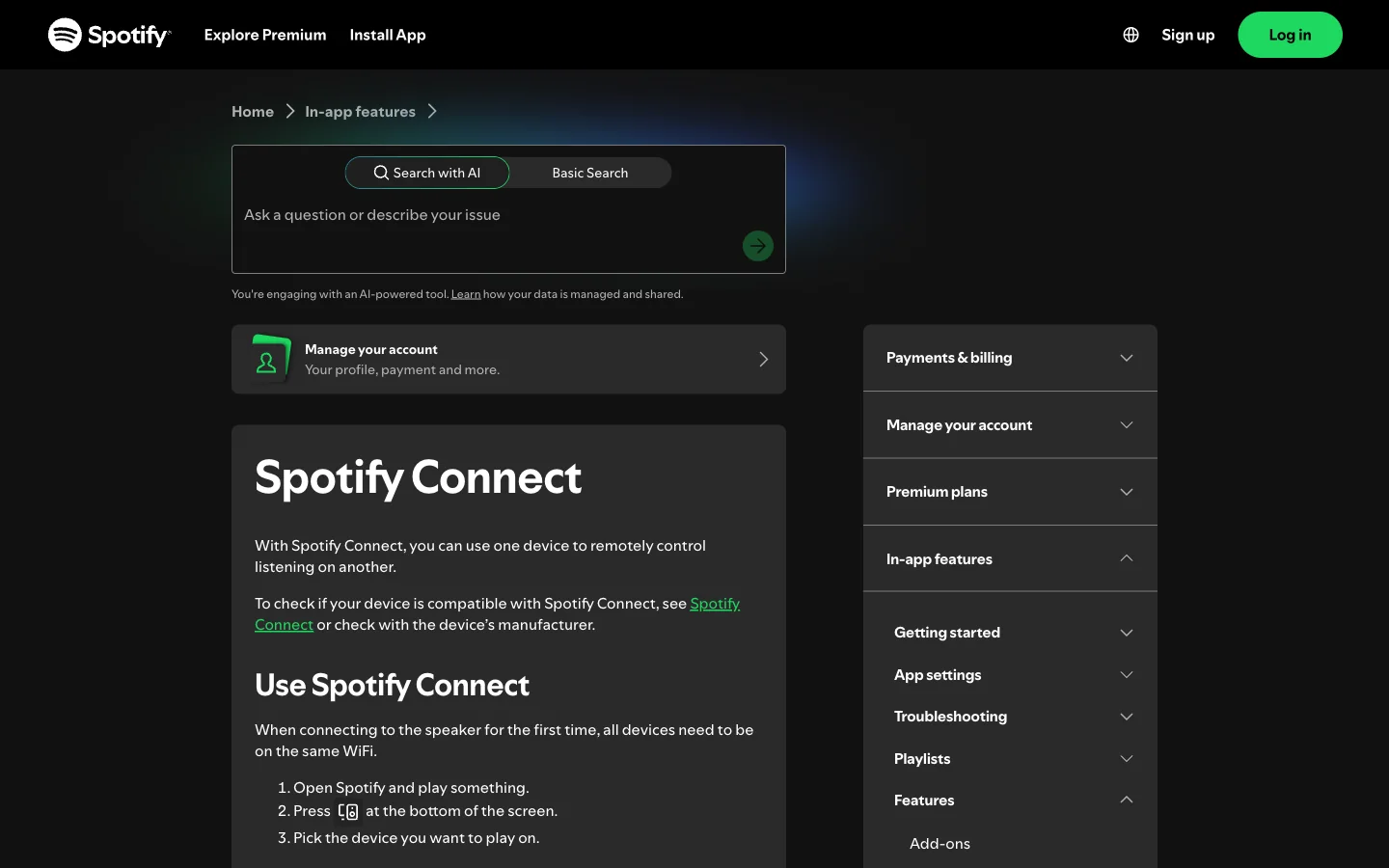
The official Spotify Connect guide says one device can remotely control listening on another. It also says first-time speaker connections need the devices on the same Wi-Fi. That is the useful starting point even when the destination is a television rather than a speaker.
Set up Chromecast before opening Spotify
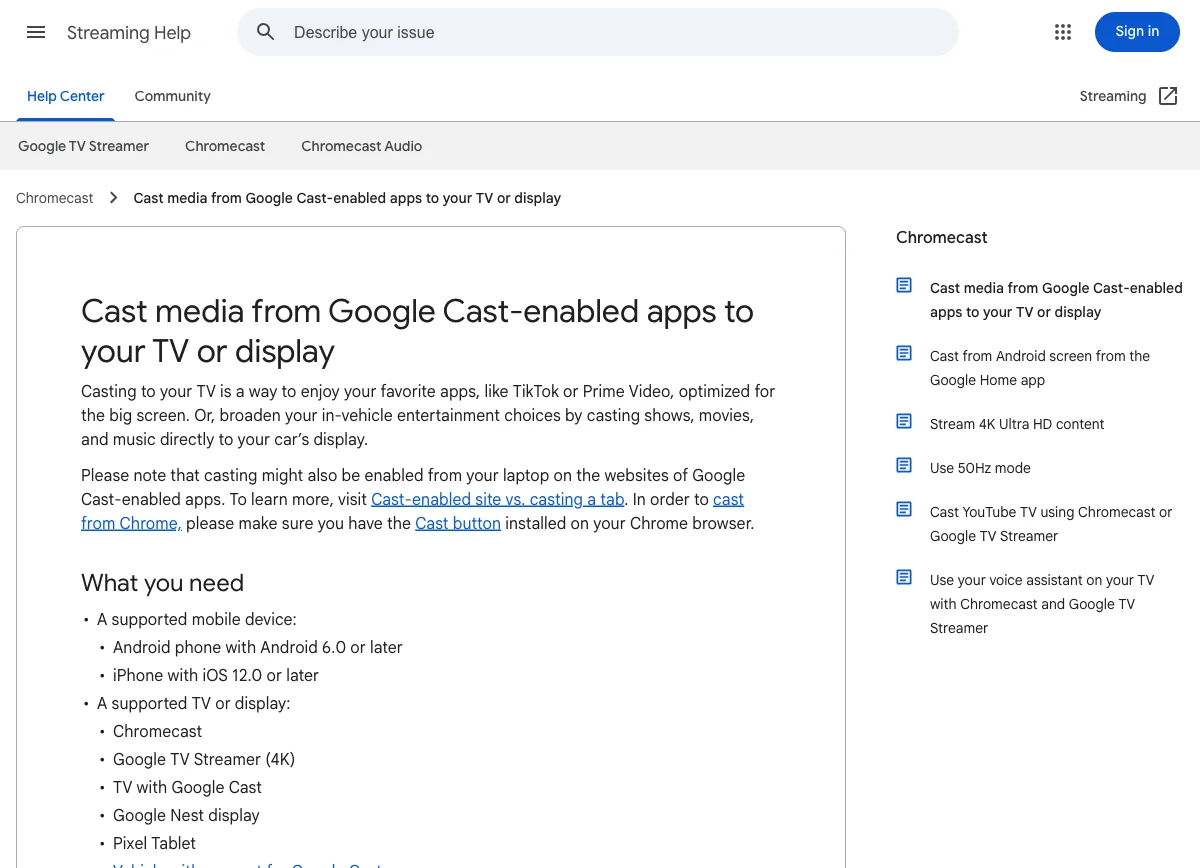
Google's current Google Cast setup guide lists Chromecast, Google TV Streamer, televisions with Google Cast, Google Nest displays, and other supported displays. The exact hardware name can differ, but the discovery basics are the same.
Before you cast:
- Finish the device setup in Google Home or the display's setup flow.
- Connect the Cast device and your controller to the same Wi-Fi.
- Update Spotify, Chrome, the controller operating system, and the Cast device software.
- On iPhone or iPad, allow Spotify to access the local network.
- Test the display with one other Cast-enabled app if Spotify cannot see it.
- Use a simple device name that is easy to recognize in the picker.
The last test separates a Spotify problem from a Google Cast problem. If no Cast-enabled app can find the display, fix the network or display setup. If other apps find it but Spotify does not, stay in the Spotify app, permissions, and account layer.
Cast Spotify from iPhone iPad or Android
The mobile route is usually the simplest:
- Open Spotify and play a track, album, playlist, podcast, or audiobook.
- Open Now Playing.
- Tap the device icon near the bottom of the screen.
- Choose the Chromecast, Google TV Streamer, TV, or speaker you want.
- Wait until that device becomes the active output.
- Keep Spotify open for the first test so you can confirm playback and volume.
Spotify is acting as a controller. The selected Cast device handles playback after the connection is established. Closing the phone screen should not be treated like disconnecting a Bluetooth audio cable.
On iPhone or iPad, a missing device often comes down to local-network access. Open Settings > Spotify > Local Network and enable it. On Android, confirm Spotify and Google Home can discover devices on the current network and that battery or background restrictions are not interrupting the setup flow.
Cast Spotify from desktop or Chrome
You have two practical computer paths.
Use the Spotify desktop app
- Open Spotify and start playback.
- Open the device picker.
- Select the Cast-compatible display or speaker when it appears.
- If the device is missing, confirm the computer and display are on the same network, then restart Spotify and the display.
This is a Spotify Connect-style control path. Availability can depend on the destination device and its current integration, so check the manufacturer when a particular model never appears.
Use Spotify Web Player in Chrome
Spotify's support page says the web player can use Google Cast devices on the current network when you use Chrome. Open the Spotify Web Player in Chrome, start playback, and use the available device or Cast control for the current session.
The browser path is useful on a borrowed or managed computer where you do not want to install the desktop app. It is also more sensitive to browser permissions, network policy, extensions, and an out-of-date Chrome build. If Chrome cannot discover any Cast device, test Google's Cast flow outside Spotify before changing your Spotify account.
Fix Chromecast not showing in Spotify
Work through the layers in order instead of reinstalling everything at once.
| Symptom | Likely layer | What to do |
|---|---|---|
| No Cast devices appear in any app | Wi-Fi or Cast setup | Reconnect the controller and display to the same network, then restart the router and display |
| Other apps can cast but Spotify cannot | Spotify app or permission | Update and restart Spotify; check local-network permission on iPhone or iPad |
| Device appears but connection fails | Stale session | Stop playback, reselect the local device, restart Spotify, then restart the Cast device |
| Web Player cannot see the display | Chrome or network discovery | Update Chrome, disable a blocking extension for one test, and confirm the display is on the current network |
| Music plays on the wrong screen or speaker | Playback route | Open the device picker and select the intended destination again |
| Phone buttons do not change connected volume | Connected-device control | Adjust volume in Spotify or on the display; connected-device volume behavior can differ on iOS |
| Cast device vanishes after a network change | Network identity | Reconnect both devices to the same SSID and avoid guest-network isolation |
Spotify's own troubleshooting order is practical: restart Spotify, restart the speaker or display, restart the controller, update the app and device software, try the same Wi-Fi, then restart or change the Wi-Fi network. Do one change at a time so you know which layer failed.
If you are trying to control several outputs or independent streams, read the Spotify multiple-devices guide. A single Cast destination, a synchronized speaker group, and separate people playing separate accounts are different jobs.
Chromecast Spotify Connect and Bluetooth are different
These names are often used as if they mean the same thing. They do not.
| Route | What it does | Network or transport | Common use |
|---|---|---|---|
| Google Cast | Sends a supported app session to a Cast destination | Local network and internet service | TV, Google TV Streamer, Cast display, or compatible speaker |
| Spotify Connect | Uses one Spotify device to control listening on another compatible device | Spotify account plus compatible networked device | Speakers, TVs, consoles, and other connected devices |
| Bluetooth | Sends audio from the source device to a paired output | Direct Bluetooth connection | Headphones, portable speakers, and cars |
| Screen or tab casting | Mirrors or sends browser content through Chrome | Google Cast from the browser | Web content when a native app path is not available |
The paths can overlap. A Cast-compatible television may appear in Spotify's device picker, so the experience feels like Spotify Connect even though Google Cast is part of the destination path. The practical question is not which label wins. It is which device is producing the sound and which device is only controlling it.
For a speaker-specific example, the Spotify on Sonos guide shows why account linking, Connect, Wi-Fi, and speaker routing should be tested separately.
Do not use a converter to fix casting
The competitor page that revealed this opportunity mixes valid mobile, desktop, and browser casting steps with an MP3 workaround. That changes the user job. If Spotify will not connect to Chromecast, the problem is device discovery or playback routing. Converting catalog streams does not repair that connection.
Use this boundary:
- Keep Spotify catalog playback inside Spotify and its authorized device routes.
- Use Google Cast, Spotify Connect, or Bluetooth according to the destination.
- Use Spotify's local-files feature only for compatible files you already own or are permitted to use.
- Do not treat an offline subscription download as a normal MP3 file.
- Do not ask Melogen to extract or bypass streaming-catalog controls.
If your actual goal is to play music files already stored on your computer or phone, start with the Spotify local-files guide. That is a separate workflow from casting a Spotify catalog session.
Where Melogen fits after casting works
Melogen does not connect Spotify accounts or repair Chromecast discovery. It fits only when you already have an owned or permitted local audio file and the job is editing that file before playback.
Useful examples include:
- Trim silence from a rehearsal recording.
- Cut a short practice section from your own demo.
- Add a cleaner fade before playing an exported mix.
- Prepare a local listening copy without changing the original.
- Make a concise reference clip from audio you created or licensed.
Prepare a local clip after casting works
Use Melogen Music Trimmer when the source is already your own or permitted audio and the real job is cutting silence, keeping a useful section, or adding a clean fade.
FAQs
Can I play Spotify on Chromecast without Premium?
Spotify account features and playback behavior can vary by plan, device, and region. Casting itself is a supported playback route, but Free accounts may include ads and other playback limits. Check the current behavior on your account instead of assuming Chromecast removes plan restrictions.
Why is the Cast button missing in Spotify?
Start playback and open the device picker. If the destination is still missing, put the controller and Cast device on the same Wi-Fi, allow local-network access, update and restart Spotify, and confirm another Cast-enabled app can see the display.
Can Spotify Web Player cast to Chromecast?
Spotify says the web player can use Google Cast devices on the current network when you use Chrome. If the device does not appear, update Chrome, verify network discovery, and try the Spotify app to isolate a browser-specific problem.
Is Spotify Connect the same as Chromecast?
No. Spotify Connect is Spotify's remote-control and device-playback system. Google Cast is a casting platform used by Chromecast, Google TV Streamer, compatible televisions, displays, and speakers. A Cast device can appear inside Spotify's device picker, so the two systems can work together.
Can Melogen convert Spotify songs so they play on Chromecast?
No. Melogen does not extract Spotify catalog music or bypass streaming controls. Use Spotify and Google Cast for catalog playback. Use Melogen only for local audio you own, created, licensed, purchased DRM-free, or otherwise have permission to edit.
The practical takeaway
Play Spotify on Chromecast by putting the controller and Cast device on the same Wi-Fi, starting playback, and selecting the destination from Spotify or Chrome. When the device is missing, troubleshoot local-network permission, app and device updates, stale sessions, and Wi-Fi before reinstalling anything. Keep Google Cast, Spotify Connect, Bluetooth, and local files separate, and use Melogen only after the source is already a permitted local audio file.
About the author
Zhang Guo
Composer - AI Product Manager
AI product manager and digital marketing consultant with a background in music. Creativity is the bridge between rhythm and logic, where musical intuition and mathematical precision can coexist in every meaningful product decision.
Follow on X