Spotify on PS4 and PS5 Setup for Music While Gaming
Set up Spotify on PS4 and PS5, link your account, control music while gaming, fix common errors, and understand official playback limits.
 Zhang Guo
Turn a static score into editable MIDI
Contents
Spotify on PS4 and PS5 works through the official console app. Install Spotify from the PlayStation Store or the PS5 Media home, sign in, link it to your PlayStation Network account, and then control music without leaving your game.
The PS4 and PS5 controls are slightly different. PS5 uses the Control Center music card. PS4 uses the Quick Menu. Both consoles can also be controlled from a phone through Spotify Connect.
Spotify on PS4 and PS5 at a glance
| Task | PS5 | PS4 |
|---|---|---|
| Install Spotify | Media home → All Apps → Spotify → Download | PlayStation Store → search Spotify → Download |
| Sign in | Email and password, Spotify Connect, or PIN | Email and password, Spotify Connect, or PIN |
| Open music controls while gaming | Press PS button → Music | Hold PS button → Music or Spotify |
| Control from a phone | Spotify Connect on the same network | Spotify Connect on the same network |
| Unlink the account | Settings → Users and Accounts → Linked Services → Spotify | Settings → Account Management → Linked Services → Spotify |
Spotify and PlayStation both document support for PS4 and PS5. Availability still depends on your country or region, and the PlayStation support page notes that listening while playing applies to compatible games.
Install and link Spotify on PS5
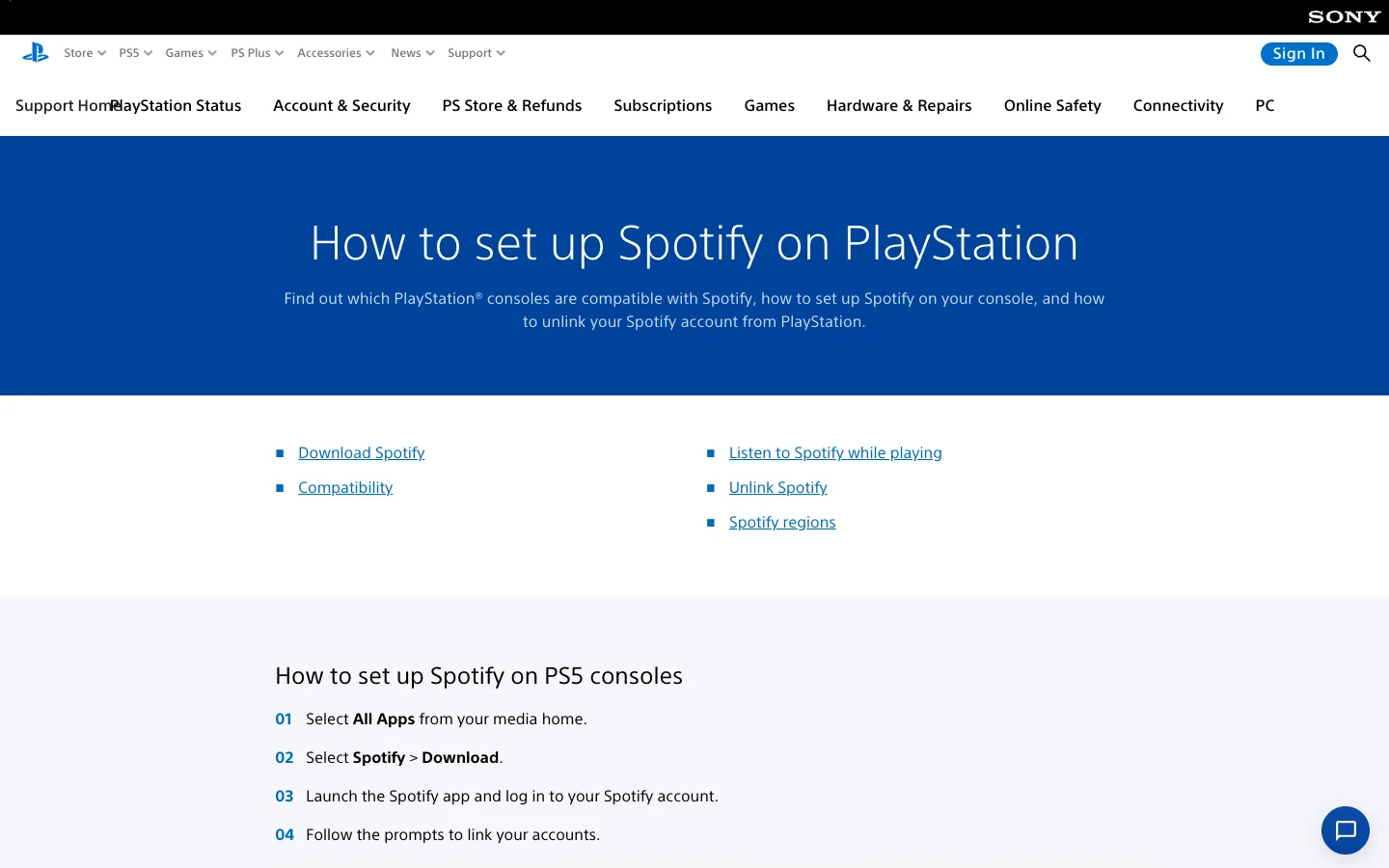
PlayStation's official Spotify setup page gives the current PS5 path:
- Open the Media home on PS5.
- Select All Apps.
- Choose Spotify, then select Download.
- Launch Spotify and choose a sign-in method.
- Follow the prompt to link Spotify to the PSN account currently signed in on the console.
- Play one song before opening a game.
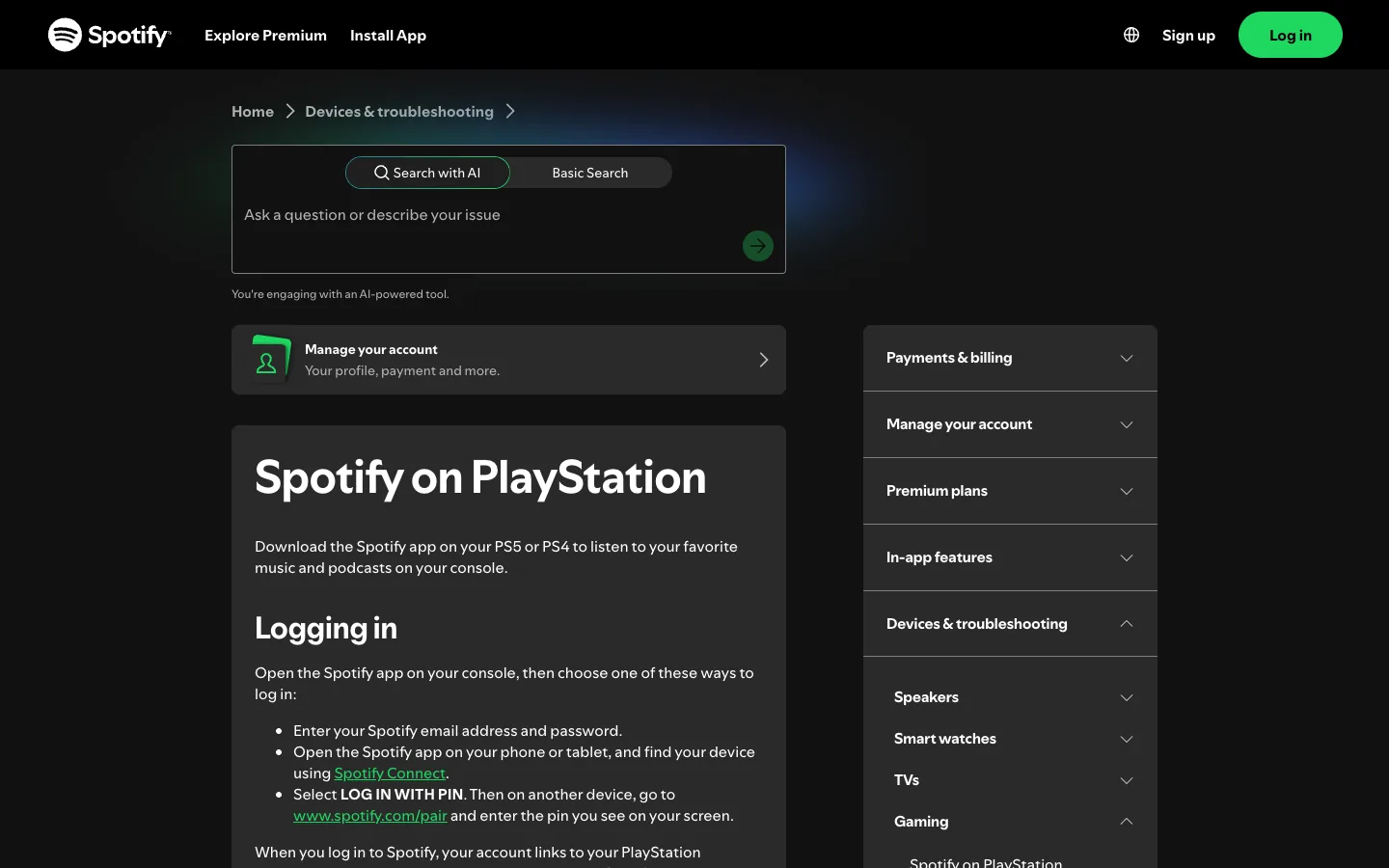
Spotify offers three sign-in paths on PlayStation: enter your Spotify email and password, select the console through Spotify Connect on a phone or tablet, or choose Log in with PIN and enter the displayed code at Spotify's pairing page.
If the wrong Spotify account appears after sign-in, do not keep relinking at random. Sign out, confirm which PSN profile is active, and link the intended Spotify account once.
Install and link Spotify on PS4
The PS4 path starts in the PlayStation Store:
- Open PlayStation Store.
- Search for Spotify and select the official app.
- Download and launch it.
- Sign in with your Spotify credentials, Spotify Connect, or a pairing PIN.
- Follow the prompt to link Spotify and PSN.
- Start playback, then open a compatible game.
The account link matters because PlayStation can sign you into Spotify automatically when you use that PSN account. On a shared console, check the active user before linking so another household member's Spotify library does not become the default.
Control Spotify while you game
On PS5, press the PS button once to open the Control Center, then select Music. The current song or podcast appears as a card where you can play, pause, skip, and adjust music volume. Press the PS button again to return to the game.
On PS4, press and hold the PS button to open the Quick Menu, then choose Music or Spotify. You can play, pause, skip, and adjust volume without closing the game. PlayStation notes that this control is not available while streaming games.
Spotify's official PlayStation support guide also recommends Spotify Connect when you want the phone to act as a remote.
For cleaner game audio, lower or disable the game's music channel when the title offers separate music, effects, and dialogue controls. Do not mute the entire game unless that is what you want. A balanced starting point is louder dialogue and effects with Spotify below them, then adjust by ear during a quiet scene.
Use Spotify Connect as a phone remote
Spotify Connect is useful when the console app is already linked but typing and browsing with a controller feels slow.
- Put the phone and PlayStation on the same network.
- Open Spotify on the console and on the phone.
- Start a song on either device.
- Open the device picker on the phone.
- Select the PS4 or PS5.
- Use the phone to search, change playlists, skip tracks, and control playback.
If the console does not appear, confirm that both devices are online, that Spotify is open on the console, and that you are signed into the same Spotify account. Guest Wi-Fi and client-isolation settings can prevent devices on the same network name from seeing one another.
Fix Spotify not working on PS4 or PS5
Match the symptom to the smallest useful repair before reinstalling the app.
| Symptom | Most likely layer | First useful check |
|---|---|---|
| Spotify app is missing | Store region, console software, or app availability | Update system software and search the correct Store or Media home |
| Login or PIN keeps failing | Expired code, wrong account, or session problem | Generate a new PIN and confirm the Spotify account |
| Account is already linked | Spotify is connected to another PSN relationship | Unlink the old connection before linking again |
| Music stops when the game opens | Game compatibility or app state | Test another compatible game and restart Spotify |
| Music plays but is too quiet | Separate game and music volume | Open the music card or Quick Menu and rebalance volume |
| Phone cannot find the console | Network isolation, different account, or closed console app | Use the same network and account, then reopen Spotify |
| Spotify fails on several devices | Spotify account, network, or service issue | Test another device and follow the broader Spotify checks |
Try fixes in this order:
- Close Spotify and reopen it.
- Confirm PlayStation Network and the internet connection are working.
- Update the console system software and Spotify app.
- Sign out of Spotify, restart the console, and sign in again.
- Unlink and relink only if the account relationship is the problem.
- Delete and reinstall Spotify only after the lighter checks fail.
For account, network, cache, and service-wide failures, use the common Spotify problems guide. If an old console or phone still controls playback, the Spotify device removal guide explains how to review and disconnect unwanted devices.
Unlink Spotify from PlayStation Network
Use unlinking when you connected the wrong Spotify account, sold or shared the console, or keep seeing an already-linked error.
On PS5:
- Open Settings.
- Select Users and Accounts.
- Select Linked Services.
- Choose Spotify.
- Select Unlink Account.
On PS4:
- Open Settings.
- Select Account Management.
- Select Linked Services.
- Choose Spotify.
- Select Unlink Account.
You can also remove Sony access from Spotify's account app-management page. Unlinking does not delete either account. It removes the relationship between them, so the next console login will require a new Spotify sign-in or link.
Keep console streaming separate from owned audio
Spotify on PlayStation is a streaming workflow. Spotify-managed access does not create ordinary MP3 files, and Melogen does not extract Spotify catalog audio or remove access controls.
Melogen fits a different task: editing audio you own or have permission to use. A rehearsal recording, exported game-music cue, original demo, or DRM-free purchase can be trimmed into a shorter practice or reference clip before you move it between your own devices.
Trim a permitted local audio clip
Use Melogen Music Trimmer for recordings and files you are allowed to edit. Keep Spotify catalog playback inside Spotify's official app.
FAQs
Can you listen to Spotify while playing games on PS5?
Yes. In a compatible game, press the PS button to open the Control Center, select Music, and control the current song or podcast from its card.
Can you listen to Spotify while playing games on PS4?
Yes. Hold the PS button to open the Quick Menu, then select Music or Spotify. PlayStation notes that the feature is unavailable while streaming games.
Do you need a phone to use Spotify on PlayStation?
No. You can enter your Spotify email and password or pair with a PIN. A phone is optional and useful as a Spotify Connect remote.
Why does Spotify say the account is already linked?
The Spotify account may still be linked to another PlayStation Network relationship. Unlink it through the console's Linked Services settings or Spotify's app-management page, then link the correct accounts again.
Can Spotify play offline on PS4 or PS5?
The official Spotify and PlayStation support pages describe streaming through the console app, not permanent catalog downloads to normal audio files. Use only the controls Spotify currently provides on the console and avoid third-party extraction workarounds.
Can Melogen download Spotify songs for PlayStation?
No. Melogen does not extract Spotify catalog music. Music Trimmer is for local audio you own, created, purchased DRM-free, or have permission to edit.
The practical takeaway
Install Spotify from the official PS5 Media home or PS4 PlayStation Store, link the right Spotify and PSN accounts, and use the Control Center or Quick Menu while gaming. Spotify Connect makes the phone a convenient remote. If playback fails, check account linking, network, app state, game compatibility, and volume before reinstalling. Keep Spotify catalog playback inside Spotify and reserve Melogen for permitted local audio.
About the author
Zhang Guo
Composer - AI Product Manager
AI product manager and digital marketing consultant with a background in music. Creativity is the bridge between rhythm and logic, where musical intuition and mathematical precision can coexist in every meaningful product decision.
Follow on X