How to Switch Apple Music Individual and Family Plans
Switch Apple Music Individual and Family plans with current device steps, billing checks, organizer-versus-member guidance, and access safeguards.
 Zhang Guo
Turn a static score into editable MIDI
Contents
To switch Apple Music Individual and Family plans safely, first decide whether you will pay as the family organizer or join a plan that someone else already manages. Those are different paths. The reverse switch also depends on whether you are the organizer or a family member.
Apple's current subscription flow starts in the Apple Account that is billed for the service. On iPhone or iPad, open Settings, tap your name, choose Subscriptions, open Apple Music, and select See All Plans. On Mac, Windows, and the web, the labels differ, but the same rule applies: review the plan name, charge, renewal date, and effective timing before confirming.
Choose the correct switch path first
The phrase “switch Apple Music plans” hides four different account jobs.
| Your current role | Your goal | Start here | Main risk to check |
|---|---|---|---|
| Individual subscriber | Pay for Family as organizer | Change Apple Music to Family, then confirm Family Sharing | Buying Family on the wrong Apple Account |
| Individual subscriber | Join someone else's Family plan | Accept the organizer's family invitation and confirm shared Apple Music access | Canceling too early or using the wrong Apple Account |
| Family organizer | Move back to Individual | Change the billed Apple Music subscription and review the effective date | Removing household access without warning |
| Family member | Buy an Individual plan | Decide whether to remain in the family group, then check the plans available to your account | Leaving the whole group and losing other shared services |
This guide is about plan migration. For the full household setup, invitation, and access-repair workflow, use the Apple Music Family Sharing guide. If the real decision is monthly versus annual billing, compare that separately in the Apple Music annual subscription guide.
Switch from Individual to Family as the organizer
Use this path when your Apple Account will pay for the household subscription.
- On iPhone or iPad, open Settings.
- Tap your name, then Subscriptions.
- Select Apple Music.
- Tap See All Plans.
- Choose the Family option shown for your account and region.
- Review the charge, renewal date, and when the change takes effect.
- Confirm the purchase only after the billed Apple Account is correct.
Apple's current family subscription support page says a Family subscription supports up to six people, with separate libraries and recommendations. If Family Sharing already exists, the family group should gain access after the organizer subscribes. If it does not exist, set up the family group and invite members after the plan is active.
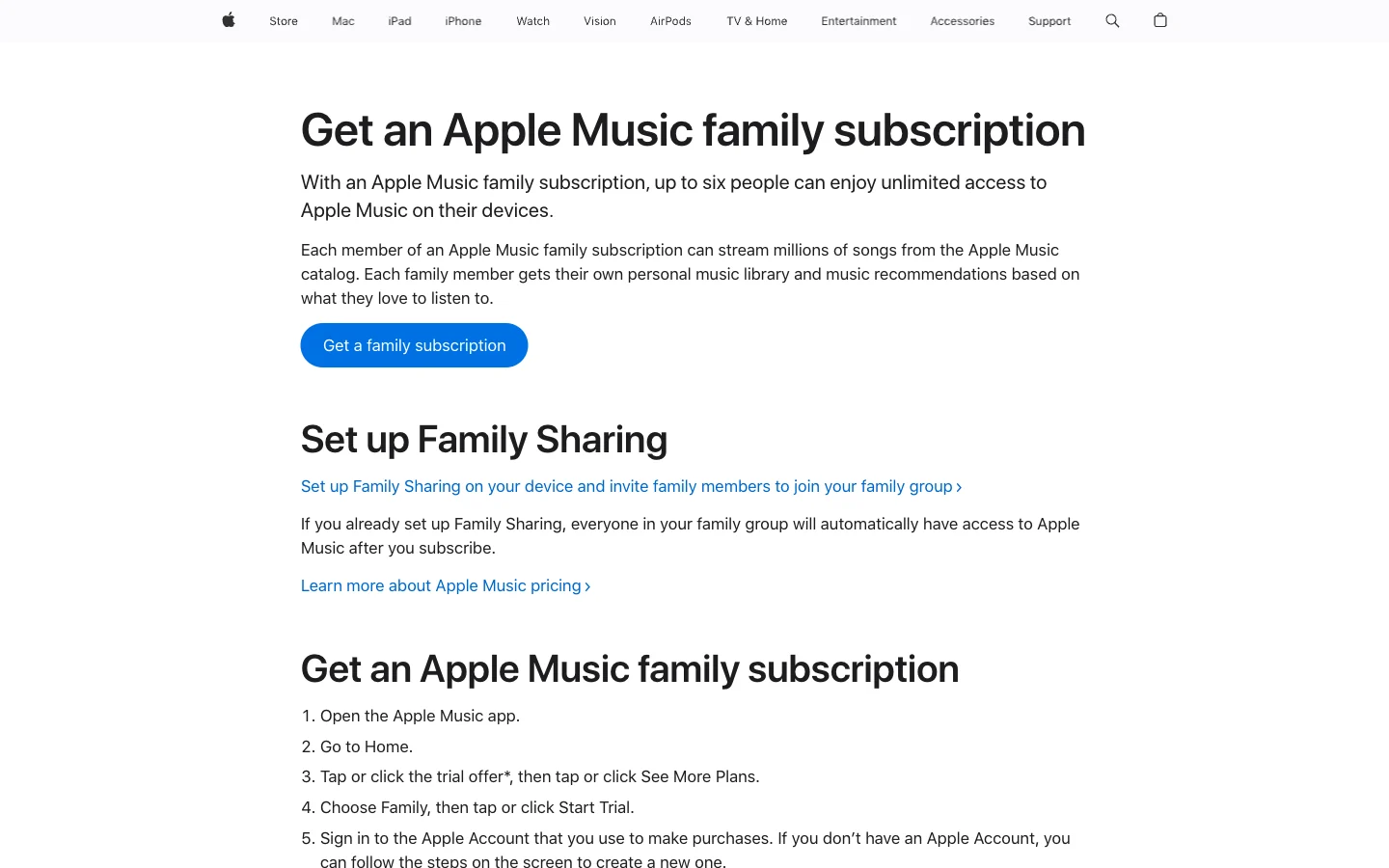
Apple's public support page separates the paid Family subscription from the Family Sharing group that distributes access.
The useful distinction is simple:
- Apple Music Family plan is the paid subscription.
- Family Sharing is the Apple Account group used to share eligible services.
- Purchase Sharing controls eligible store purchases and is not the same as Apple Music catalog access.
- Sync Library keeps one listener's music library available across that listener's devices; it does not merge everyone's library.
Do not use one shared Apple Account for the household. Separate accounts preserve personal libraries, listening history, and recommendations.
Join an existing Family plan as a member
Use this path when another adult already pays as the family organizer.
- Ask the organizer to confirm that Apple Music Family is active on the organizer's billed account.
- Accept the Family Sharing invitation with the Apple Account you actually use for Apple Music.
- Open Apple Music and confirm that the subscription is available.
- Check that your personal library and recommendations appear under your own account.
- Verify your old Individual renewal status before making any manual cancellation.
Apple says that when the family organizer subscribes to Apple Music Family, renewal of an existing Individual or Student subscription for someone already in the family group is automatically canceled. That is why “cancel first” is poor default advice. Confirm the shared plan is working and read the renewal state on your account before changing anything else.
If access does not appear, check the invited Apple Account, accepted family status, shared subscription, device sign-in, and region. Do not delete your library or rebuild Sync Library to solve a billing-role problem.
Switch from Family to Individual
The safe downgrade depends on your role.
If you are the family organizer
Open Apple Music under your billed subscriptions and choose an Individual option if one is available. Before confirming, warn household members and read the effective date. A plan change can remove their shared Apple Music access when it takes effect.
Changing the Apple Music subscription is not the same command as disbanding the Family Sharing group. The group may still be used for other eligible subscriptions, purchases, location sharing, or parental features. Review those separately instead of assuming the entire family group must disappear.
If you are a family member
First decide whether you want to leave the whole Family Sharing group or only stop using shared Apple Music.
Apple's Family Sharing departure guide says an adult can leave a family group, but leaving immediately removes access to shared subscriptions and purchases. The organizer cannot simply leave; the organizer must disband the group, and child-account rules can block that action.
Do not leave the family group merely to test whether an Individual Apple Music button appears. Check your subscription screen first. If the account does not offer a clear Individual purchase while shared Family access is active, coordinate with the organizer or contact Apple Support before disconnecting the account. The available choices and timing can vary by account and region.
Use the current device path
Apple's subscription plan switching instructions cover the public routes for changing a subscription. The final options still come from the signed-in Apple Account.
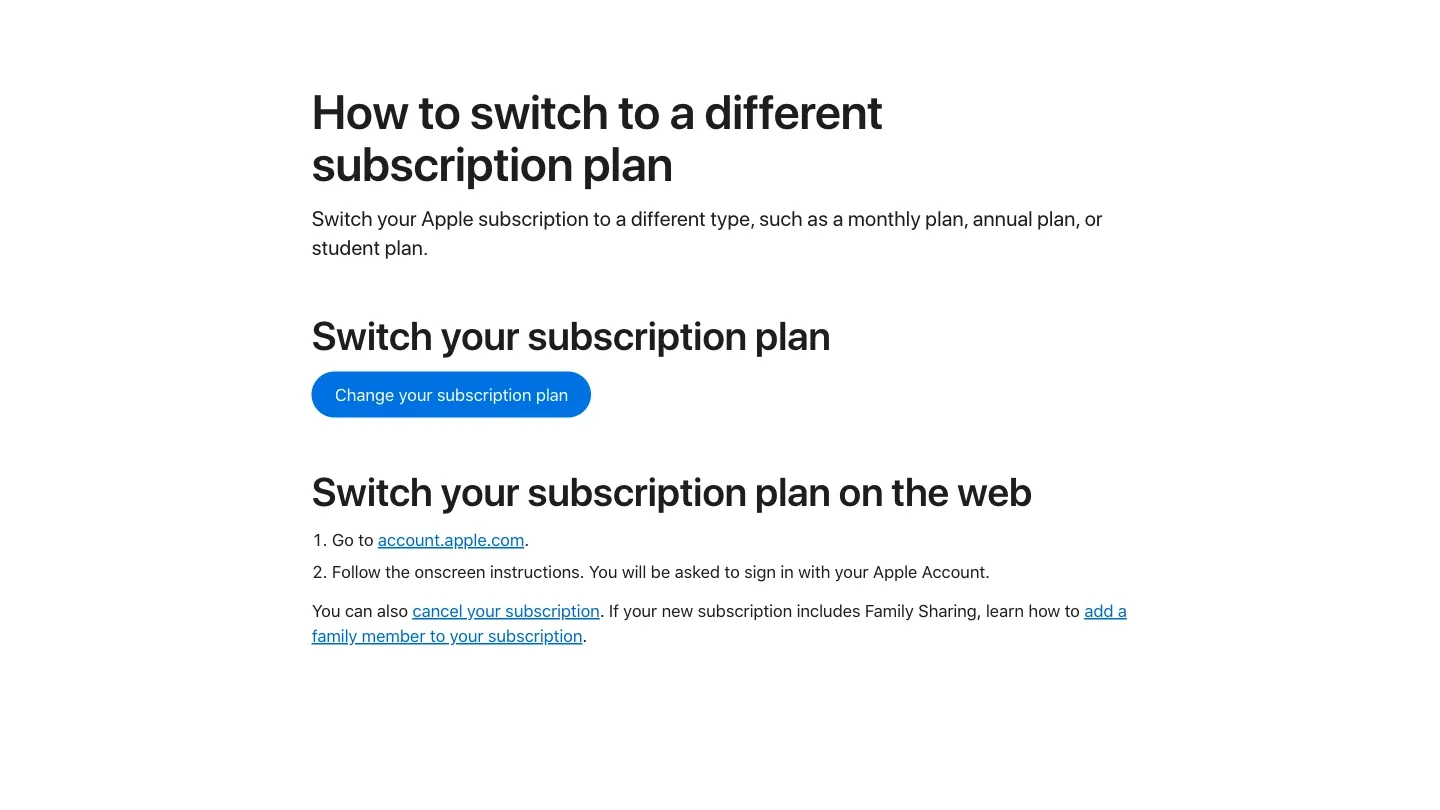
The current Apple support flow uses the billed account and See All Plans instead of the legacy For You, View Apple ID, iCloud, or auto-renew instructions found in older guides.
iPhone or iPad
- Open Settings.
- Tap your name.
- Tap Subscriptions.
- Open Apple Music.
- Tap See All Plans and review the available choices.
Mac
- Open the App Store.
- Click your name and open Account Settings.
- Scroll to Subscriptions and click Manage.
- Open Apple Music and choose See All Plans.
Windows PC
- Open the Apple Music or Apple TV app.
- Select your name, then View My Account.
- Scroll to Subscriptions and choose Manage.
- Select Edit next to Apple Music and review the available option.
Web
Sign in at account.apple.com and follow the subscription instructions shown for the billed account. This is useful when the original Apple device is unavailable, but it does not guarantee that every plan appears for every storefront.
Check billing and access before confirming
The confirmation screen is more important than an old price table. Check these items every time:
- Billed Apple Account: the organizer's account for Family, or your own account for Individual.
- Plan name: Individual, Family, Student, or Apple One.
- Price and currency: use the amount shown for the current storefront.
- Effective date: whether the switch happens now or after the existing period.
- Renewal date: the next scheduled charge after the change.
- Trial or promotion: whether a plan change replaces an active offer.
- Household impact: which people will gain or lose Apple Music access.
Do not promise that a downgrade takes effect immediately or at the next renewal for every account. Use the purchase confirmation shown to the billed account. If it is unclear, exit without confirming and contact Apple Support with the two exact plan names.
After the switch, verify Apple Music on the organizer's device and at least one member device. If access or playback is still wrong, work through the symptom-led checks in the Apple Music problems guide before canceling again.
Keep subscription changes separate from owned audio
Switching Apple Music plans does not convert catalog tracks into ordinary local files, and it is not a backup method. Keep purchased downloads, imported CDs, recordings, demos, rehearsal files, and masters backed up outside the streaming subscription.
Melogen does not change Apple subscriptions, invite family members, recover Apple Accounts, or unlock streaming downloads. It fits only after the source is an owned or permitted local file. For example, you can use Melogen Music Trimmer to cut a rehearsal recording, demo, purchased DRM-free file, or audio export you are allowed to edit.
Trim a local audio file after the account work is done
Use Melogen for audio you own or are authorized to edit. Keep Apple Music plan management on Apple's official surfaces.
Apple Music plan switching FAQs
Will my library disappear when I switch plans?
A normal plan change is not a delete-library command, but the wrong Apple Account, lost shared access, or a Sync Library mismatch can make content appear missing. Confirm the account before switching and keep a separate backup of owned audio.
Does everyone on a Family plan share one library?
No. Apple says each family member uses a separate library and receives personal recommendations. Family access should not require a shared Apple Account.
Should I cancel Individual before joining Family?
Not by default. Apple says an existing Individual or Student renewal is automatically canceled when the family organizer subscribes to Family for someone in the group. Confirm the family access and renewal state before taking a second cancellation action.
Can I change from Family to Individual without leaving Family Sharing?
The available path depends on your role and the options shown to your Apple Account. An organizer can change the billed Apple Music plan without treating that as the same action as disbanding the family group. A member should check the subscription screen and avoid leaving the whole group unless losing its other shared services is intentional.
Why is the Family option missing?
Check the billed Apple Account, storefront region, current family role, and whether another organizer already manages the group. Then reopen the subscription screen. If Family still does not appear, contact Apple Support rather than relying on an old app path.
Is Apple One the same as Apple Music Family?
No. Apple One is a bundle of Apple services. Some Apple One tiers can share eligible services with a family, but the plan name, included services, price, and renewal are different. Compare the actual offer shown to the account.
The practical takeaway
Switch Apple Music plans by identifying the role first. Organizers change the billed subscription; members join or leave shared access through the correct Apple Account. Use See All Plans, read the confirmation screen, and warn anyone whose access may change.
Keep the adjacent jobs separate: Family Sharing controls the group, annual billing controls the payment period, and Sync Library controls one listener's library across devices. That separation avoids most of the damage caused by old one-size-fits-all tutorials.
About the author
Zhang Guo
Composer - AI Product Manager
AI product manager and digital marketing consultant with a background in music. Creativity is the bridge between rhythm and logic, where musical intuition and mathematical precision can coexist in every meaningful product decision.
Follow on X