Spotify on iPod Compatibility and Safe Sync Guide
Learn whether Spotify works on iPod touch, Classic, Nano, or Shuffle, then use a safe local-file sync path for music you own or can copy.
 Zhang Guo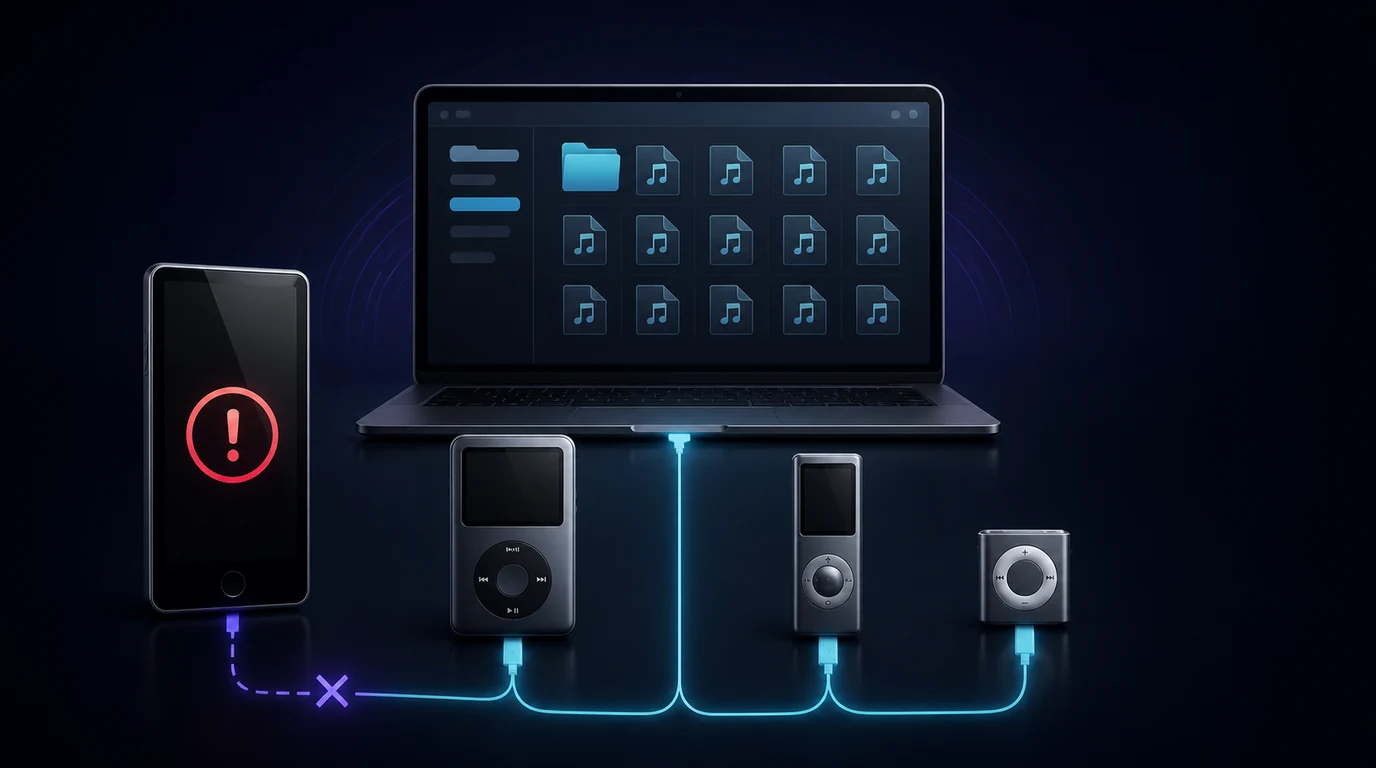
Turn a static score into editable MIDI
Contents
Spotify on iPod is no longer a supported app setup. Spotify currently requires iOS 16.1 or later, while the final iPod touch remains on iOS 15. Classic, Nano, and Shuffle models cannot install Spotify at all because they are local-file players, not iOS streaming devices.
That leaves two honest paths. Use Spotify on a currently supported phone, tablet, computer, or connected speaker. Or use an iPod as a local music player by syncing audio files you own, created, bought DRM-free, ripped from your own CDs where permitted, or otherwise have permission to copy.
Check your iPod model before doing anything
The word "iPod" covers several very different devices. Start with the hardware, because the correct answer changes by family.
| iPod family | Current Spotify app | What still works | Best next step |
|---|---|---|---|
| iPod touch 7th generation | Not officially supported because it is limited to iOS 15 | Local Music library, owned files, and other apps that still support iOS 15 | Use a supported Spotify device or sync permitted local music |
| Earlier iPod touch models | Not officially supported and limited to older iOS releases | Existing local library and compatible legacy apps | Treat Spotify playback as unsupported and keep a local library |
| iPod Classic | No app support | Computer-synced MP3, AAC, Apple Lossless, AIFF, WAV, and other compatible files | Sync a small owned-file playlist with Finder or iTunes |
| iPod Nano | No app support | Computer-synced compatible audio | Check the exact generation, then sync selected music |
| iPod Shuffle | No app support | Computer-synced compatible audio and playlists | Use a small, carefully ordered sync playlist |
The important distinction is not Touch versus click wheel. It is streaming app versus local library. Spotify catalog access needs an authorized Spotify app, web player, or supported integration. Traditional iPods work from files stored on the device.
Why Spotify no longer supports iPod touch
Spotify's current supported-device page lists iOS 16.1 or later as the minimum for its mobile app. The same page says Spotify content may only be accessed through Spotify, the web player, or another app authorized by Spotify.
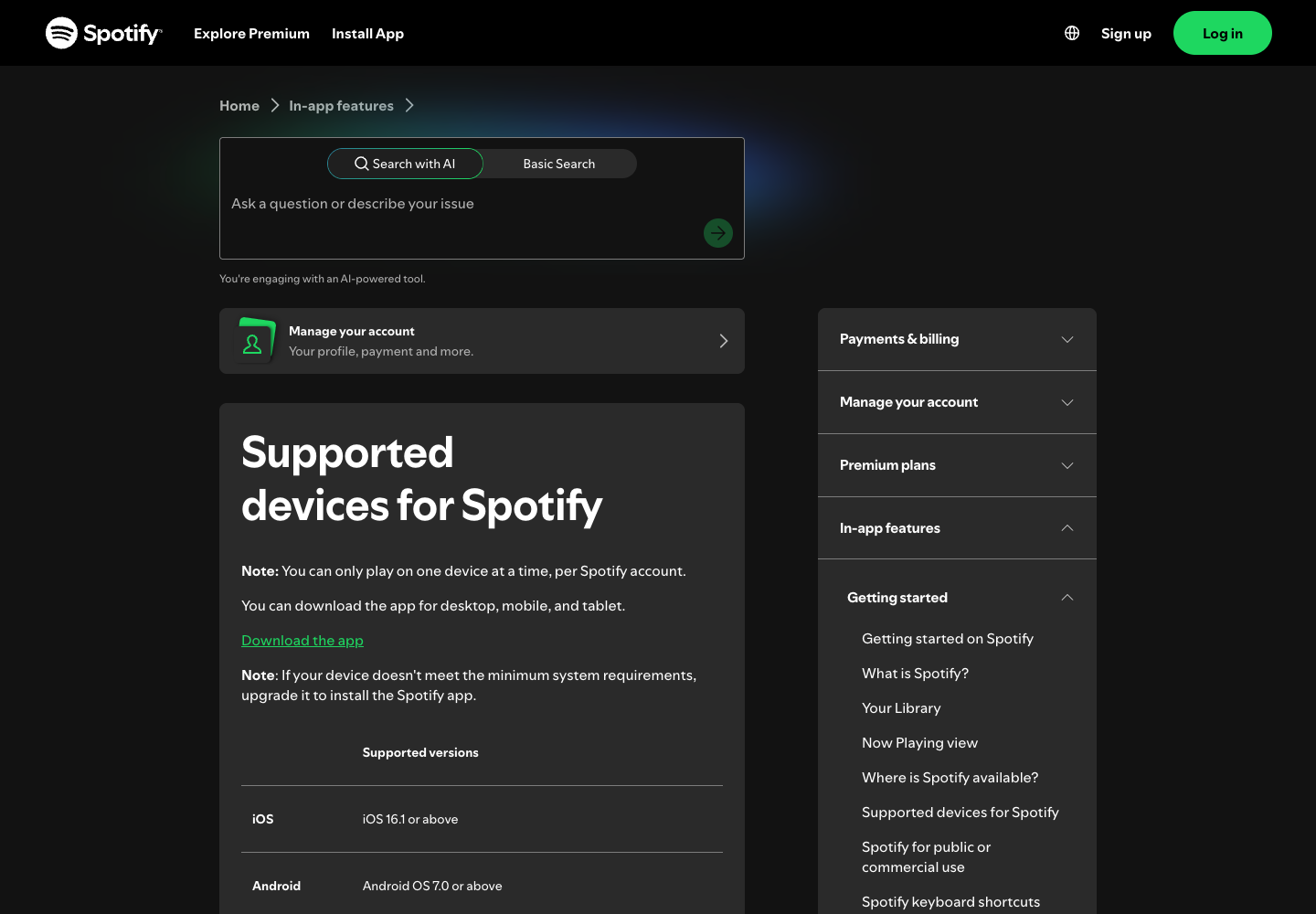
Apple's iPod touch user guide describes the 7th-generation model with iOS 15.5. Apple discontinued the iPod line, and no iPod touch can update to iOS 16.1. That means there is no iPod with a current, officially supported Spotify app configuration.
An older Spotify build may still be visible in a purchase history or remain installed on a device. Do not treat that as a reliable solution. An unsupported build can fail to install, sign in, load the catalog, download music, or keep working after a service change. Avoid jailbreak packages, modified clients, and unofficial app files; they add account and device risk without restoring official support.
If Spotify is failing on a supported modern device instead, use the symptom-first Spotify problems checklist. That article covers a different job from keeping a legacy iPod useful.
Classic Nano and Shuffle need local audio files
iPod Classic, Nano, and Shuffle models do not run Spotify. They also cannot receive Spotify Premium offline downloads through Finder, Apple Devices, or iTunes. Those downloads are managed inside Spotify and are not normal MP3 or AAC files.
Use this source check before you connect the iPod:
| Music source | Can it enter an iPod sync library? | Reason |
|---|---|---|
| Spotify catalog track or Premium download | No | It remains controlled by Spotify and is not a transferable local song |
| Spotify local file that you already own | Use the original computer file | The original file, not Spotify's library entry, is the sync source |
| DRM-free music purchase | Usually, if the format is compatible | It is a normal local file and still needs a rights and format check |
| CD import made where permitted | Usually | Keep the computer library as the master copy |
| Original recording, lesson, or DAW export | Yes | Make a compatible listening copy and preserve the master elsewhere |
| File received from another person | Only with permission | Possession of a file does not automatically grant copying rights |
If you are trying to understand Spotify's own local-files feature on a supported computer or phone, read the Spotify local-files setup guide. Adding a local file to Spotify and syncing that source file to an iPod are separate operations.
Sync owned music from a Mac with Finder
On current macOS, Finder handles device synchronization. Apple's current Mac sync guide shows the general process for iPhone, iPad, and iPod touch, including selected music and playlists. Legacy click-wheel iPods use the same computer-library principle when Finder recognizes them.
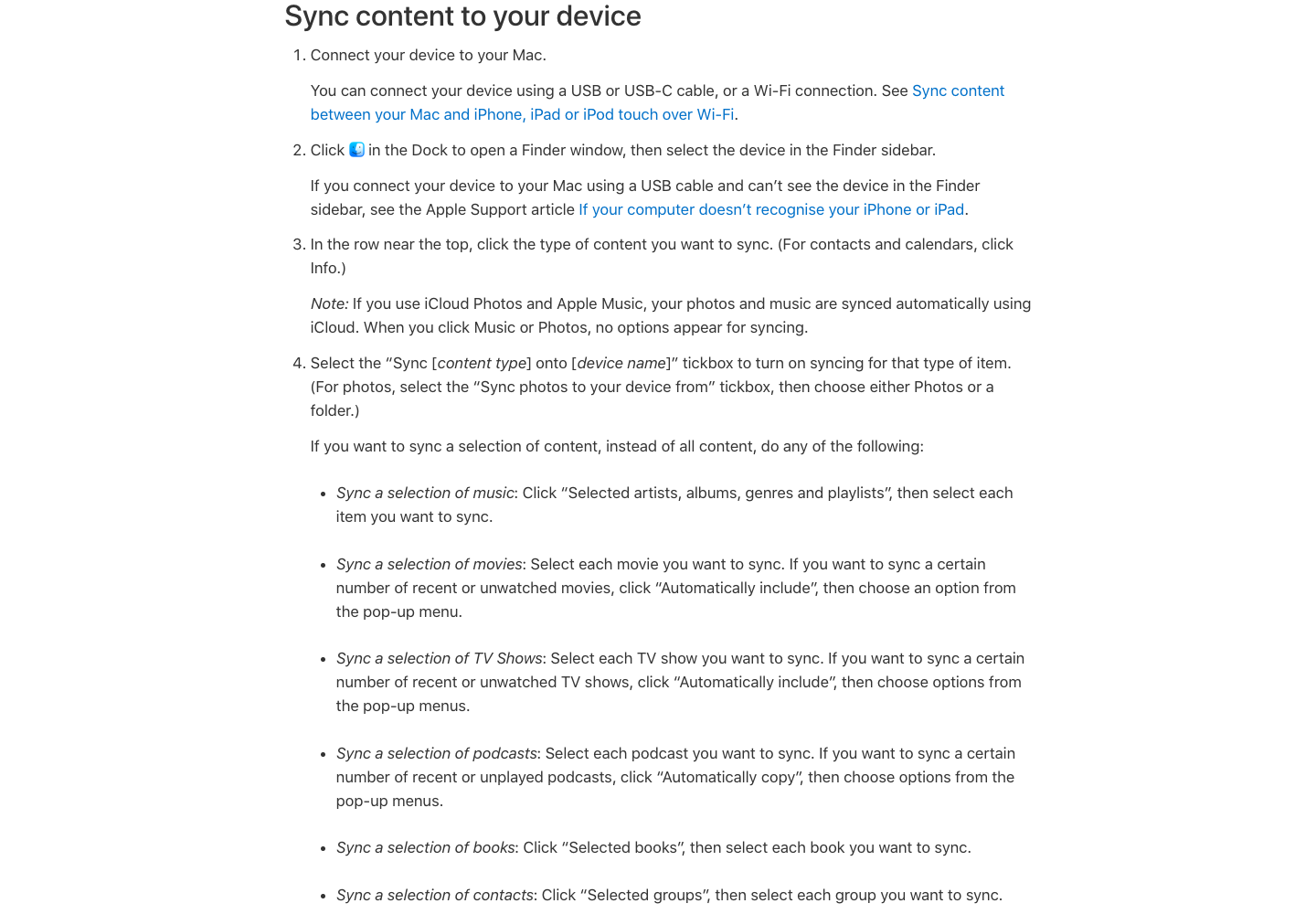
Use a small test instead of syncing the whole library first:
- Put three to five permitted audio files into the Mac Music library.
- Play every test file on the Mac and confirm the source path exists.
- Connect the iPod with a known-good cable and adapter.
- Open Finder and select the iPod in the sidebar.
- Choose Music and select one small test playlist.
- Click Apply or Sync and wait for the operation to finish.
- Eject the iPod in Finder before disconnecting it.
If Finder shows Erase and Sync, stop. The iPod is associated with another computer library, and continuing can replace the music already on the device. First identify the complete source library and back up anything that exists only on the iPod.
For model-specific Classic preparation, the Apple Music on iPod Classic guide explains the same owned-file boundary, compatible listening copies, and erase warning in more depth. The streaming service is different, but the local-library safety rule is the same.
Sync from Windows with Apple Devices or iTunes
Apple's current Windows workflow uses Apple Music for the computer library and Apple Devices for synchronization. Older iPods and older Windows setups may still rely on iTunes. Choose the application that recognizes the device and contains the verified source library; do not bounce between several libraries during troubleshooting.
Try this order:
- Install current Apple software from an official Microsoft Store or Apple source.
- Connect the iPod directly to the computer instead of through an unpowered hub.
- Confirm the device appears in Apple Devices.
- Select Music, choose one test playlist, and apply the sync.
- If a legacy iPod is not supported in Apple Devices, use Apple's documented iTunes path on a compatible system.
- Eject the device before unplugging it.
Apple's computer sync overview distinguishes current Mac Finder, Windows Apple Devices, and older iTunes paths. Interface details can change, so use the current official instructions for the computer in front of you rather than a converter tutorial written for an older release.
Keep Spotify downloads and iPod files separate
The competitor page behind this topic mixes a legitimate device question with a Spotify-to-MP3 workaround. That changes the job from device support to streaming extraction. It also hides the most useful answer: Spotify no longer officially supports any iPod, while a legacy iPod can still be a good local-file player.
Use these boundaries:
- Keep Spotify catalog listening inside Spotify and its authorized playback routes.
- Do not rename, record, decrypt, or convert a subscription download to make it look like a local file.
- Go back to the original MP3, AAC, WAV, or other permitted source when a track is yours.
- Keep one master library on the computer and treat the iPod as a replaceable copy.
- Test one playlist before changing sync modes or restoring the device.
Where Melogen fits for owned audio
Melogen does not connect a Spotify account, restore Spotify support on an iPod, or extract catalog music. It fits only after you already have a normal local audio file you own or have permission to edit.
Melogen Music Trimmer can help you prepare a listening copy when you need to remove silence from your own rehearsal recording, keep one useful practice section, add a fade, or export a shorter file while preserving the original master.
Prepare a local listening copy before syncing
Use Melogen Music Trimmer for recordings, demos, and other audio you are allowed to edit. Keep the master file, export a listening copy, then add that copy to the iPod playlist.
Fix common iPod sync problems
| Symptom | Likely cause | Safest next check |
|---|---|---|
| Spotify will not install on iPod touch | The device cannot meet the current iOS minimum | Stop retrying unofficial builds and use a supported Spotify device |
| An old Spotify app will not sign in | Unsupported client or service change | Do not sideload; move Spotify listening to a supported device |
| The iPod does not appear on the computer | Cable, adapter, USB port, driver, app, or device state | Try a known-good cable and direct USB port, then reopen Finder, Apple Devices, or iTunes |
| Spotify downloads do not appear in the sync list | They are managed subscription items | Test a permitted local MP3 or AAC file instead |
| Only some local tracks fail | Missing source, authorization issue, damage, or incompatible encoding | Play the original on the computer and test one ordinary MP3 or AAC copy |
| Erase and Sync appears | The iPod belongs to a different library | Stop and locate the full source library before accepting |
| The iPod is full | The selected library is too large | Sync fewer playlists or create smaller listening copies from permitted masters |
Change one variable at a time. Start with a known-good cable and a known-good local file. Then check the library and format. Restore should be the last step because it can erase the device.
FAQs
Can you put Spotify on an iPod touch?
Not as a current supported setup. Spotify requires iOS 16.1 or later, while the final iPod touch is limited to iOS 15. An old app build may be unreliable and should not be treated as supported.
Can iPod Classic Nano or Shuffle play Spotify?
No. Those models cannot install Spotify or stream its catalog. They can play compatible local audio files synced from a computer.
Can Spotify Premium downloads sync to an iPod?
No. Premium downloads remain managed inside Spotify and are not transferable MP3 or AAC files. Use an original local file you own or have permission to copy.
What is the safest way to add music to an old iPod?
Keep the complete library on a computer, back it up, test a few compatible files in one playlist, sync with Finder, Apple Devices, or iTunes, and eject the device safely.
Should I install an old Spotify IPA or modified app?
No. Unsupported packages can expose the account and device to security problems, and they do not restore official service support. Use Spotify on a supported device.
Can Melogen convert Spotify songs for an iPod?
No. Melogen does not extract Spotify catalog music. Use it only to trim or prepare ordinary local audio you created, bought DRM-free, licensed, or otherwise have permission to edit.
The practical takeaway
No current iPod meets Spotify's official iOS requirement. Use Spotify on a supported device, and use Classic, Nano, Shuffle, or iPod touch as local-library players only when that fits the hardware. For owned or permitted audio, keep the computer library as the master, sync one small playlist through Finder, Apple Devices, or iTunes, and eject safely. Do not turn a device-support problem into a streaming-conversion workaround.
About the author
Zhang Guo
Composer - AI Product Manager
AI product manager and digital marketing consultant with a background in music. Creativity is the bridge between rhythm and logic, where musical intuition and mathematical precision can coexist in every meaningful product decision.
Follow on X